All code in Auction Items Page Header Injection. The code is cached for 10 minutes, so you won’t see the changes immediately; you’ll need to wait at least 10 minutes.

All items here
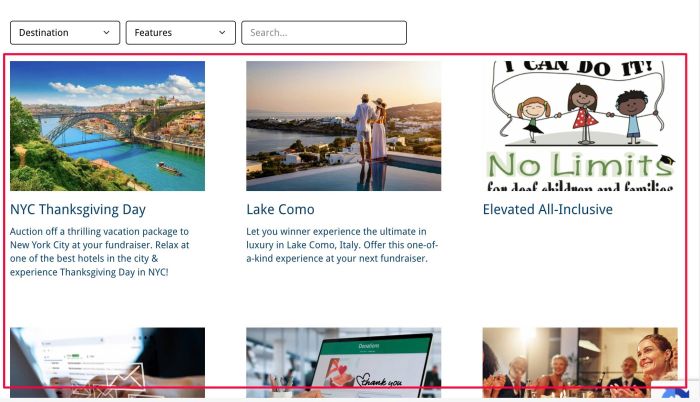
will get from items on dropdown SM Pages
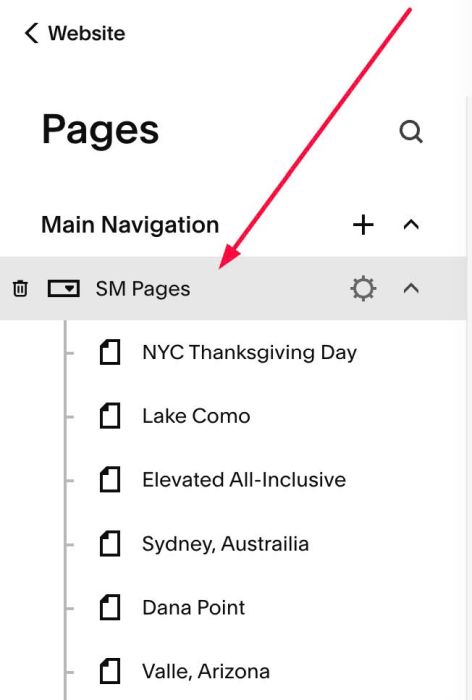
Note: I used code to hide item SM Pages from Header Menu.

#1. Dropdown: Destination

#1.1. To change label: Destination, find this line (Line 14)
label: 'Destination',

To change label Domestic & International, change Line 17 & Line 23
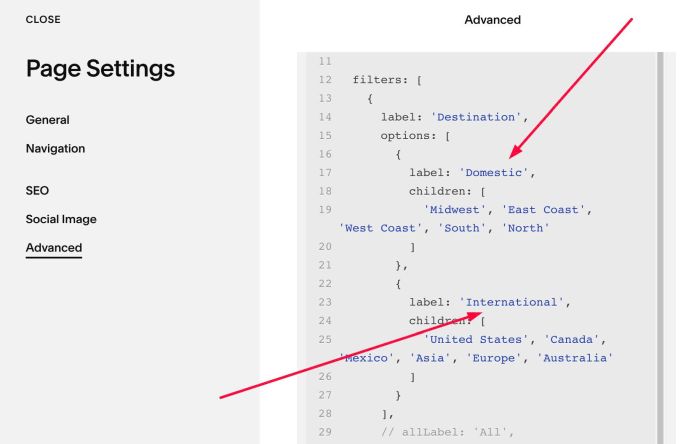
#1.2. To add items to Dropdown Destination/Domestic/International, you can enter text like Line 13 to Line 32
- Each option is enclosed in single quotes and separated by commas, ex: ‘United States’, ‘Canada’, ‘Mexico’
{
      label: 'Destination',
      options: [
        {
          label: 'Domestic',
          children: [
            'Midwest', 'East Coast', 'West Coast', 'South', 'North'
          ]
        },
        {
          label: 'International',
          children: [
            'United States', 'Canada', 'Mexico', 'Asia', 'Europe', 'Australia'
          ]
        }
      ],
      // allLabel: 'All',
      // logic: 'or',
      // enable: true,
    },

#1.3. To add an item to corresponding Dropdown Item
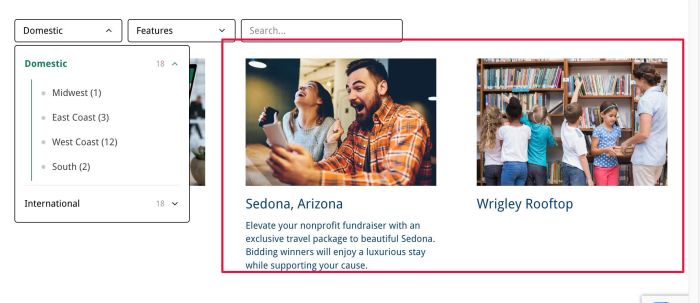
You can hover on a page in dropdown SM Pages > Click Gear icon
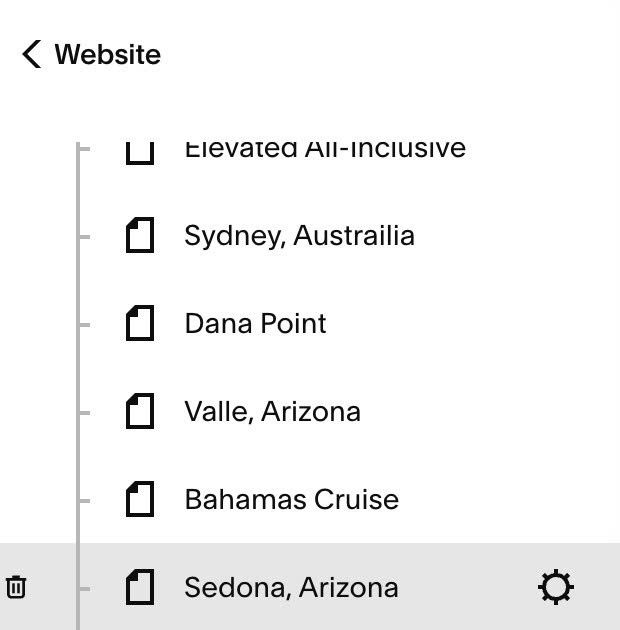
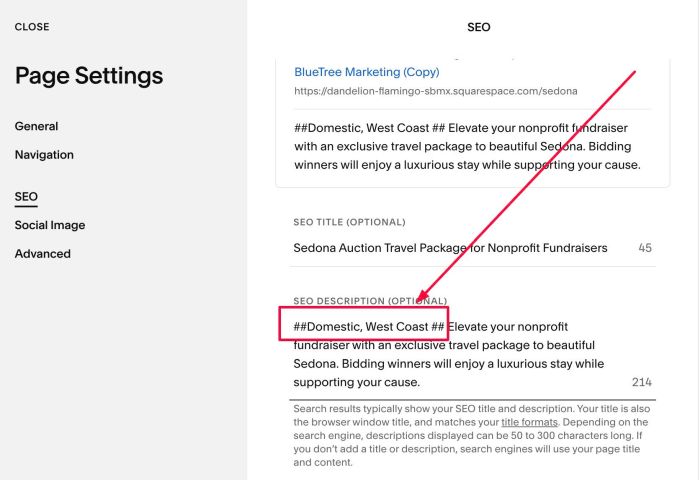
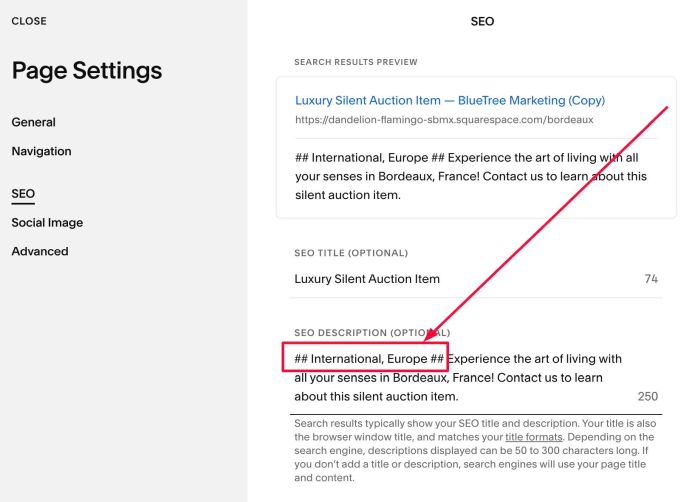
Click SEO > Enter text with format like this into SEO Description
##Domestic, West Coast ##
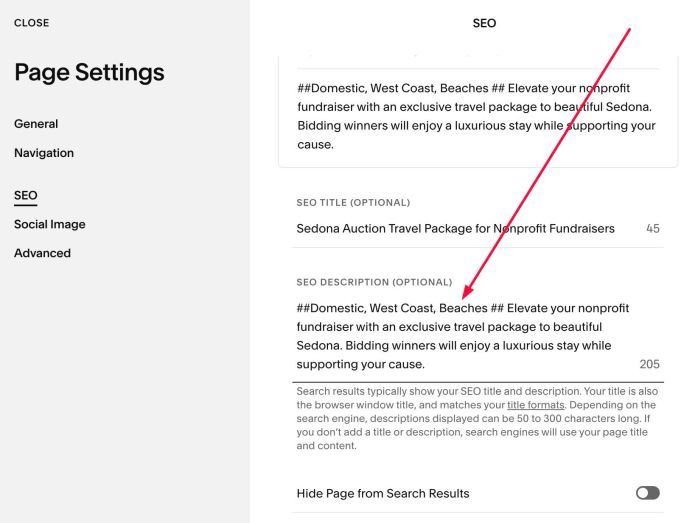
In case you want to add an item from dropdown Features for this item, we can use text like this
##Domestic, West Coast, Beaches ##
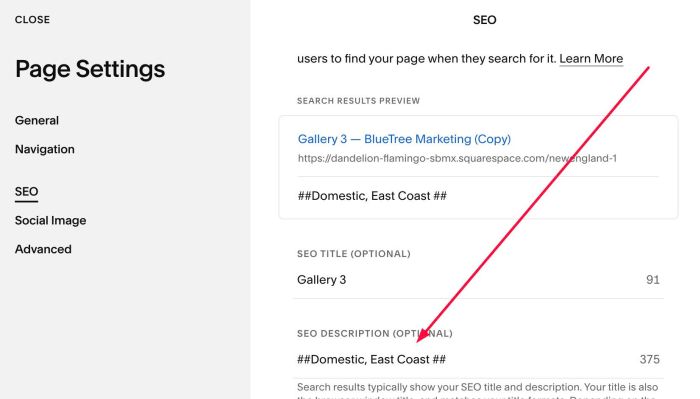
another example
##Domestic, East Coast ##
## International, Europe ##
#2. Dropdown: Features
You can change Label/Option in Line 33 to Line 45
{
      label: 'Features',
      options: [
        'Beaches', 'Mountains', 'Best Sellers'
      ],
      // options: [
      //   { label: 'Beaches', children: ['Sandy', 'Rocky'] },
      //   'Mountains'
      // ],
      // allLabel: 'All',
      // logic: 'or',
      // enable: true,
    },
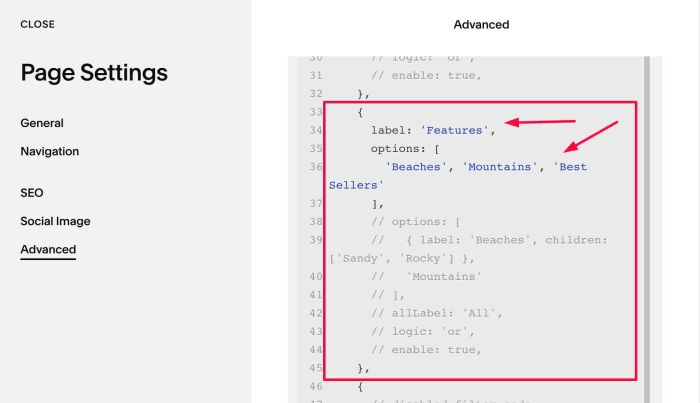
Note: Code with // in front is disabled (it will be grayed out). I added it in case you need more options in the future.

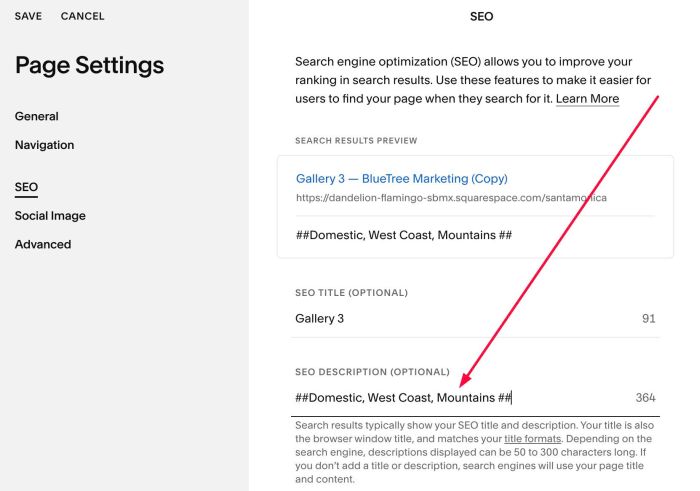
To add filter items to corresponding dropdown item, we can repeat similar #1.3, use text format like this into SEO Description
##Domestic, West Coast, Mountains ##
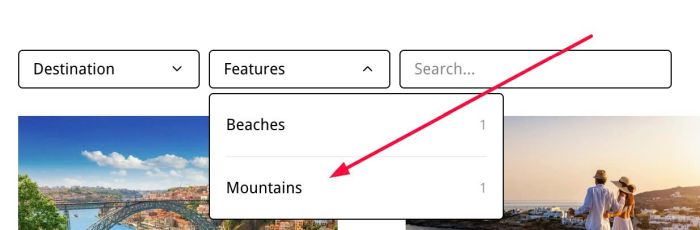
After adding the new option, the dropdown will update after 10 minutes and it will be displayed in the Features dropdown (and also show the number of items for which the text “Mountains” has been entered).
#3. Dropdown Style
You can adjust these lines
style: {
    gap: '8px',
    rowGap: '16px',
    marginBottom: '24px',
    fontSize: '13px',
    labelWeight: '600',
    activeColor: 'transparent',
    activeTextColor: '#0b7a5f',
    inactiveColor: 'transparent',
    inactiveTextColor: '#000000',
    childIndent: '20px',
    dropdown: {
      minWidth: '160px',
      background: '#ffffff',
      border: '1px solid #000000',
      borderRadius: '4px',
      textSize: '14px',
      textColor: '#000000',
      panelBackground: '#ffffff',
      hoverBackground: '#f2f2f2',
      panelWidth: '260px',
      activeTextColor: '#0b7a5f',
      countColor: '#9a9a9a',
      dividerColor: '#ececec',
      childTextSize: '14px',
      childTextColor: '#3f3f3f',
      childActiveColor: '#0b7a5f',
      childLineColor: '#0b7a5f',
      childBulletColor: '#c9c9c9'
    }
  },
#4. Search
To adjust search
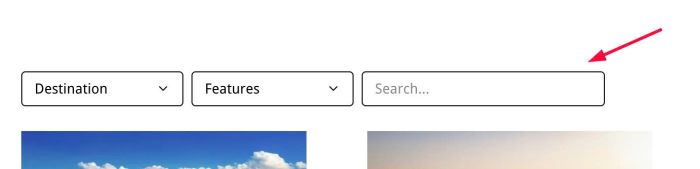
You can adjust Line 56 – Line 67
search: {
    enable: true,
    placeholder: 'Search...',
    fields: ['title', 'excerpt', 'tags'],
    width: '240px',
    background: '#ffffff',
    border: '1px solid #000000',
    borderRadius: '4px',
    textSize: '14px',
    textColor: '#000000',
    placeholderColor: '#888888'
  },
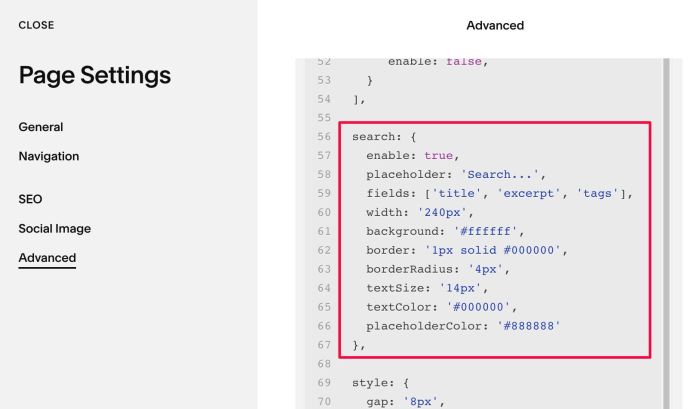
To disable Search, you can change
enable: true,
to
enable: false,