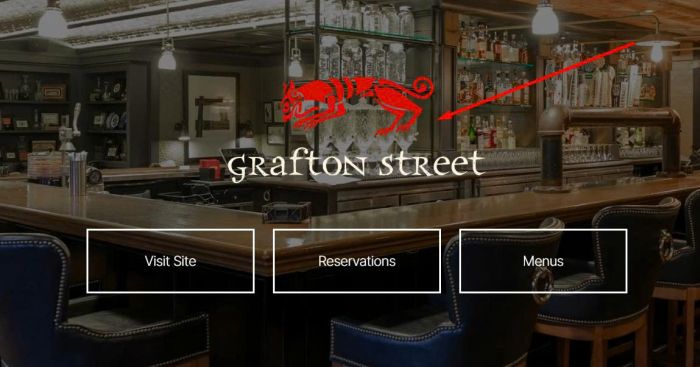
#1. Change overlay Logo
First, you need to upload logo to get logo url. Follow this guide.
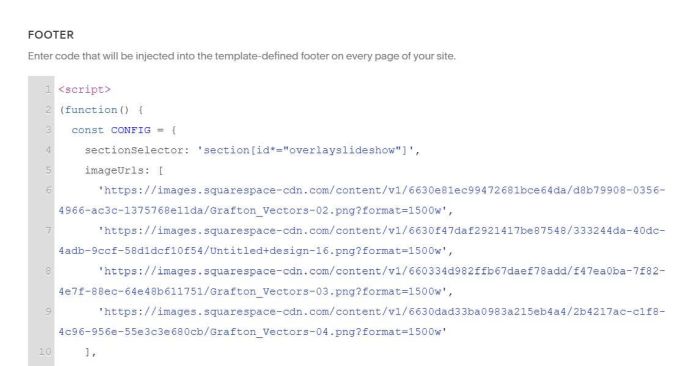
Next, access Code Injection > Footer > Update these urls
- first url is Grafton
- second url is Hourly
- third url is Russell House
- fourth url is Provisions
#2. Change Button Text/Button URL

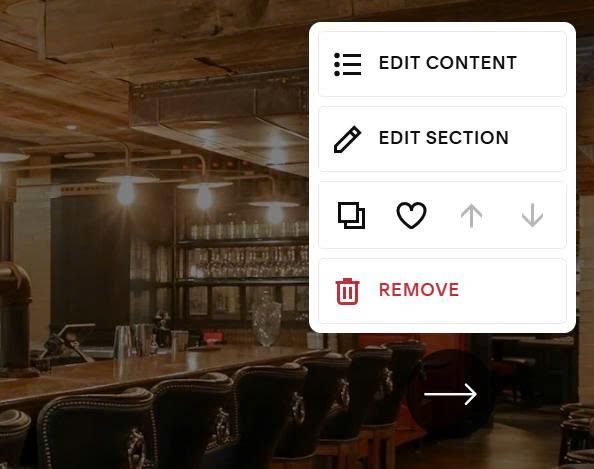
Hover on top right of slideshow > Click Edit Content
Next, click Content
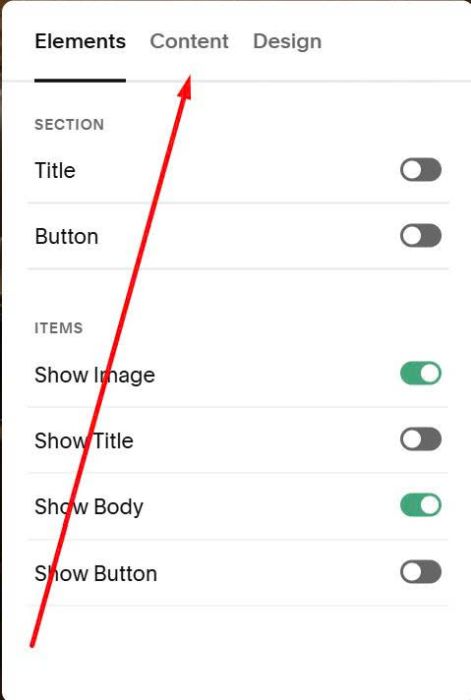
Click on each item to edit button
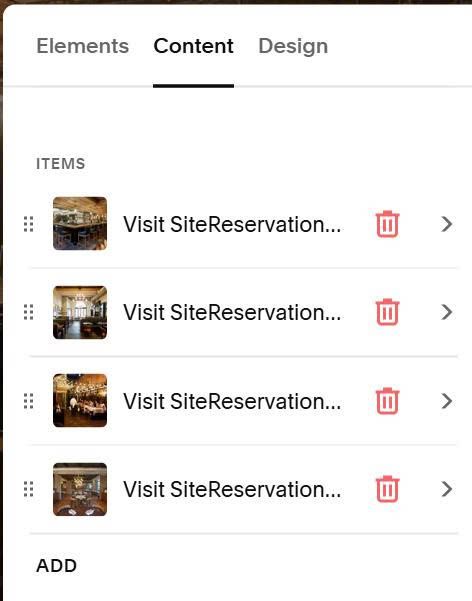
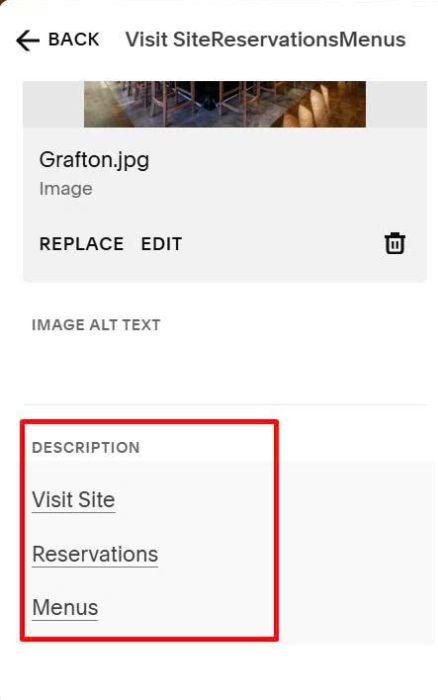
Edit button text here
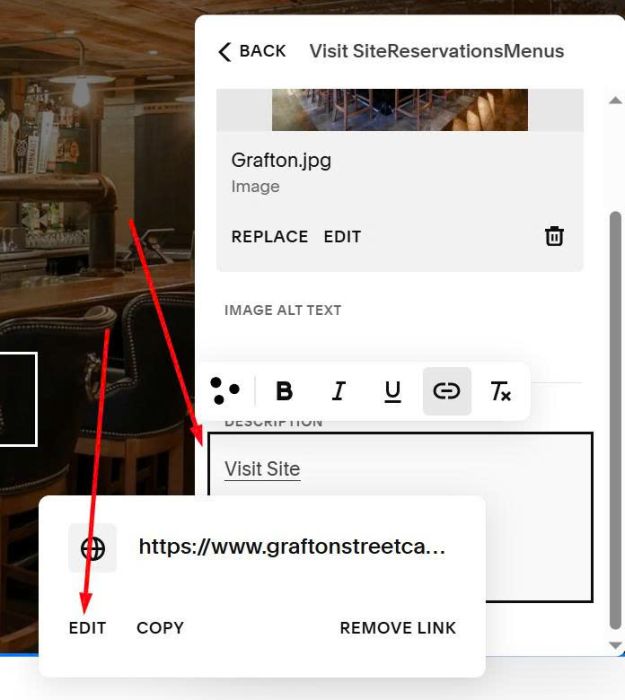
To edit button url > Just click on Button text > You will see an option to edit url
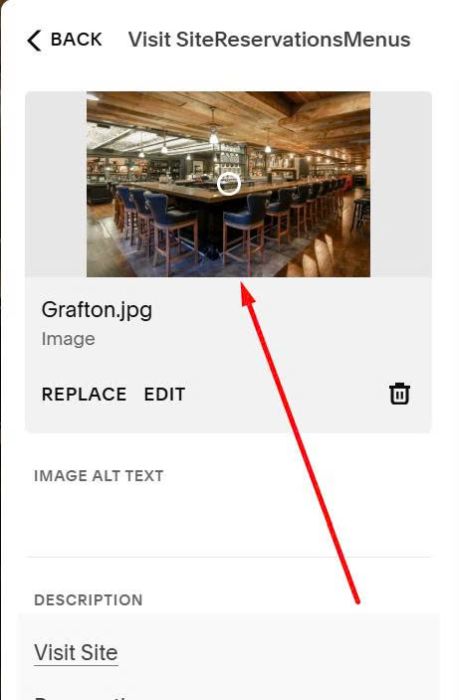
#3. Change Slideshow Image
Hover on top right of slideshow > Click Edit Content
Next, click Content
Click on each item to edit image
and you can change slideshow image here
#4. Change Button Style
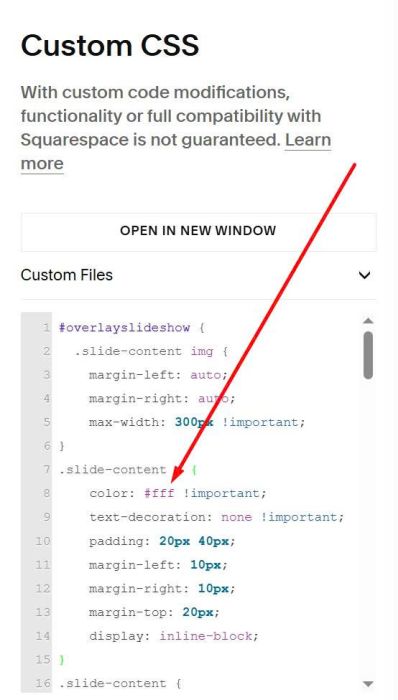
#4.1. Button Text Color
Currently all use white color, you can adjust it in Line 08
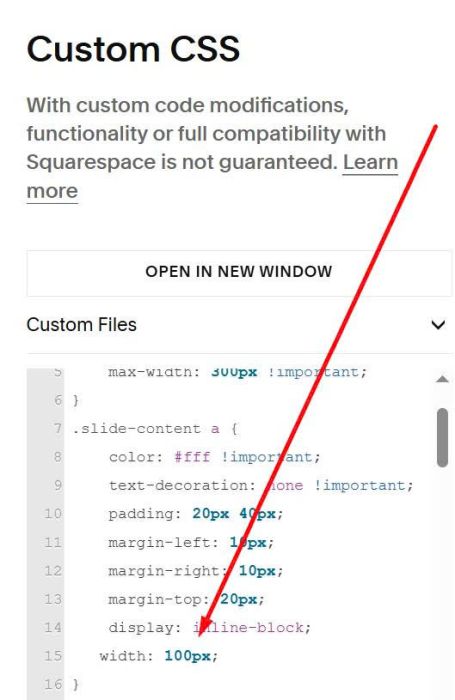
#4.2. Button Width
All buttons use same width, you can adjust it in Line 15
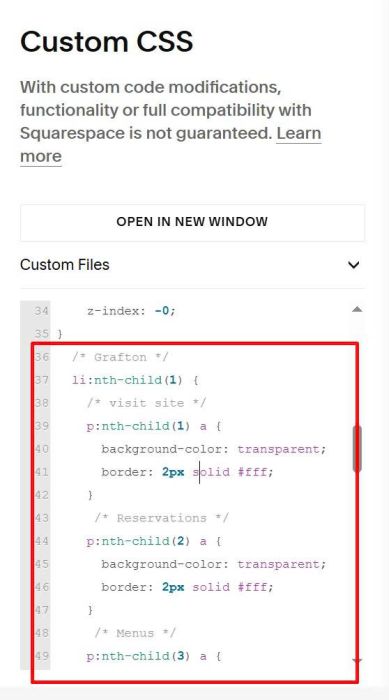
#4.3. Button outline, background
You can adjust in Line 36 to Line 107
/* Grafton */
 li:nth-child(1) {
   /* visit site */
   p:nth-child(1) a {
     background-color: transparent;
     border: 2px solid #fff;
   }
    /* Reservations */
   p:nth-child(2) a {
     background-color: transparent;
     border: 2px solid #fff;
   }
    /* Menus */
   p:nth-child(3) a {
     background-color: transparent;
     border: 2px solid #fff;
   }
 }
 /* Hourly */
 li:nth-child(2) {
   /* visit site */
   p:nth-child(1) a {
     background-color: transparent;
     border: 2px solid #fff;
   }
    /* Reservations */
   p:nth-child(2) a {
     background-color: transparent;
     border: 2px solid #fff;
   }
    /* Menus */
   p:nth-child(3) a {
     background-color: transparent;
     border: 2px solid #fff;
   }
 }
 /* Russell House */
 li:nth-child(3) {
   /* visit site */
   p:nth-child(1) a {
     background-color: transparent;
     border: 2px solid #fff;
   }
    /* Reservations */
   p:nth-child(2) a {
     background-color: transparent;
     border: 2px solid #fff;
   }
    /* Menus */
   p:nth-child(3) a {
     background-color: transparent;
     border: 2px solid #fff;
   }
 }
 /* Provisions */
 li:nth-child(4) {
   /* visit site */
   p:nth-child(1) a {
     background-color: transparent;
     border: 2px solid #fff;
   }
    /* Reservations */
   p:nth-child(2) a {
     background-color: transparent;
     border: 2px solid #fff;
   }
    /* Menus */
   p:nth-child(3) a {
     background-color: transparent;
     border: 2px solid #fff;
   }
 }
#4.4. Button text letter spacing
Change letter spacing here
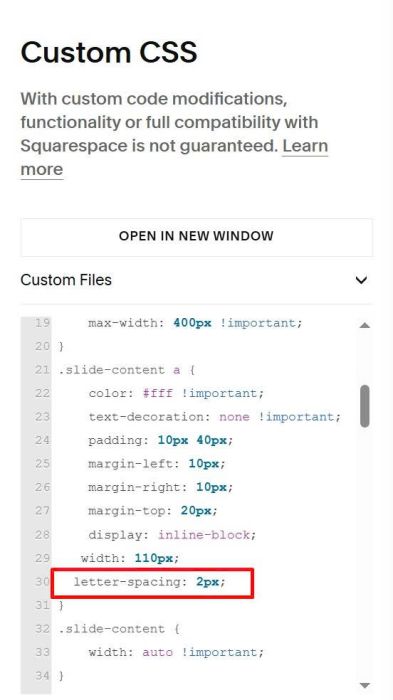
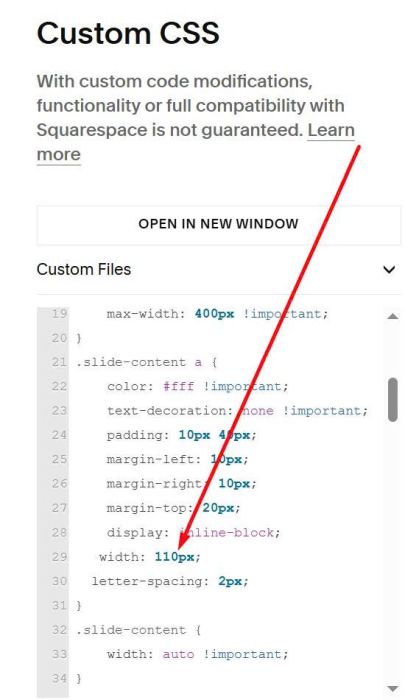
Note: when you change letter spacing, sometimes button text will break to 2 lines, like this.

You can increase width to prevent this.
#4.5. Button Font
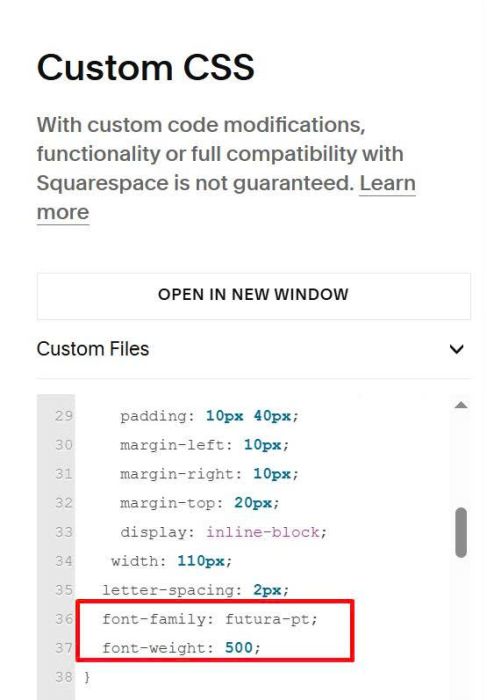
To change button font, you can use these lines
font-family: futura-pt;
 font-weight: 500;
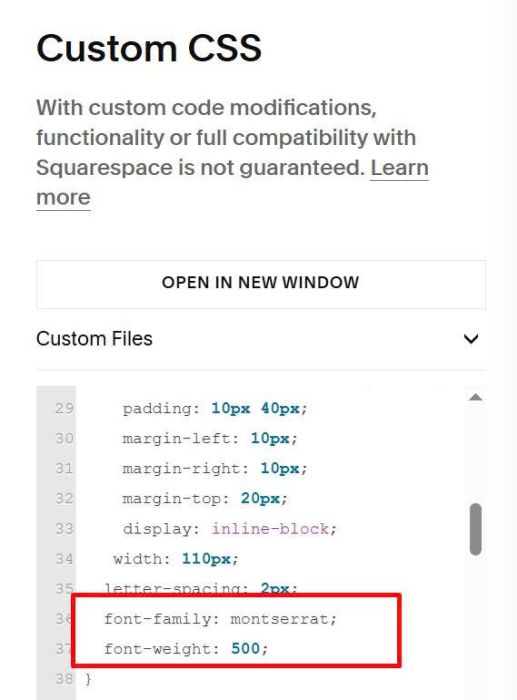
With Montserrat, we will use
font-family: montserrat;
 font-weight: 500;
#5. Overlay Color
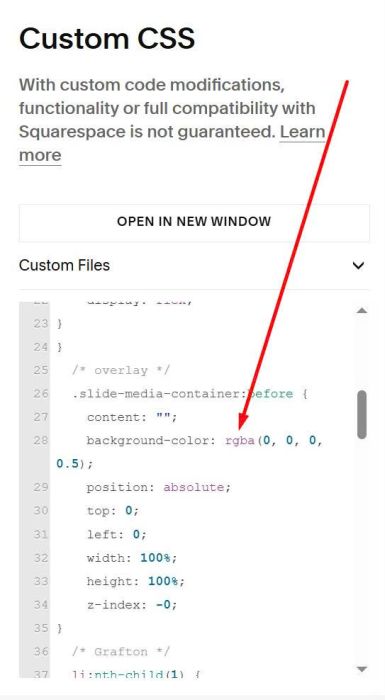
To adjust overlay color over slideshow image, you can change it in Line 28 in Custom CSS
background-color: rgba(0, 0, 0, 0.5);
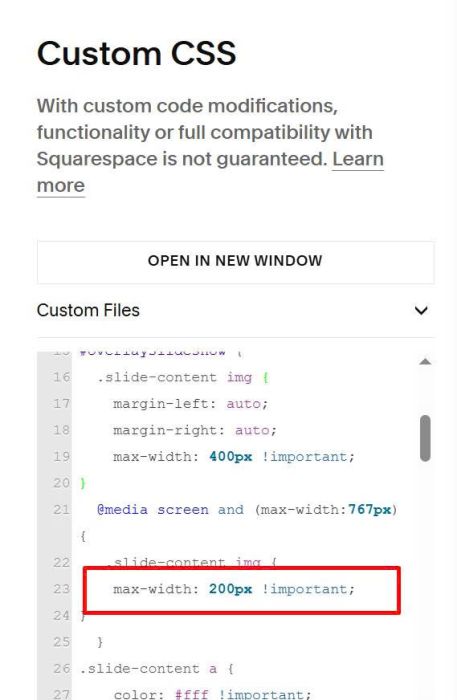
#6. Mobile Logo Size
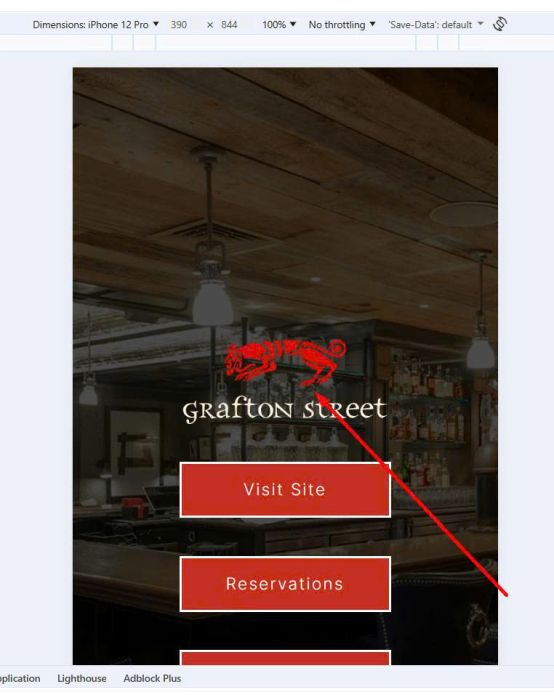
You can adjust at these lines
  @media screen and (max-width:767px) {
   .slide-content img {
    max-width: 200px !important;
}
  }