How to change
- Button Text/Button URL
- Button Spacing/Size
- Button Color
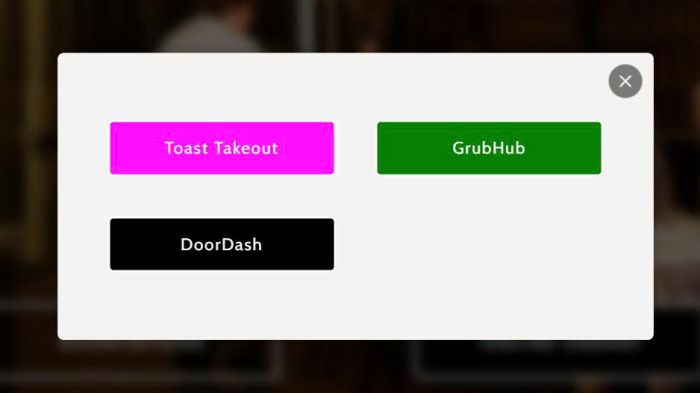
#1. Button Text/Button URL
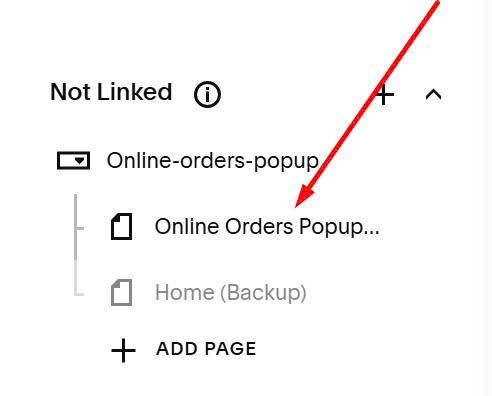
First, click Online Orders Popup page in Not Linked
Next, click EDIT
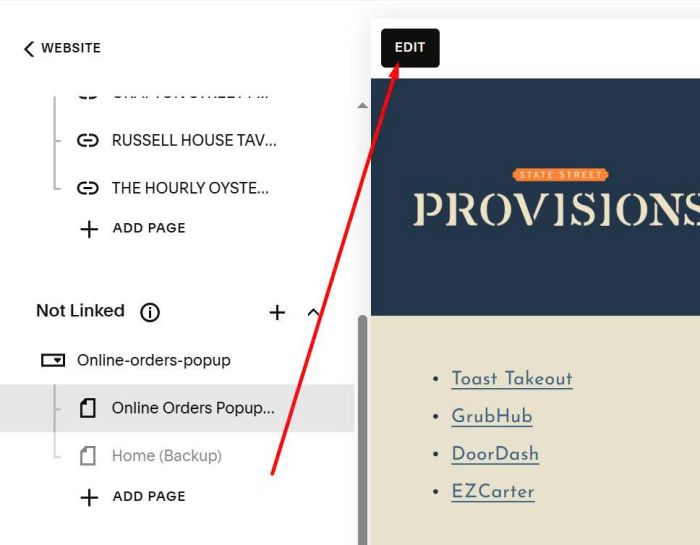
Click on Text > then click EDIT
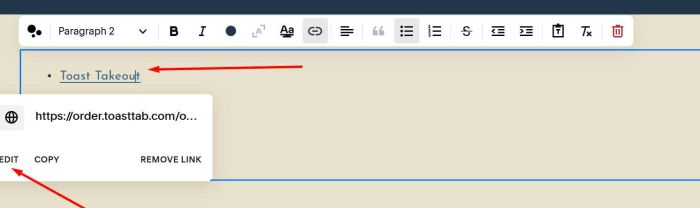
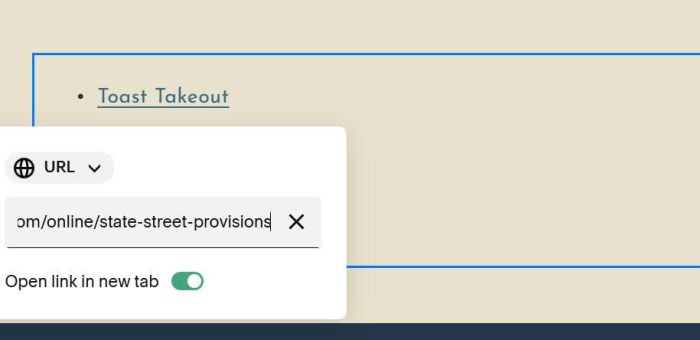
Then you can change Button URL
#2. Button Spacing
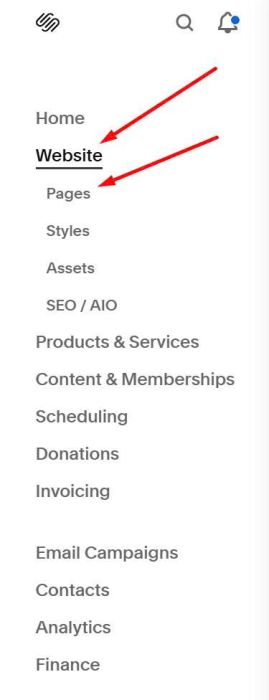
You can click Website > Pages
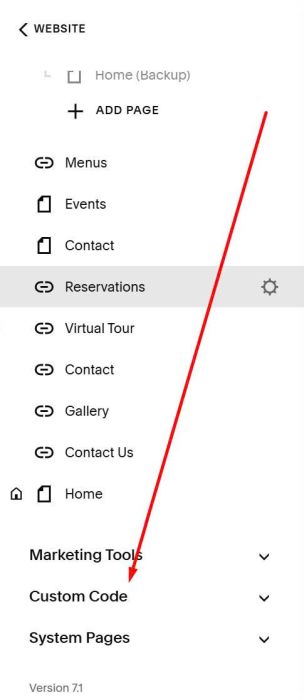
Scroll down to Custom Code
Next, click Custom CSS
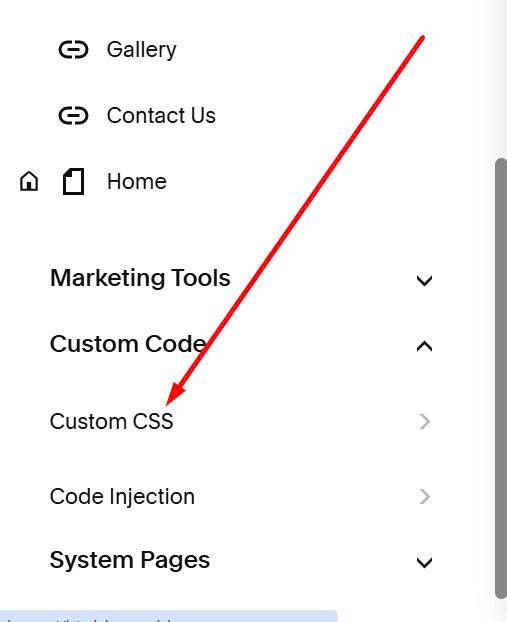
Scroll down to this position
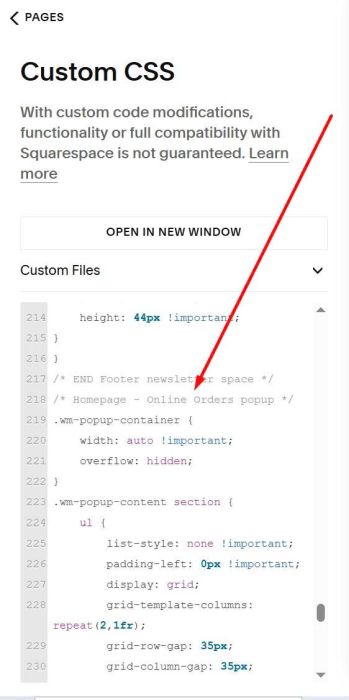
You will see this code
 grid-row-gap: 35px;
grid-column-gap: 35px;
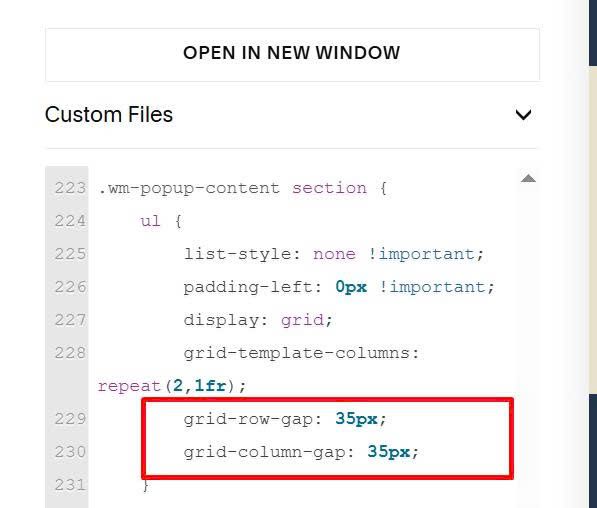
It is space between buttons
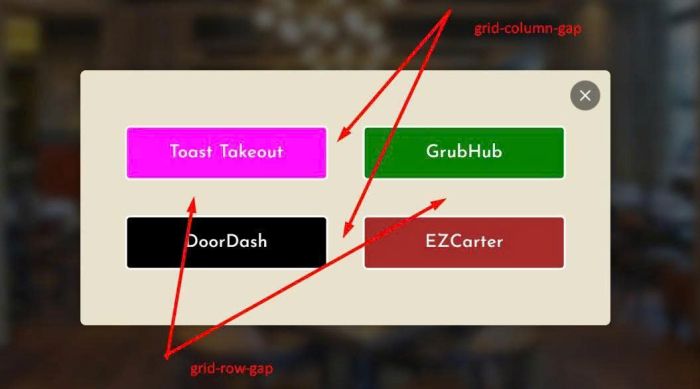
and this code
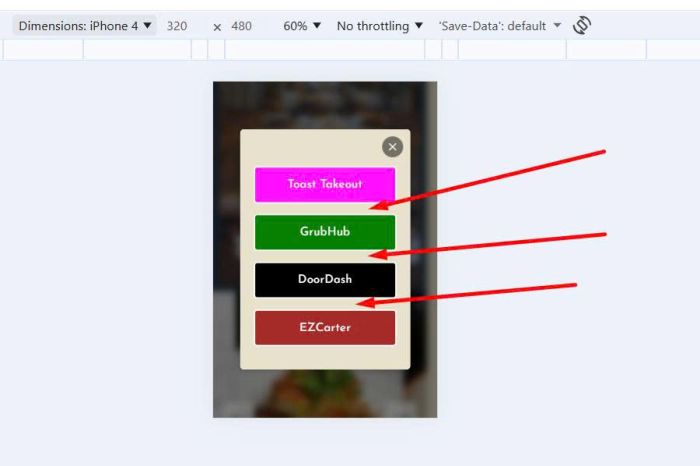
grid-row-gap: 15px;
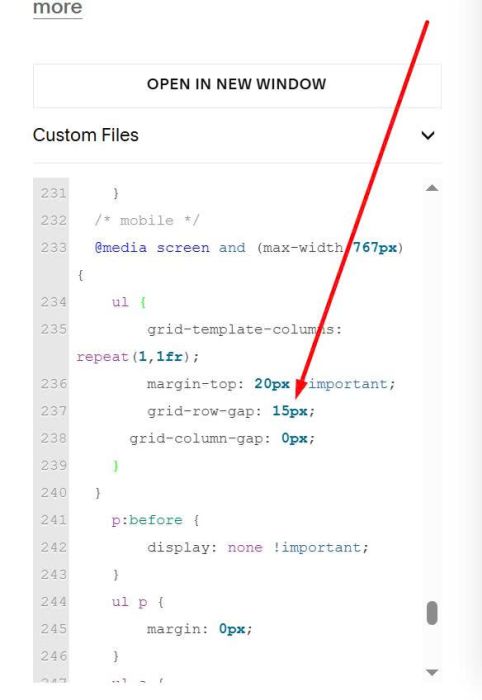
It is space between buttons on mobile
#3. Button Color
Scroll down a bit and you will see this code
color: #fff;
border: 2px solid transparent;
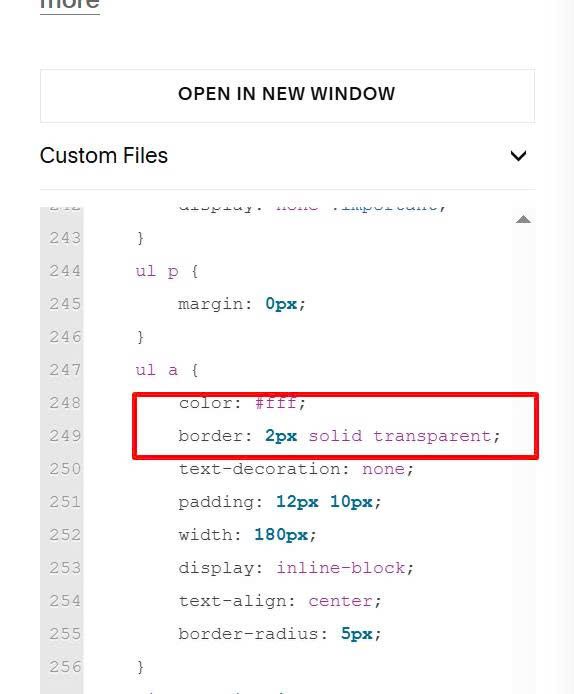
It is Button Text Color + Button Border
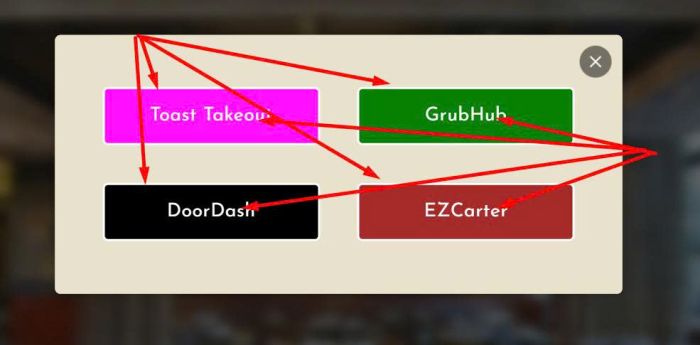
#3.1. First Button Color
You will see code like this
li:nth-child(1) a {
    background-color: #f1f !important;
    border-color: #fff !important;
}
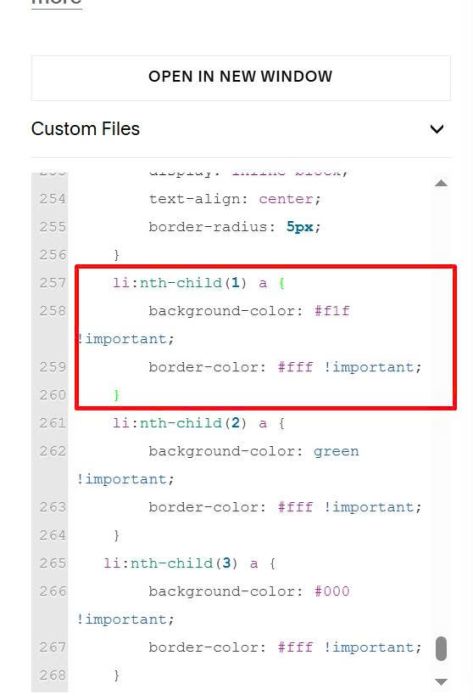
it is button background – border color of FIRST BUTTON
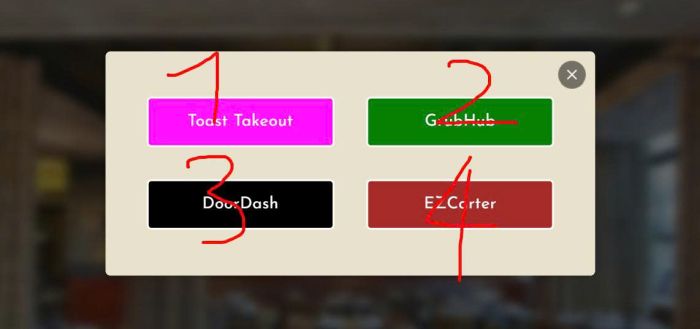
#3.2. Second Button Color
You will see code like this
li:nth-child(2) a {
       background-color: green !important;
       border-color: #fff !important;
   }
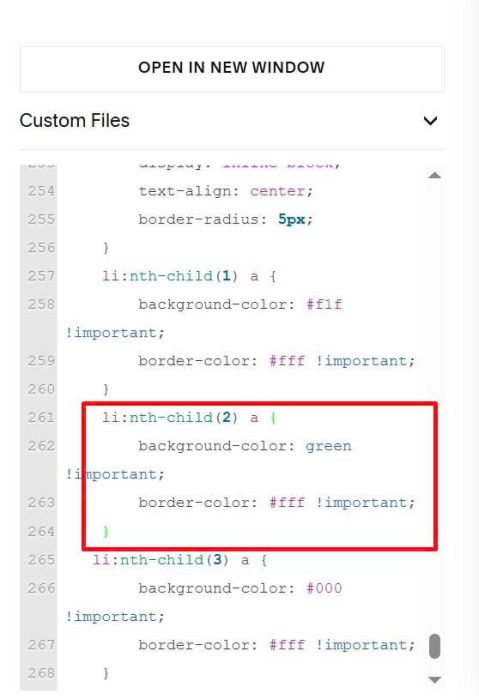
It is button background – border color of SECOND BUTTON
#3.3. Third button color
You will see code like this
li:nth-child(3) a {
        background-color: #000 !important;
        border-color: #fff !important;
    }
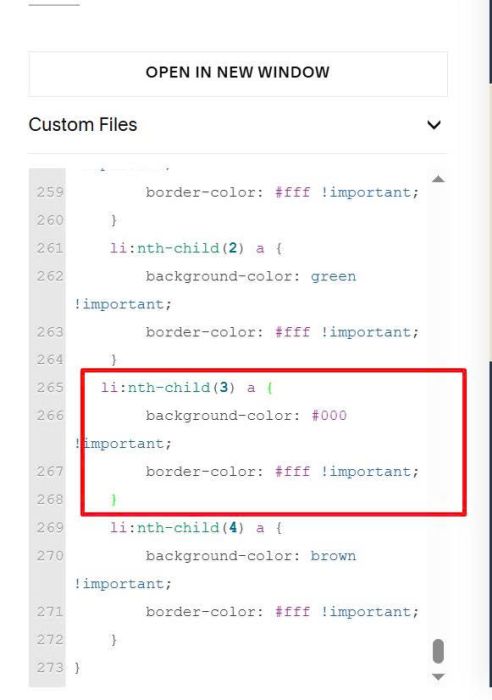
It is button background – border color of THIRD BUTTON
#3.4. Fourth button color
You will see code like this
li:nth-child(4) a {
       background-color: brown !important;
       border-color: #fff !important;
   }
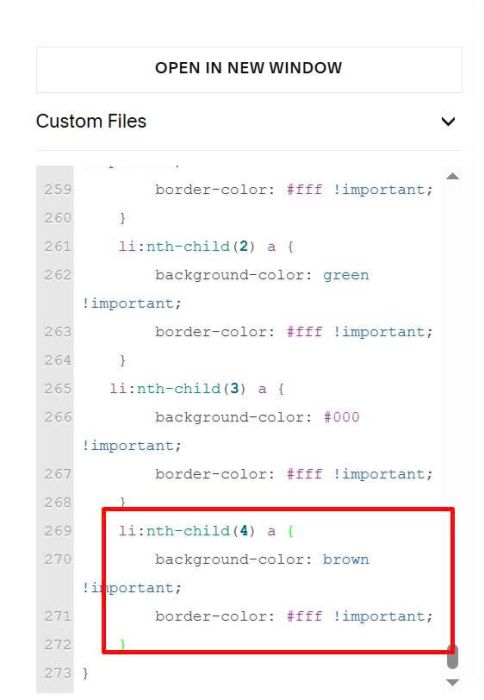
It is button background – border color of FOURTH Button
#4. Button Size
You can scroll to this
padding: 12px 10px;
       width: 180px;
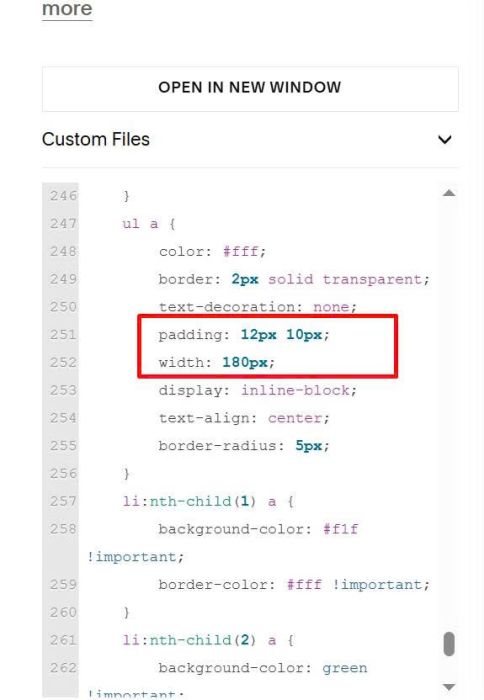
It will set button width – space between text – button border of 4 buttons
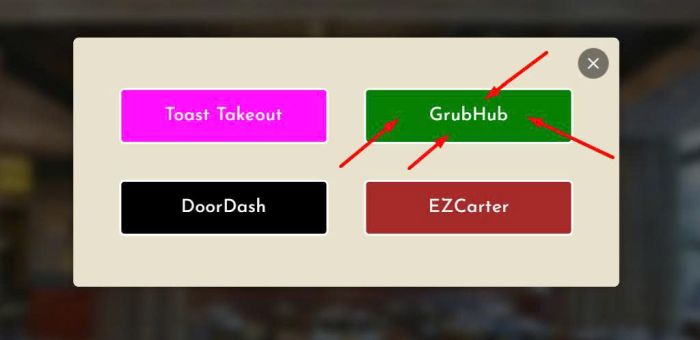
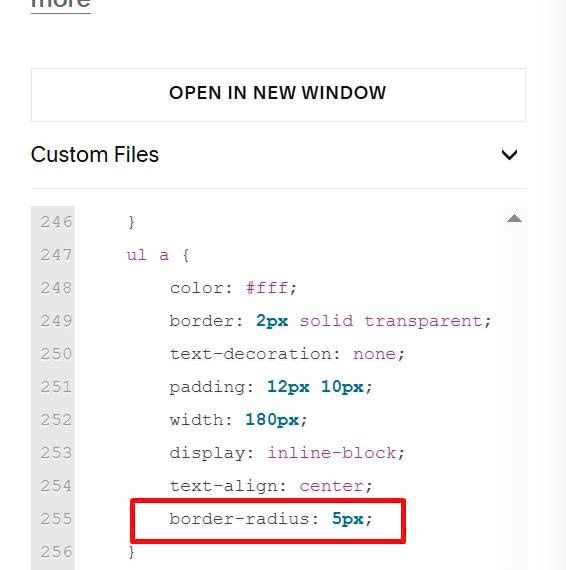
#5. Rounded Corners
If you need to update rounded corners of buttons, change this line
border-radius: 5px;