Description
- adding COMING SOON, VIEW PROJECT text, overlay color when users hover corresponding items in Project Page
- disable links on COMING SOON items (on Project Page + Pagination Links)
#1. All code
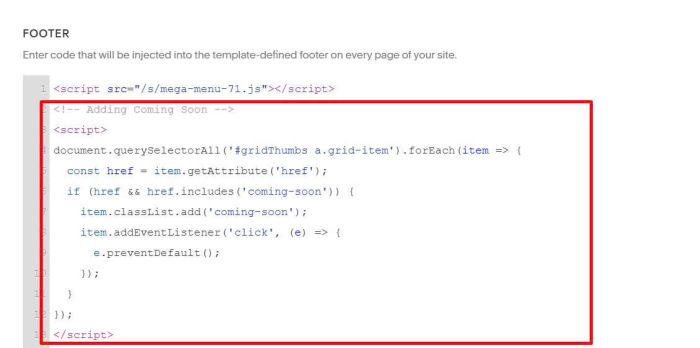
Code Injection > Footer (Line 02 to Line 13)
<!-- Adding Coming Soon -->
<script>
document.querySelectorAll('#gridThumbs a.grid-item').forEach(item => {
  const href = item.getAttribute('href');
  if (href && href.includes('coming-soon')) {
    item.classList.add('coming-soon');
    item.addEventListener('click', (e) => {
      e.preventDefault();
    });
  }
});
</script>
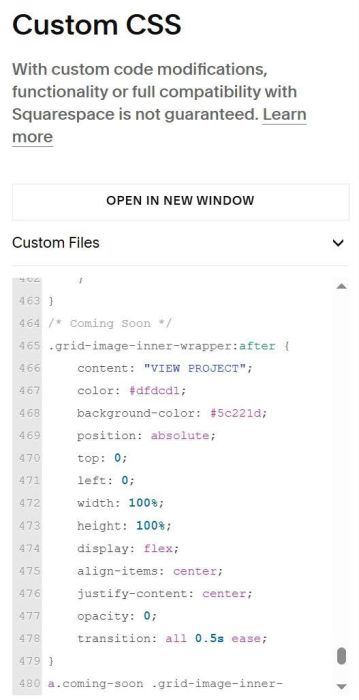
Custom CSS (Line 464 to Line 491)
/* Coming Soon */
.grid-image-inner-wrapper:after {
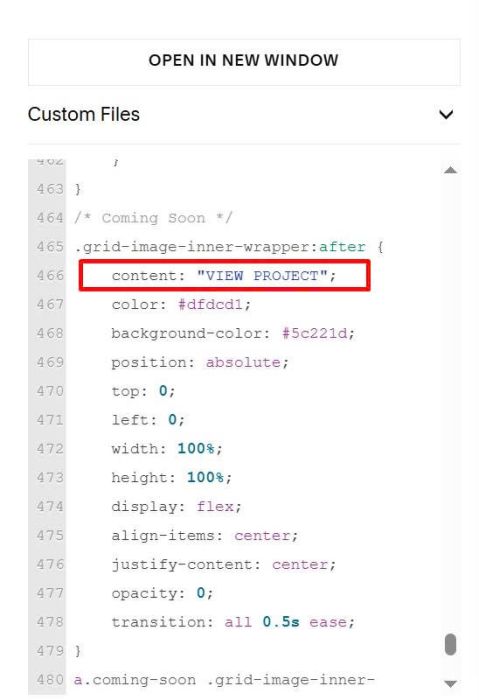
  	content: "VIEW PROJECT";
    color: #dfdcd1;
  	background-color: #5c221d;
    position: absolute;
    top: 0;
    left: 0;
    width: 100%;
    height: 100%;
    display: flex;
    align-items: center;
    justify-content: center;
    opacity: 0;
    transition: all 0.5s ease;
}
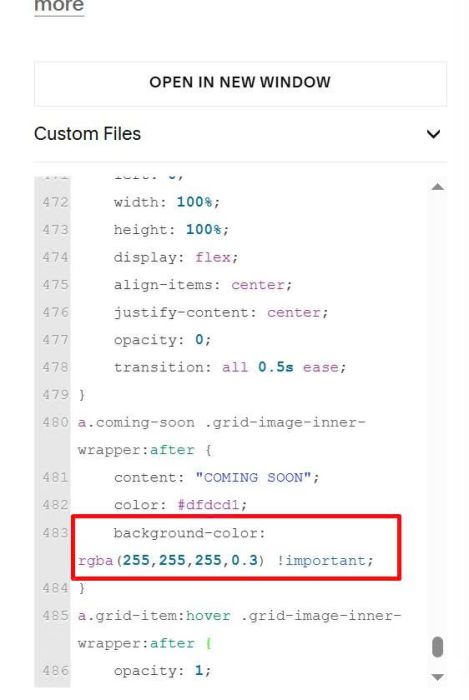
a.coming-soon .grid-image-inner-wrapper:after {
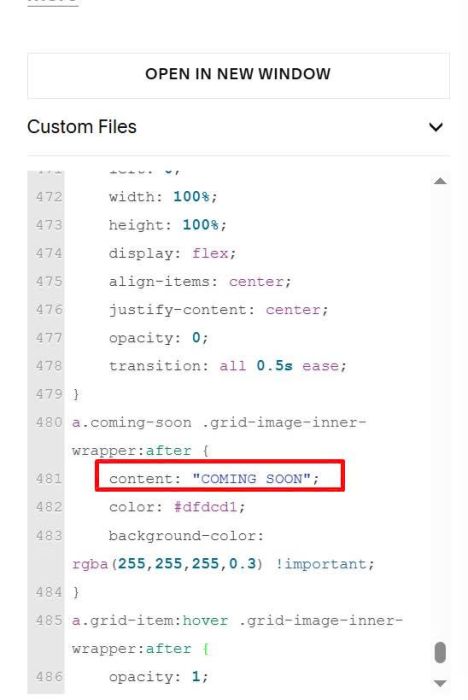
    content: "COMING SOON";
    color: #dfdcd1;
    background-color: rgba(255,255,255,0.3) !important;
}
a.grid-item:hover .grid-image-inner-wrapper:after {
    opacity: 1;
    transition: all 0.5s ease;
}
section#itemPagination a[href*="coming-soon"] {
    pointer-events: none;
}
#2. How to apply to Coming Soon items
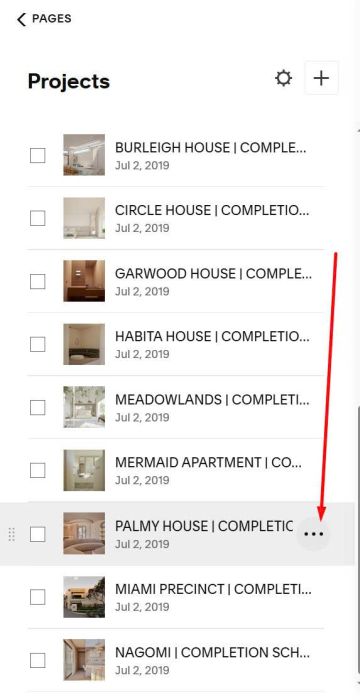
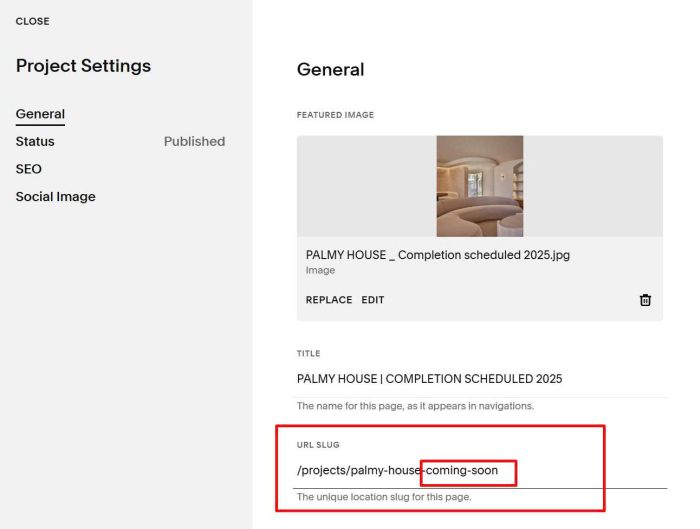
First, hover on an item where you want to set text Coming Soon > Click 3 dots
Add word: -coming-soon to URL Slug
-coming-soon
#3. How to change Text View Project, Coming Soon
To change View project text, change it here
and change Coming Soon text
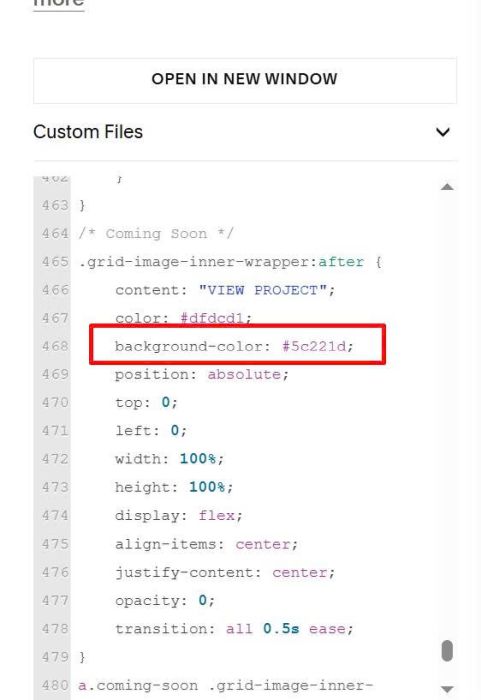
To change View Project text color, change it here
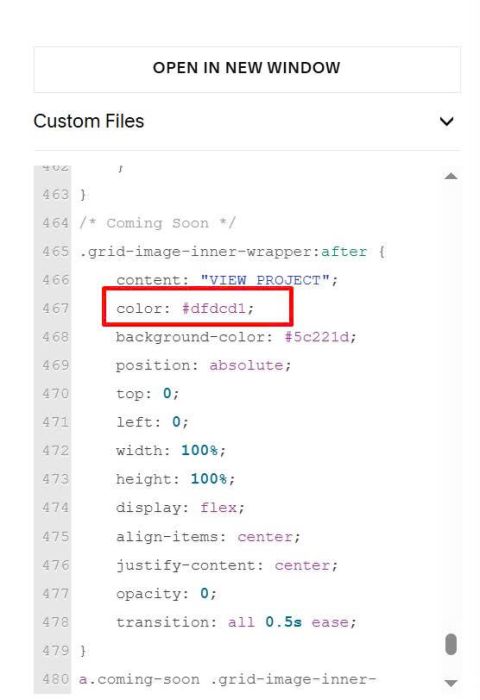
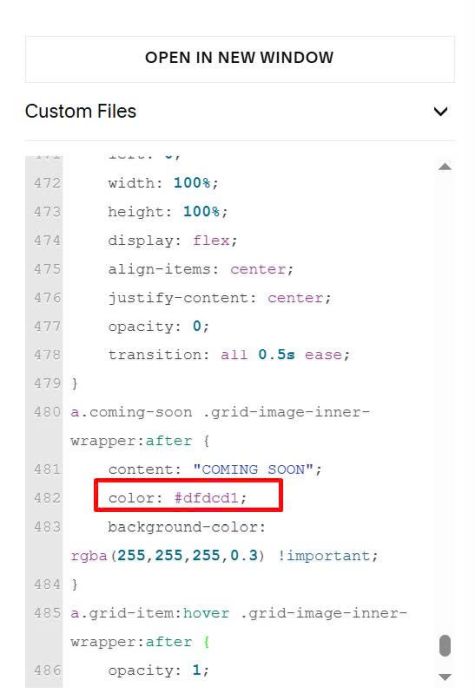
and here for Coming Soon text color
To change View Project overlay color, change it here
and change Coming Soon overlay color, change it here