Description
- change Gallery Block Grid in Blog Posts to Carousel format
- view demo – password: abc
- my friend code this feature, you can send her a coffee
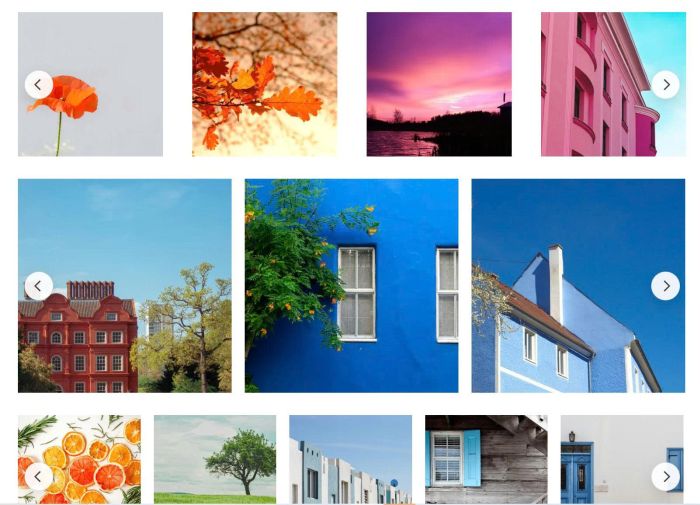
#1. Install code
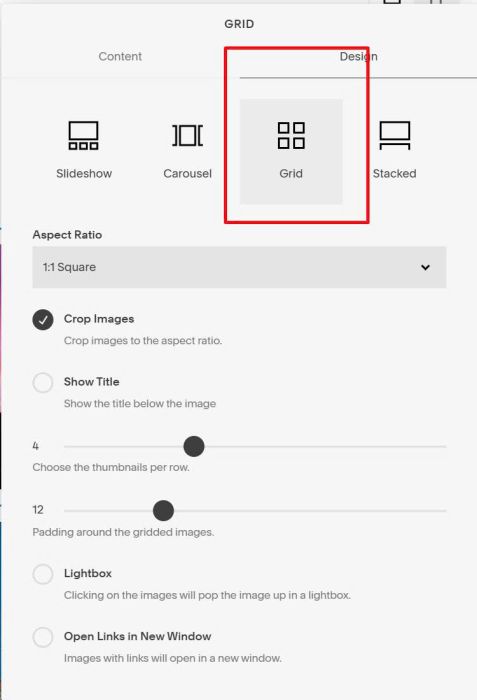
#1.1. Make sure you use Gallery Block Grid, because code runs for Gallery Block Grid only
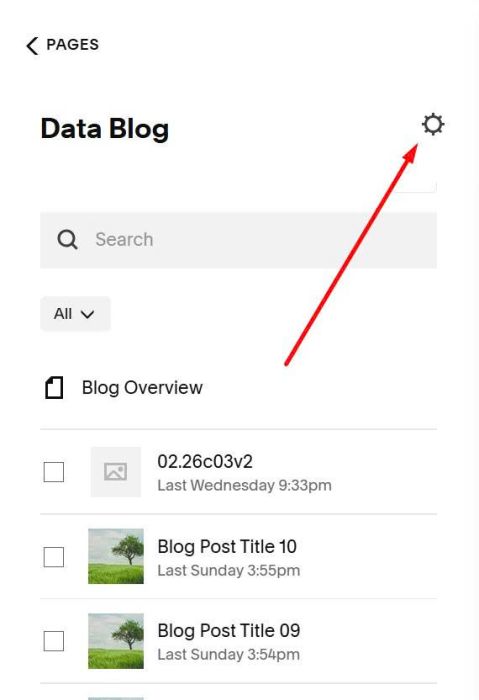
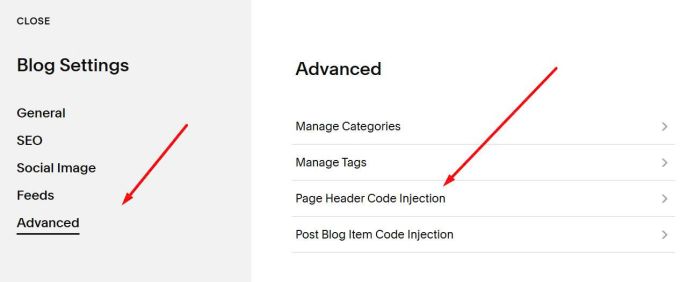
#1.2. Click Gear icon on Blog Page
Next, click Advanced > Page Header Code Injection
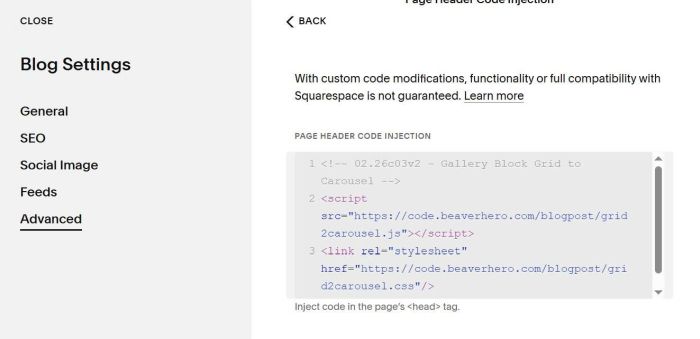
Paste this code to right box
<!-- 02.26c03v2 - Gallery Block Grid to Carousel -->
<script src="https://code.beaverhero.com/blogpost/grid2carousel.js"></script>
<link rel="stylesheet" href="https://code.beaverhero.com/blogpost/grid2carousel.css"/>
#2. Customize
#2.1. To change space between images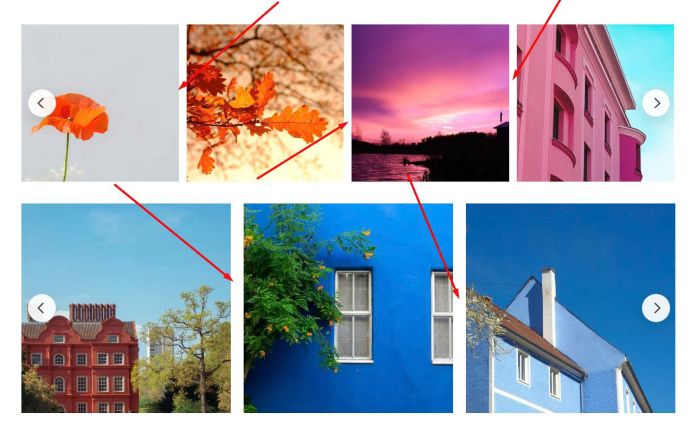
You can change this option in Gallery Grid
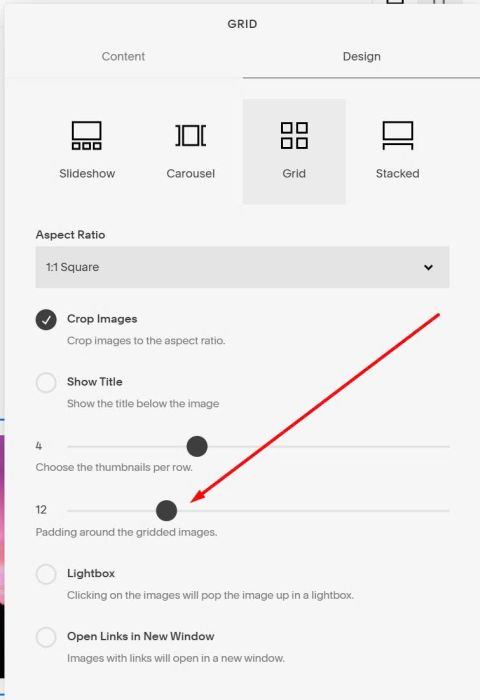
#2.2. To change number of image columns, change this option
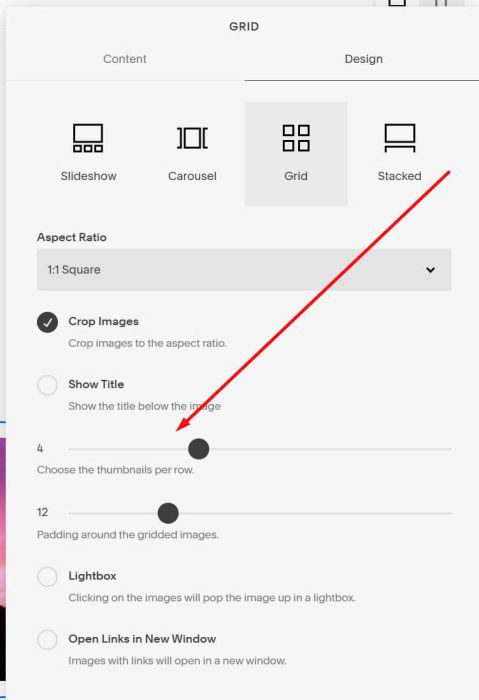
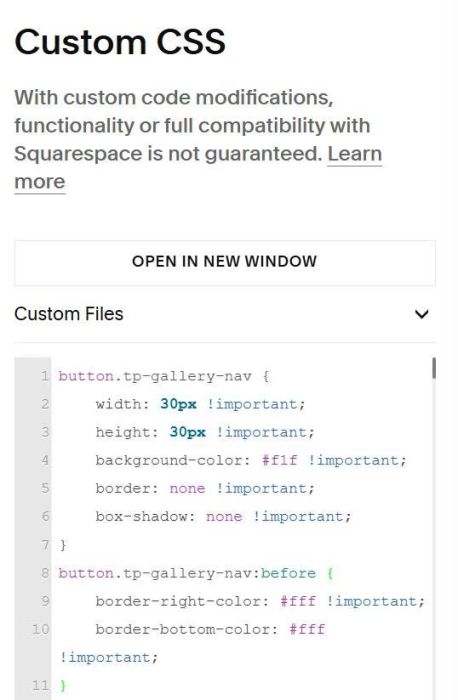
#2.3. To change arrow style, use this to Custom CSS box
button.tp-gallery-nav {
    width: 30px !important;
    height: 30px !important;
    background-color: #f1f !important;
    border: none !important;
    box-shadow: none !important;
}
button.tp-gallery-nav:before {
    border-right-color: #fff !important;
    border-bottom-color: #fff !important;
}