Description
- replace images in Store Page with Images in Product Additional Info
- buy me a coffee
#1. Install Code
#1.1. First, add an Image Block in Additional Info
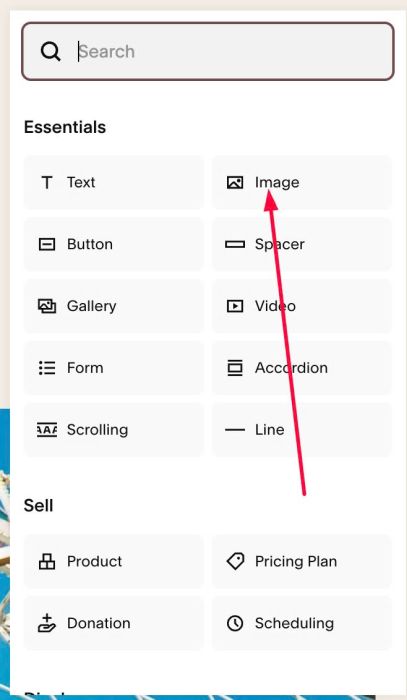
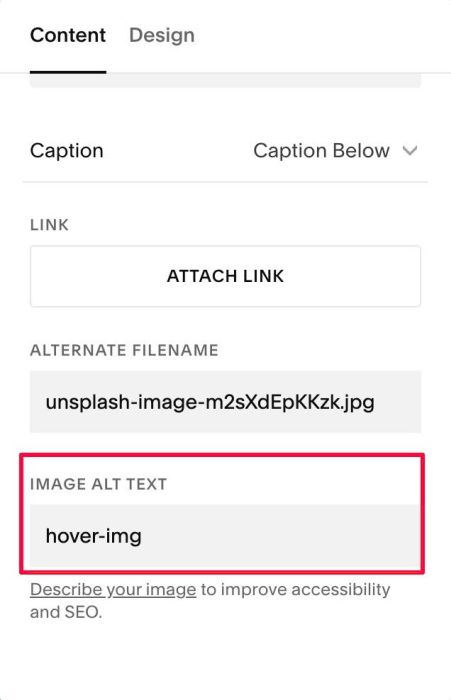
#1.2. Add text: hover-img to Image ALT
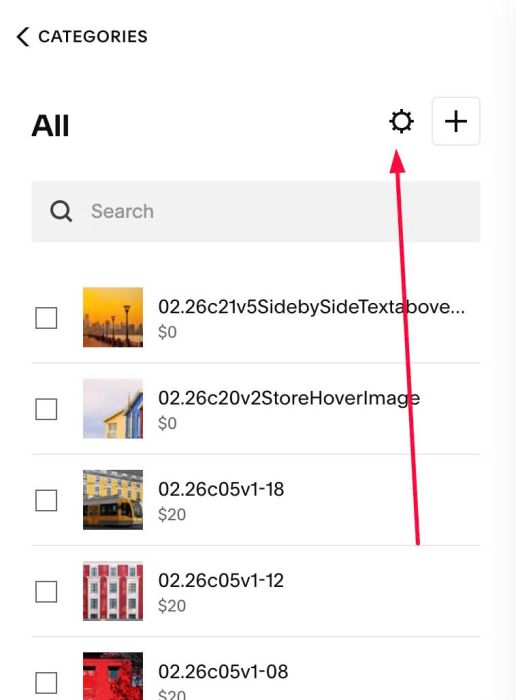
#1.3. Click Gear icon on Store Page
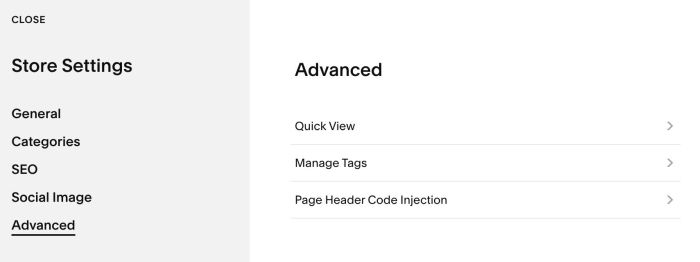
Click Advanced > Page Header Code Injection
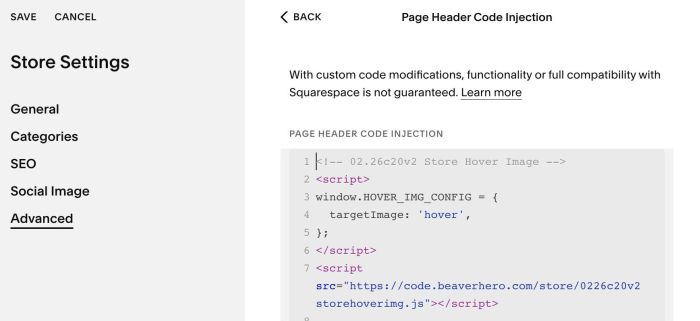
#1.4. Add this code
<!-- 02.26c20v2 Store Hover Image -->
<script>
window.HOVER_IMG_CONFIG = {
  targetImage: 'hover',
};
</script>
<script src="https://code.beaverhero.com/store/0226c20v2storehoverimg.js"></script>
#2. Customize
#2.1. Products in Store Page has 2 images: initial image – hover image
By default, code will replace hover image with images from Additional Info.
If you want to replace Initial image instead, change this line (Line 04)
targetImage: 'hover',
to something like this
targetImage: 'initial',
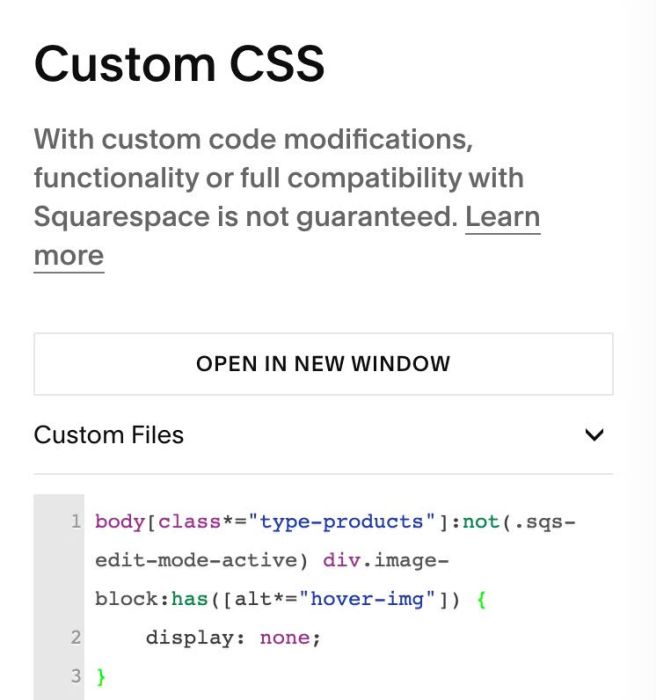
#2.2. To hide images in Additional Info, use this code to Custom CSS
body[class*="type-products"]:not(.sqs-edit-mode-active) div.image-block:has([alt*="hover-img"]) {
    display: none;
}