Description
- adding video to Gallery Masonry
- view demo – password: abc
- buy me a coffee

#1. Install Code
If you use Personal/Basic Plan and it doesn’t support Injection, see step #2.2.
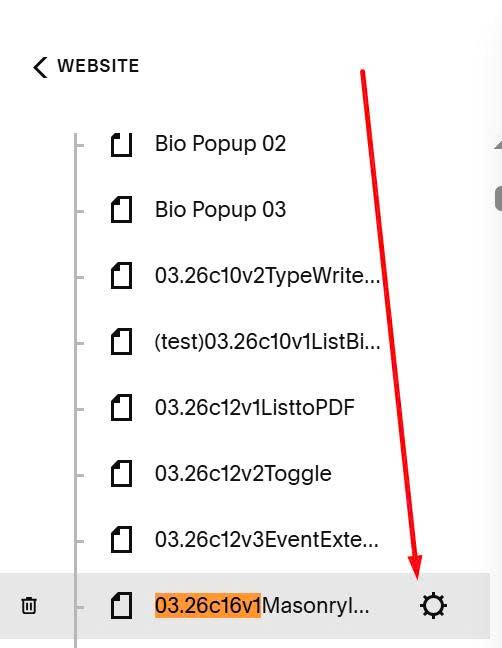
#1.1. First, hover on Page where you use Masonry > Click Gear icon
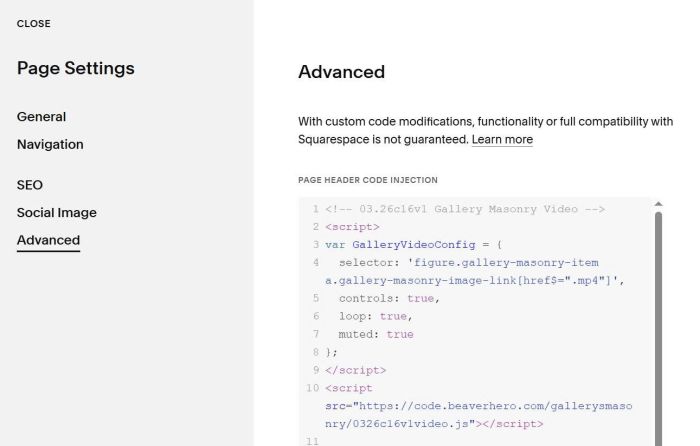
Click Advanced > Paste this code
<!-- 03.26c16v1 Gallery Masonry Video -->
<script>
var GalleryVideoConfig = {
  selector: 'figure.gallery-masonry-item a.gallery-masonry-image-link[href$=".mp4"]',
  controls: true,
  loop: true,
  muted: true
};
</script>
<script src="https://code.beaverhero.com/gallerysmasonry/0326c16v1video.js"></script>
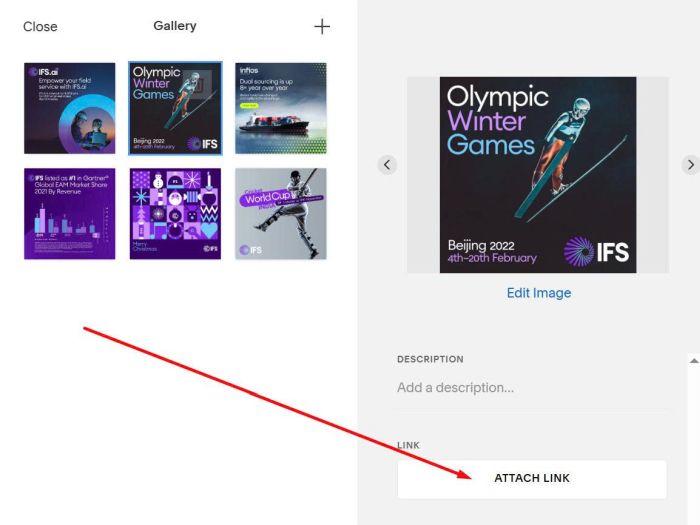
#1.2. Edit Gallery Masonry > Click Attach Link
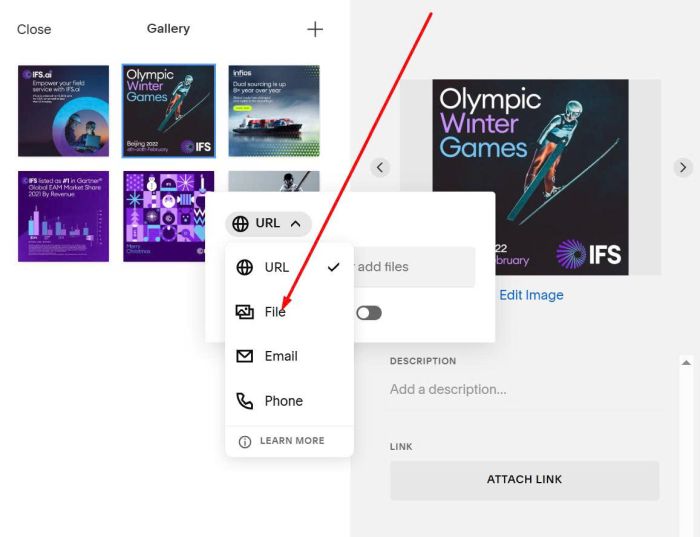
#1.3. Choose File
#1.4. Upload your video
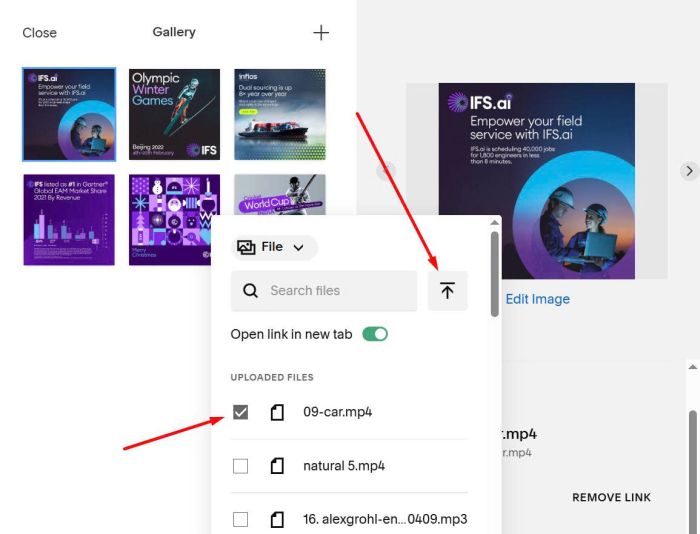
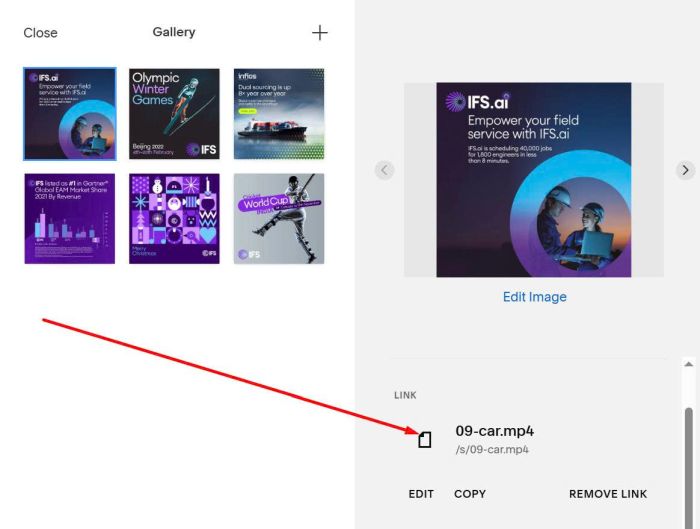
We will have
#2. Customize
#2.1. You can adjust all options here (Line 05 to line 07)
controls: true,
loop: true,
muted: true
#2.2. If you use Personal/Basic Plan, you can follow these.
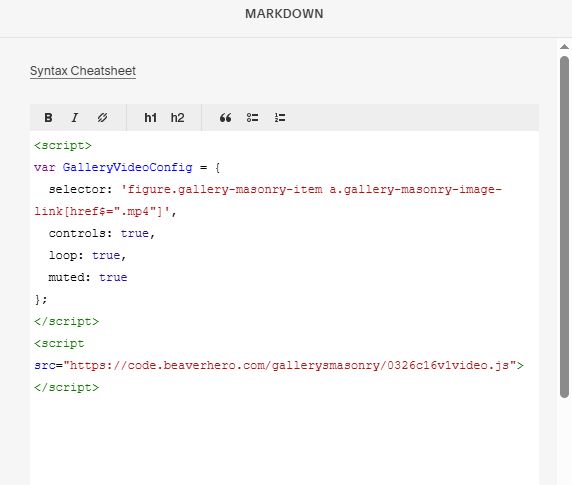
First, add a Markdown Block (under Gallery Masonry)
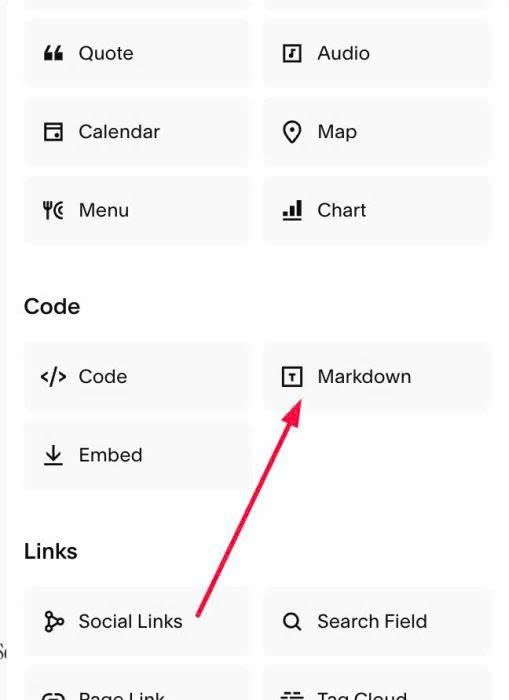
Paste this code into Markdown Block
<script>
var GalleryVideoConfig = {
  selector: 'figure.gallery-masonry-item a.gallery-masonry-image-link[href$=".mp4"]',
  controls: true,
  loop: true,
  muted: true
};
</script>
<script src="https://code.beaverhero.com/gallerysmasonry/0326c16v1video.js"></script>