Description
- Fullscreen Slideshow with Video, Image
- view demo – password: abc
- buy a coffee

#1. Install Code
If you use Personal/Basic Plan and your plan doesn’t support Injection, you can see #2.2.
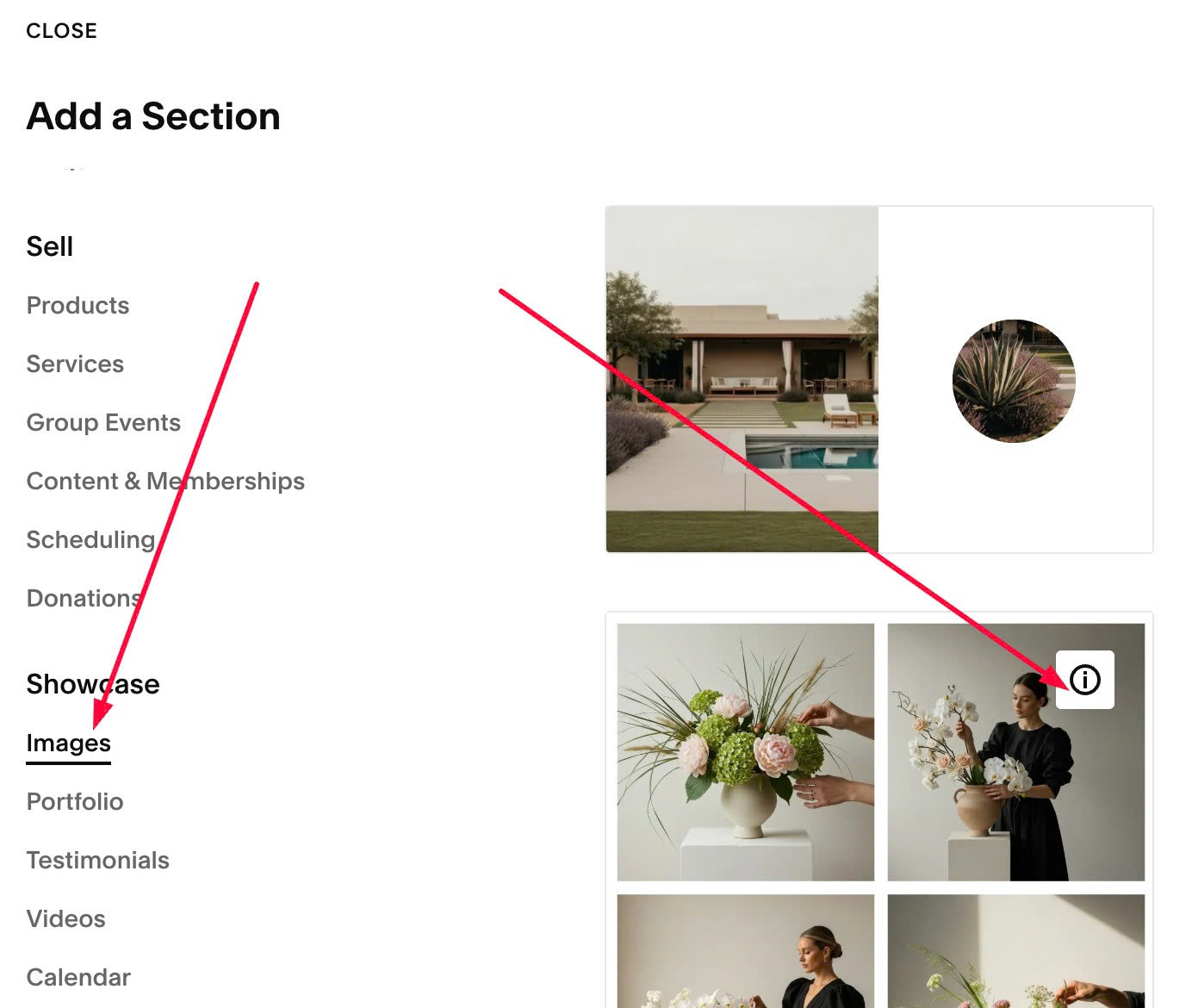
#1.1. First add a Section > Choose Image > Choose section with (i) icon
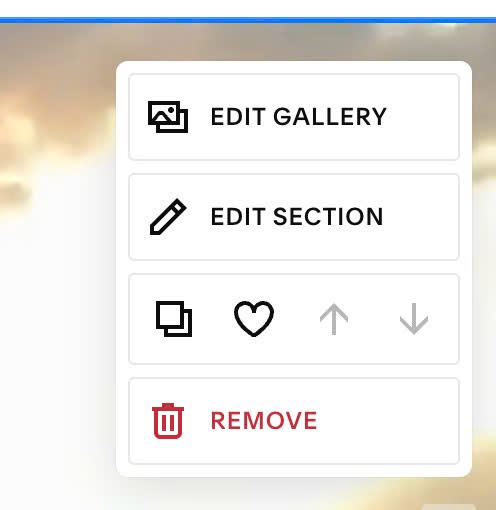
#1.2. Hover on top right of section > Click EDIT SECTION
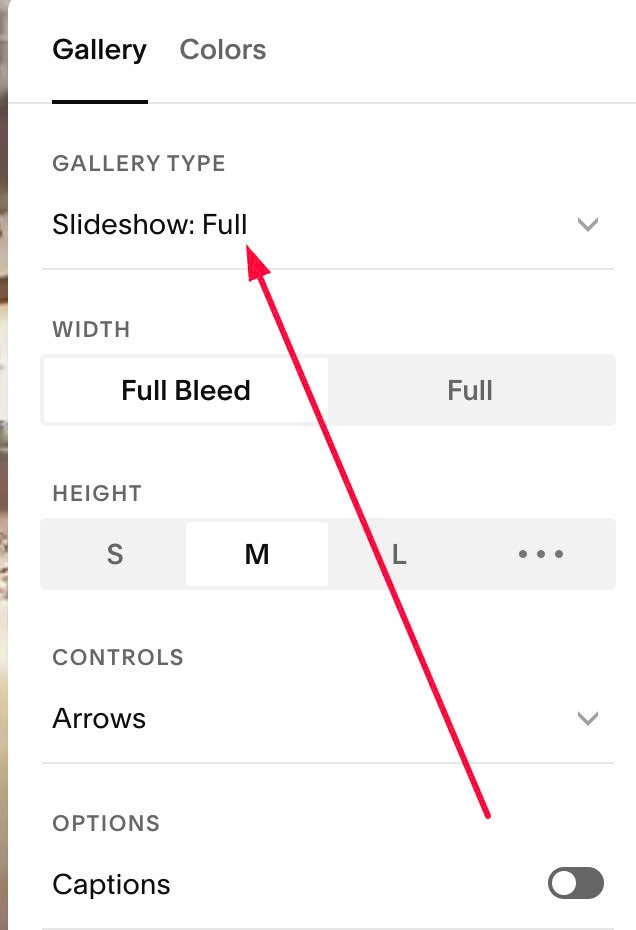
Choose Slideshow Full
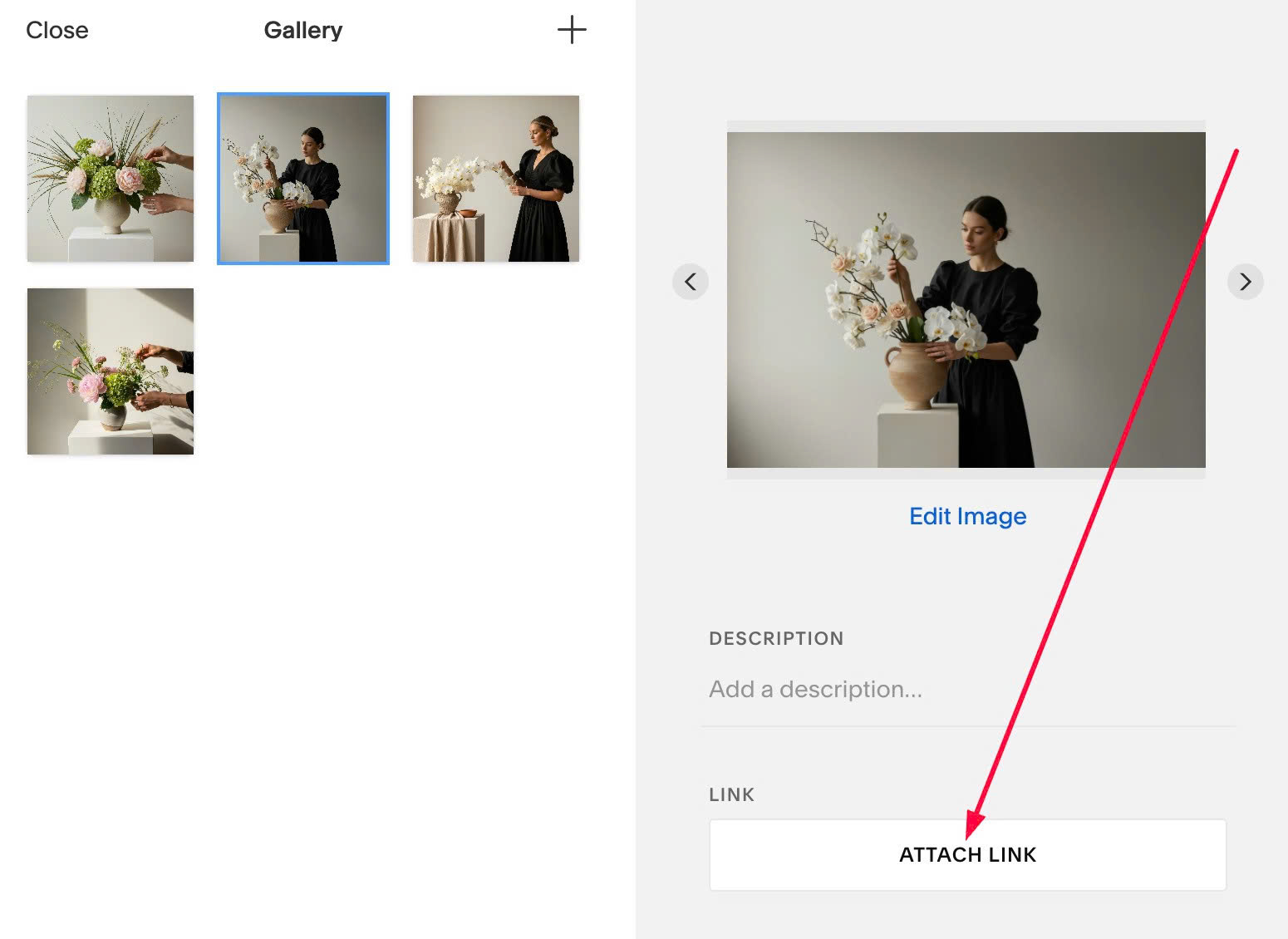
#1.3. Hover on top right of section > Click EDIT GALLERY
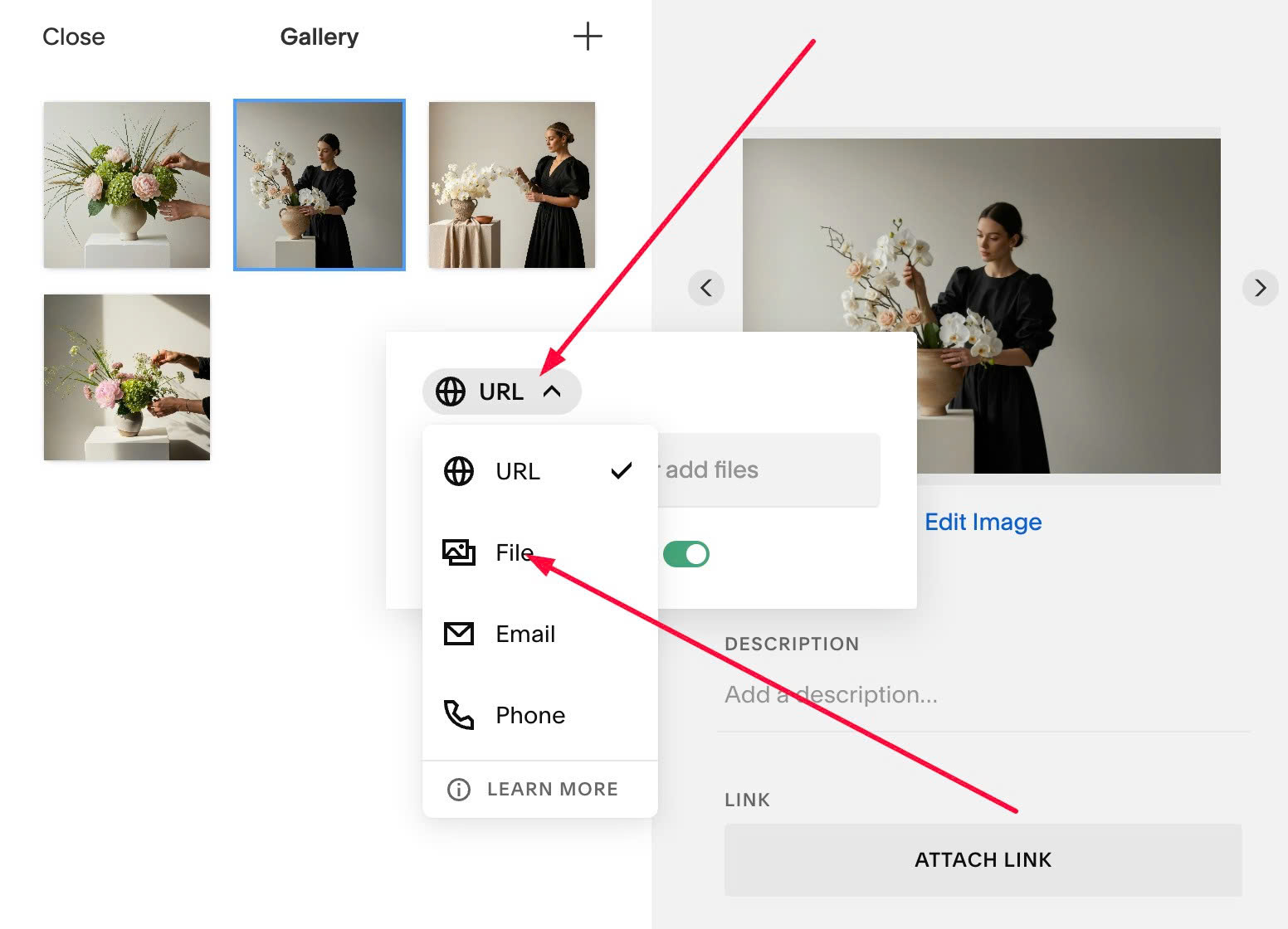
Click ATTACH LINK
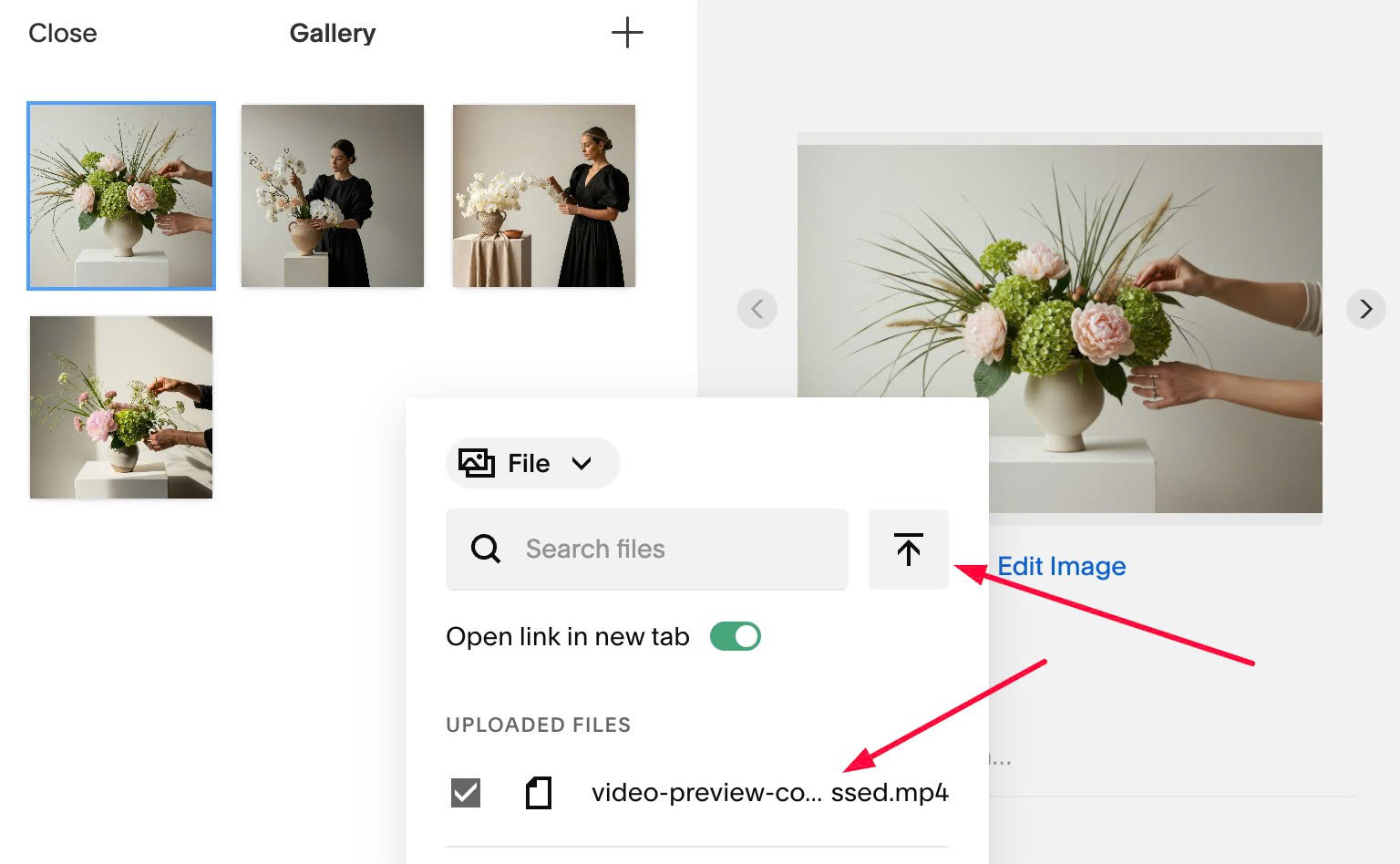
Choose File
Then upload your video mp4 file
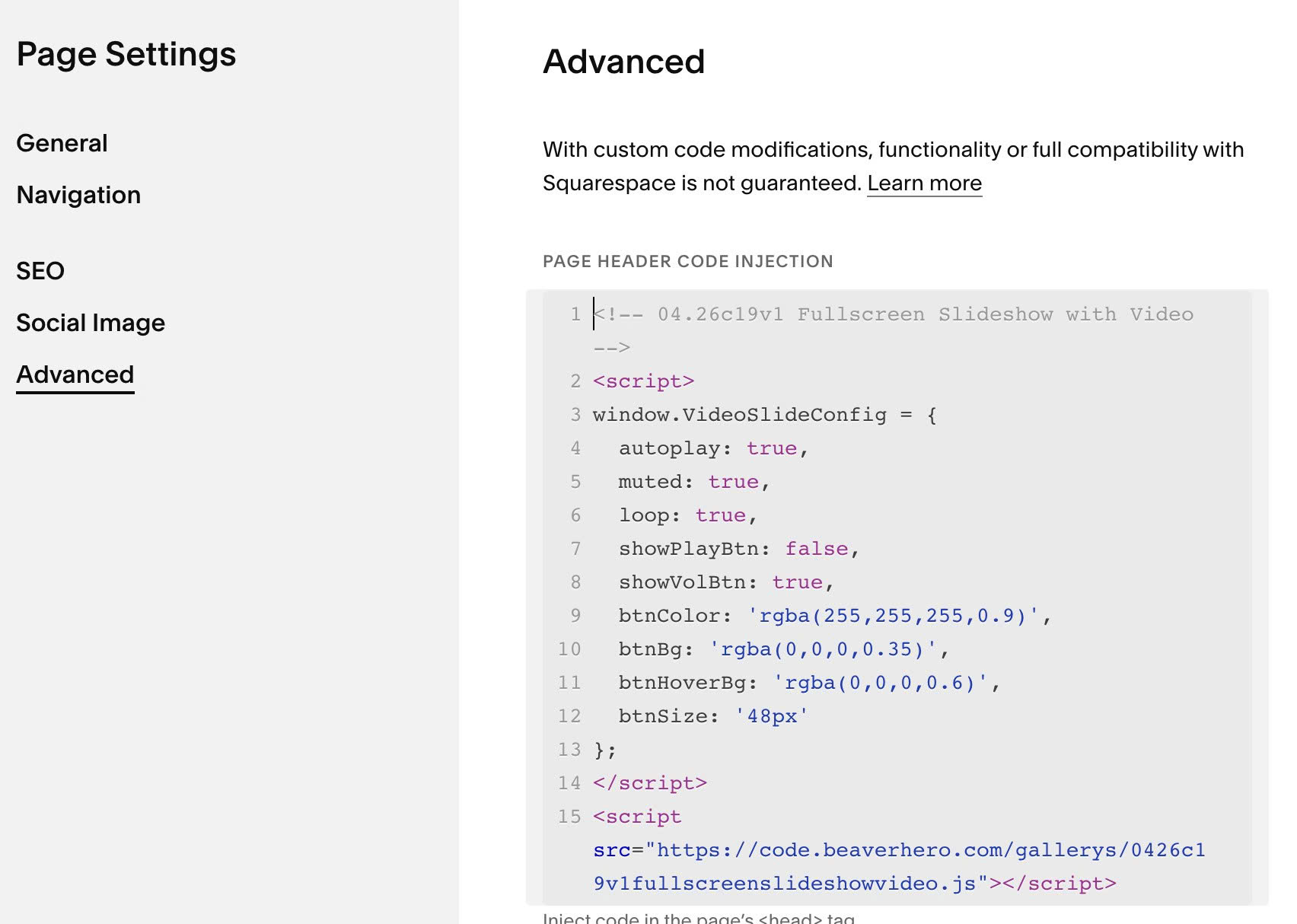
#1.4. Hover on page where you added Slideshow > Click Gear icon
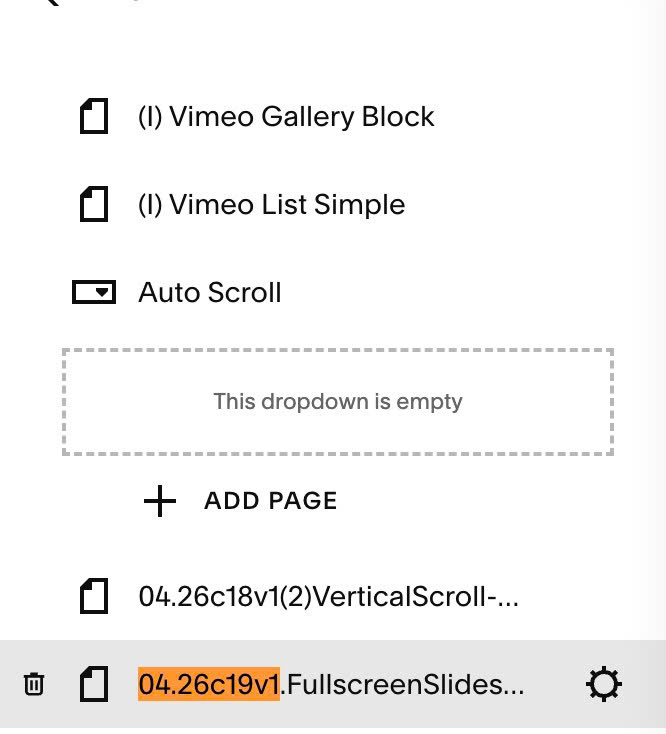
Click Advanced > Paste this code
<!-- 04.26c19v1 Fullscreen Slideshow with Video -->
<script>
window.VideoSlideConfig = {
  autoplay: true,
  muted: true,
  loop: true,
  showPlayBtn: false,
  showVolBtn: true,
  btnColor: 'rgba(255,255,255,0.9)',
  btnBg: 'rgba(0,0,0,0.35)',
  btnHoverBg: 'rgba(0,0,0,0.6)',
  btnSize: '48px'
};
</script>
<script src="https://code.beaverhero.com/gallerys/0426c19v1fullscreenslideshowvideo.js"></script>
#2. Customize
Here are some basic style, if you need more tweak you can message me or use this AI tool.
#2.1. All options
- enable/disable autoplay: enter true or false
- muted or sound: true or false
- loop or no loo: enter true or false
- showPlayBtn (show Play icon): enter false or true
- showVolBtn (show Volumne icon): enter true or false
- btnSize (play/pause/volume icon size): enter a number, for example 100px
window.VideoSlideConfig = {
  autoplay: true,
  muted: true,
  loop: true,
  showPlayBtn: false,
  showVolBtn: true,
  btnColor: 'rgba(255,255,255,0.9)',
  btnBg: 'rgba(0,0,0,0.35)',
  btnHoverBg: 'rgba(0,0,0,0.6)',
  btnSize: '48px'
};
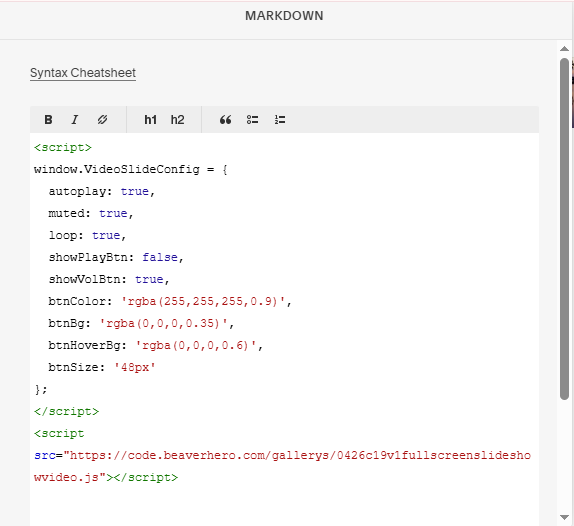
#2.2. If you use Personal/Basic Plan and your plan doesn’t support Injection, you can edit current page (Page where you use Slideshow) > Add a Markdown Block.
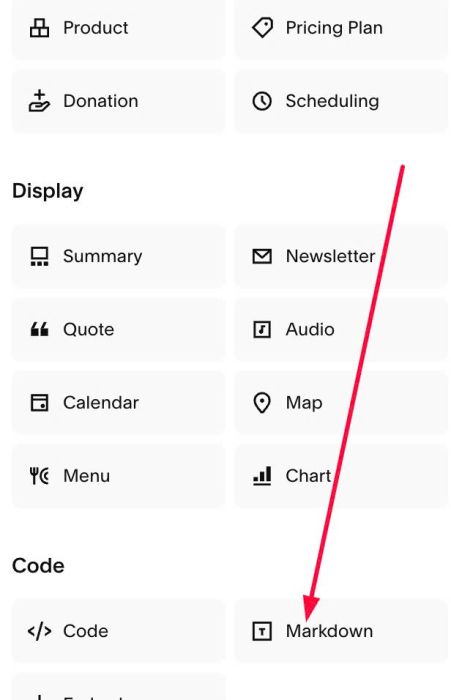
paste this code into Markdown.
<script>
window.VideoSlideConfig = {
  autoplay: true,
  muted: true,
  loop: true,
  showPlayBtn: false,
  showVolBtn: true,
  btnColor: 'rgba(255,255,255,0.9)',
  btnBg: 'rgba(0,0,0,0.35)',
  btnHoverBg: 'rgba(0,0,0,0.6)',
  btnSize: '48px'
};
</script>
<script src="https://code.beaverhero.com/gallerys/0426c19v1fullscreenslideshowvideo.js"></script>