Description
- heart icon over gallery images
- click heart icon will add images to a list
- users can submit list and send info to you
(heart icon over images)
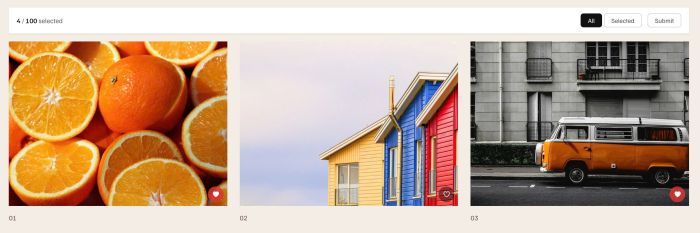
(users can see all images that they clicked Heart)
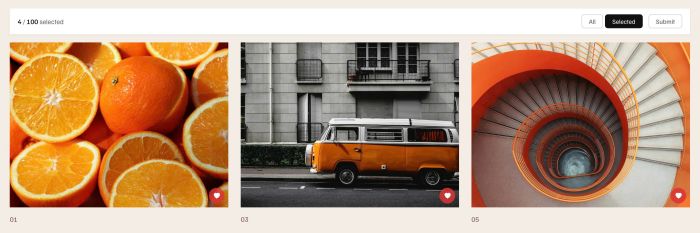
(users can submit image list)
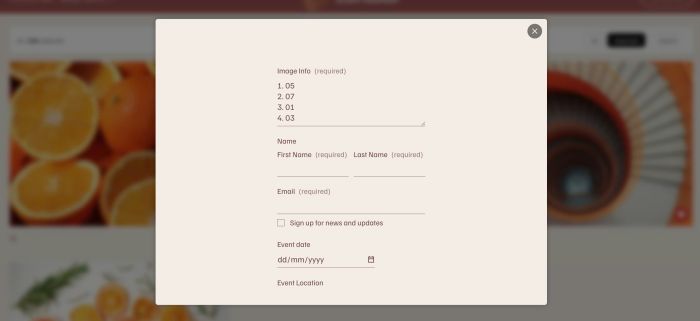
#1. Install code
Note: This requires extra WM Popup Plugin. However if you don’t want to use plugin, you can message me, I can give another code.
If you use Personal Plan/Basic Plan and your plan doesn’t support Injection, see #2.1
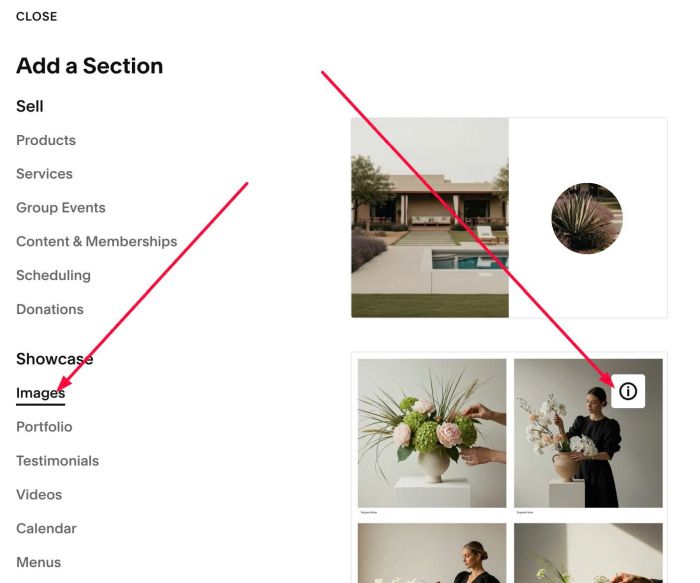
#1.1. First, you need to add a section > Choose Image > Choose Section with (i) icon.
#1.2. Hover on top right of section > Click Edit Section
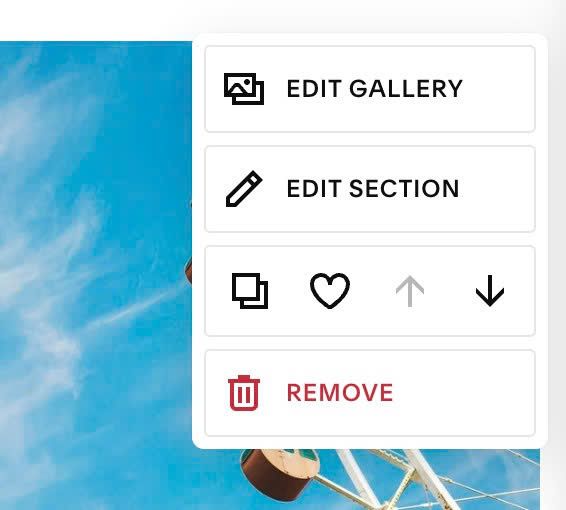
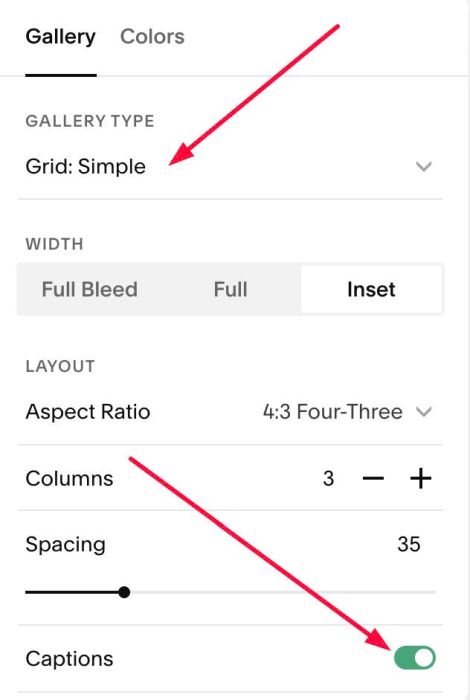
#1.3. Choose Grid Simple + Enable Captions
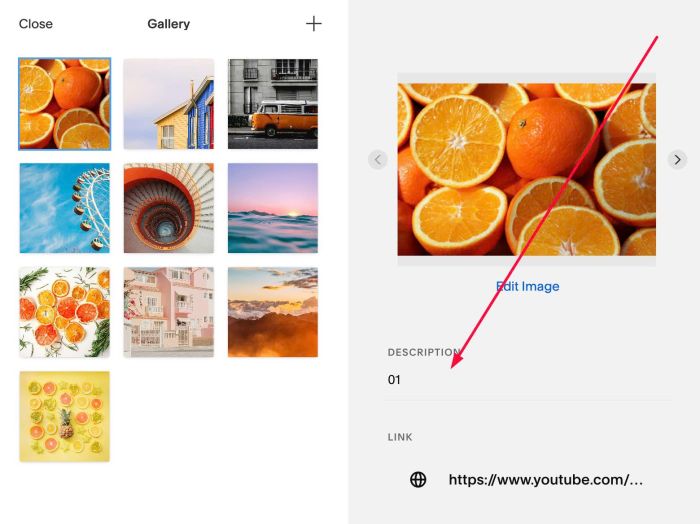
and add caption text to your gallery Images
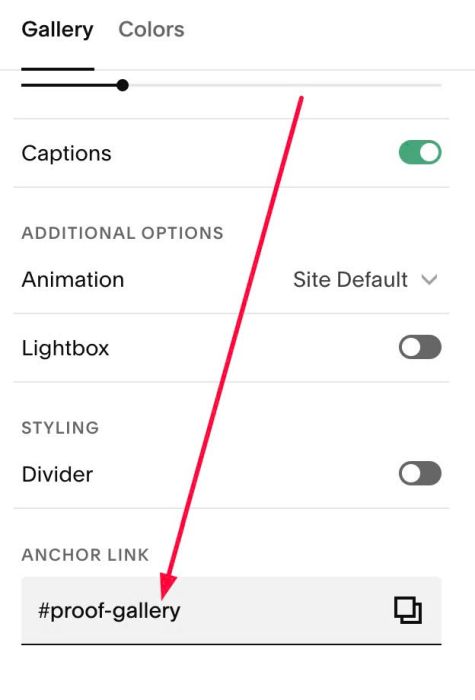
#1.4. Hover on top right of section > Click Edit Section
at Anchor Link, enter word: proof-gallery
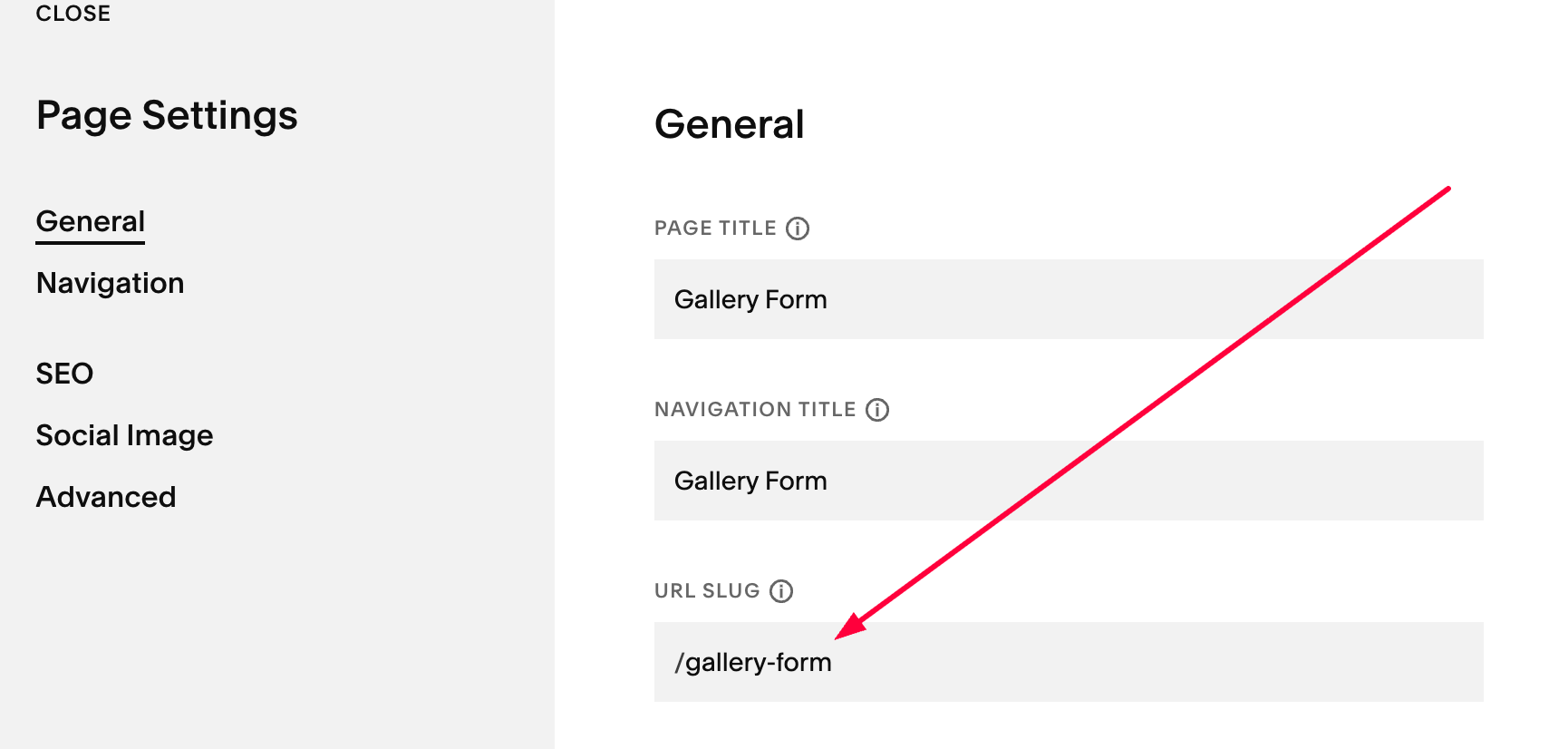
#1.5. Create a Page in Not Linked with Name: Gallery Form – URL: /gallery-form
Add a Blank Section > Then add a Form Block
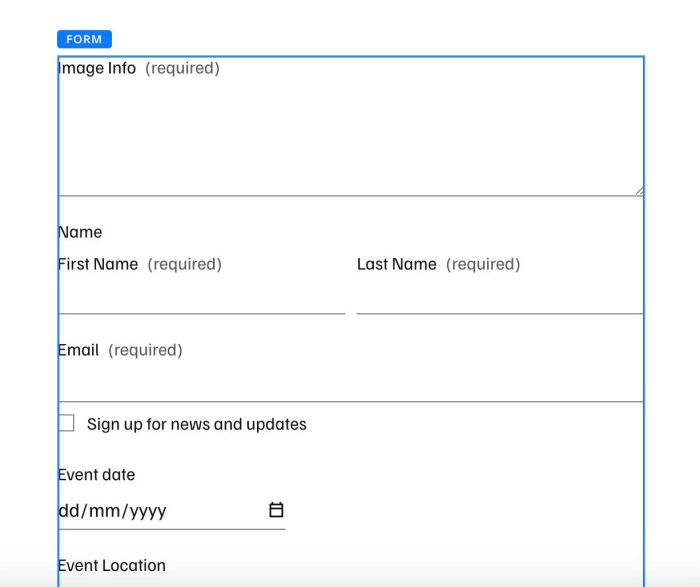
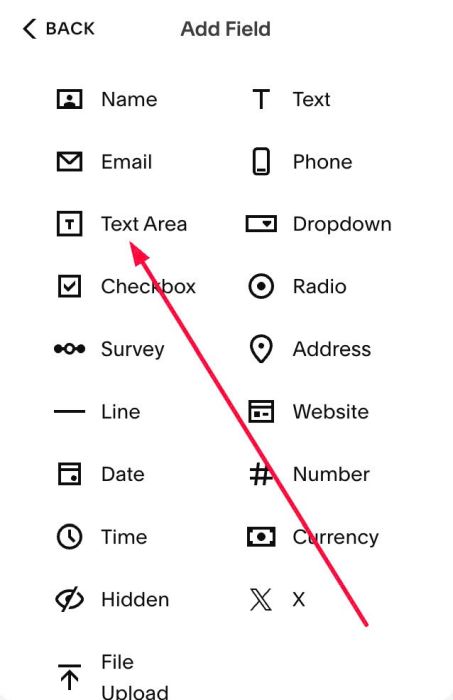
#1.6. Make sure First Field in Form Block is TEXT AREA
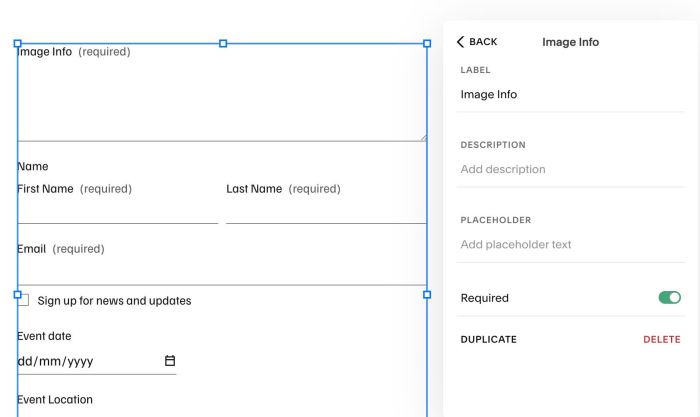
You can keep Label like this.
#1.7. Hover on Page (page where you added Gallery) > Click Gear icon
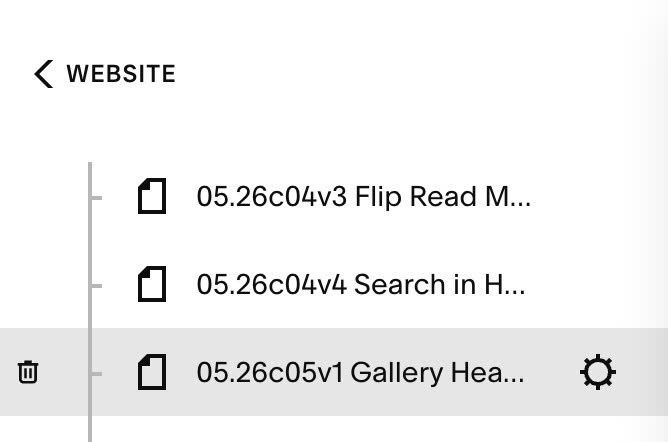
Click Advanced > Paste this code
<!-- 05.26c05v1 Gallery Heart -->
<script>
window.PROOF_GALLERY_CONFIG = {
  maxSelections: 100,
  storageKey: 'pg_liked',
  formPageUrl: '/gallery-form',

  heartSize: '32px',
  heartBackground: 'rgba(0,0,0,0.45)',
  heartBackgroundActive: 'rgba(220,50,50,0.85)',
  heartOffset: '8px',

  barBackground: '#fff',

  tabBackground: 'transparent',
  tabColor: '#555',
  tabBorder: '1px solid #ccc',
  tabActiveBackground: '#111',
  tabActiveColor: '#fff',
  tabActiveBorder: '1px solid #111'
};
</script>
<script src="https://code.beaverhero.com/gallerys/0526c05v1galleryheart.js"></script>
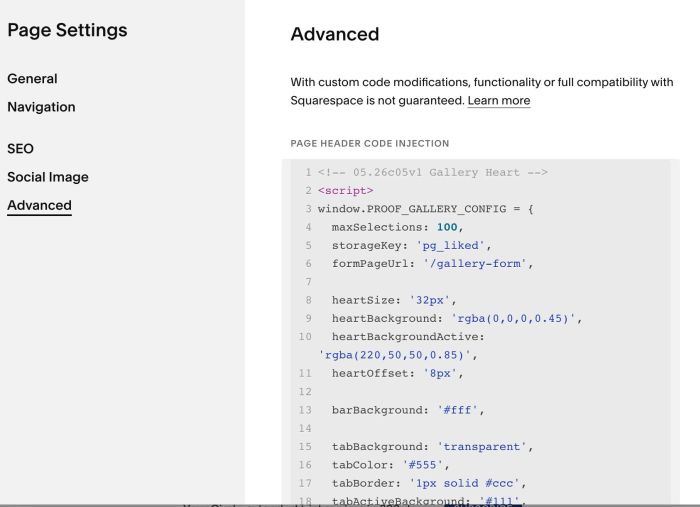
#1.8. Make sure you installed WM Popup Plugin I mentioned above (Add Plugin code to Header, Footer Injection is enough).
#2. Customize
If you use Personal Plan/Basic Plan and your plan doesn’t support Injection, you can do steps #1.1 to #1.6. Next, add a Markdown Block in current page (page where you use Gallery)
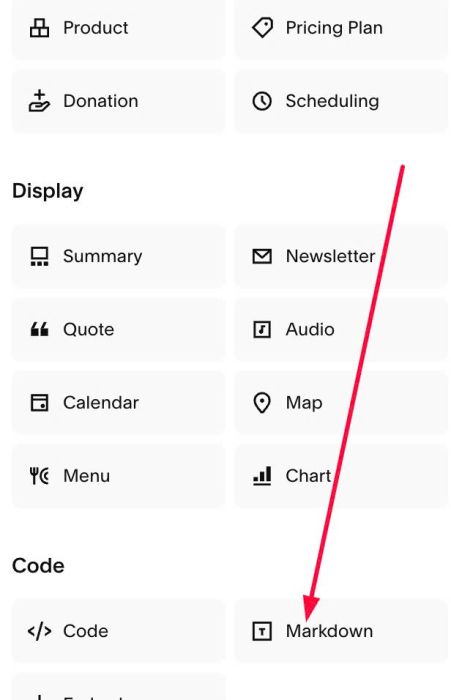
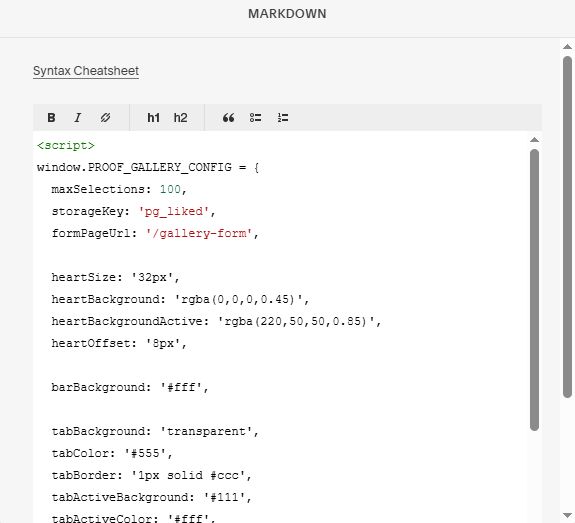
Then add this code into Markdown.
<script>
window.PROOF_GALLERY_CONFIG = {
  maxSelections: 100,
  storageKey: 'pg_liked',
  formPageUrl: '/gallery-form',

  heartSize: '32px',
  heartBackground: 'rgba(0,0,0,0.45)',
  heartBackgroundActive: 'rgba(220,50,50,0.85)',
  heartOffset: '8px',

  barBackground: '#fff',

  tabBackground: 'transparent',
  tabColor: '#555',
  tabBorder: '1px solid #ccc',
  tabActiveBackground: '#111',
  tabActiveColor: '#fff',
  tabActiveBorder: '1px solid #111'
};
</script>
<script src="https://code.beaverhero.com/gallerys/0526c05v1galleryheart.js"></script>
#2.2. All style options here
window.PROOF_GALLERY_CONFIG = {
  maxSelections: 100,
  storageKey: 'pg_liked',
  formPageUrl: '/gallery-form',

  heartSize: '32px',
  heartBackground: 'rgba(0,0,0,0.45)',
  heartBackgroundActive: 'rgba(220,50,50,0.85)',
  heartOffset: '8px',

  barBackground: '#fff',

  tabBackground: 'transparent',
  tabColor: '#555',
  tabBorder: '1px solid #ccc',
  tabActiveBackground: '#111',
  tabActiveColor: '#fff',
  tabActiveBorder: '1px solid #111'
};
If you have any problems, you can comment or message me.