Description
- slideshow with two photos
- view demo – password: abc
- buy me a cofee
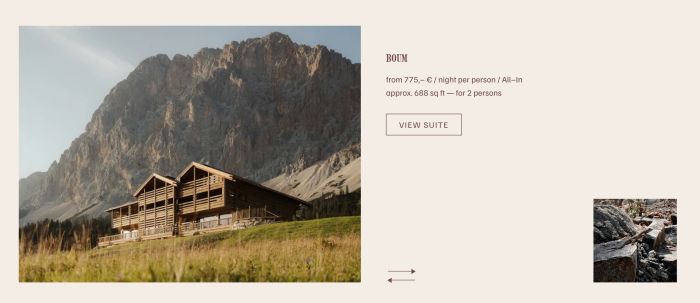
#1. Install Code
If you use Personal/Basic Plan and your plan doesn’t support Injection, see #2.1.
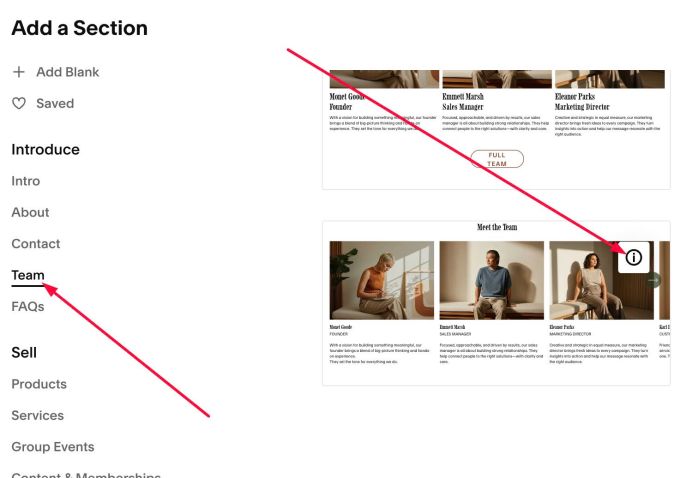
#1.1. First, add a Section > Choose Team > Choose section with (i) icon
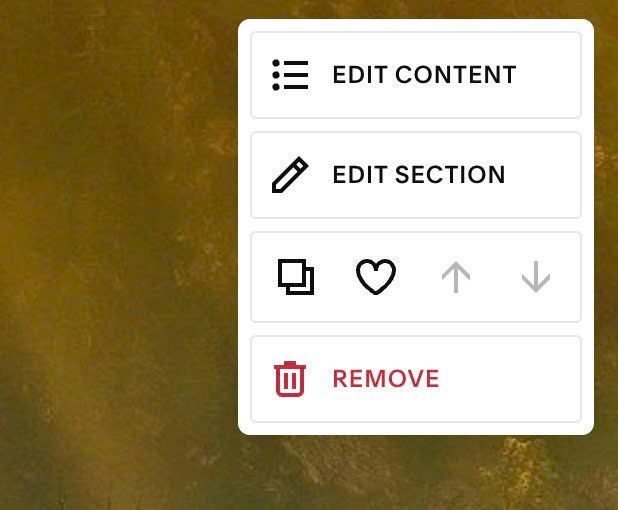
#1.2. Hover on top right of section > Click EDIT CONTENT
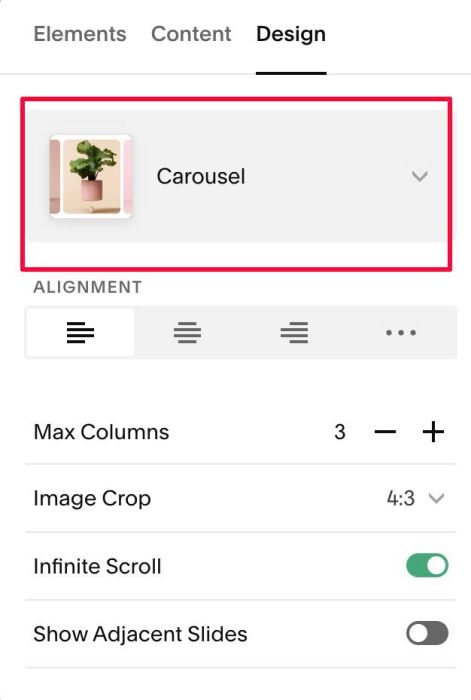
#1.3. At Design, choose Carousel
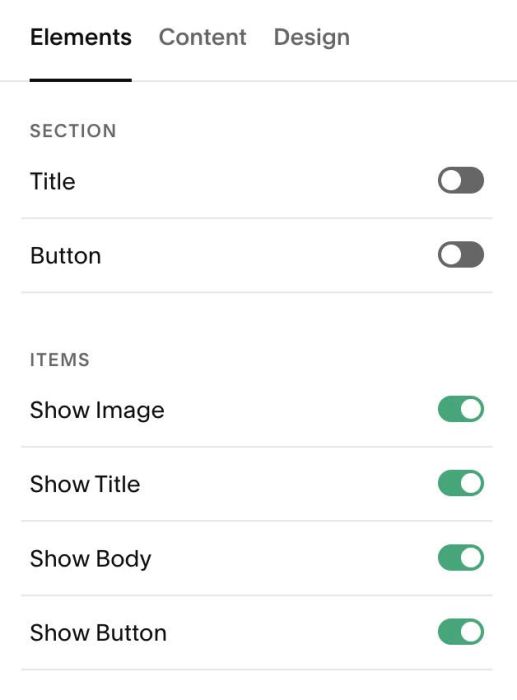
#1.4. At Elements > Enable these option
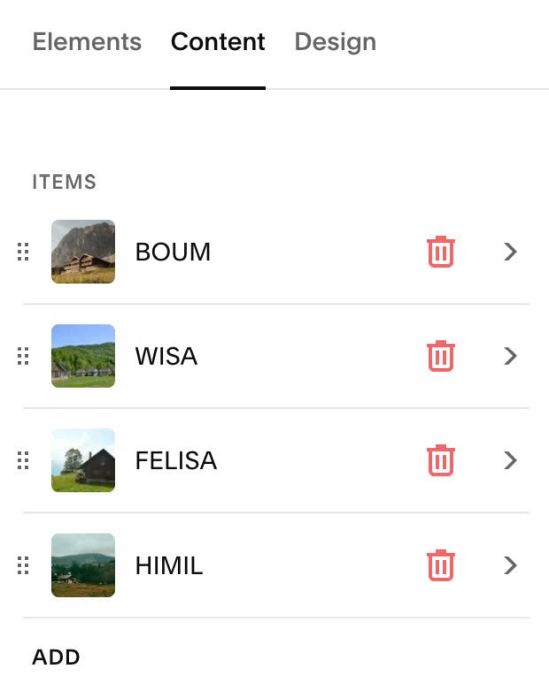
#1.5. At Content, you can add text/image/button
#1.6. Note: We will add Small Images
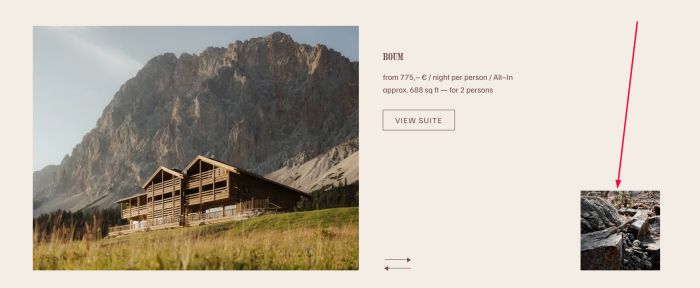
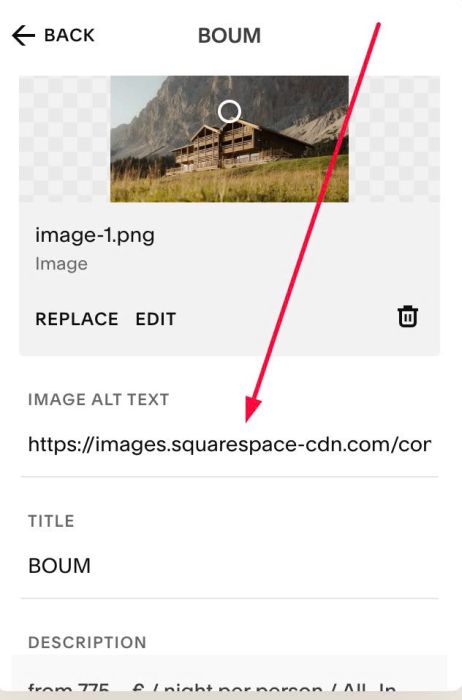
in ALT field (enter Image URL), something like this
https://images.squarespace-cdn.com/content/v1/67e3b2e4cd573b229af279fd/1778074685791-WO7BUKVG17I1Q0MA7VPU/unsplash-image-5bUqTD3wCMY.jpg?format=1000w
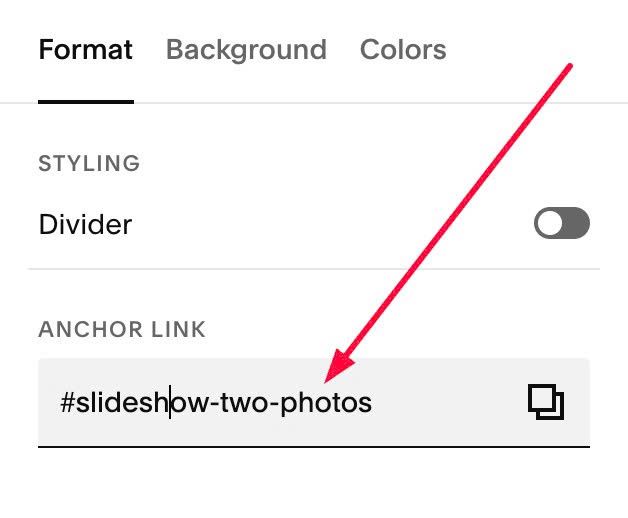
#1.7. Hover on top right of section > Click EDIT SECTION
at Anchor Links, enter word: slideshow-two-photos
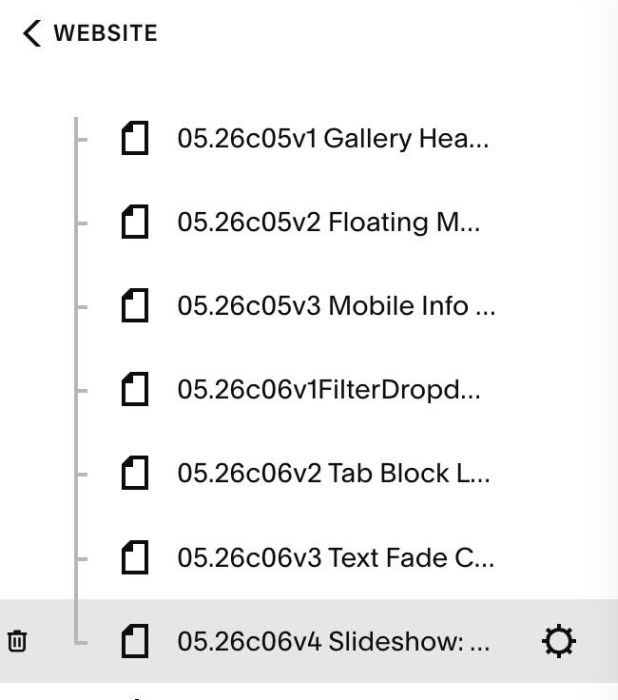
#1.8. Hover on Page where you added Team Section > Click Gear icon
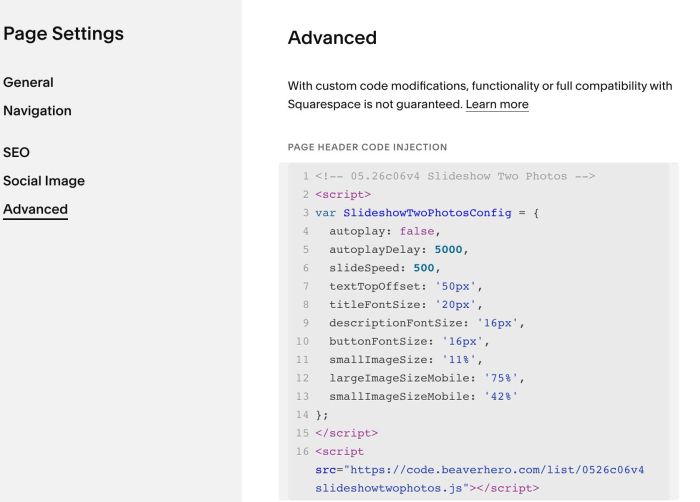
Click Advanced > Paste this code
<!-- 05.26c06v4 Slideshow Two Photos -->
<script>
var SlideshowTwoPhotosConfig = {
  autoplay: false,
  autoplayDelay: 5000,
  slideSpeed: 500,
  textTopOffset: '50px',
  titleFontSize: '20px',
  descriptionFontSize: '16px',
  buttonFontSize: '16px',
  smallImageSize: '11%',
  largeImageSizeMobile: '75%',
  smallImageSizeMobile: '42%'
};
</script>
<script src="https://code.beaverhero.com/list/0526c06v4slideshowtwophotos.js"></script>
#2. Customize
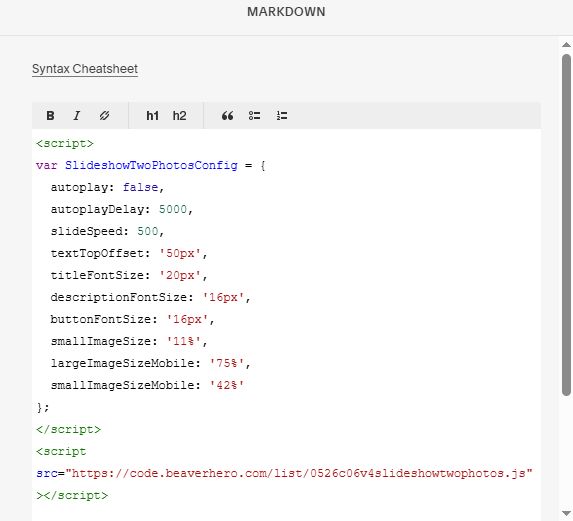
#2.1. If you use Personal/Basic Plan and your plan doesn’t support Injection, you can edit current page > Add a Markdown Block.

Then use this code into Markdown.
<script>
var SlideshowTwoPhotosConfig = {
  autoplay: false,
  autoplayDelay: 5000,
  slideSpeed: 500,
  textTopOffset: '50px',
  titleFontSize: '20px',
  descriptionFontSize: '16px',
  buttonFontSize: '16px',
  smallImageSize: '11%',
  largeImageSizeMobile: '75%',
  smallImageSizeMobile: '42%'
};
</script>
<script src="https://code.beaverhero.com/list/0526c06v4slideshowtwophotos.js"></script>
#2.2. To adjust Large Image size (Desktop), you can adjust it in option Image Crop
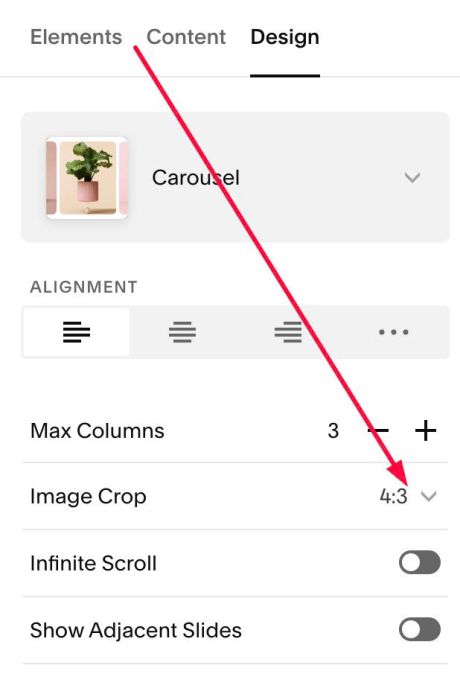
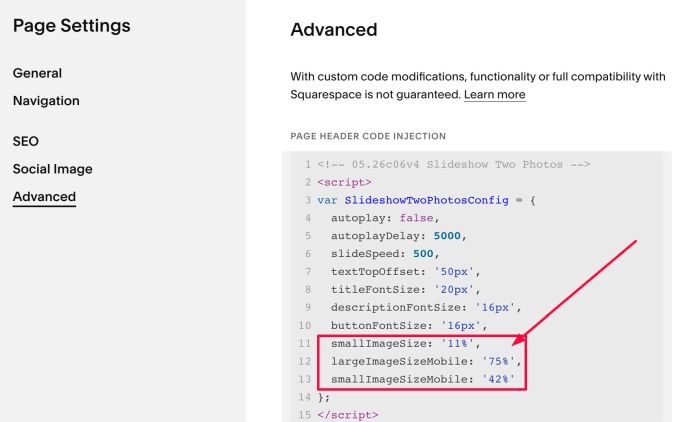
To adjust Large Image size (mobile), Small Image Size (Desktop, Mobile), adjust this line in top of code
smallImageSize: '11%',
largeImageSizeMobile: '75%',
smallImageSizeMobile: '42%'
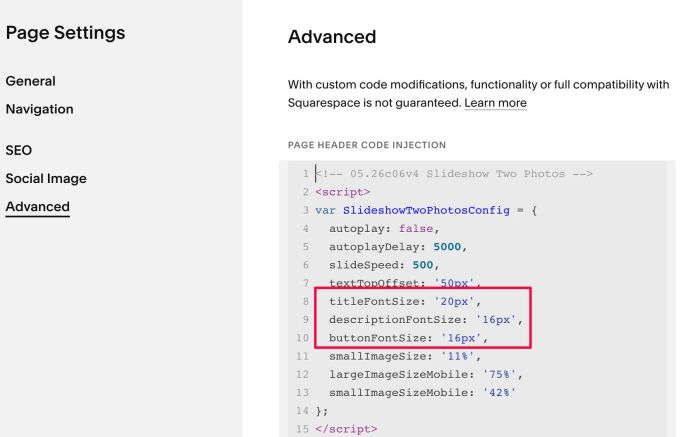
#2.3. To adjust style of Title, Description, Button: They inherit style of List Carousel Title/Description/Button.
However with text size, you will need to update in code
titleFontSize: '20px',
descriptionFontSize: '16px',
buttonFontSize: '16px',
#2.4. To adjust space on top of Text, adjust this option
textTopOffset: '50px',
#2.5. If you want to make Slideshow autoscroll, adjust this option to true
autoplay: false,
autoplayDelay: 5000,
#2.6. If you want to change color of 2 Arrows, use this to Custom CSS box
 span.stp-arrow-line {
    background: #f1f !important;
}
button.stp-arrow-prev span:before {
    border-right-color: #f1f !important;
}
button.stp-arrow-next span:after {
    border-left-color: #f1f !important;
}