Description
- adding Carousel Image Block (in case your plan doesn’t support Gallery Block Carousel)
- support options: columns (desktop/mobile), gap between images (desktop/mobile), trackpad scrolling, drag & swipe, keyboard navigation, autoplay,..
- view demo – password: abc
- buy me a coffee

#1. Install Code
#1.1. First, you can add a Gallery Section (Images > Section with (i) icon)
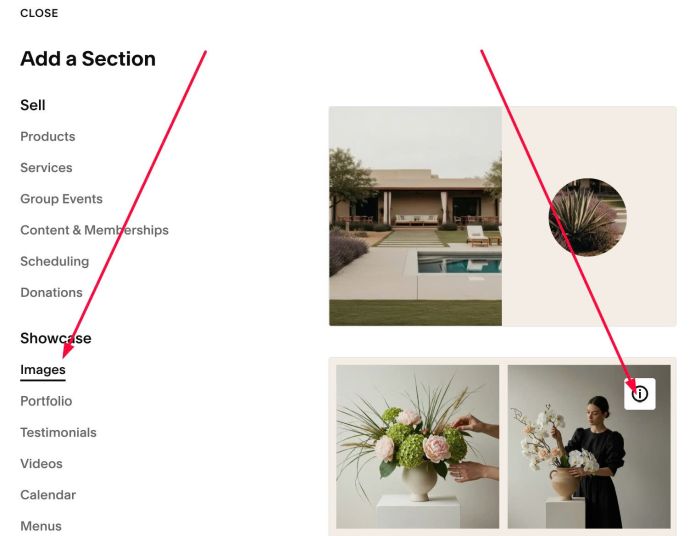
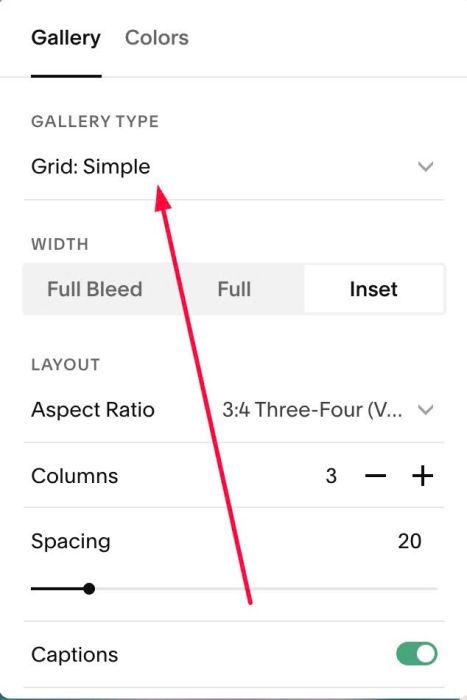
#1.2. Make sure you choose Grid: Simple
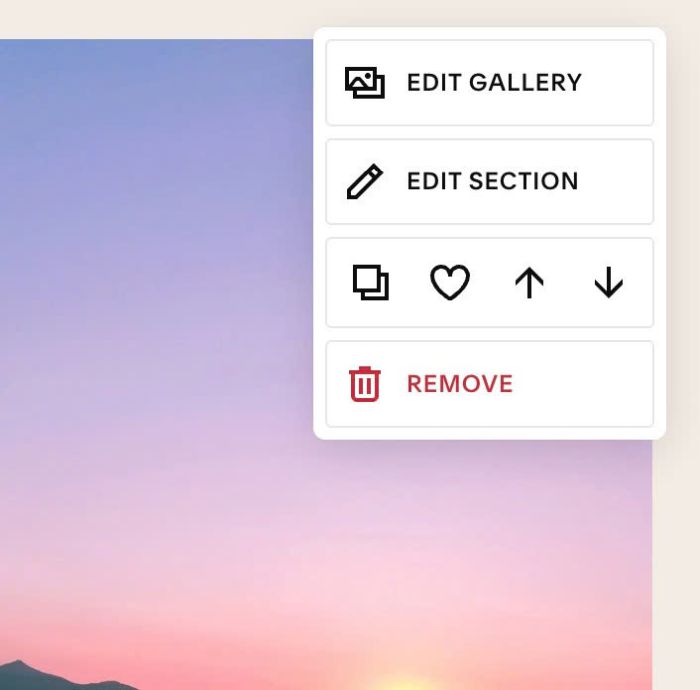
#1.3. Hover on top right of Gallery Grid > Click EDIT GALLERY
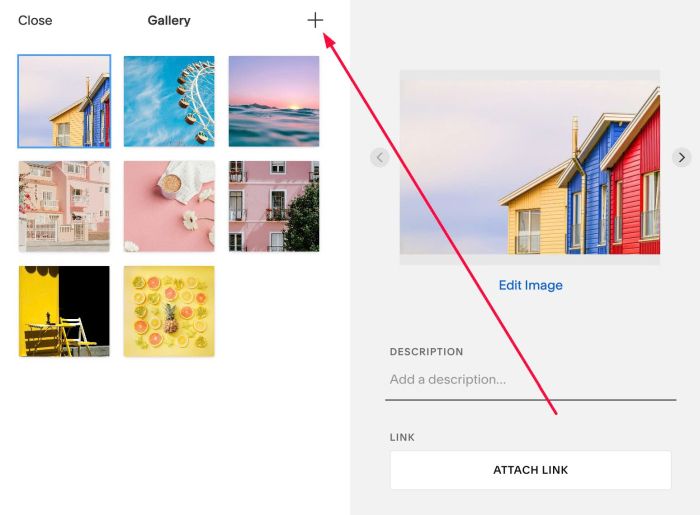
add your desired images
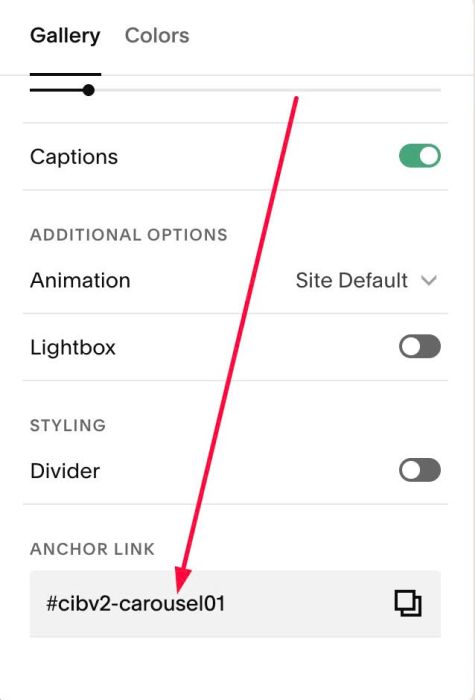
#1.4. Hover on top right of Gallery Grid > Click EDIT SECTION
at Anchor Link, enter word: cibv2-carousel01
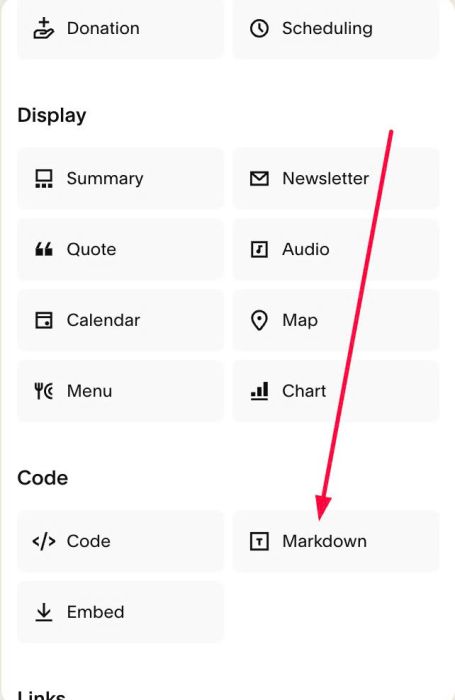
#1.5. Choose place where you want to add Carousel Image Block > Add a Block

Choose Markdown
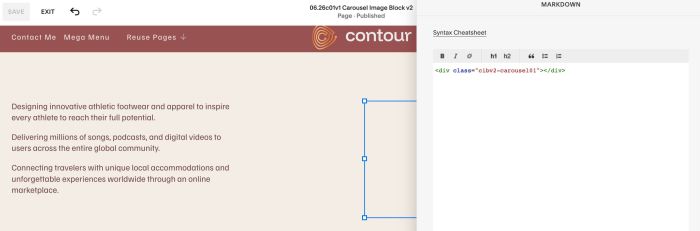
Add this syntax into Markdown
<div class="cibv2-carousel01"></div>
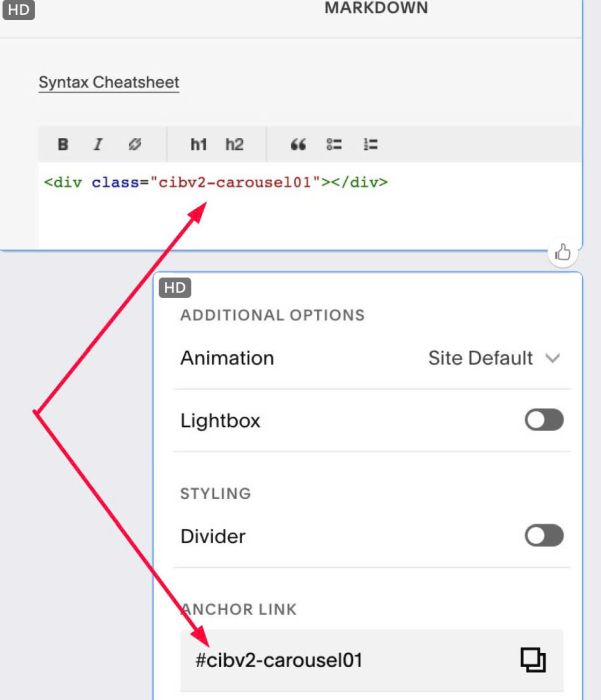
#1.6. Note: Make sure syntax in Markdown – text in Anchor Link are same
If you need to add multiple Carousels on same page, you can add second, third,.. Gallery Grid with anchor link like this: cbiv2-carousel03, cbiv2-carousel04…
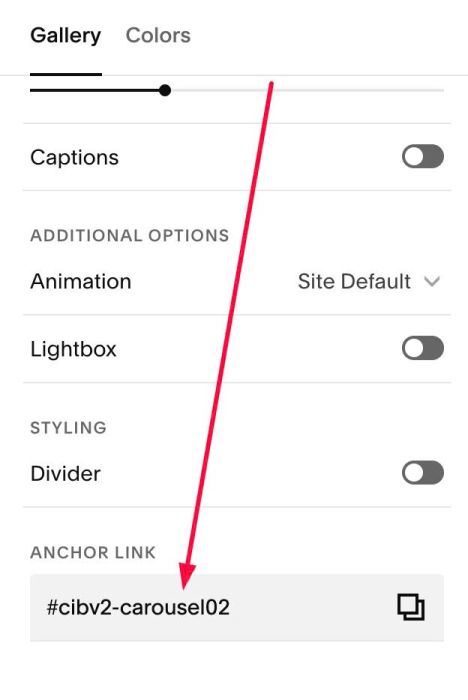
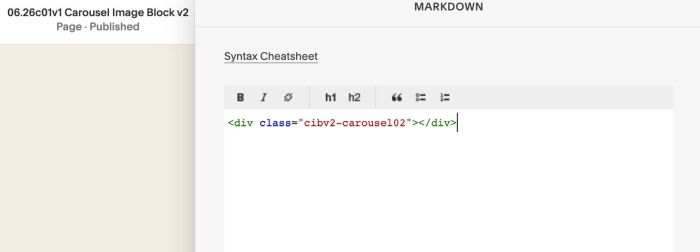
then add Markdown Block with syntax like this
<div class="cibv2-carousel02"></div>
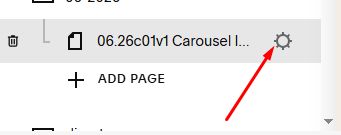
#1.7. Hover on Page where you use Gallery Grid/Markdown > click Gear icon
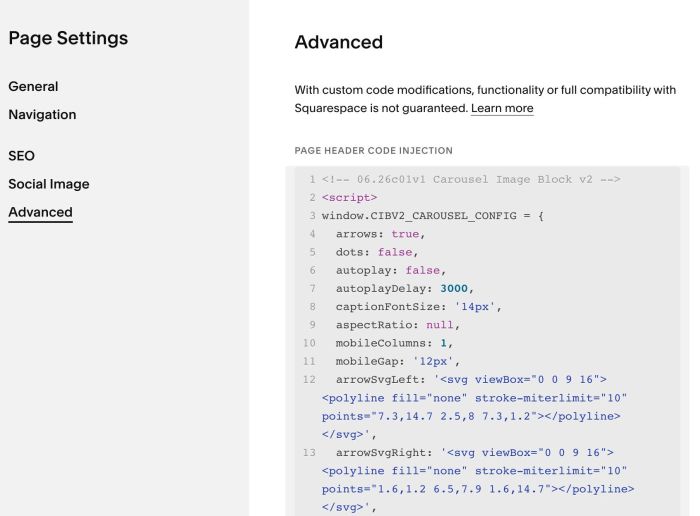
Click Advanced > Paste this code
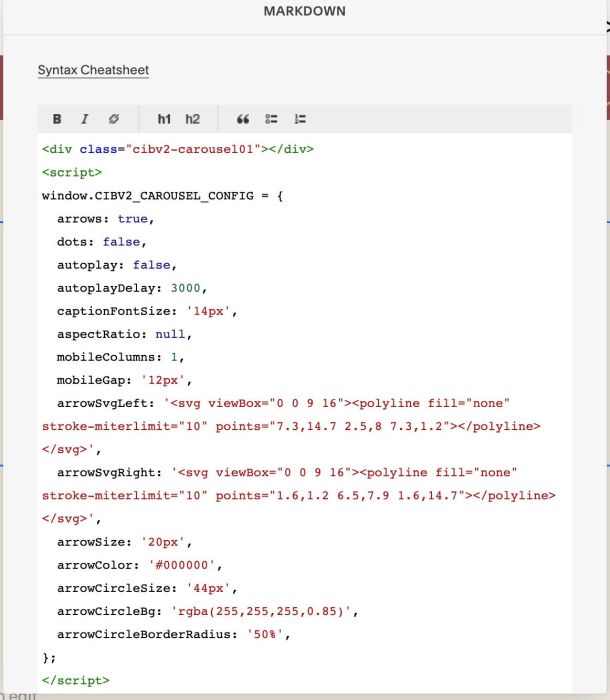
- If you use Personal Plan/Basic Plan and your plan doesn’t support Injection, you can also add code into Markdown Block you added in step #1.5 (see below screenshot)
<script>
window.CIBV2_CAROUSEL_CONFIG = {
  arrows: true,
  dots: false,
  autoplay: false,
  autoplayDelay: 3000,
  captionFontSize: '14px',
  aspectRatio: null,
  mobileColumns: 1,
  mobileGap: '12px',
  arrowSvgLeft: '<svg viewBox="0 0 9 16"><polyline fill="none" stroke-miterlimit="10" points="7.3,14.7 2.5,8 7.3,1.2"></polyline></svg>',
  arrowSvgRight: '<svg viewBox="0 0 9 16"><polyline fill="none" stroke-miterlimit="10" points="1.6,1.2 6.5,7.9 1.6,14.7"></polyline></svg>',
  arrowSize: '20px',
  arrowColor: '#000000',
  arrowCircleSize: '44px',
  arrowCircleBg: 'rgba(255,255,255,0.85)',
  arrowCircleBorderRadius: '50%',
};
</script>
<script src="https://code.beaverhero.com/markdown/0626c01v1carouselimageblockv2.js">
</script>
<style> body:not(.sqs-edit-mode-active) section[id*="cibv2-carousel"] {display: none !important;}</style>
(Code + Screenshot for Personal/Basic Plan)
<script>
window.CIBV2_CAROUSEL_CONFIG = {
  arrows: true,
  dots: false,
  autoplay: false,
  autoplayDelay: 3000,
  captionFontSize: '14px',
  aspectRatio: null,
  mobileColumns: 1,
  mobileGap: '12px',
  arrowSvgLeft: '<svg viewBox="0 0 9 16"><polyline fill="none" stroke-miterlimit="10" points="7.3,14.7 2.5,8 7.3,1.2"></polyline></svg>',
  arrowSvgRight: '<svg viewBox="0 0 9 16"><polyline fill="none" stroke-miterlimit="10" points="1.6,1.2 6.5,7.9 1.6,14.7"></polyline></svg>',
  arrowSize: '20px',
  arrowColor: '#000000',
  arrowCircleSize: '44px',
  arrowCircleBg: 'rgba(255,255,255,0.85)',
  arrowCircleBorderRadius: '50%',
};
</script>
<script src="https://code.beaverhero.com/markdown/0626c01v1carouselimageblockv2.js">
</script>
<style> body:not(.sqs-edit-mode-active) section[id*="cibv2-carousel"] {display: none !important;}</style>
#2. Customize
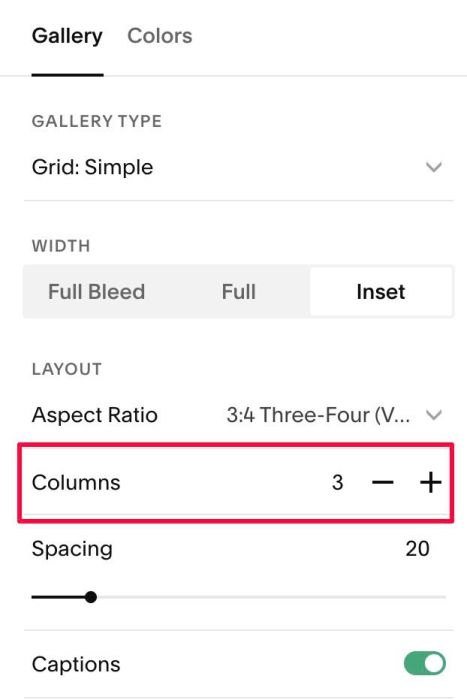
#2.1. To change number of columns, you can adjust this option
However to change number of columns on mobile, you can adjust this line 09
mobileColumns: 2,
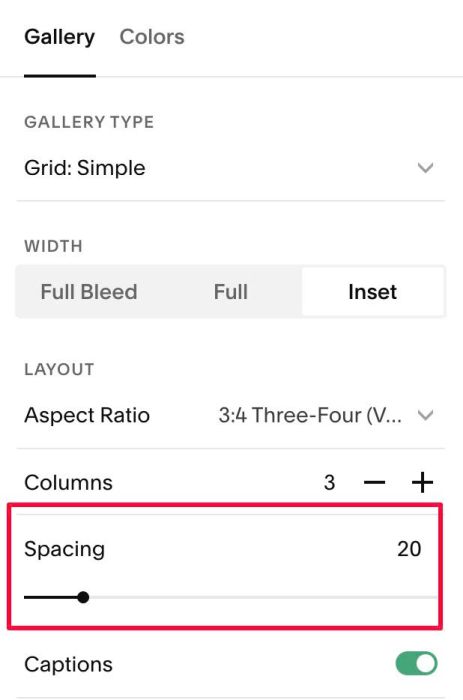
#2.2. To change gap between images, you can adjust this option
However to change number of columns on Mobile, you can adjust this line 10
mobileGap: '12px',
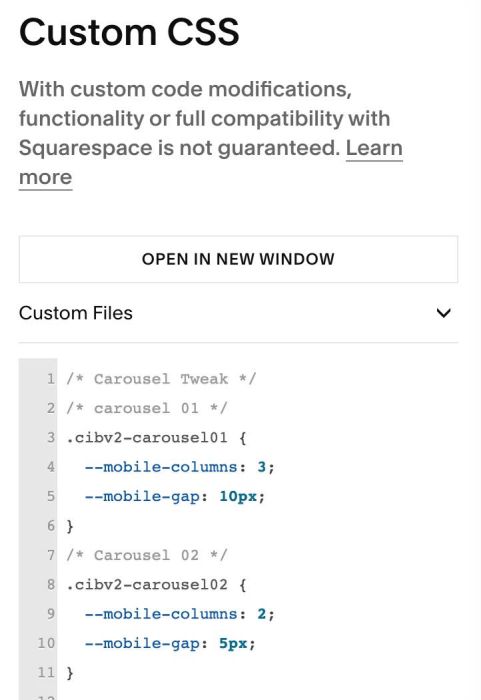
#2.3. To change columns, gap (on Mobile) in specific Carousel, you can use code like this to Custom CSS
/* Carousel Tweak */
/* carousel 01 */
.cibv2-carousel01 {
  --mobile-columns: 3;
  --mobile-gap: 10px;
}
/* Carousel 02 */
.cibv2-carousel02 {
  --mobile-columns: 2;
  --mobile-gap: 5px;
}
#2.4. To add Caption text under Carousel Image, like this
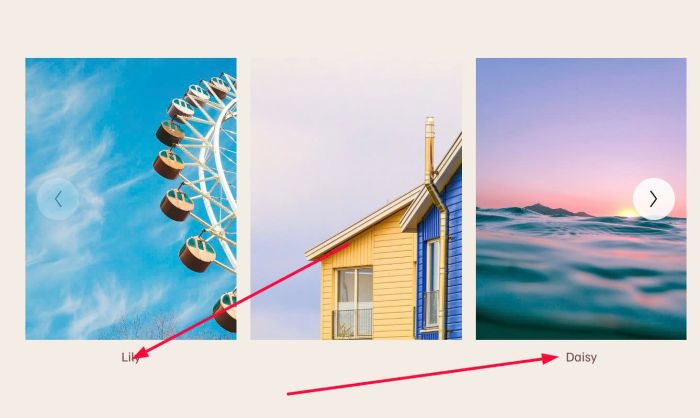
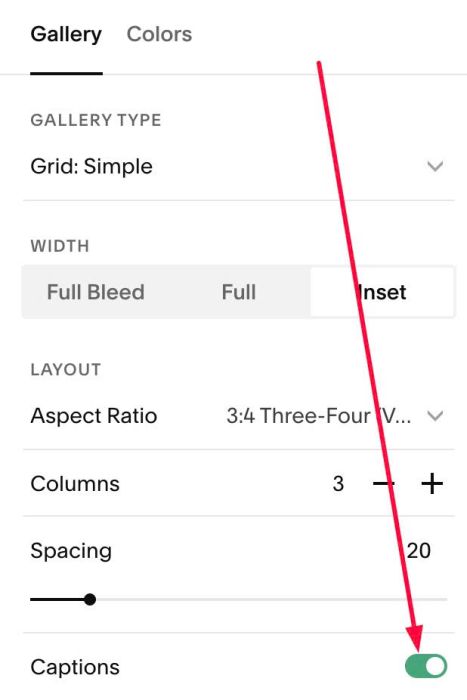
You can enable this option
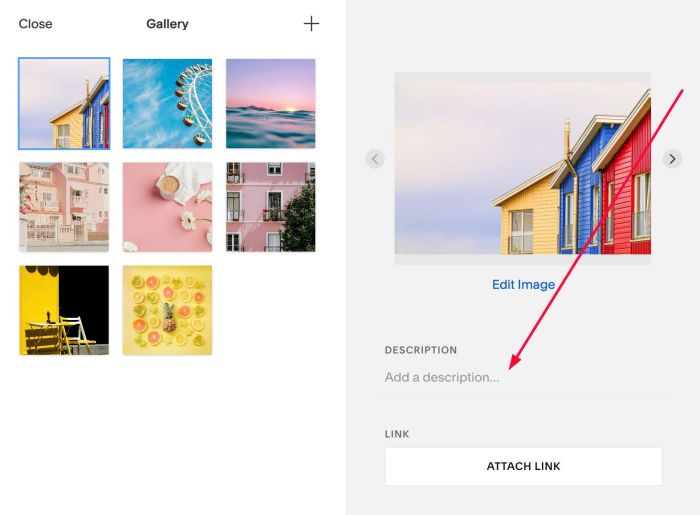
Then you can add text to Images
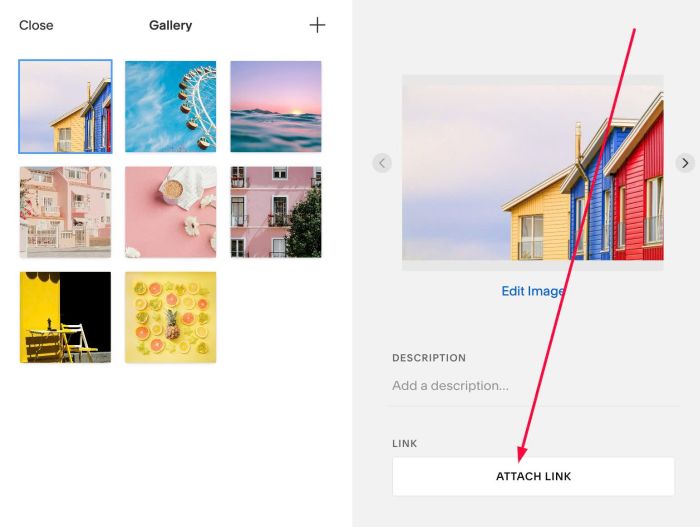
#2.5. To make Carousel Image clickable, just add Link to this option
#2.6. To change Caption size, change this line 07
captionFontSize: '14px',
#2.7. To make Carousel autoscroll, change Line 05, Line 06
- false = disable
- true = enable
autoplay: false,
autoplayDelay: 3000,
#2.8. To change arrow, circle (around arrow) style, change Line 13 to Line 17
arrowSize: '20px',
 arrowColor: '#000000',
 arrowCircleSize: '44px',
 arrowCircleBg: 'rgba(255,255,255,0.85)',
 arrowCircleBorderRadius: '50%',
#3. Other
If you have any other questions, you can email or message me.