Description
- adding filter category to Portfolio page
- view demo – password: abc
- buy me a coffee

#1. Install Code
#1.1. First you need to find Portfolio item URL
Clicking 3 dots > Settings

at General > URL Slug. In my example, it is: /apple
Note: Full URL Slug is /0626c08v3-portfolio-filter/apple
but we will use /apple only

#1.2. Click Gear icon on Portfolio Page

Click Advanced > Paste this code
- If you use Personal/Basic Plan and your plan doesn’t support Injection, you can follow #3.1
<!-- 06.26c08v3 Portfolio Filter v3 -->
<script>
window.PortfolioFilterv3Config = {
  showAll: true,
  initialFilter: '',
  stickyBar: true,
  activeColor: '#000',
  filterColor: '#333',
  filterSize: '16px',
  filterAlign: 'left',
  separator: '\\',

  items: {
    '/apple':     ['Tech', 'US'],
    '/microsoft': ['Tech', 'US'],
    '/google':    ['Tech', 'US'],
    '/sony':      ['Tech', 'Asia'],
    '/nokia':     ['Tech', 'Europe'],
    '/samsung':   ['Tech', 'Asia'],
    '/tiger':     ['FMCG', 'Asia'],
    '/valio':     ['FMCG', 'Europe'],
    '/wolt':      ['FMCG', 'Europe'],
    '/deliveroo': ['FMCG', 'Europe'],
    '/pearson':   ['Education', 'Europe']
  },

  rows: [
    { label: 'Industry', filters: ['Tech', 'FMCG', 'Education'] },
  ]
}
</script>
<script src="https://code.beaverhero.com/portfolio/0626c08v3portfoliofilterv3.js"></script>
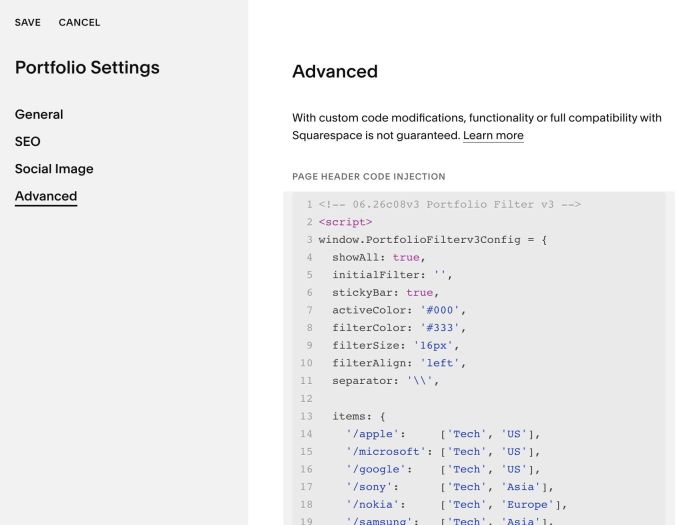
#1.3. You can add Filter Category + Item url in Line 13 to Line 25
items: {
    '/apple':     ['Tech', 'US'],
    '/microsoft': ['Tech', 'US'],
    '/google':    ['Tech', 'US'],
    '/sony':      ['Tech', 'Asia'],
    '/nokia':     ['Tech', 'Europe'],
    '/samsung':   ['Tech', 'Asia'],
    '/tiger':     ['FMCG', 'Asia'],
    '/valio':     ['FMCG', 'Europe'],
    '/wolt':      ['FMCG', 'Europe'],
    '/deliveroo': ['FMCG', 'Europe'],
    '/pearson':   ['Education', 'Europe']
  },
Format is
'item 1 url': ['category name', 'category name']
'item 2 url': ['category name', 'category name']

#1.4. Next, define category order in Line 28
rows: [
  { label: 'Industry', filters: ['Tech', 'FMCG', 'Education'] },
]

#2. Customize
#2.1. To change text “Industry” before Filter links, you can change Line 28
{ label: 'Industry', filters: ['Tech', 'FMCG', 'Education'] },
#2.2. To remove text “All”, you can change Line 04
showAll: true,
to
showAll: false,
#2.3. To change Filter links style, change Line 07 to Line 10
activeColor: '#000',
filterColor: '#333',
filterSize: '16px',
filterAlign: 'left',
#2.4. To change symbol “\” between filter links, you can change Line 11
separator: '\\',
#2.5. If you want add 2 Rows of Filter bar, like this

You can add extra Lines like this
rows: [
   { label: 'Industry', filters: ['Tech', 'FMCG', 'Education'] },
  { label: 'Region',   filters: ['US', 'Europe', 'Asia'] }
 ]
#2.6. To make Filter bar sticky on scroll, you can use this code under main code
<style>
div#filterBarWrapper {
    top: 60px;
    background-color: var(--siteBackgroundColor);
}
</style>
- top is space between Filter bar – top of screen
#2.7. To turn specific filter to active on default.
For example, we will make: Education active, like this.

You can change Line 05
initialFilter: '',
to
initialFilter: 'Education',
#3. Other
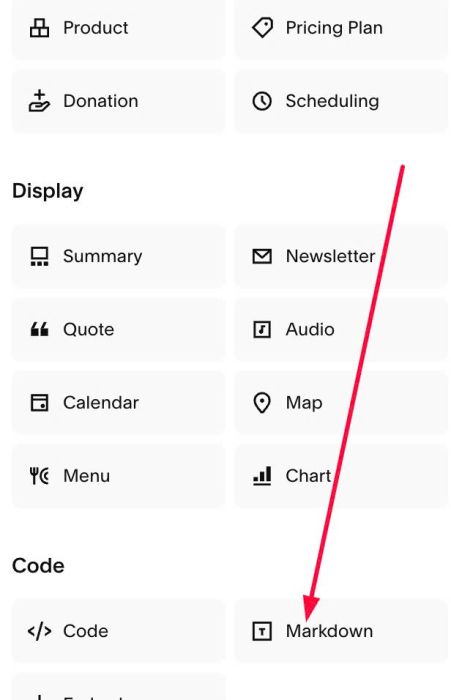
#3.1. If you use Personal/Basic Plan and your plan doesn’t support Injection, you can edit Portfolio Page > Add a Section > Add a Block
Choose Markdown
Paste this code
<script>
window.PortfolioFilterv3Config = {
  showAll: true,
  initialFilter: '',
  stickyBar: true,
  activeColor: '#000',
  filterColor: '#333',
  filterSize: '16px',
  filterAlign: 'left',
  separator: '\\',

  items: {
    '/apple':     ['Tech', 'US'],
    '/microsoft': ['Tech', 'US'],
    '/google':    ['Tech', 'US'],
    '/sony':      ['Tech', 'Asia'],
    '/nokia':     ['Tech', 'Europe'],
    '/samsung':   ['Tech', 'Asia'],
    '/tiger':     ['FMCG', 'Asia'],
    '/valio':     ['FMCG', 'Europe'],
    '/wolt':      ['FMCG', 'Europe'],
    '/deliveroo': ['FMCG', 'Europe'],
    '/pearson':   ['Education', 'Europe']
  },

  rows: [
    { label: 'Industry', filters: ['Tech', 'FMCG', 'Education'] },
  ]
}
</script>
<script src="https://code.beaverhero.com/portfolio/0626c08v3portfoliofilterv3.js"></script>
