Description
- adding icons/text under Add to Cart
- view demo – password: abc
- buy me a coffee
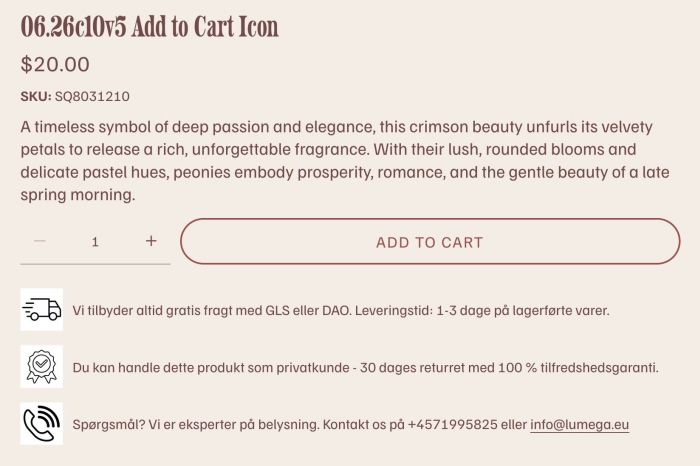
#1. Install Code
#1.1. First you need to add a page in Not Linked with
- Name: Add to Cart Icon
- URL: /add-to-cart-icon

#1.2. Add a Text Block with your desired text. On each line of text, enter word: Icon, like this

#1.3. Highlight text “Icon” > Click Link icon > File > Upload your desired icon

#1.4. Click on Gear icon on Store Page

Click Advanced > Page Header Code Injection

#1.5. Paste this code to right box
<!-- 06.26c10v5 Add to Cart Icons -->
<script>
var INJECT_ICON_CONFIG = {
  iconSize: 50,
  layout: "left",
  alignment: "center",
  iconTags: ["h1", "h2", "h3", "h4", "p"],
  rules: [
    {
      sourcePage: "/add-to-cart-icon",
      targetSelector: ".product-add-to-cart",
      position: "after"
    }
  ]
};
</script>
<script src="https://code.beaverhero.com/productdetail/0626c10v5addtocarticons.js">
</script>

#1.6. To make icon/text appears under Add to Cart on Specific Products Only, you can create a tag with name: custom-text-icon
Next, assign tag for all products where you want to add custom text/icon
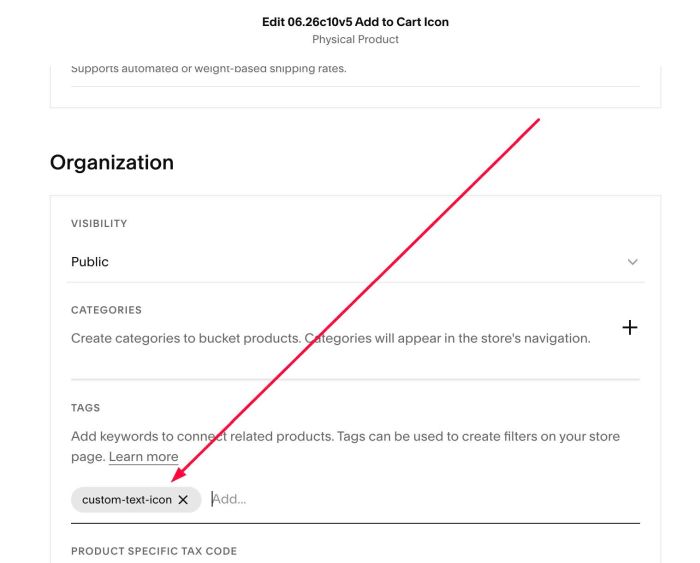
Next, change code #1.5 to this code
<!-- 06.26c10v5 Add to Cart Icons -->
<script>
var INJECT_ICON_CONFIG = {
  iconSize: 50,
  layout: "left",
  alignment: "center",
  iconTags: ["h1", "h2", "h3", "h4", "p"],
  rules: [
    {
      sourcePage: "/add-to-cart-icon",
      targetSelector: "div.tag-custom-text-icon .product-add-to-cart",
      position: "after"
    }
  ]
};
</script>
<script src="https://code.beaverhero.com/productdetail/0626c10v5addtocarticons.js">
</script>

#2. Customize
#2.1. To change icon size, change Line 04
iconSize: 50,
#2.2. If you want to add different icon text on different product tags, you can do these.
- Suppose we have 2 tags: trade marketing, digital
- Products belong each tag will have a different icon/text
First, you need to create 2 pages in Not Linked with URL
- Page 1: /trade-marekting-icon
- Page 2: /digital-icon
Next, add your desired text/upload icon (Follow step #1.2, #1.3)
Next, change #1.5 to this code
<!-- 06.26c10v5 Add to Cart Icons -->
<script>
var INJECT_ICON_CONFIG = {
  iconSize: 50,
  layout: "left",
  alignment: "center",
  iconTags: ["h1", "h2", "h3", "h4", "p"],
  rules: [
    {
      sourcePage: "/trade-marketing-icon",
      targetSelector: "div.tag-trade-marketing .product-add-to-cart",
      position: "after"
    },
    {
      sourcePage: "/digital-icon",
      targetSelector: ".tag-digital .product-add-to-cart",
      position: "before"
    }
  ]
};
</script>
<script src="https://code.beaverhero.com/productdetail/0626c10v5addtocarticons.js">
</script>

Remember to Update these: Line 10, Line 11, Line 15, Line 16
