Description
- hover image block will show overlay, text, description, button
- view demo – password: abc
- buy me a coffee

#1. Install Code
#1.1. Make sure you added Text to ALT (You can enter URL if you want to make Button appears)
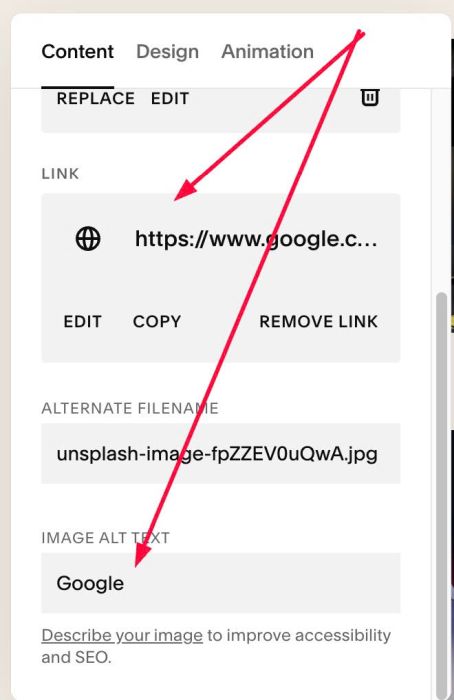
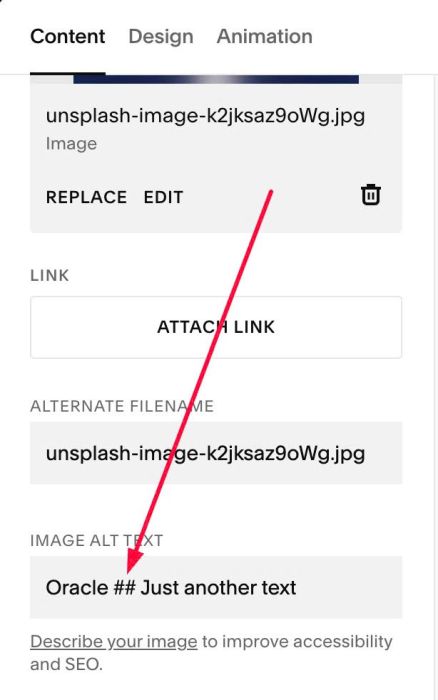
To make text to 2 lines like this

You can add symbol ## between text tin ALT
Oracle ## Just another text
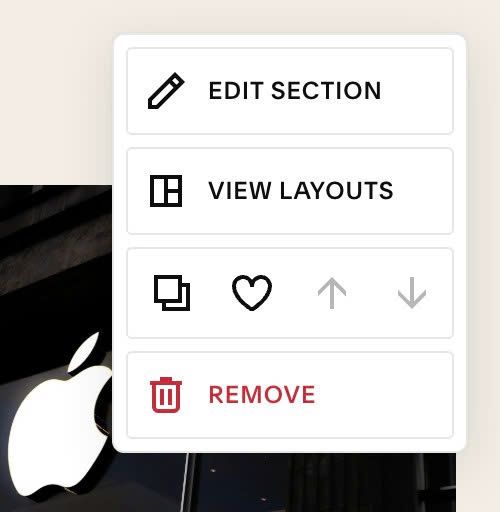
#1.2. Hover on top right of Section > Click EDIT SECTION
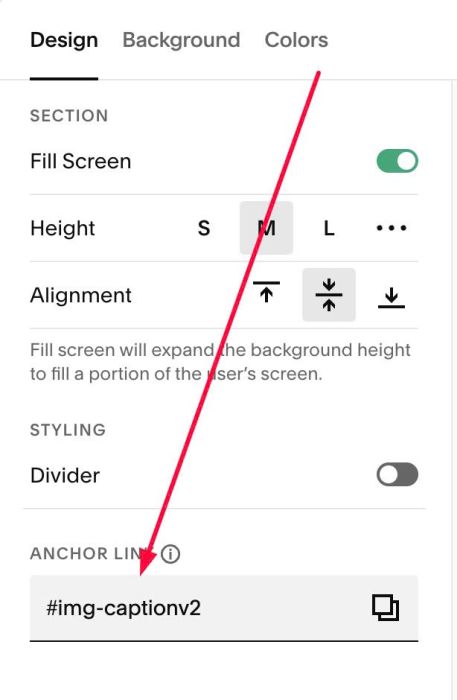
#1.3. At Design > Anchor Link, enter word: img-captionv2
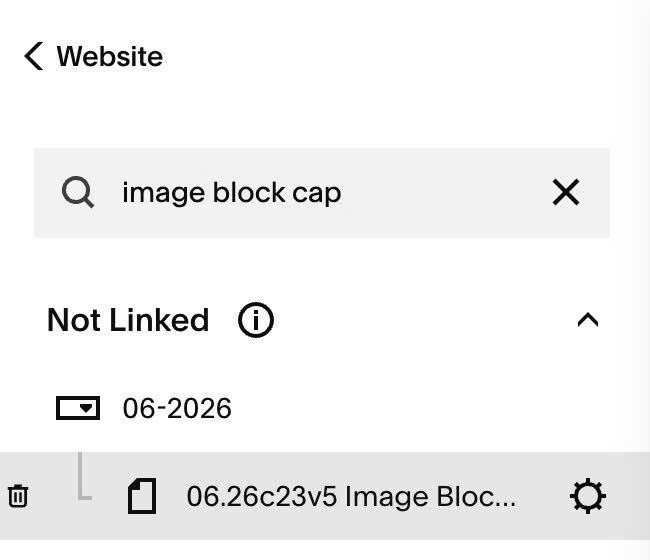
#1.4. Hover on Page where you use Image Blocks > Click Gear icon
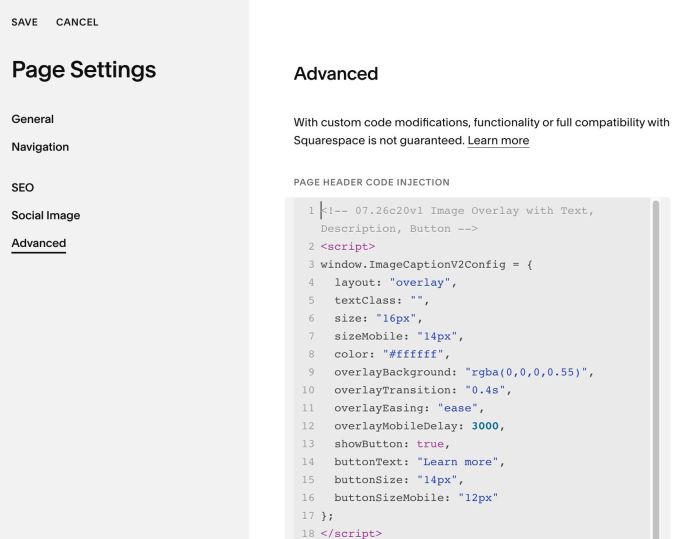
#1.5. Click Advanced > Paste this code to right box
- If you use Personal/Basic Plan and your plan doesn’t support Injection, see #3.1
<!-- 07.26c20v1 Image Overlay with Text, Description, Button -->
<script>
window.ImageCaptionV2Config = {
  layout: "overlay",
  textClass: "",
  size: "16px",
  sizeMobile: "14px",
  color: "#ffffff",
  overlayBackground: "rgba(0,0,0,0.55)",
  overlayTransition: "0.4s",
  overlayEasing: "ease",
  overlayMobileDelay: 3000,
  showButton: true,
  buttonText: "Learn more",
  buttonSize: "14px",
  buttonSizeMobile: "12px"
};
</script>
<script src="https://code.beaverhero.com/imageblock/0726c20v1imageoverlaytextbutton.js"></script>
#2. Customize
#2.1. To change caption text size/color, change Line 06, Line 07, Line 08
size: "16px",
 sizeMobile: "14px",
 color: "#ffffff",
#2.2. To change overlay color, change Line 09
overlayBackground: "rgba(0,0,0,0.55)",
#2.3. To change button text/style, change line 14, 15, 16
buttonText: "Learn more",
  buttonSize: "14px",
  buttonSizeMobile: "12px"
#3. Other
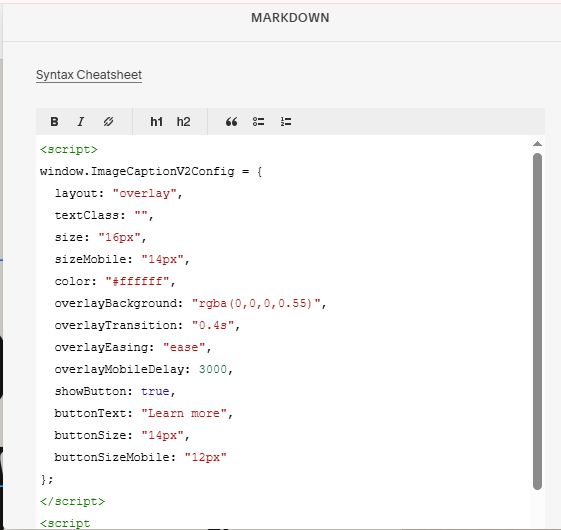
#3.1. If you use Personal/Basic Plan and your plan doesn’t support Injection, you can edit current section (section where you use Image Blocks) > Add a Block

Choose Markdown

Add this code into Markdown
<script>
window.ImageCaptionV2Config = {
  layout: "overlay",
  textClass: "",
  size: "16px",
  sizeMobile: "14px",
  color: "#ffffff",
  overlayBackground: "rgba(0,0,0,0.55)",
  overlayTransition: "0.4s",
  overlayEasing: "ease",
  overlayMobileDelay: 3000,
  showButton: true,
  buttonText: "Learn more",
  buttonSize: "14px",
  buttonSizeMobile: "12px"
};
</script>
<script src="https://code.beaverhero.com/imageblock/0726c20v1imageoverlaytextbutton.js"></script>