Description
- adding icons between text in text block
- view demo – password: abc
- buy me a coffee

#1. Install Code
#1.1. First you can add a Text Block then add text icon like this

#1.2. Highlight text “Icon” > Click Link icon > Choose File > Upload your desired icon (or paste icon image url)

#1.3. Hover on Page where you use Text Block > Click Gear icon
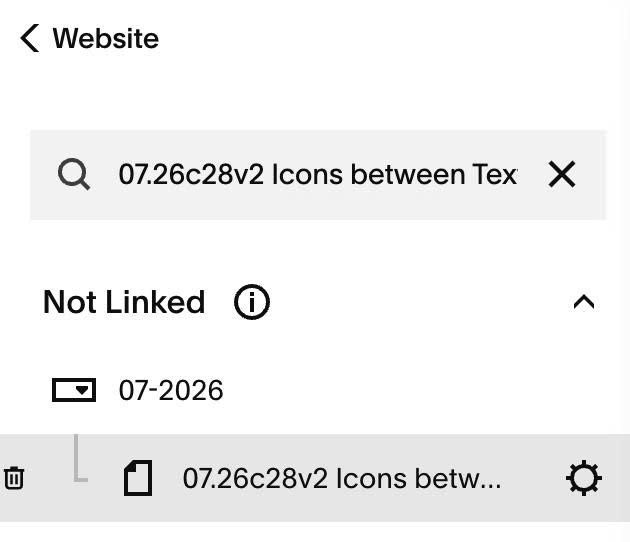
#1.4. Click Advanced > Paste this code
- If you use Personal/Basic Plan and your plan doesn’t support Injection, see #3.1.
<!-- 07.26c28v2 Icons between Text -->
<script>
  window.TextIconsConfig = {
    iconSize: 30,
    selector: ".sqs-html-content"
  };
</script>
<script src="https://code.beaverhero.com/test/textblock/0726c28v2iconsbetweentext.js"></script>

#2. Customize
#2.1. To change icon size, change line 04
iconSize: 30,
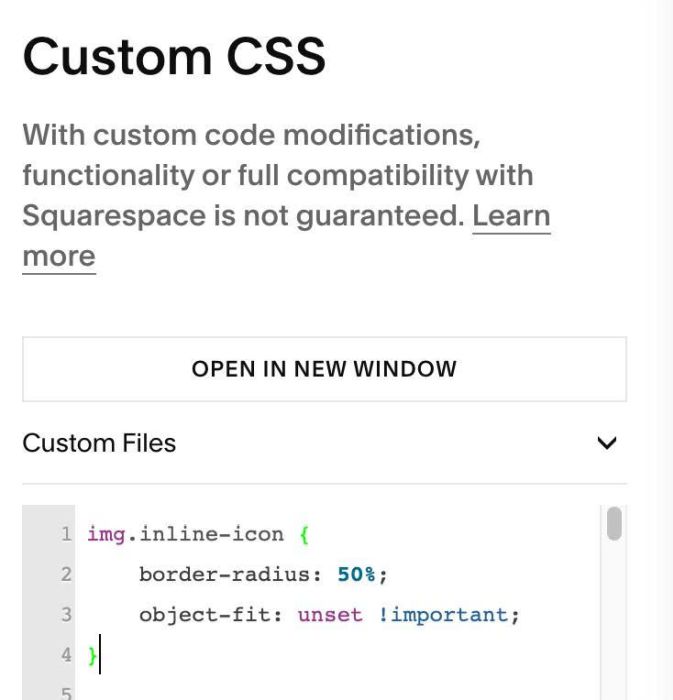
#2.2. To make image round, use this code to Custom CSS
img.inline-icon {
    border-radius: 50%;
    object-fit: unset !important;
}
#3. Other
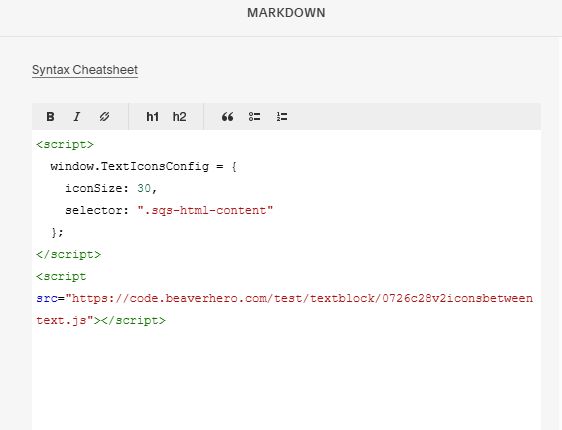
#3.1. If you use Personal/Basic Plan and your plan doesn’t support Injection, you can add a Markdown Block under Text Block.

Add this code into Markdown
<script>
  window.TextIconsConfig = {
    iconSize: 30,
    selector: ".sqs-html-content"
  };
</script>
<script src="https://code.beaverhero.com/test/textblock/0726c28v2iconsbetweentext.js"></script>