Description
- rotate logo to another logo after some seconds (3s)
- view demo – password: abc
- buy me a coffee
#1. Install Code
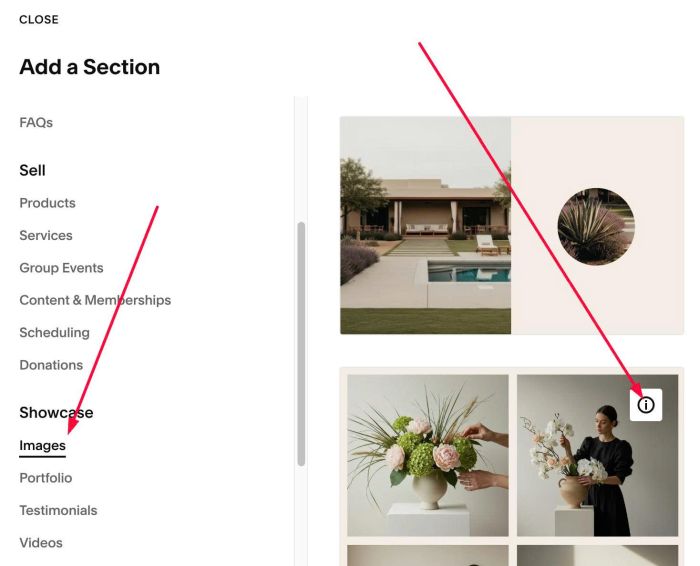
#1.1. First, add a Section > Choose Images > Choose section with (i) icon
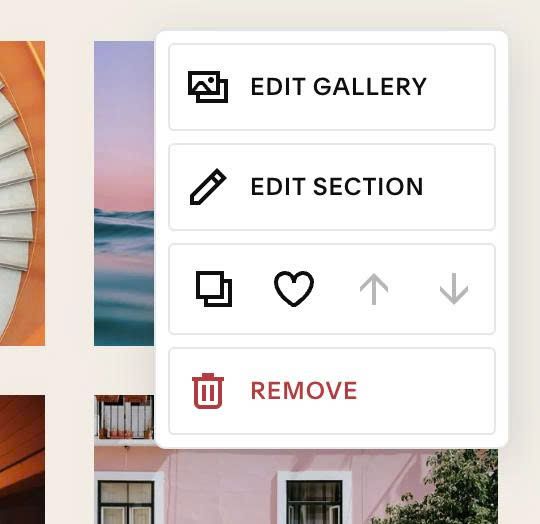
#1.2. Next, hover on top right of Images > Click EDIT SECTION
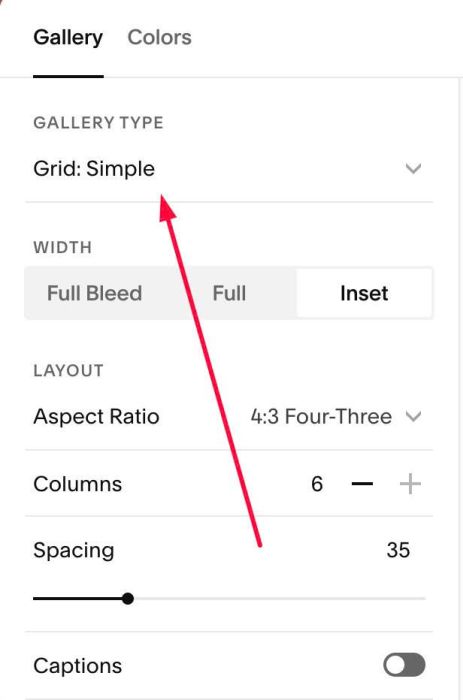
#1.3. Make sure you use Grid: Simple
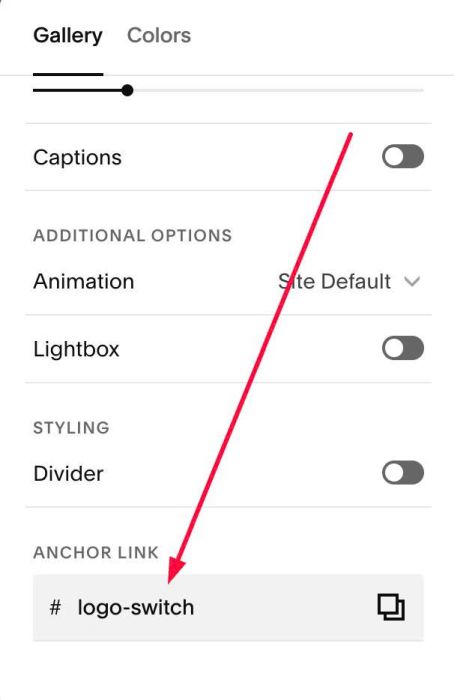
#1.4. at Anchor Link, enter word: logo-switch
#1.5. Next, hover on top right of Images > Click EDIT GALLERY
#1.6. Upload your desired logo + enter second logo url in Description

#1.7. Hover on Page where you added Gallery Grid > Click Gear icon

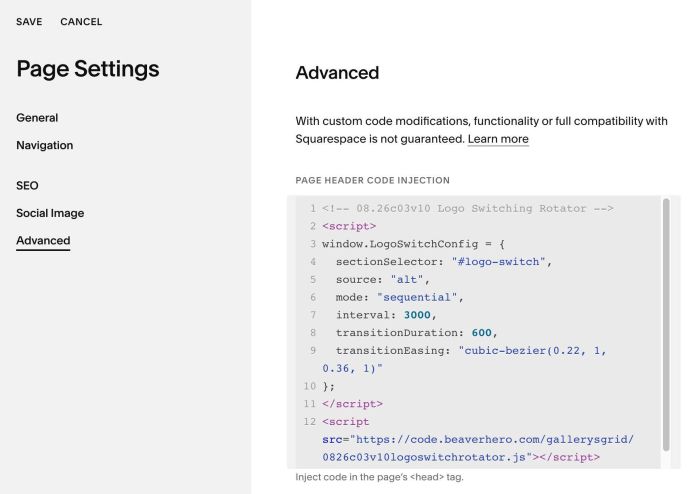
#1.8. Click Advanced > Paste this code
- If you use Personal/Basic Plan and your plan doesn’t support Injection, see #3.1
<!-- 08.26c03v10 Logo Switching Rotator -->
<script>
window.LogoSwitchConfig = {
  sectionSelector: "#logo-switch",
  source: "alt",
  mode: "sequential",
  interval: 3000,
  transitionDuration: 600,
  transitionEasing: "cubic-bezier(0.22, 1, 0.36, 1)"
};
</script>
<script src="https://code.beaverhero.com/gallerysgrid/0826c03v10logoswitchrotator.js"></script>
#2. Customize
#2.1. To change 3 seconds, you can change line 07 (number 3000)
interval: 3000,
#3. Other
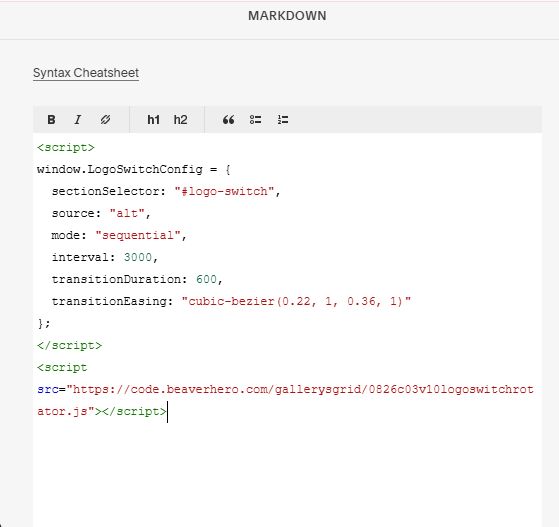
#3.1. If you use Personal/Basic Plan and your plan doesn’t support Injection, you can edit current page (page where you use Gallery Grid Simple) > Add a Block > Choose Markdown

Add this code into Markdown
<script>
window.LogoSwitchConfig = {
  sectionSelector: "#logo-switch",
  source: "alt",
  mode: "sequential",
  interval: 3000,
  transitionDuration: 600,
  transitionEasing: "cubic-bezier(0.22, 1, 0.36, 1)"
};
</script>
<script src="https://code.beaverhero.com/gallerysgrid/0826c03v10logoswitchrotator.js"></script>