Description
- adding speed control to Audio Block
- view demo – password: abc
- buy me a coffee
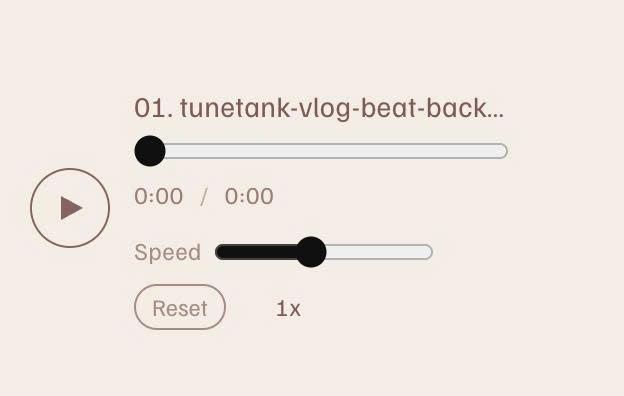
#1. Install Code
#1.1. Make sure you added Audio Block
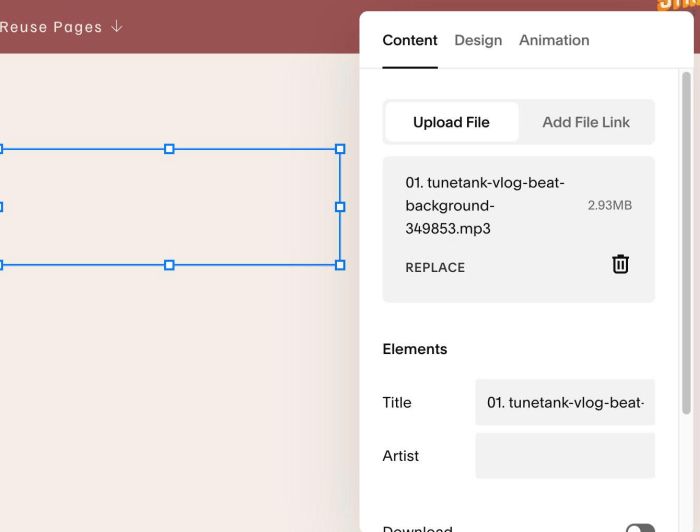
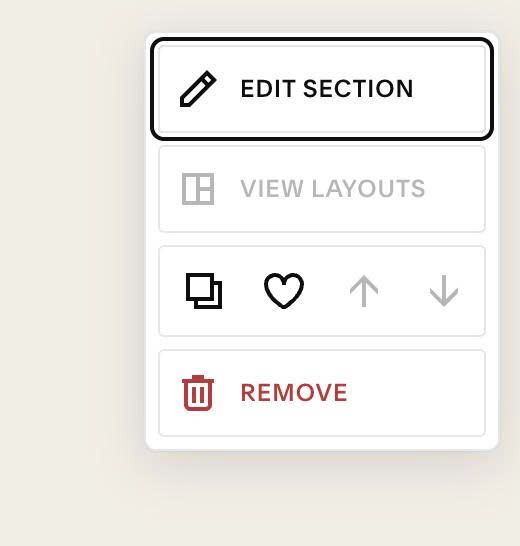
#1.2. Hover on top right of section (where you use Audio Blocks) > Click EDTI SECTION
#1.3. at Design > Anchor Link > enter word: audio-mixer

#1.4. Hover on Page where you added Audio Blocks > Click Gear icon

#1.5. Click Advanced > Paste this code
- If you use Personal/Basic Plan and your plan doesn’t support Injection, see #3.1
<!-- 08.26c03v6 Audio Mixer & Speed -->
<script>
window.AudioMixerConfig = {
  defaultSpeed: 1,
  minSpeed: 0.25,
  maxSpeed: 2,
  step: 0.05,
  presets: [0.5, 0.75, 1, 1.25, 1.5],
  controlStyle: "slider",
  preservePitch: true,
  showLabel: true,
  labelText: "Speed",
  resetLabel: "Reset",
  showTitle: true,
  preload: "none"
};
</script>
<script src="https://code.beaverhero.com/audio/0826c03v6audiospeed.js"></script>
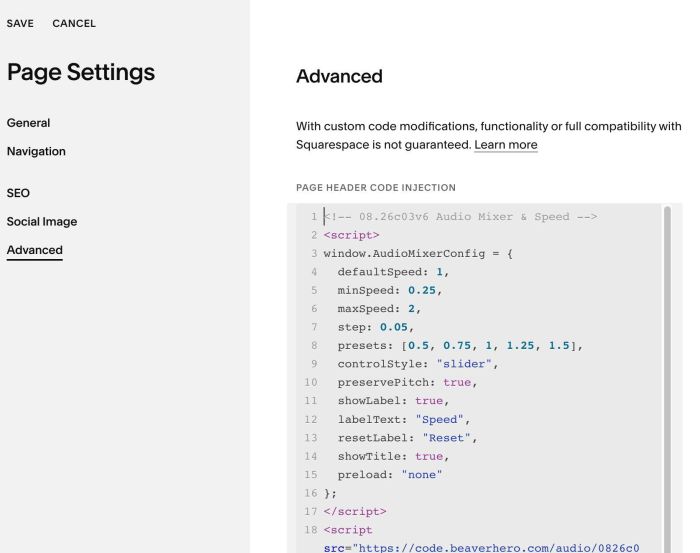
#2. Customize
#2.1. To change text “Speed”, “Reset”, change Line 12, Line 13
labelText: "Speed",
resetLabel: "Reset",
#2.2. To adjust speed, change line 05, 06, 07
minSpeed: 0.25,
 maxSpeed: 2,
 step: 0.05,
#3. Other
#3.1. If you use Personal/Basic Plan and your plan doesn’t support Injection, you can edit current page (page where you use Audio Blocks) > Add a Block > Choose Markdown

Add this code into Markdown
<script>
window.AudioMixerConfig = {
  defaultSpeed: 1,
  minSpeed: 0.25,
  maxSpeed: 2,
  step: 0.05,
  presets: [0.5, 0.75, 1, 1.25, 1.5],
  controlStyle: "slider",
  preservePitch: true,
  showLabel: true,
  labelText: "Speed",
  resetLabel: "Reset",
  showTitle: true,
  preload: "none"
};
</script>
<script src="https://code.beaverhero.com/audio/0826c03v6audiospeed.js"></script>
