Description
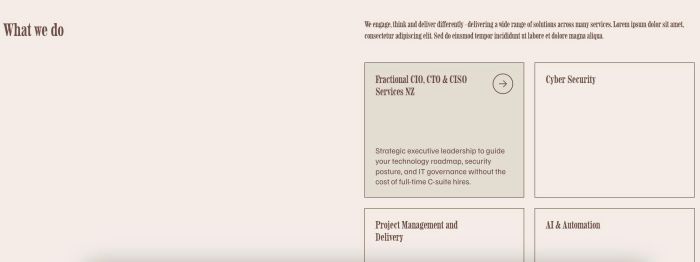
- make Services section with left (title) – right (description, grid of items, item has title, hover will change background, description, clickable arrow)
- view demo – password: abc
- buy me a coffee
1. Install Code
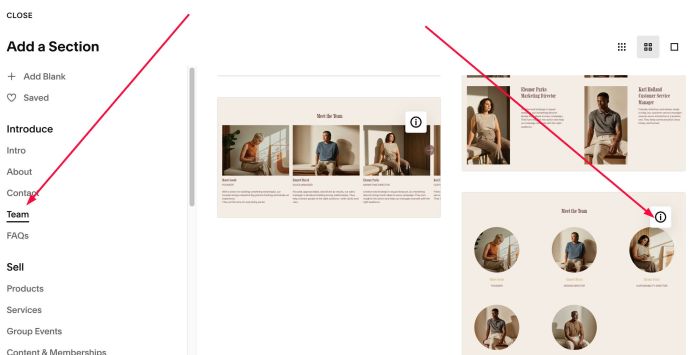
#1.1. First add Section > Choose Team > Choose Section with (i) icon
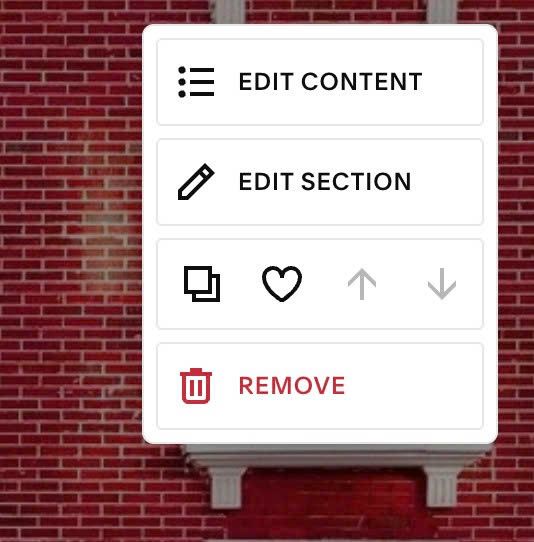
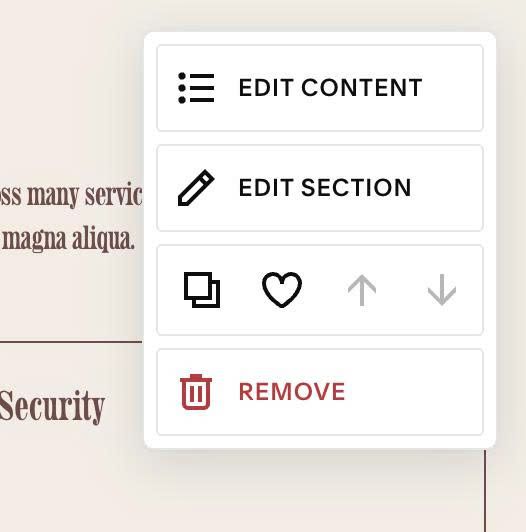
#1.2. Hover on top right of section > Click EDIT CONTENT
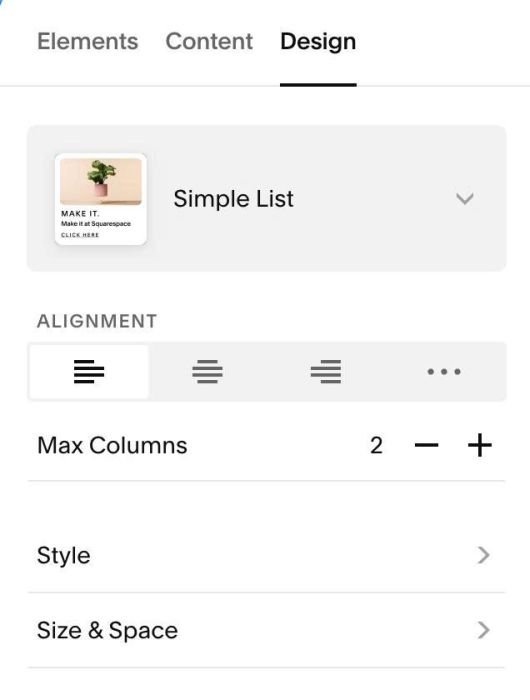
#1.3. at Design > Choose Simple List
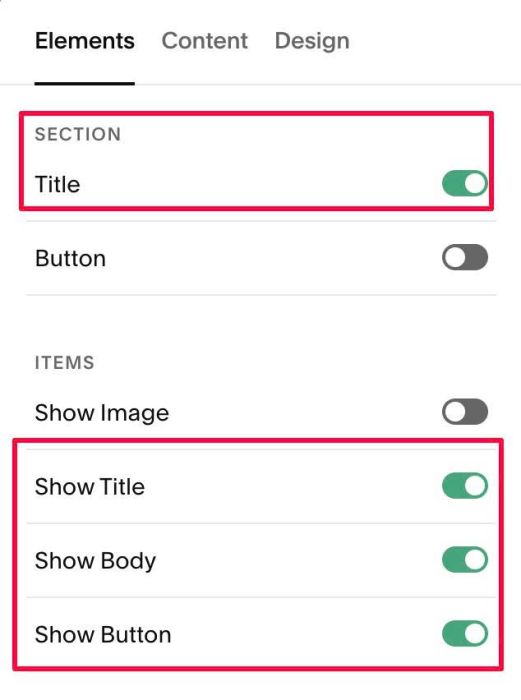
#1.4. at Elements > You can Enable Section Title, Item Title, Body, Button
#1.5. at Content > Add your desired title, image, button url
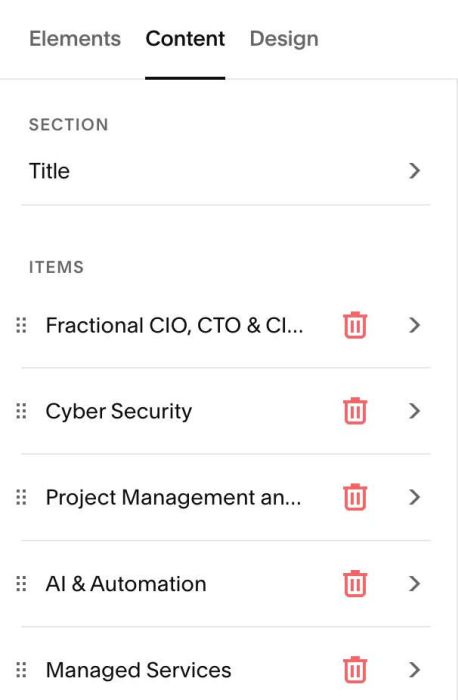
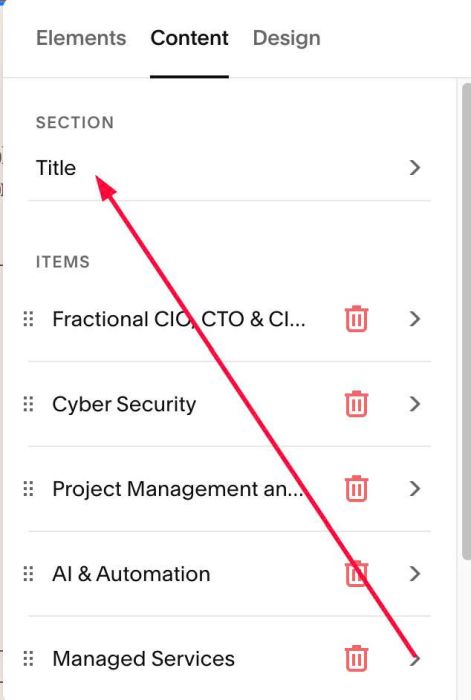
Next, click Title
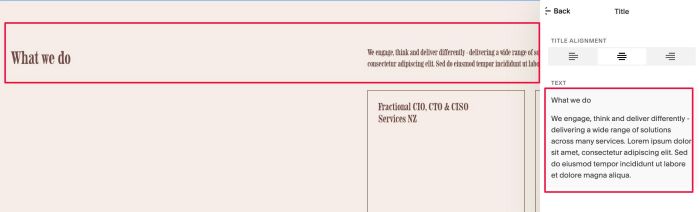
Enter 2 paragraphs of text
#1.6. Hover on top right of section > Click EDIT SECTION
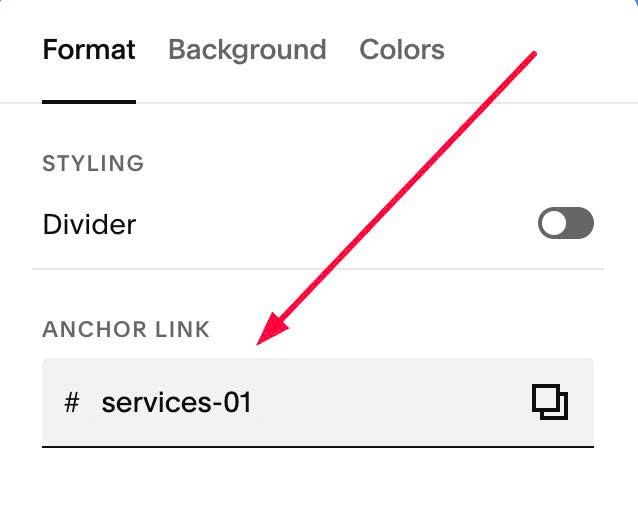
#1.7. at Format > Anchor Link, enter word: services-01
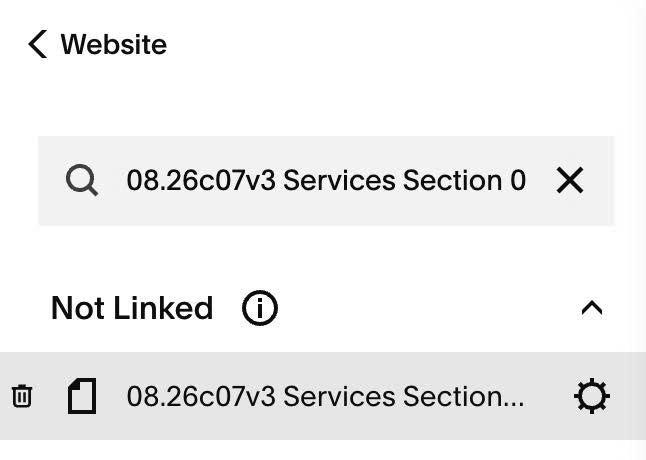
#1.8. Hover on Page where you want to apply effect > Click Gear icon
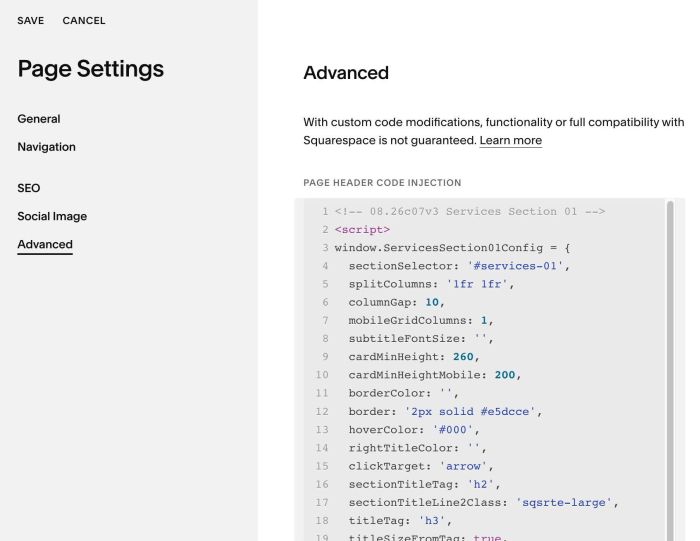
#1.9. Click Advanced > Paste this code
- If you use Personal/Basic Plan and your plan doesn’t support Injection, see #3.1
<!-- 08.26c07v3 Services Section 01 -->
<script>
window.ServicesSection01Config = {
  sectionSelector: '#services-01',
  splitColumns: '1fr 1fr',
  columnGap: 10,
  mobileGridColumns: 1,
  subtitleFontSize: '',
  cardMinHeight: 260,
  cardMinHeightMobile: 200,
  borderColor: '',
  border: '2px solid #e5dcce',
  hoverColor: '#000',
  rightTitleColor: '',
  clickTarget: 'arrow',
  sectionTitleTag: 'h2',
  sectionTitleLine2Class: 'sqsrte-large',
  titleTag: 'h3',
  titleSizeFromTag: true,
  descriptionClass: 'sqsrte-small',
  arrow: {
    size: 40,
    iconColor: '#f2e1f2',
    circleColor: '#000',
    circleBg: '#000',
    iconHoverColor: '',
    circleHoverColor: '',
    circleBgHover: ''
  }
};
</script>
<script src="https://code.beaverhero.com/listsimple/0826c07v3servicessection01.js"></script>
#2. Customize
#2.1. To change number of columns on Desktop, change this option
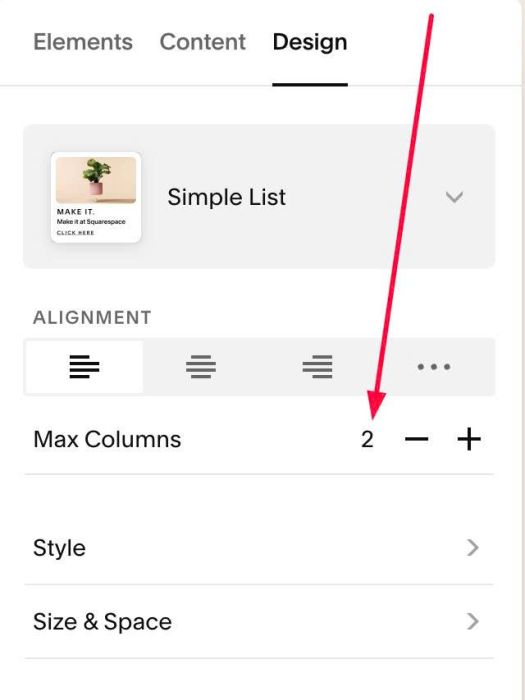
To change number of columns on Mobile, change Line 07
mobileGridColumns: 2,
#2.2. To change item height on desktop, mobile, change line 09, 10
cardMinHeight: 260,
cardMinHeightMobile: 200,
#2.3. To change line border around each item, change line 12
border: '2px solid #e5dcce',
#2.4. To change section title style to h2, h3 or h4, change line 16
sectionTitleTag: 'h2',
#2.5. To change text (top of grid items) to P1, P2 or P3, change line 17
- sqsrte-large = P1
- sqsrte-smalll = P3
sectionTitleLine2Class: 'sqsrte-large',
to set P2, change it to
sectionTitleLine2Class: '',
#2.6. To change style of title on each item, change line 18
titleTag: 'h3',
#2.7. To change description on each item, change line 19 (similar #2.5)
descriptionClass: 'sqsrte-small',
#2.8. To change arrow style, change line 21 to line 29
arrow: {
  size: 40,
  iconColor: '#f2e1f2',
  circleColor: '#000',
  circleBg: '#000',
  iconHoverColor: '',
  circleHoverColor: '',
  circleBgHover: ''
}
#2.9. If you need to tweak more you can use this AI Assistant (designed for Squarespace sites)
#3. Other
#3.1. If you use Personal/Basic Plan and your plan doesn’t support Injection, you can edit current page (page where you use services section) > Add a Block > Choose Markdown

Add this code into Markdown
<script>
window.ServicesSection01Config = {
  sectionSelector: '#services-01',
  splitColumns: '1fr 1fr',
  columnGap: 10,
  mobileGridColumns: 1,
  subtitleFontSize: '',
  cardMinHeight: 260,
  cardMinHeightMobile: 200,
  borderColor: '',
  border: '2px solid #e5dcce',
  hoverColor: '#000',
  rightTitleColor: '',
  clickTarget: 'arrow',
  sectionTitleTag: 'h2',
  sectionTitleLine2Class: 'sqsrte-large',
  titleTag: 'h3',
  titleSizeFromTag: true,
  descriptionClass: 'sqsrte-small',
  arrow: {
    size: 40,
    iconColor: '#f2e1f2',
    circleColor: '#000',
    circleBg: '#000',
    iconHoverColor: '',
    circleHoverColor: '',
    circleBgHover: ''
  }
};
</script>
<script src="https://code.beaverhero.com/listsimple/0826c07v3servicessection01.js"></script>
