Description
- horizontal carousel with line progress scroll bar (2 numbers float on left/right of line bar), support autoscroll
- view demo – password: abc
- buy me a coffee

#1. Install Code
#1.1. First, add a Gallery Block Slideshow
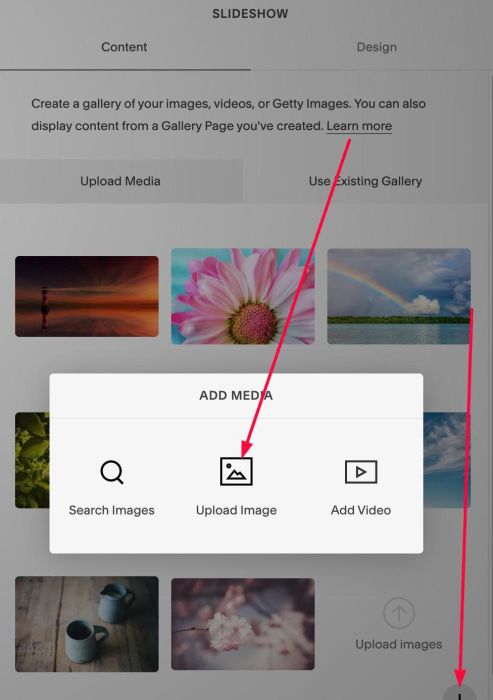
#1.2. Add your desired image by clicking Plus icon > Upload Images
#1.3. Hover on each image > Click Gear icon
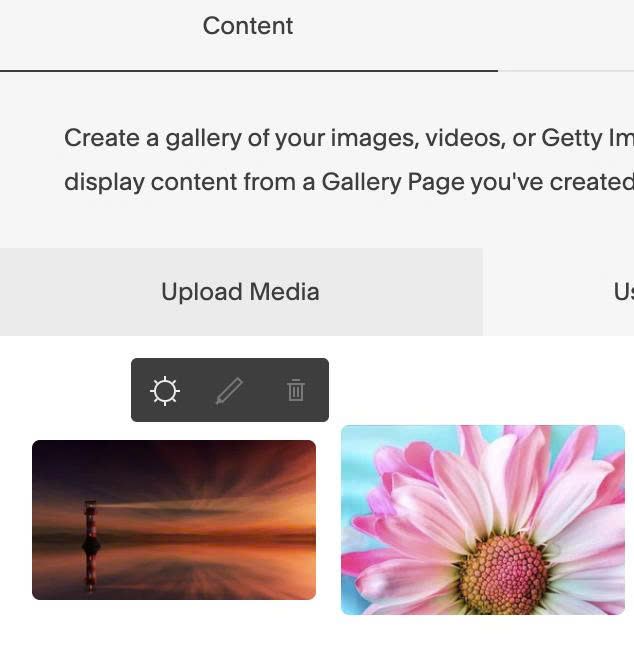
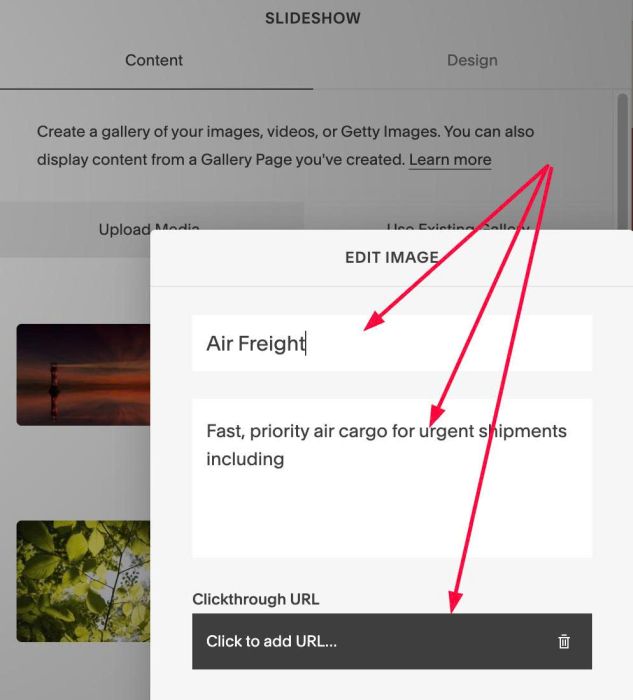
Add your desired text/url
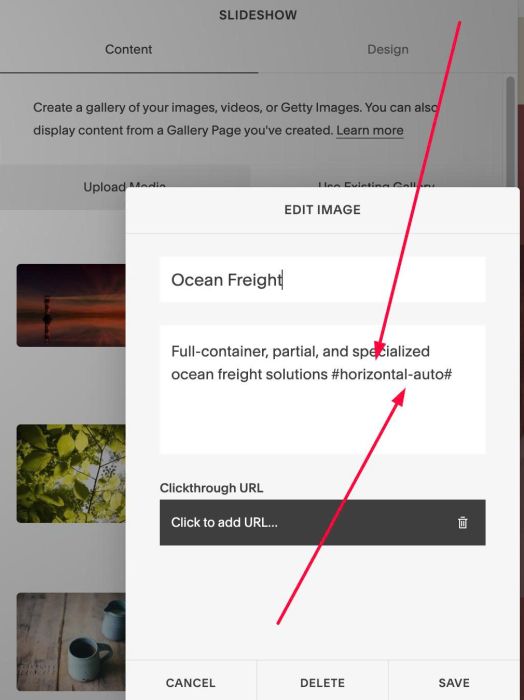
#1.4. In FIRST IMAGE > Edit Description > Enter word: #horizontal-auto#
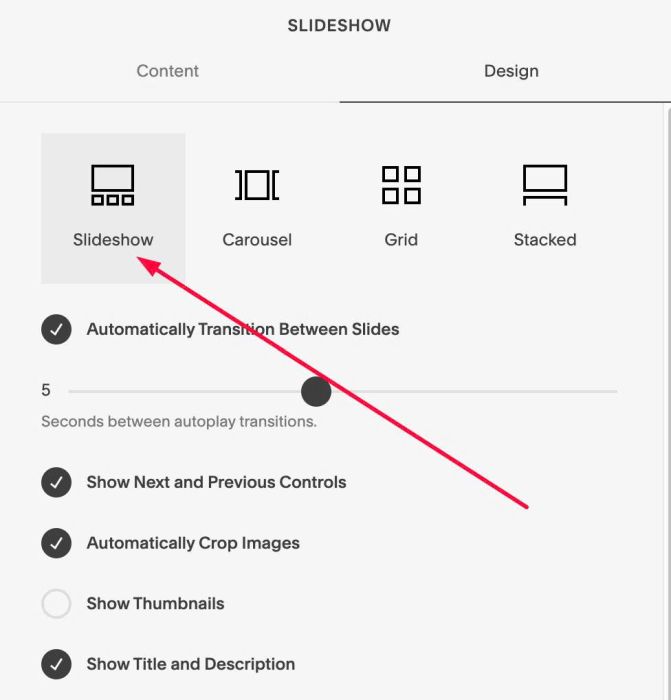
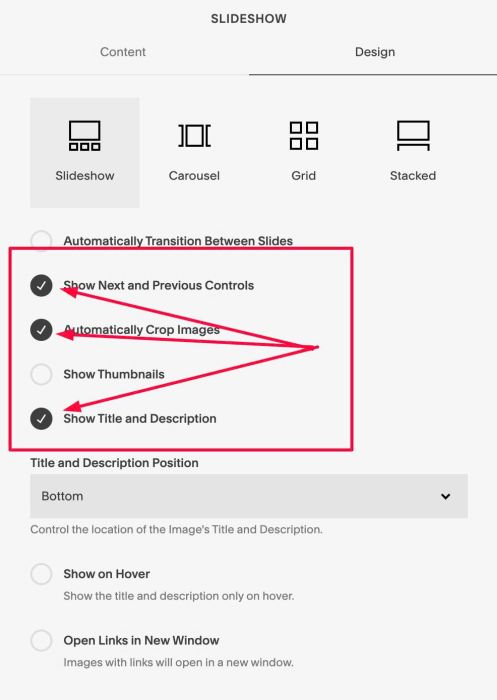
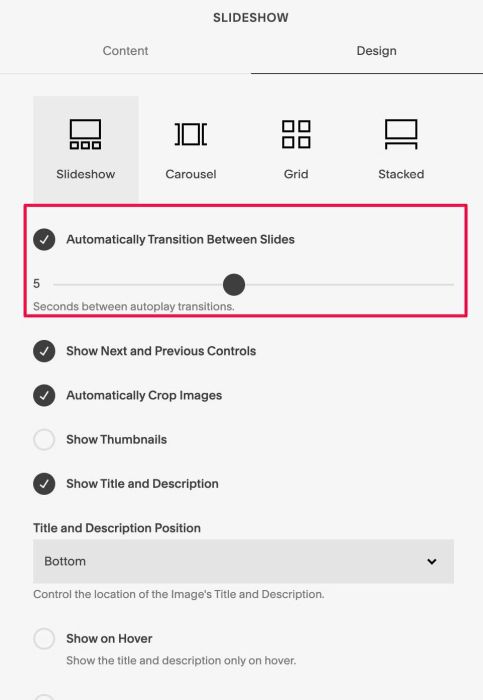
#1.5. Next, make sure you enabled these options
#1.6. Hover on page where you use Gallery Block Slideshow > click Gear icon
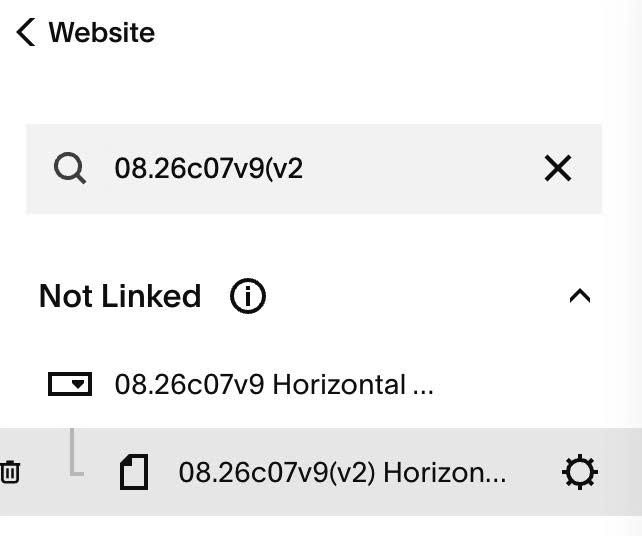
#1.7. Click Advanced > Paste this code
- If you use Personal/Basic Plan and your plan doesn’t support Injection, see #3.1
<!-- 08.26c07v9(v2) Horizontal Auto Carousel with Progress Scroll Bar (Gallery Block Slideshow) -->
<script>
window.HAC_GALLERY_SLIDESHOW_CONFIG = {
  marker: '#horizontal-auto#',

  slidesPerViewDesktop: null,
  slidesPerViewMobile: 1,
  spaceBetween: null,
  mobileBreakpoint: 768,

  autoplay: null,
  autoplayDelay: null,
  speed: 800,

  imgSize: '100px',
  imgSizeMobile: null,

  titleFontSizeDesktop: '18px',
  titleFontSizeMobile: '18px',
  descFontSizeDesktop: '14px',
  descFontSizeMobile: '14px',

  titleColor: '',
  descColor: '',
  numberColor: '',

  cardBackground: 'rgba(255,255,255,0.06)',
  cardBorderRadius: '18px',
  cardBackdropFilter: 'blur(18px)',
  cardGap: '16px',
  cardPadding: '12px',

  scrollbarTrackColor: 'rgba(255,255,255,0.35)',
  scrollbarThumbColor: '#ffffff',
  scrollbarHeight: '2px',
};
</script>
<script src="https://code.beaverhero.com/galleryblock/0826c07v9v2horizontalautoscrollscrollbargalleryblockslideshow.js"></script>

#2. Customize
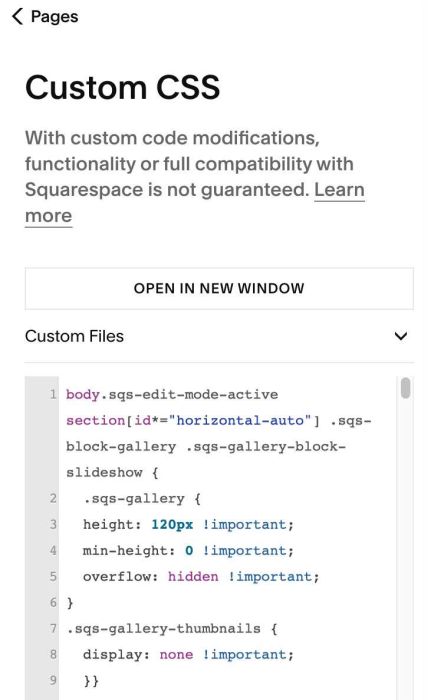
#2.1. If you can’t resize/remove space under Gallery Block Slideshow. You can add this extra code to Custom CSS
body.sqs-edit-mode-active section[id*="horizontal-auto"] .sqs-block-gallery .sqs-gallery-block-slideshow {
  .sqs-gallery {
  height: 120px !important;
  min-height: 0 !important;
  overflow: hidden !important;
}
.sqs-gallery-thumbnails {
  display: none !important;
  }}
#2.2. To disable/autoscroll, you can enable/disable this option
#2.3. To change image size, you can change this line 15, 16
imgSize: '100px',
 imgSizeMobile: null,
to something like this
imgSize: '100px',
 imgSizeMobile: '70px',
#2.4. To change title/description size, change line 18 to line 21
titleFontSizeDesktop: '18px',
titleFontSizeMobile: '18px',
descFontSizeDesktop: '14px',
descFontSizeMobile: '14px',
#2.5. To change title, description, numbers color, you can also change line 23 to line 25
titleColor: '',
  descColor: '',
  numberColor: '',
#2.6. To change scroll bar style, change line 33 to line 35
scrollbarTrackColor: 'rgba(255,255,255,0.35)',
scrollbarThumbColor: '#ffffff',
scrollbarHeight: '2px',
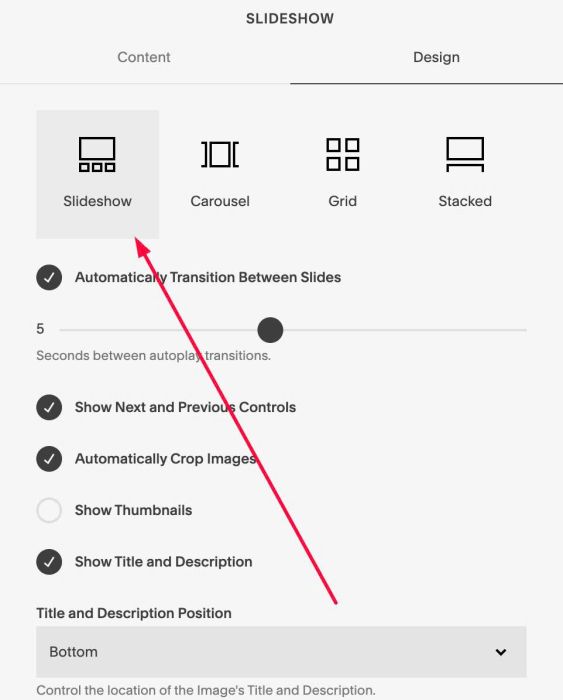
#2.7. To change number of columns and space between items, you can change Slideshow to Grid

Click Save

Then change back to Slideshow and Save
#3. Other
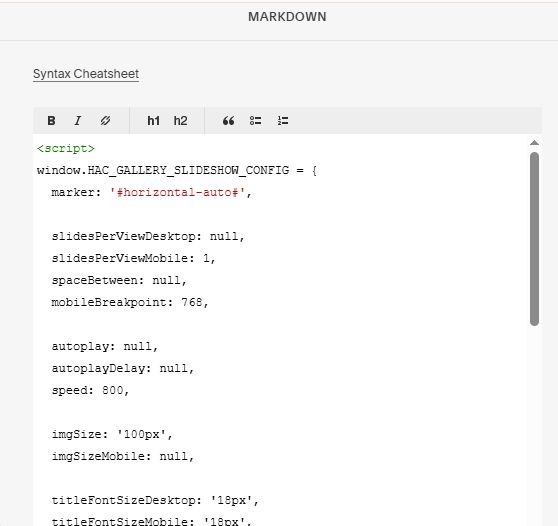
#3.1. If you use Personal/Basic Plan and your plan doesn’t support Injection, you can add a Markdown Block under Gallery Block Slideshow.

Then add this code into Markdown Block
<script>
window.HAC_GALLERY_SLIDESHOW_CONFIG = {
  marker: '#horizontal-auto#',

  slidesPerViewDesktop: null,
  slidesPerViewMobile: 1,
  spaceBetween: null,
  mobileBreakpoint: 768,

  autoplay: null,
  autoplayDelay: null,
  speed: 800,

  imgSize: '100px',
  imgSizeMobile: null,

  titleFontSizeDesktop: '18px',
  titleFontSizeMobile: '18px',
  descFontSizeDesktop: '14px',
  descFontSizeMobile: '14px',

  titleColor: '',
  descColor: '',
  numberColor: '',

  cardBackground: 'rgba(255,255,255,0.06)',
  cardBorderRadius: '18px',
  cardBackdropFilter: 'blur(18px)',
  cardGap: '16px',
  cardPadding: '12px',

  scrollbarTrackColor: 'rgba(255,255,255,0.35)',
  scrollbarThumbColor: '#ffffff',
  scrollbarHeight: '2px',
};
</script>
<script src="https://code.beaverhero.com/galleryblock/0826c07v9v2horizontalautoscrollscrollbargalleryblockslideshow.js"></script>