Description
- loading screen, you can set loading content from a page in Not Linked/Hidden
- view demo – password: abc
- buy me a coffee
#1. Install Code
#1.1. First, create a Page in Not Linked (or Hidden) with Name/URL
- Name: Section Loading Screen
- URL: /section-loading-screen

#1.2. Design your loading page desired layout

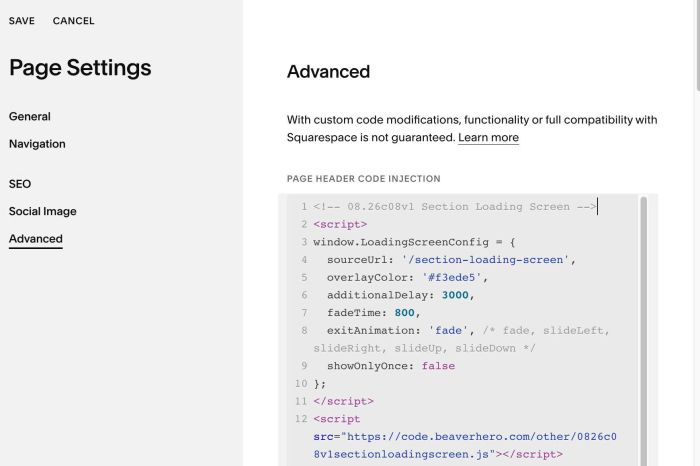
#1.3. Use this code to Code Injection > Footer (apply to all pages) or Page Header Injection (apply to One Page)
- If you use Personal/Basic Plan and your plan doesn’t support Injection, you can see #3.1
<!-- 08.26c08v1 Section Loading Screen -->
<script>
window.LoadingScreenConfig = {
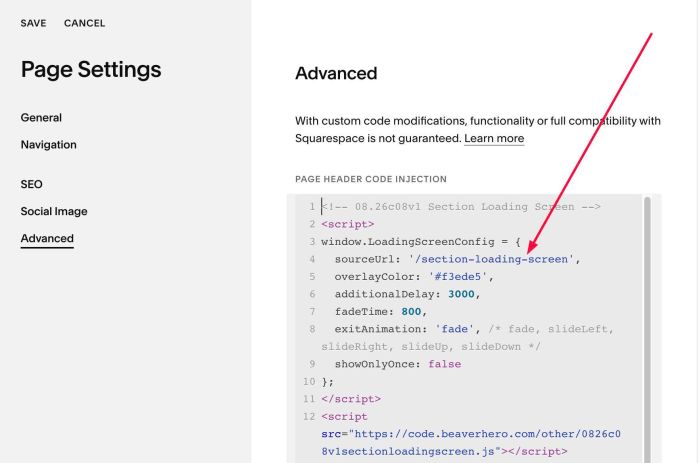
  sourceUrl: '/section-loading-screen',
  overlayColor: '#f3ede5',
  additionalDelay: 3000,
  fadeTime: 800,
  exitAnimation: 'fade', /* fade, slideLeft, slideRight, slideUp, slideDown */
  showOnlyOnce: false
};
</script>
<script src="https://code.beaverhero.com/other/0826c08v1sectionloadingscreen.js"></script>
#1.4. You need to update Page URL (you created in step #1.1.)
#2. Customize
#2.1. You can set loading screen background color at
overlayColor: '#f3ede5',
#2.2. Other options
additionalDelay: 3000,
fadeTime: 800,
exitAnimation: 'fade', /* fade, slideLeft, slideRight, slideUp, slideDown */
showOnlyOnce: false
#3. Other
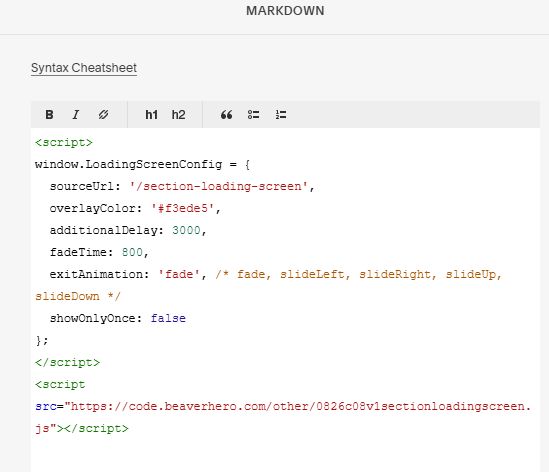
#3.1. If you use Personal/Basic Plan and your plan doesn’t support Injection, you can edit Site Footer > Add a Markdown Block

Add this code into Markdown
<script>
window.LoadingScreenConfig = {
  sourceUrl: '/section-loading-screen',
  overlayColor: '#f3ede5',
  additionalDelay: 3000,
  fadeTime: 800,
  exitAnimation: 'fade', /* fade, slideLeft, slideRight, slideUp, slideDown */
  showOnlyOnce: false
};
</script>
<script src="https://code.beaverhero.com/other/0826c08v1sectionloadingscreen.js"></script>