Description
- adding slideshow carousel into gallery grid
- view demo – password: abc
- buy me a coffee

#1. Install Code
#1.1. Make sure you use Gallery Grid Simple + enabled Captions
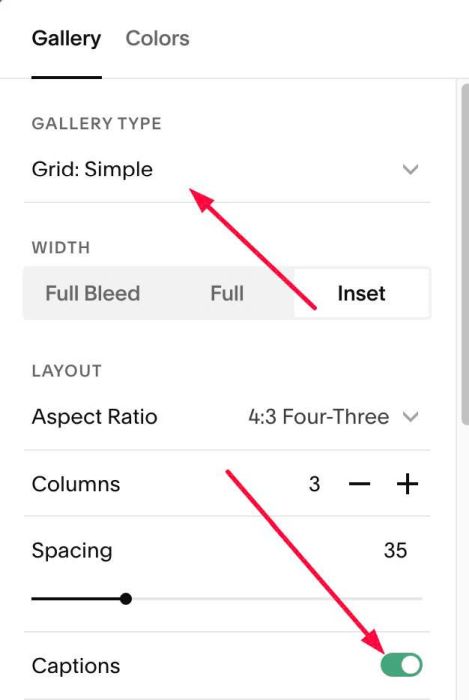
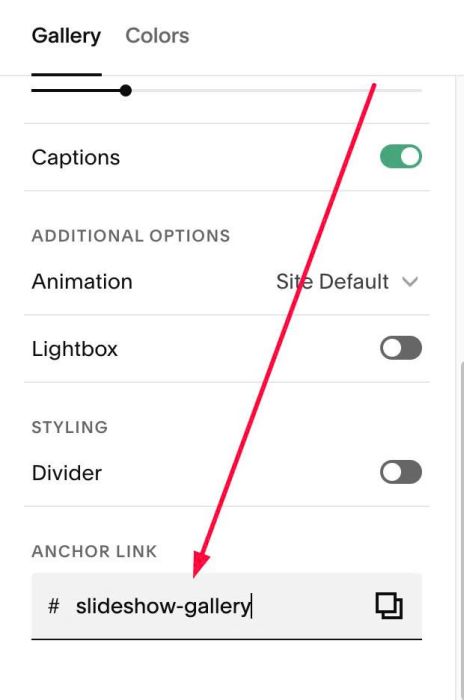
#1.2. Scroll down to Anchor Link > enter word: slideshow-gallery
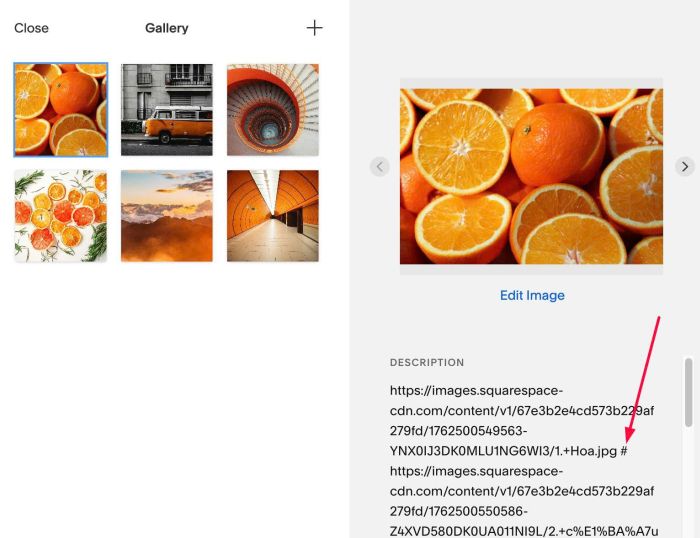
#1.3. Next, you can enter Image URLs into Caption, use symbol # between URLs
https://images.squarespace-cdn.com/content/v1/67e3b2e4cd573b229af279fd/1762500549563-YNX0IJ3DK0MLU1NG6WI3/1.+Hoa.jpg # https://images.squarespace-cdn.com/content/v1/67e3b2e4cd573b229af279fd/1762500550586-Z4XVD580DK0UA011NI9L/2.+c%E1%BA%A7u+v%E1%BB%93ng.jpg # https://images.squarespace-cdn.com/content/v1/67e3b2e4cd573b229af279fd/1762500552432-ZKPQK8LPLX8TWHJ3OH4J/%E1%BA%A3nh+3.webp # https://images.squarespace-cdn.com/content/v1/67e3b2e4cd573b229af279fd/1762500551517-RY43I234E1QSHN0B30AD/03+-+l%C3%A1.jpg
#1.4. Hover on Page where you use Gallery > Click Gear icon

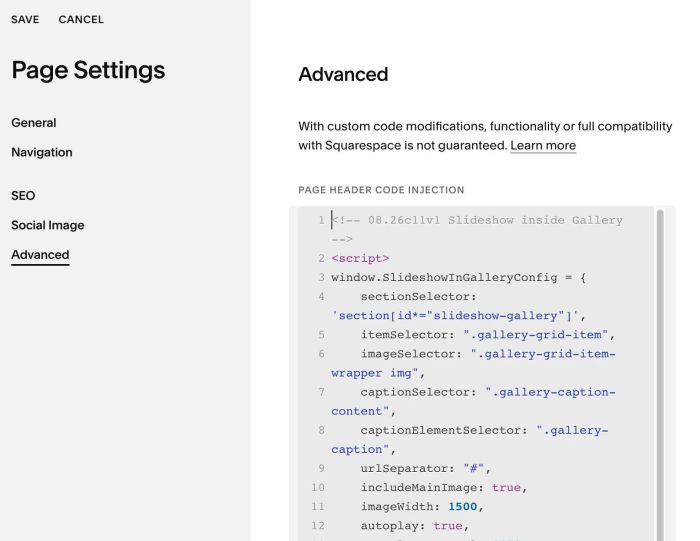
#1.5. Click Advanced > Paste this code
- If you use Personal/Basic Plan and your plan doesn’t support Injection, see #3.1
<!-- 08.26c11v1 Slideshow inside Gallery -->
<script>
window.SlideshowInGalleryConfig = {
    sectionSelector: 'section[id*="slideshow-gallery"]',
    itemSelector: ".gallery-grid-item",
    imageSelector: ".gallery-grid-item-wrapper img",
    captionSelector: ".gallery-caption-content",
    captionElementSelector: ".gallery-caption",
    urlSeparator: "#",
    includeMainImage: true,
    imageWidth: 1500,
    autoplay: true,
    autoplayInterval: 4000,
    loop: true,
    pauseOnHover: true,
    fadeDuration: 600,
    showArrows: true,
    enableKeyboard: true,
    enableWheel: false,
    arrowIconSize: 18,
    circleSize: 40,
    arrowColor: "#ffffff",
    circleColor: "rgba(0,0,0,0.4)",
    edgeOffset: 12
};
</script>
<script src="https://code.beaverhero.com/gallerysgrid/0826c11v1slideshowinsidegallery.js"></script>
#2. Customize
#2.1. To change arrow style, you can change these lines 20 to 23
arrowIconSize: 18,
   circleSize: 40,
   arrowColor: "#ffffff",
   circleColor: "rgba(0,0,0,0.4)",
#2.2. To disable autoplay, change line 12
- true = enable
- false = disable
autoplay: true,
#2.3. If you need to tweak more you can use this AI Assistant (designed for Squarespace sites)
#3. Other
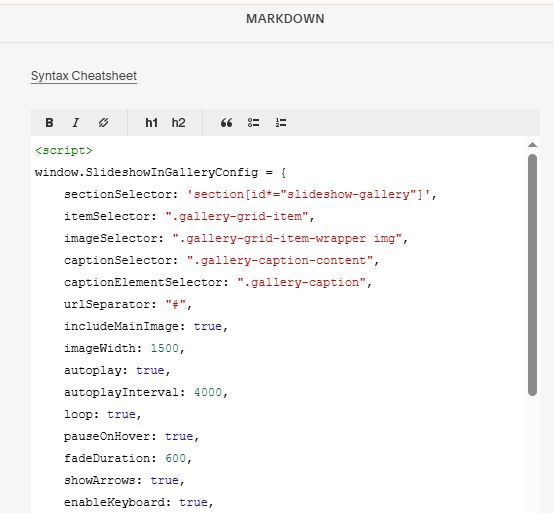
#3.1. If you use Personal/Basic Plan and your plan doesn’t support Injection, you can edit current page (page where you use Gallery Grid) > Add a Block > Choose Markdown

Add this code into Markdown
<script>
window.SlideshowInGalleryConfig = {
    sectionSelector: 'section[id*="slideshow-gallery"]',
    itemSelector: ".gallery-grid-item",
    imageSelector: ".gallery-grid-item-wrapper img",
    captionSelector: ".gallery-caption-content",
    captionElementSelector: ".gallery-caption",
    urlSeparator: "#",
    includeMainImage: true,
    imageWidth: 1500,
    autoplay: true,
    autoplayInterval: 4000,
    loop: true,
    pauseOnHover: true,
    fadeDuration: 600,
    showArrows: true,
    enableKeyboard: true,
    enableWheel: false,
    arrowIconSize: 18,
    circleSize: 40,
    arrowColor: "#ffffff",
    circleColor: "rgba(0,0,0,0.4)",
    edgeOffset: 12
};
</script>
<script src="https://code.beaverhero.com/gallerysgrid/0826c11v1slideshowinsidegallery.js"></script>