Description
- hover image block will show overlay color, text, arrow, you can click on image overlay to open lightbox or new page, you can also set different overlay color
- view demo – password: abc
- buy me a coffee

#1. Install Code
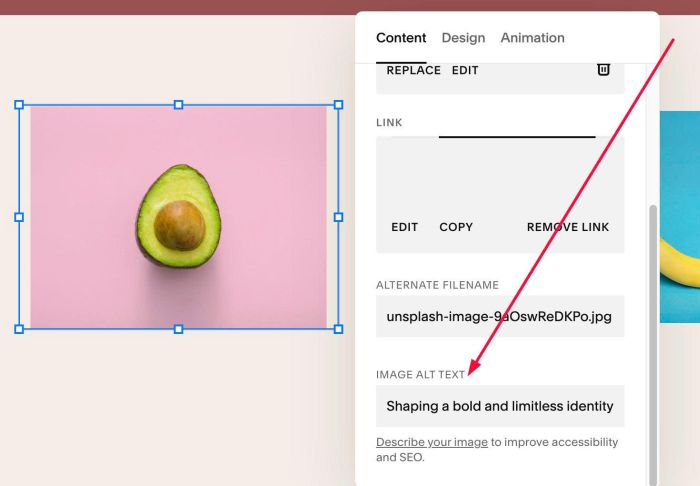
#1.1. First, you need to add your desired text into ALT field
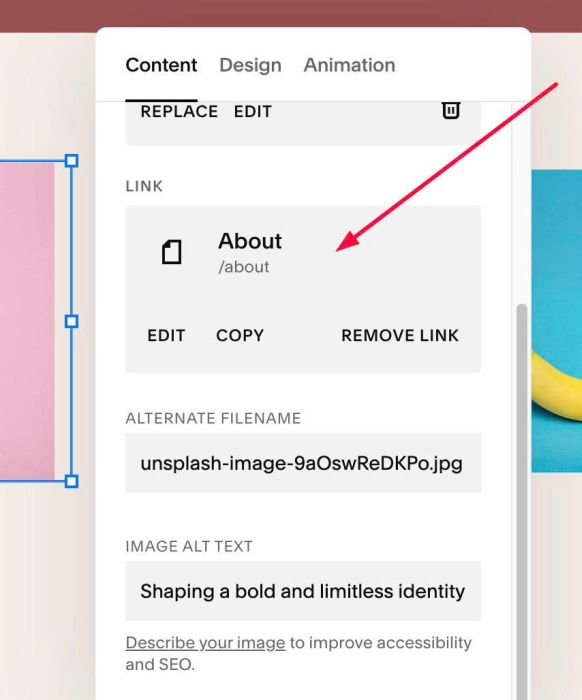
#1.2. You can enter URL if you want
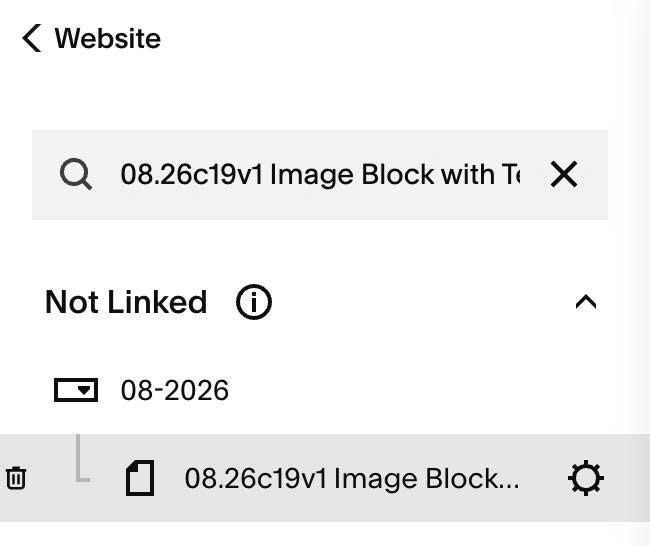
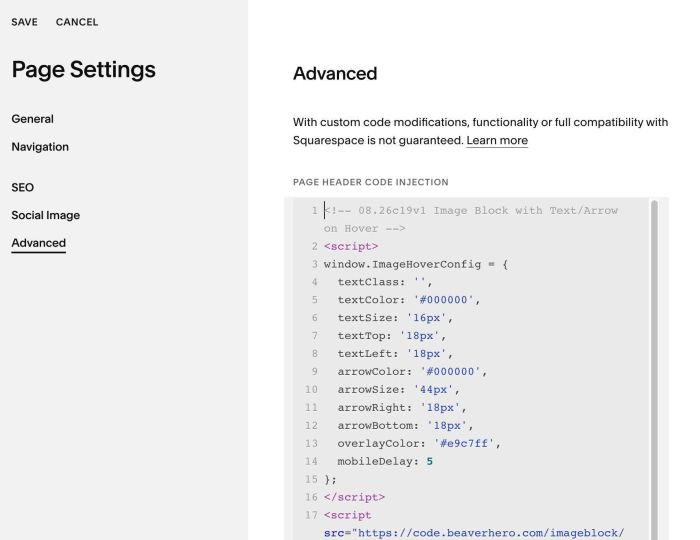
#1.3. Hover on Page where you use Image Blocks > Click Gear icon
#1.4. Click Advanced > Paste this code to right box
- If you use Personal/Basic Plan and your plan doesn’t support Injection, see #3.1
<!-- 08.26c19v1 Image Block with Text/Arrow on Hover -->
<script>
window.ImageHoverConfig = {
  textClass: '',
  textColor: '#000000',
  textSize: '16px',
  textTop: '18px',
  textLeft: '18px',
  arrowColor: '#000000',
  arrowSize: '44px',
  arrowRight: '18px',
  arrowBottom: '18px',
  overlayColor: '#e9c7ff',
  mobileDelay: 5
};
</script>
<script src="https://code.beaverhero.com/imageblock/0826c19v1imgblocktextarrow.js"></script>
#2. Customize
#2.1. To change text size, text color, you can change line 05, 06
textColor: '#000000',
textSize: '16px',
#2.2. To change space between text – top/left of image border, change line 07, 08
textTop: '18px',
 textLeft: '18px',
#2.3. To change arrow size, color, change line 09, 10
arrowColor: '#000000',
 arrowSize: '44px',
#2.4. To change space between arrow – right/bottom of image border, change line 11, 12
arrowRight: '18px',
  arrowBottom: '18px',
#2.5. To change overlay color, change line 13
overlayColor: '#e9c7ff',
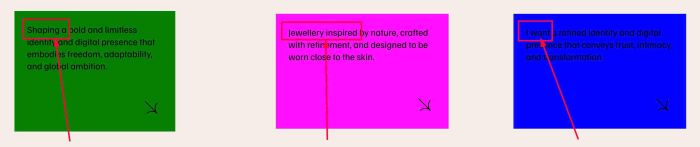
#2.6. To set different overlay color on each image, like this
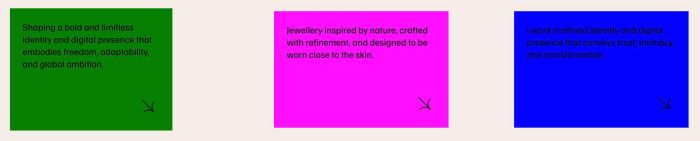
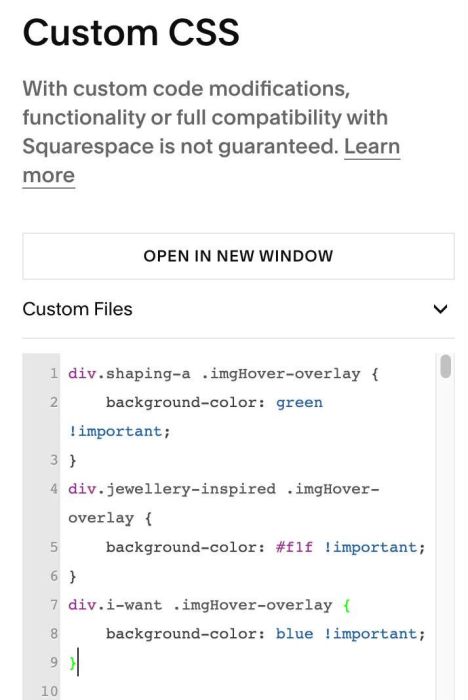
you can use this extra code to Custom CSS
div.shaping-a .imgHover-overlay {
    background-color: green !important;
}
div.jewellery-inspired .imgHover-overlay {
    background-color: #f1f !important;
}
div.i-want .imgHover-overlay {
    background-color: blue !important;
}
To apply this code for your case, you can notice some text I use in the code
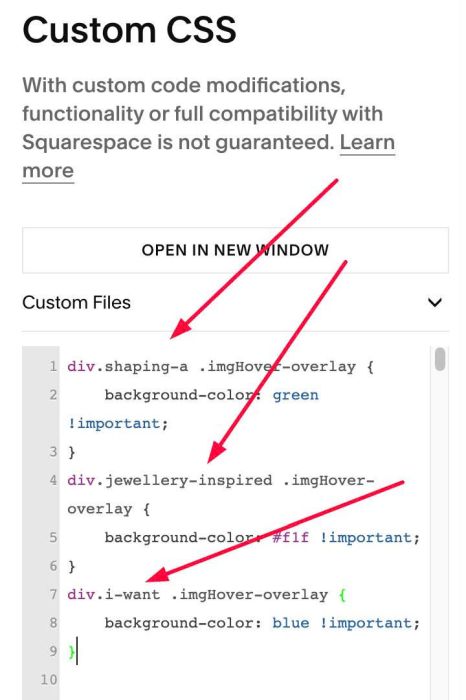
It is simply the first two words of the text you entered in the ALT field. You can try it for your case.
#3. Other
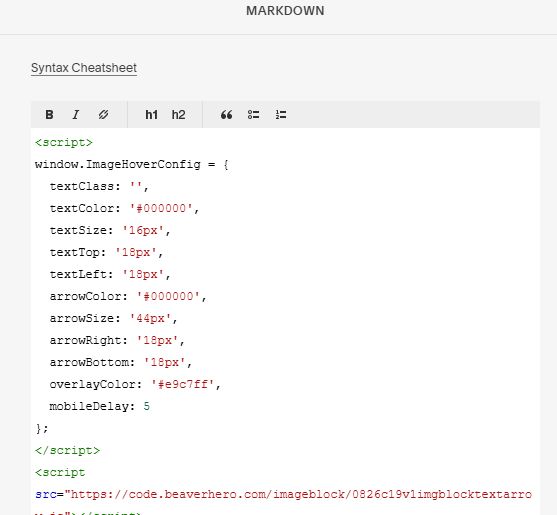
#3.1. If you use Personal/Basic Plan and your plan doesn’t support Injection, you can edit current section (section where you use Image Blocks) > Add a Markdown Block

Add this code into Markdown
<script>
window.ImageHoverConfig = {
  textClass: '',
  textColor: '#000000',
  textSize: '16px',
  textTop: '18px',
  textLeft: '18px',
  arrowColor: '#000000',
  arrowSize: '44px',
  arrowRight: '18px',
  arrowBottom: '18px',
  overlayColor: '#e9c7ff',
  mobileDelay: 5
};
</script>
<script src="https://code.beaverhero.com/imageblock/0826c19v1imgblocktextarrow.js"></script>