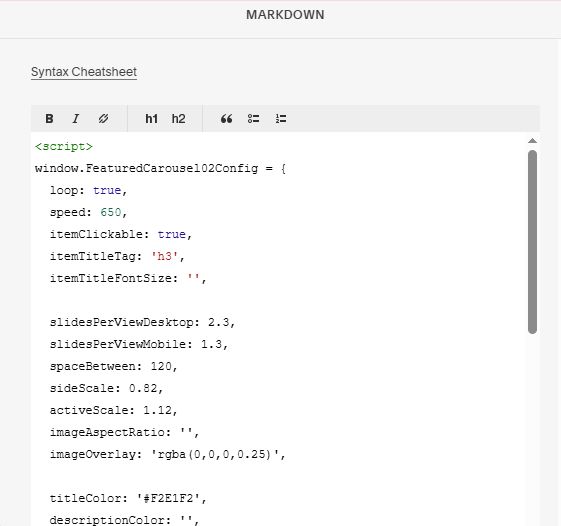
Description
- featured carousel with 3 images: bigger image – smaller images, text over image, text under image, use Gallery Block
- view demo – password: abc
- buy me a coffee
#1. Install Code
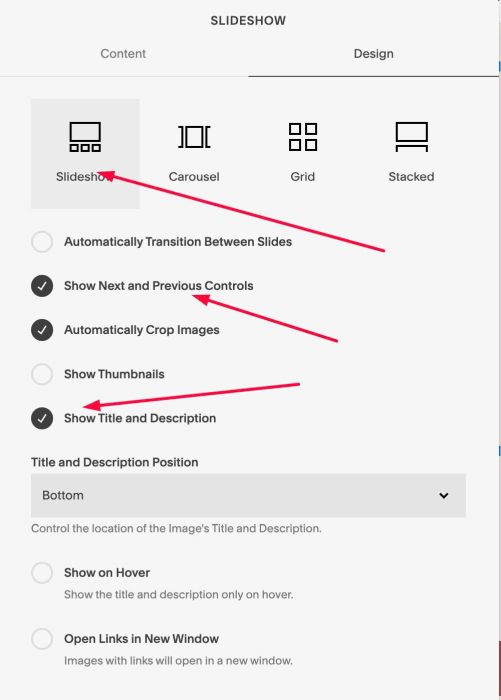
#1.1. Make sure you use Gallery Block Slideshow & Enable these options
#1.2. Edit FIRST Image > Click Gear icon
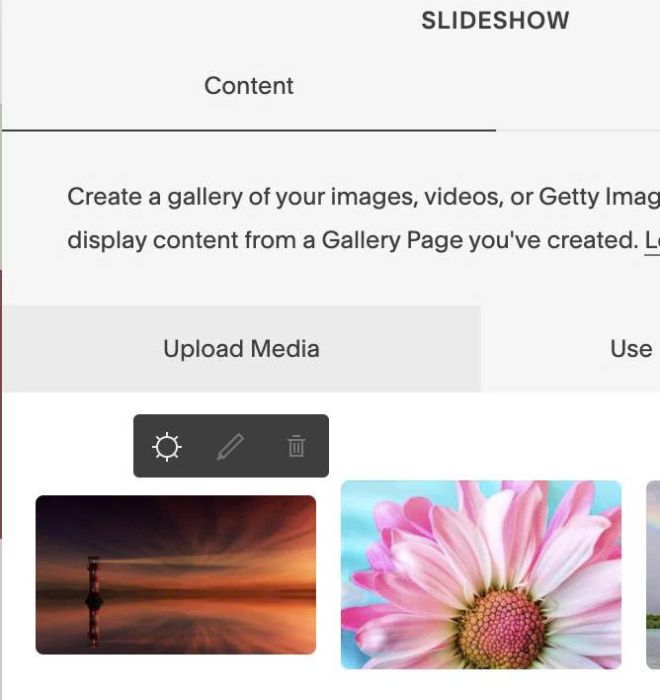
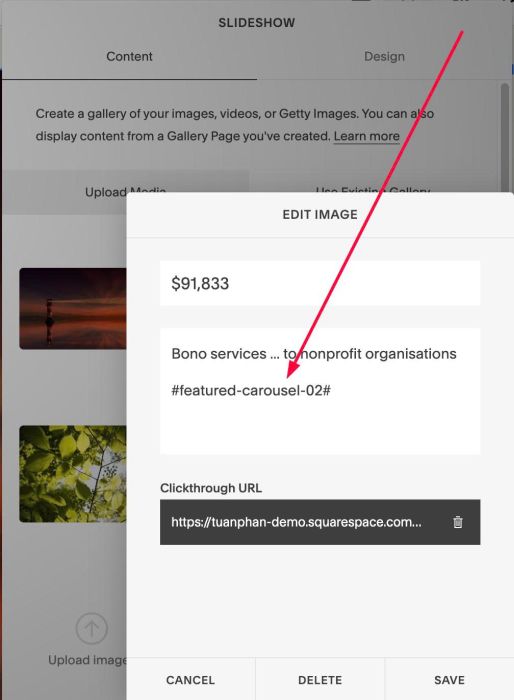
#1.3. In Description, enter text: #featured-carousel-02#
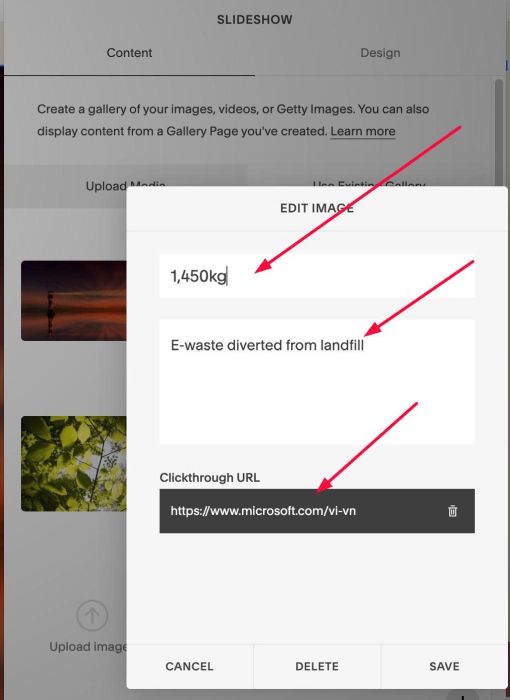
#1.4. You can enter title, description, url to All Images
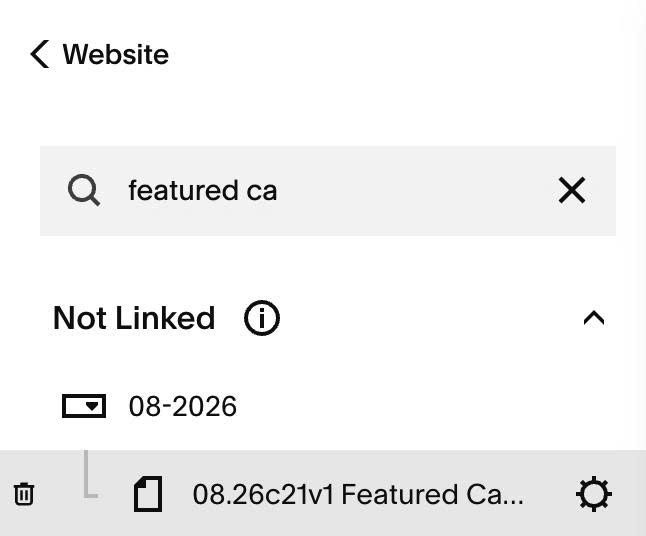
#1.5. Hover on page where you use Gallery Block > Click Gear icon
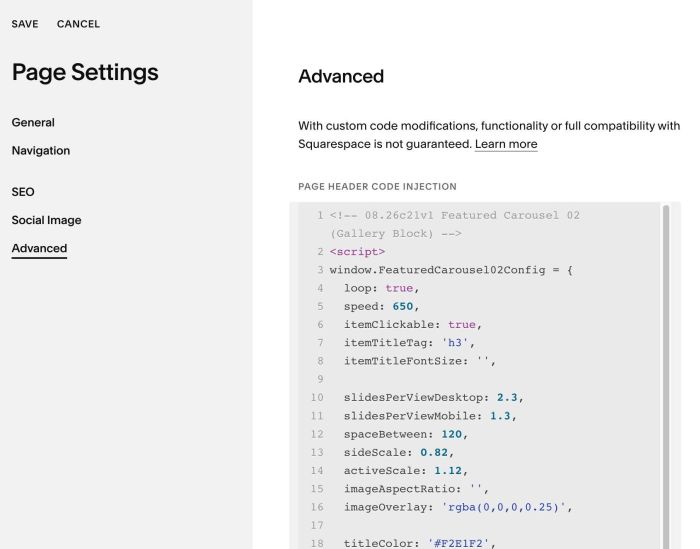
#1.6. Click Advanced > Paste this code
- If you use Personal/Basic Plan and your plan doesn’t support Injection, see #3.1.
<!-- 08.26c21v1 Featured Carousel 02 (Gallery Block) -->
<script>
window.FeaturedCarousel02Config = {
  loop: true,
  speed: 650,
  itemClickable: true,
  itemTitleTag: 'h3',
  itemTitleFontSize: '',

  slidesPerViewDesktop: 2.3,
  slidesPerViewMobile: 1.3,
  spaceBetween: 120,
  sideScale: 0.82,
  activeScale: 1.12,
  imageAspectRatio: '',
  imageOverlay: 'rgba(0,0,0,0.25)',

  titleColor: '#F2E1F2',
  descriptionColor: '',
  descriptionPClass: '',

  dots: true,
  dotSize: '7px',
  dotColor: '',
  dotActiveColor: '',
  dotHoverColor: '',

  arrowEdgeGap: '2vw',
  arrowSize: '34px',
  arrowBgColor: '#111111',
  arrowBgHoverColor: '#000000',
  arrowIconColor: '#ffffff',
  arrowIconHoverColor: '#ffffff',
};
</script>
<script src="https://code.beaverhero.com/galleryblockslideshow/0826c21v1featuredcarousel02.js"></script>
#2. Customize
#2.1. To change image sizes, space between images, change 10 – 14
slidesPerViewDesktop: 2.3,
slidesPerViewMobile: 1.3,
spaceBetween: 120,
sideScale: 0.82,
activeScale: 1.12,
#2.2. To change overlay color over image, change line 16
imageOverlay: 'rgba(0,0,0,0.25)',
#2.3. To change title color (text over image), change line 18
titleColor: '#F2E1F2',
to change title size, change line 08
itemTitleFontSize: '',
#2.4. To change description text style (text under image), change line 19, 20
descriptionColor: '',
descriptionPClass: '',
Note
- descriptionPClass: ‘sqsrte-large ‘, = P1 style
- descriptionPClass: ‘sqsrte-small’, = P3 style
- default descriptionPClass: ”, = P2 style
#2.5. To change arrows – dots navigation style, change line 22 – 33
dots: true,
dotSize: '7px',
dotColor: '',
dotActiveColor: '',
dotHoverColor: '',

arrowEdgeGap: '2vw',
arrowSize: '34px',
arrowBgColor: '#111111',
arrowBgHoverColor: '#000000',
arrowIconColor: '#ffffff',
arrowIconHoverColor: '#ffffff',
#2.6. To make Carousel autoscroll, set this option
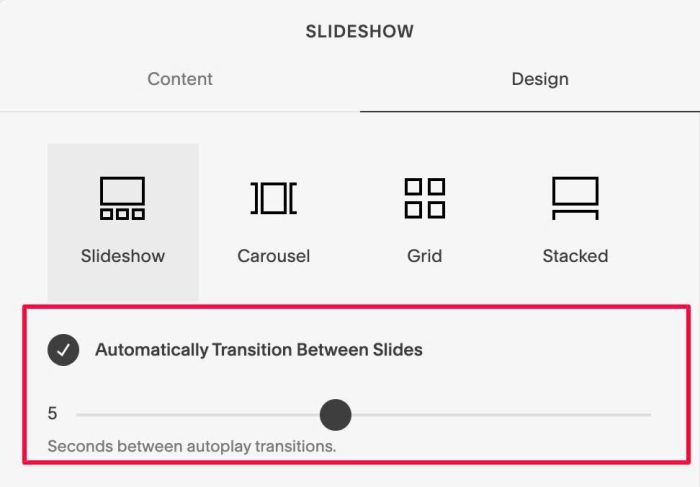
#2.7. If you need to tweak more you can use this AI Assistant (designed for Squarespace sites)
#3. Other
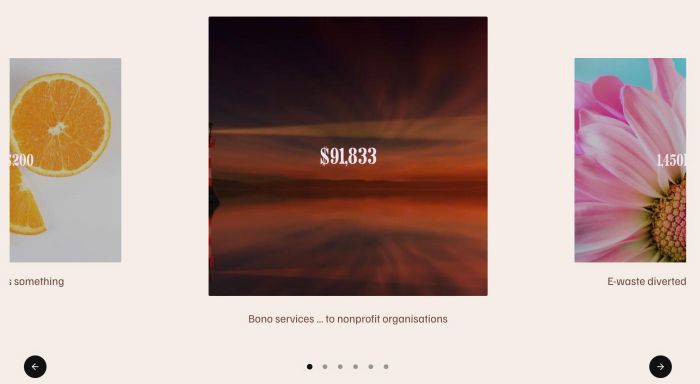
#3.1. If you use Personal/Basic Plan and your plan doesn’t support Injection, you can add a Markdown Block under Gallery Block

Then use this code into Markdown
<script>
window.FeaturedCarousel02Config = {
  loop: true,
  speed: 650,
  itemClickable: true,
  itemTitleTag: 'h3',
  itemTitleFontSize: '',

  slidesPerViewDesktop: 2.3,
  slidesPerViewMobile: 1.3,
  spaceBetween: 120,
  sideScale: 0.82,
  activeScale: 1.12,
  imageAspectRatio: '',
  imageOverlay: 'rgba(0,0,0,0.25)',

  titleColor: '#F2E1F2',
  descriptionColor: '',
  descriptionPClass: '',

  dots: true,
  dotSize: '7px',
  dotColor: '',
  dotActiveColor: '',
  dotHoverColor: '',

  arrowEdgeGap: '2vw',
  arrowSize: '34px',
  arrowBgColor: '#111111',
  arrowBgHoverColor: '#000000',
  arrowIconColor: '#ffffff',
  arrowIconHoverColor: '#ffffff',
};
</script>
<script src="https://code.beaverhero.com/galleryblockslideshow/0826c21v1featuredcarousel02.js"></script>