Description
- adding variant options on hover product on store page
- view demo – password: abc
- buy me a coffee

#1. Install Code
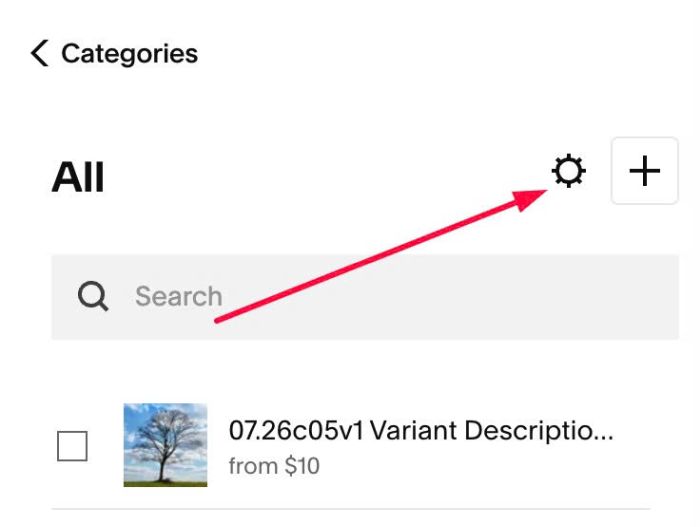
#1.1. Click Gear icon on Store Page
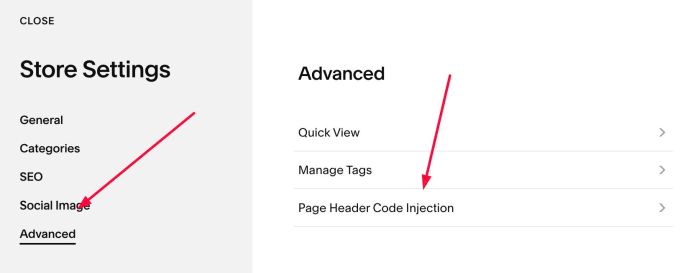
Next, click Advanced > Page Header Code Injection
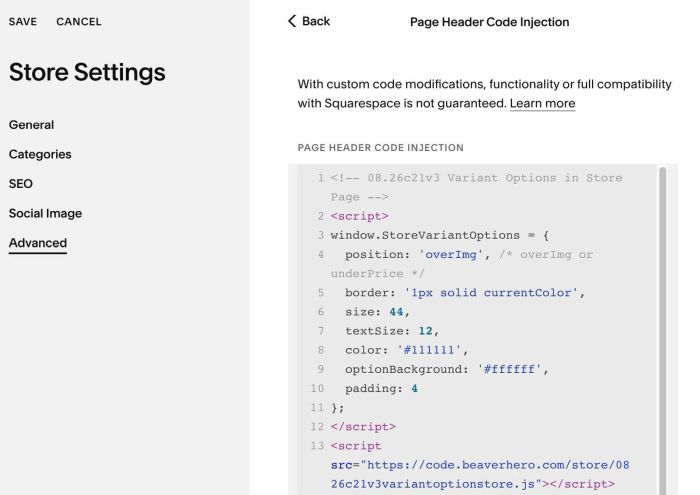
#1.2. Add this code to right box
<!-- 08.26c21v3 Variant Options in Store Page -->
<script>
window.StoreVariantOptions = {
  position: 'overImg', /* overImg or underPrice */
  border: '1px solid currentColor',
  size: 44,
  textSize: 12,
  color: '#111111',
  optionBackground: '#ffffff',
  padding: 4
};
</script>
<script src="https://code.beaverhero.com/store/0826c21v3variantoptionstore.js"></script>
#2. Customize
#2.1. You can make variant options appears over image (current) or under price, change line 04
position: 'overImg', /* overImg or underPrice */
#2.2. To change border line around variant option, change line 05
border: '1px solid currentColor',
something like this
border: '1px solid #f1f',
#2.3. To change variant option style, change line 06 – line 10
size: 44,
textSize: 12,
color: '#111111',
optionBackground: '#ffffff',
padding: 4
#2.4. To change variant option to square format, like this

Use this under main code
<style>
span.store-variant-option {
    border-radius: 0px !important;
}
</style>
#2.5. To set different color for variant options, like this
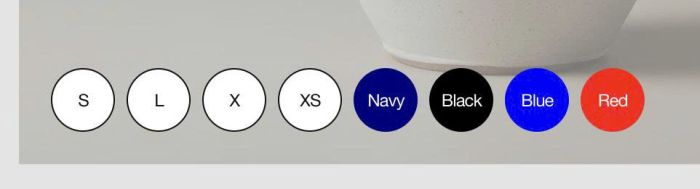
Use code like this under main code
<style>
span.store-variant-option-Navy {
    background-color: navy !important;
    color: #fff !important;
    border-color: navy !important;
}
span.store-variant-option-Black {
    background-color: black !important;
    color: #fff !important;
    border-color: black !important;
}
span.store-variant-option-Blue {
    background-color: blue !important;
    color: #fff !important;
    border-color: blue !important;
}
span.store-variant-option-Red {
    background-color: red !important;
    color: #fff !important;
    border-color: red !important;
}
</style>
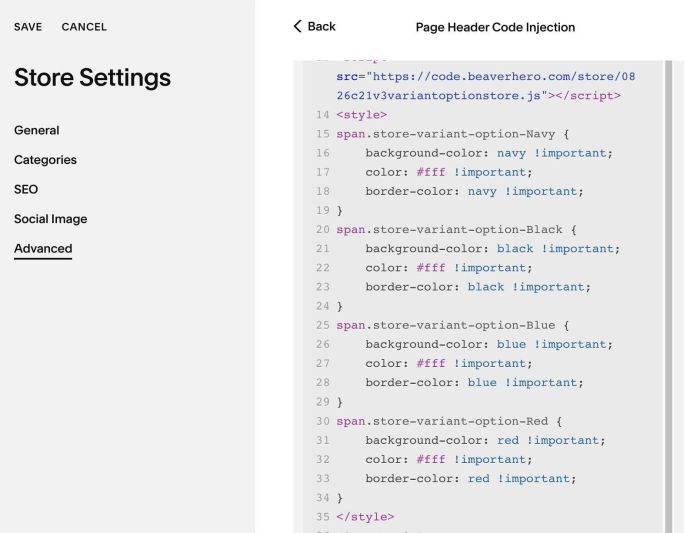
You can change this word, it will match with variant option name

#2.6. If you need to tweak more you can use this AI Assistant (designed for Squarespace sites)