Description
- vertical autoscroll images/logos with scrolling block
- view demo – password: abc
- buy me a coffee
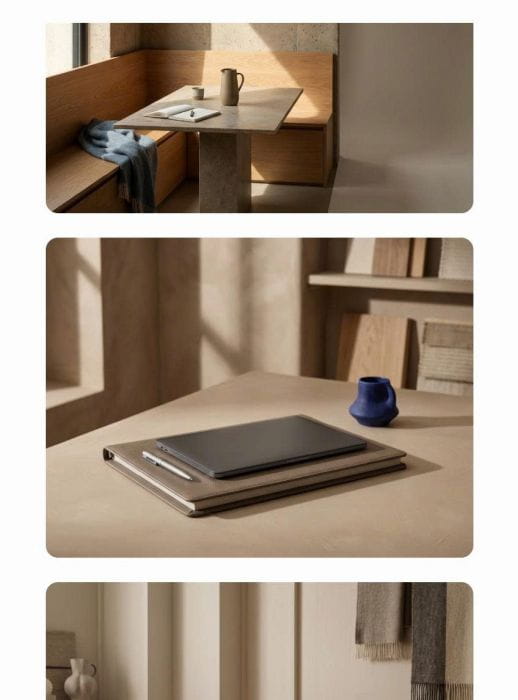
#1. Install Code
#1.1. First, you need to find Image URL
Follow this guide.
#1.2. Add icon/image url to Scrolling Block
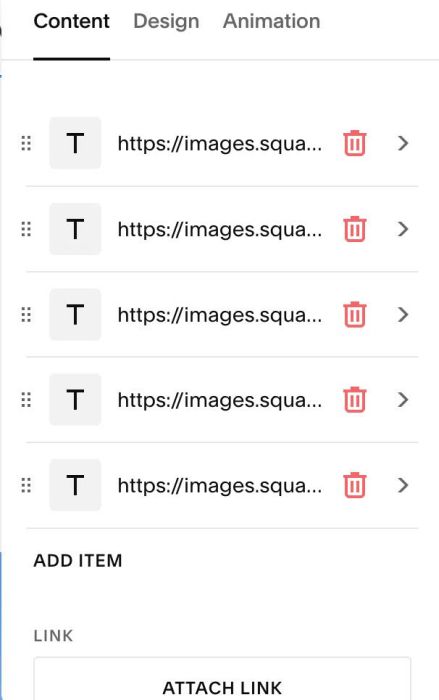
Something like this
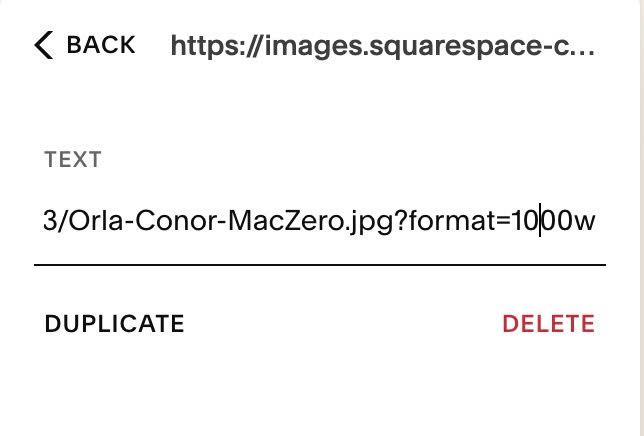
#1.3. Next, hover on top right of section > Click EDIT SECTION > at Design > Anchor Link > enter word: vertical-scrolling-images

#1.4. Next, hover on Page where you use Scrolling Block > Click Gear icon

#1.5. Click Advanced > Paste this code
<!-- 09.26c12v16 Vertical Scrolling Images -->
<script>
window.VerticalScrollingImagesOptions = {
  imageSize: '350px',
  blockHeight: '845px',
  sectionIdText: 'vertical-scrolling-images',
  spaceBetweenItems: '20px',
  borderRadius: '10px'
};
</script>
<script src="https://code.beaverhero.com/scrollblock/0926c12v16verticalscrollingimages.js"></script>
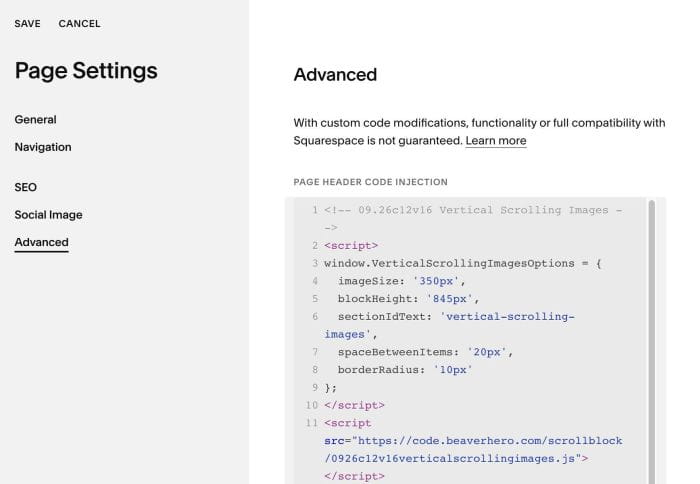
#2. Customize
#2.1. To change image size/scrolling height, change line 04, 05
imageSize: '350px',
  blockHeight: '845px',
#2.2. To change space between images, round corners of images, change line 07, 08
spaceBetweenItems: '20px',
  borderRadius: '10px'
#2.3. To change speed/scroll direction, change these options
