Description
- icon box with icon, title, description, white background, sticky and overlap together on scroll, use gallery block slideshow
- view demo – password: abc
- buy me a coffee

#1. Install Code
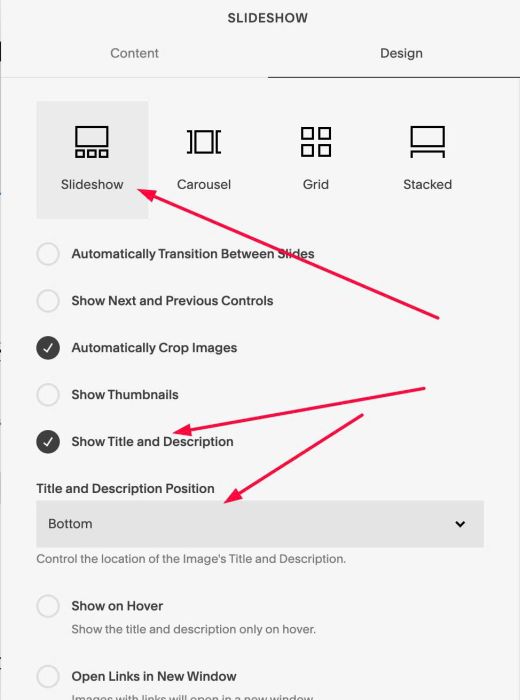
#1.1. First you need to add a Gallery Block Slideshow & Enable “Show Title and Description”
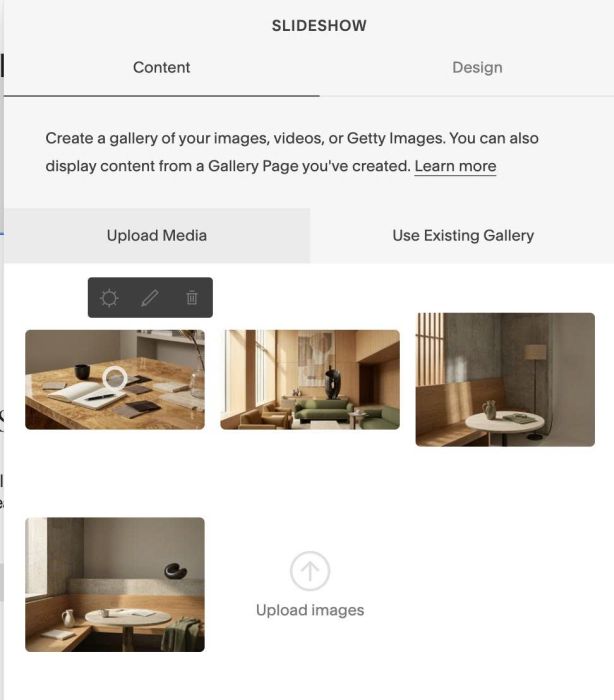
#1.2. Next, upload some images or icons, then hover on each image > Click Gear icon
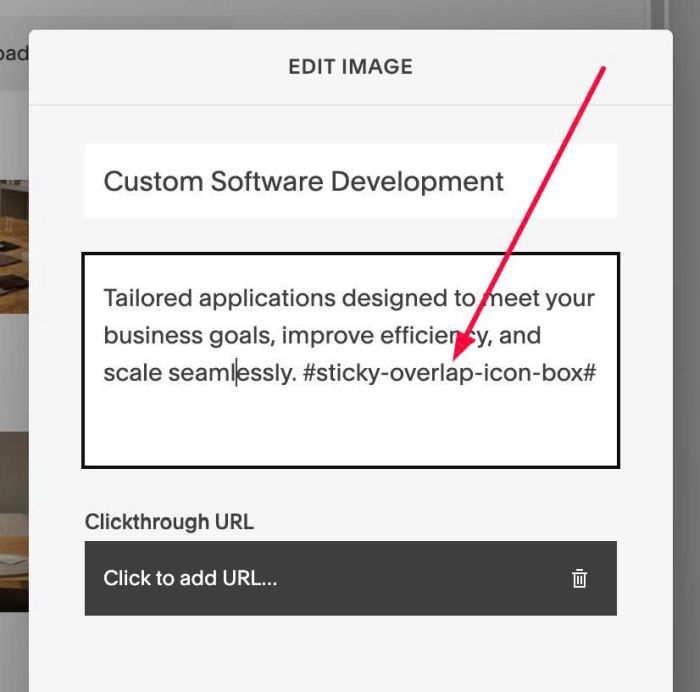
#1.3. Enter desired Title & Description

#1.4. Note: In FIRST IMAGE, you need to enter word: #sticky-overlap-icon-box#
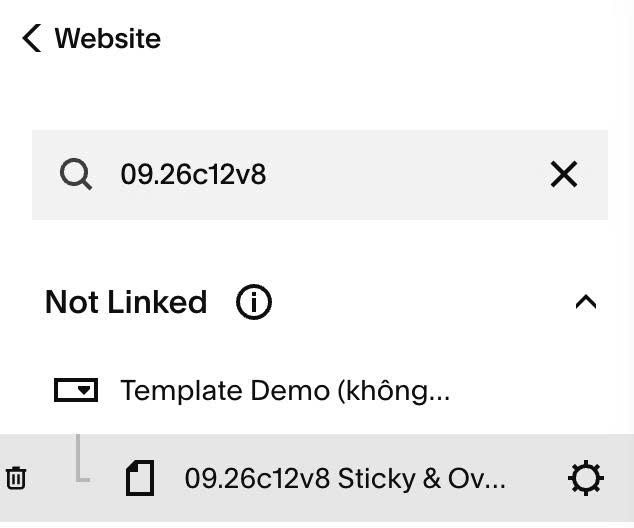
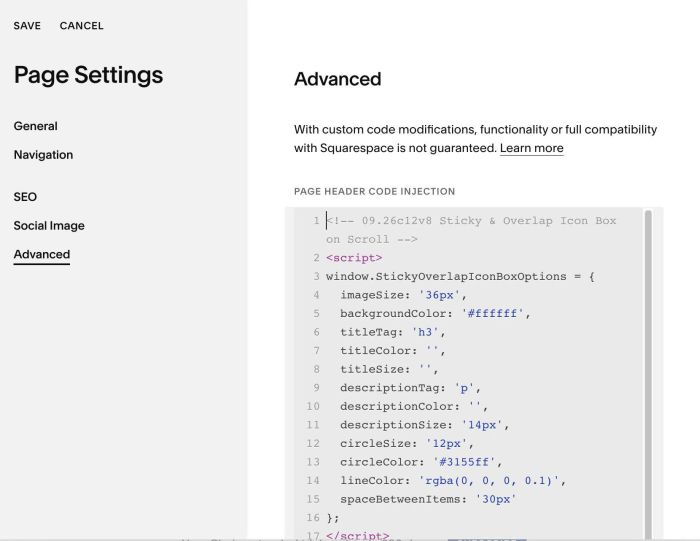
#1.5. Hover on Page where you use Gallery Block > Click Gear icon
#1.6. Next, click Advanced > Paste this code
<!-- 09.26c12v8 Sticky & Overlap Icon Box on Scroll -->
<script>
window.StickyOverlapIconBoxOptions = {
  imageSize: '36px',
  backgroundColor: '#ffffff',
  titleTag: 'h3',
  titleColor: '',
  titleSize: '',
  descriptionTag: 'p',
  descriptionColor: '',
  descriptionSize: '14px',
  circleSize: '12px',
  circleColor: '#3155ff',
  lineColor: 'rgba(0, 0, 0, 0.1)',
  spaceBetweenItems: '30px'
};
</script>
<script src="https://code.beaverhero.com/galleryblockslideshow/0926c12v8stickyoverlapiconboxscroll.js"></script>
#2. Customize
#2.1. You can change all styles in line 03 – line 16
window.StickyOverlapIconBoxOptions = {
  imageSize: '36px',
  backgroundColor: '#ffffff',
  titleTag: 'h3',
  titleColor: '',
  titleSize: '',
  descriptionTag: 'p',
  descriptionColor: '',
  descriptionSize: '14px',
  circleSize: '12px',
  circleColor: '#3155ff',
  lineColor: 'rgba(0, 0, 0, 0.1)',
  spaceBetweenItems: '30px'
};