Description
- adding 2 or 3 sections same row/line
- view demo – password: abc
- buy me a coffee

#1. Install Code
#1.1. Hover on top right of section > Click EDIT SECTION > at Design (or Gallery) > Anchor Link > enter word:
sections-inlinev1-01

and enter: sections-inlinev1-02
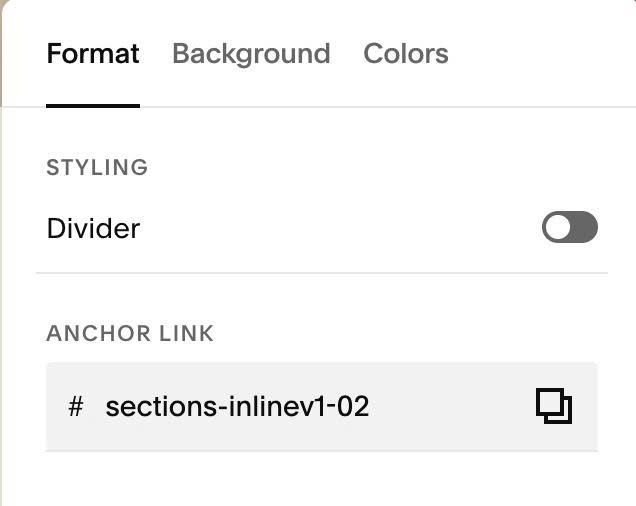
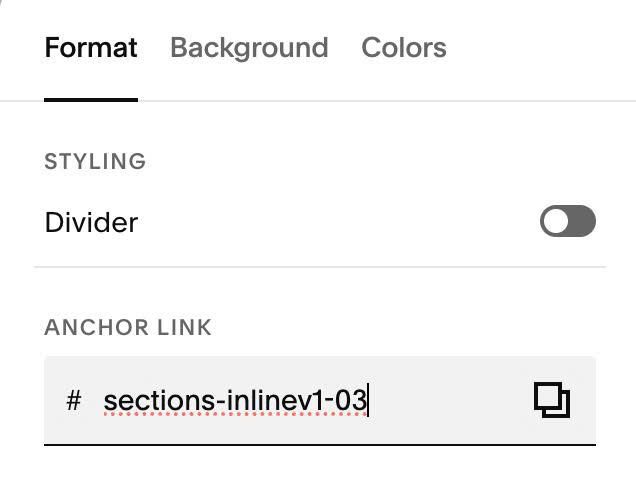
If you need make 3 sections inline, enter: sections-inlinev1-01 (first section), sections-inlinev1-02 (second section), sections-inlinev1-03 (third section)
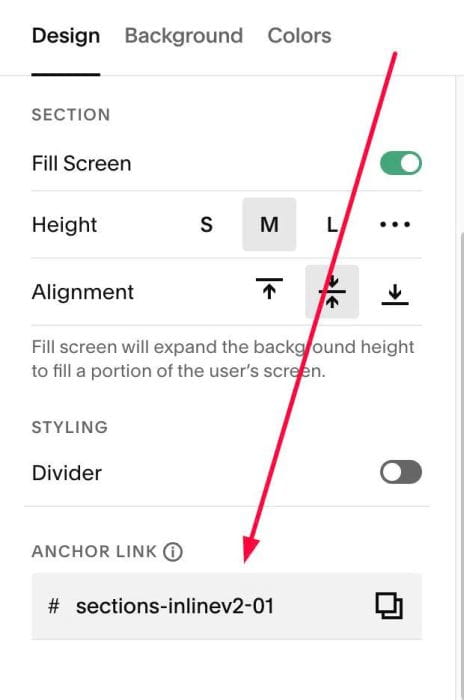
#1.2. If you need to set 2 groups of inline sections, you can use inlinev2, inlinev3, something like this
sections-inlinev2-01 (first section), sections-inlinev2-02 (second section)
#1.3. Hover on Page where you added these > Click Gear icon > Click Advanced > Paste this code
<!-- 09.26c26v5 Sections Inline -->
<script>
window.SectionsInlineOptions = {
  disableOnMobile: true,
  mobileBreakpoint: 767,
  width: {
    // 'sections-inlinev1-01': '60%',
    // 'sections-inlinev1-02': '40%'
  },
  mobileOrder: {
    // 'sections-inlinev1-01': 2,
    // 'sections-inlinev1-02': 1
  }
};
</script>
<script src="https://code.beaverhero.com/other/0926c26v5sectionsinline.js"></script>

#2. Customize
#2.1. By default, if you set 2 sections/row, section width = 50%, if 3 sections/row, section width = 33.333%. If you need to change width, you can change line 07, 08
// 'sections-inlinev1-01': '60%',
    // 'sections-inlinev1-02': '40%'
to something like this
'sections-inlinev1-01': '30%',
'sections-inlinev1-02': '70%'