Description
- adding Summary Block for Portfolio Page, support Grid, Wall, Carousel, List layout, support Excerpt, support Filter by Category
- view demo – password: abc
- buy me a coffee

#1. Install Code
This is free version. If you need full version with priority support, see this.
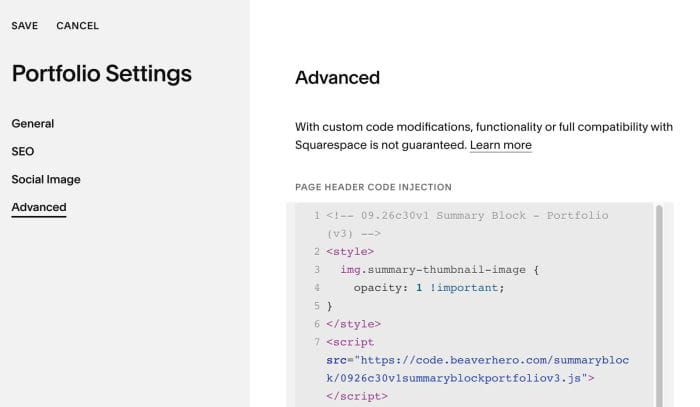
#1.1. Hover on Page where you want to use Summary Block Portfolio > Click Gear icon > Click Advanced > Paste this code
<!-- 09.26c30v1 Summary Block - Portfolio (v3) -->
<style>
  img.summary-thumbnail-image {
    opacity: 1 !important;
}
</style>
<script src="https://code.beaverhero.com/summaryblock/0926c30v1summaryblockportfoliov3.js"></script>
#2. Usage
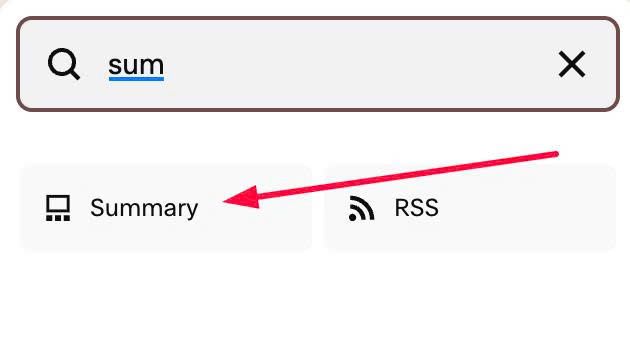
#2.1. First, make sure you added Summary Block (no need to connect any pages).
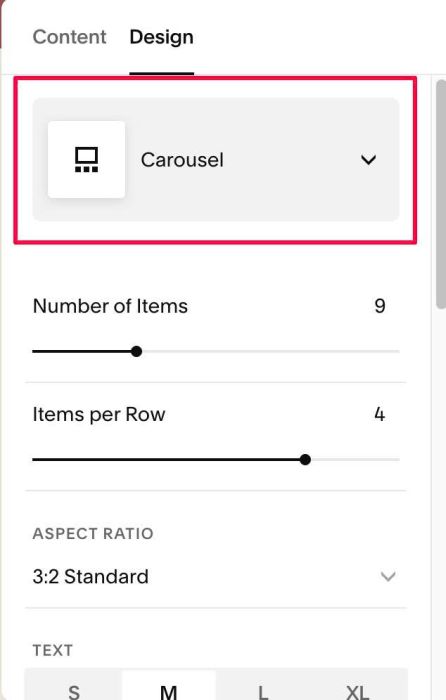
#2.2. Change layout to Carousel (don’t worry, you can change back it to your desired layout then)
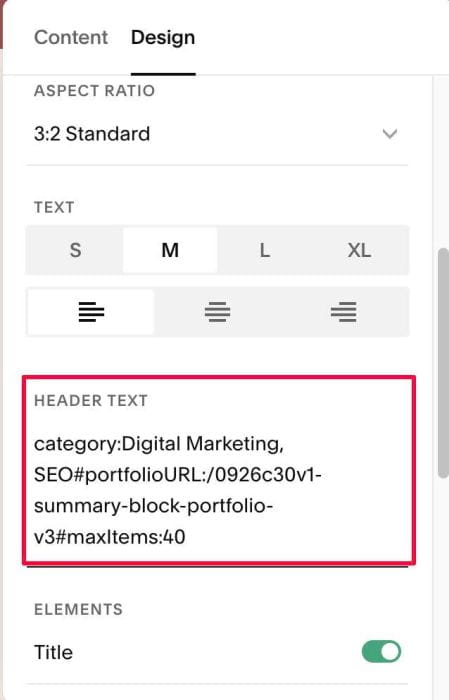
#2.2-2. at Header Text, enter text like this
- /0926c30v1-summary-block-portfolio-v3 = Portfolio Page URL Slug, for example, if your Portfolio Page URL is /work, then you will enter: #portfolioURL:/work
- Digital Marketing, SEO = summary will pull items belong 2 categories: Digital, SEO only
- maxItems: 40 = remove limit of 30 items, and show 40 items instead
category:Digital Marketing, SEO#portfolioURL:/0926c30v1-summary-block-portfolio-v3#maxItems:40
Some other examples
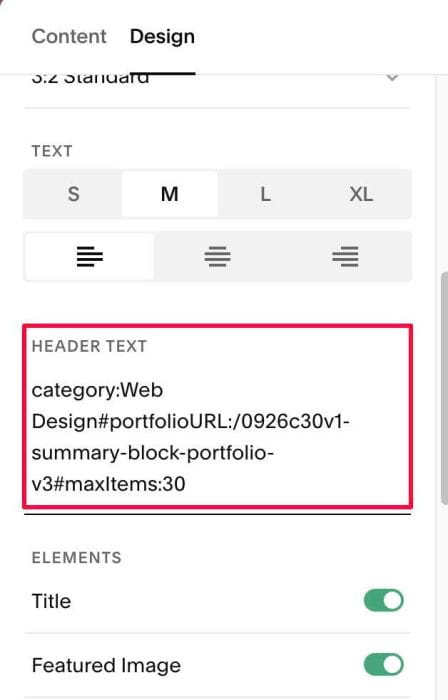
category:Web Design#portfolioURL:/0926c30v1-summary-block-portfolio-v3#maxItems:30
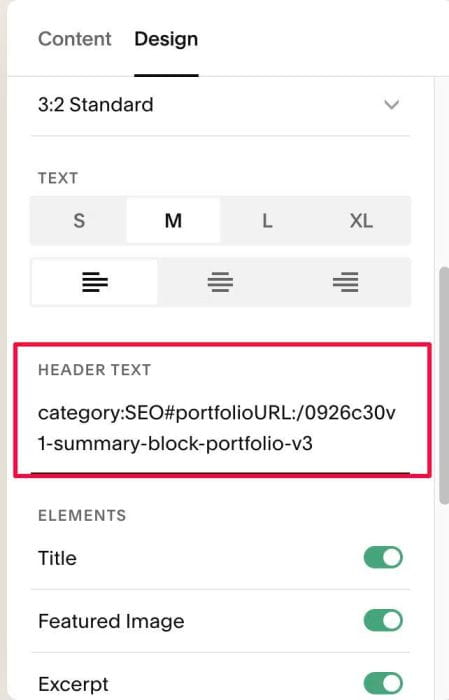
category:SEO#portfolioURL:/0926c30v1-summary-block-portfolio-v3
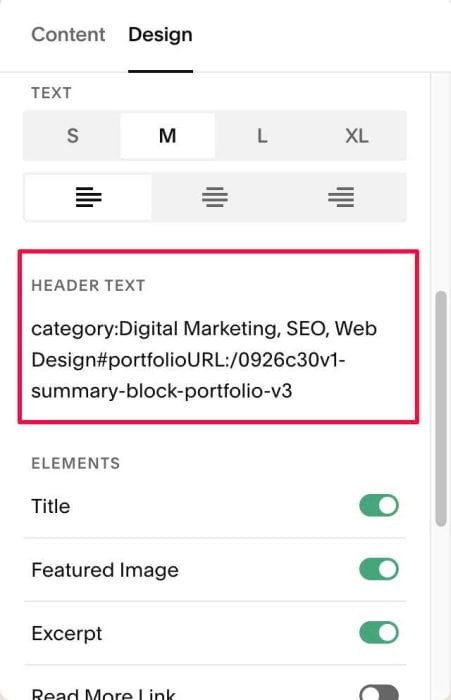
category:Digital Marketing, SEO, Web Design#portfolioURL:/0926c30v1-summary-block-portfolio-v3
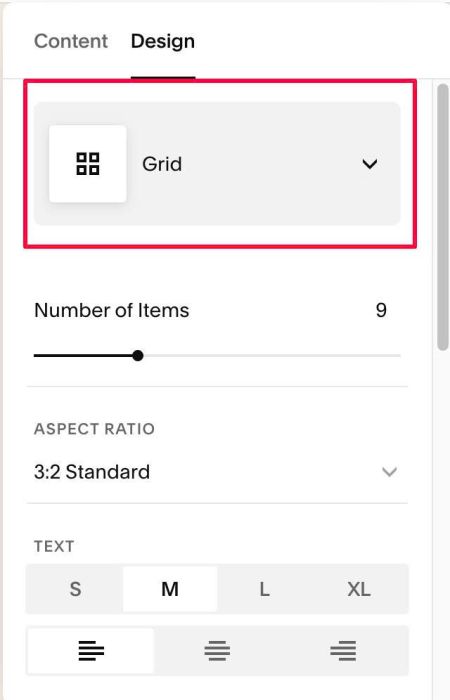
#2.2-3. Change back to your desired layout: Grid, Wall, List or keep Carousel, if your desired layout is Carousel.
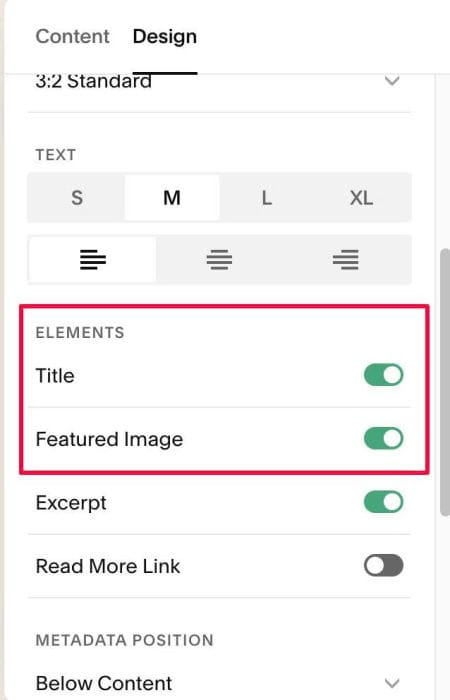
#2.3. Make sure you enabled Image, Title. With Other options (Excerpt, Category, Read More, you can enable if you want, you can see Step #3 to see how to add Category, Excerpt)
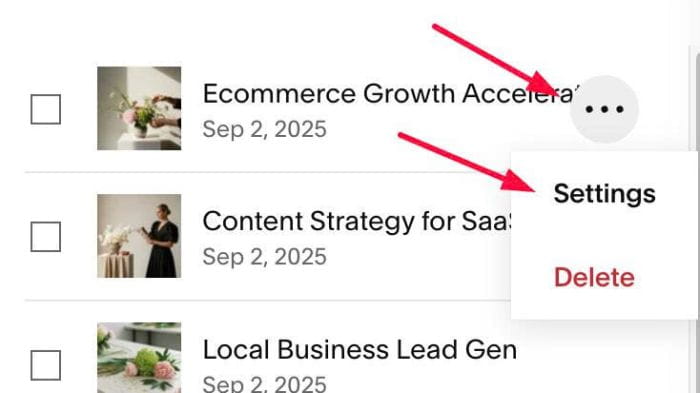
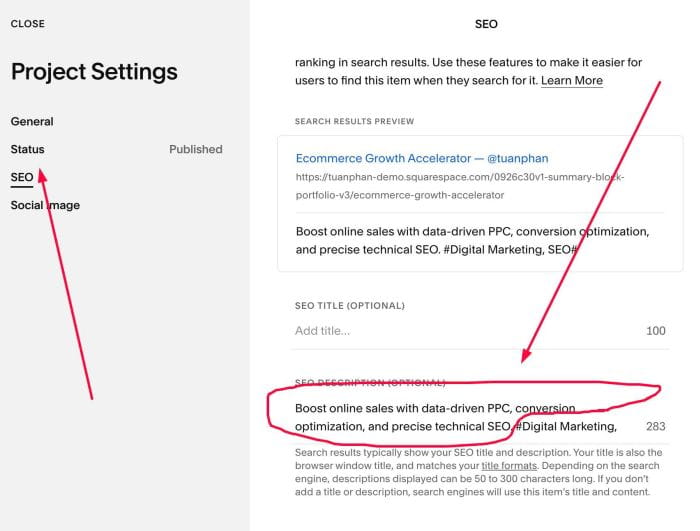
#2.4. Next, edit Portfolio Item SEO Description, by click 3 dots > Settings
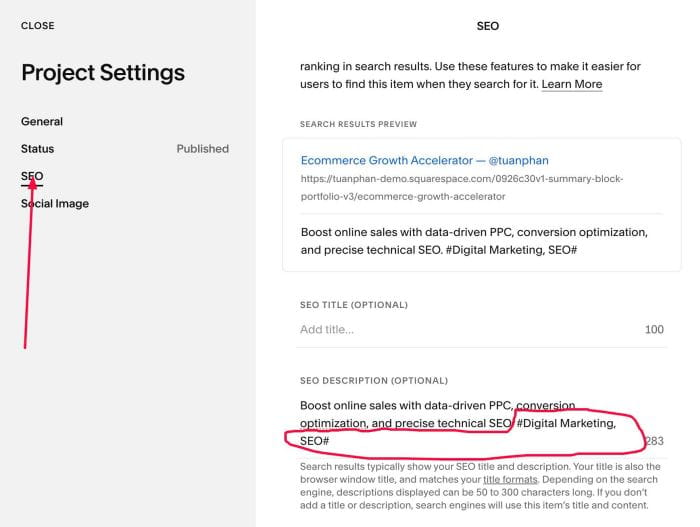
Enter your desired categories, wrap category in # and # symbol
#Digital Marketing, SEO#
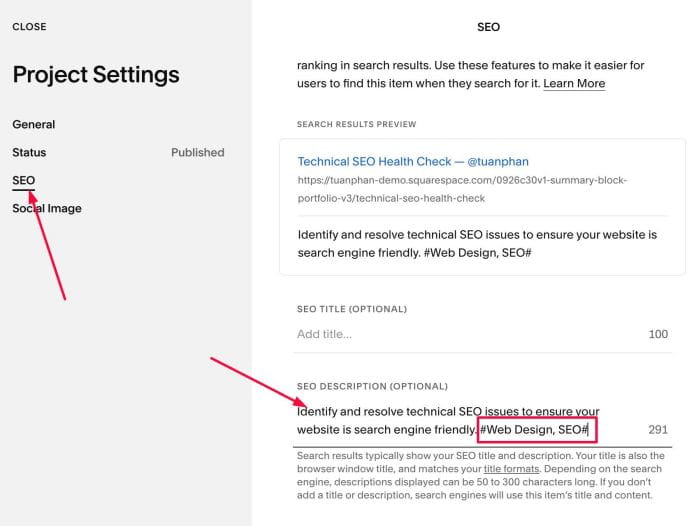
Another example
#Web Design, SEO#
#3. Customize
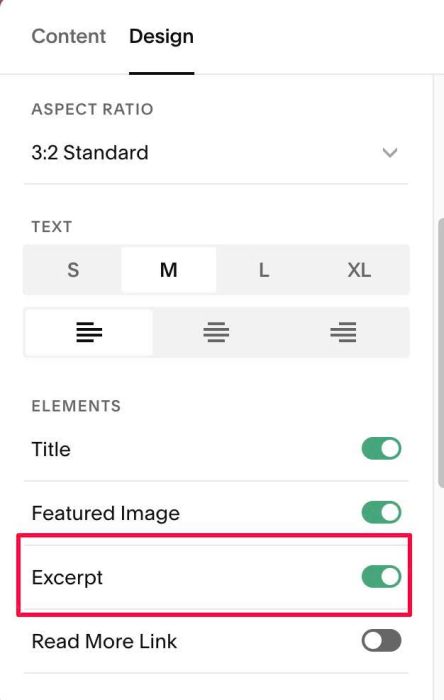
#3.1. To enable Excerpt, first, enable option Excerpt
Next, add your excerpt via SEO Description
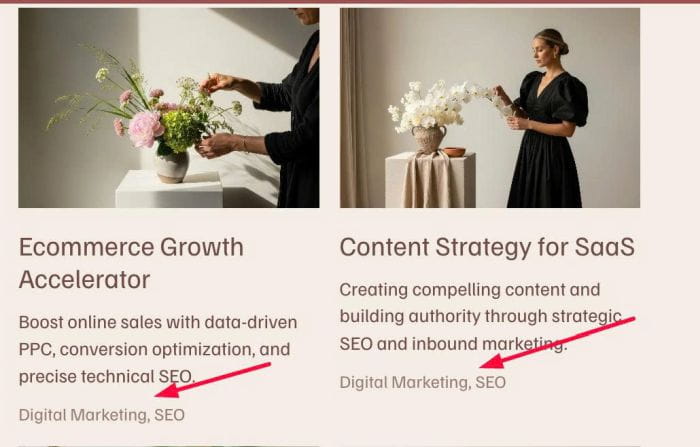
#3.2. To make Category text appears under Excerpt, like this
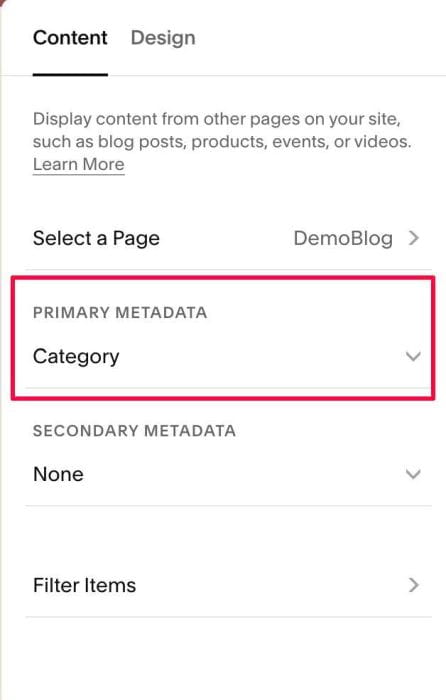
Enable this option
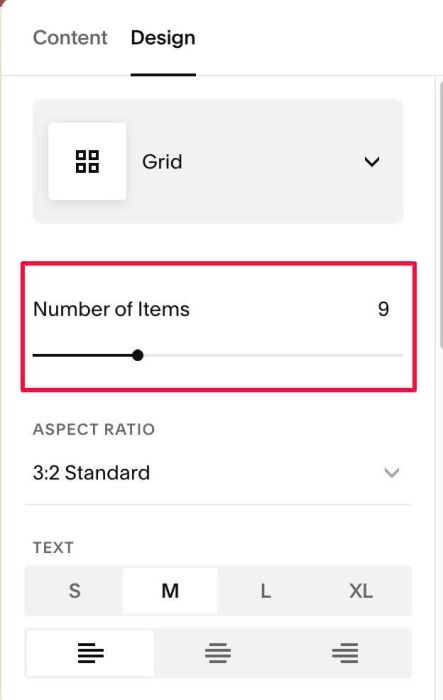
#3.3. Limit of 30 items
You can use maxItems to remove this limit and set your desired numbers. See #2.2-2 to see an example
Note: If you don’t enter maxItems, number of Summary Items will get from this option
#3.4. If you need more tweak, email me.