Description
- smooth logo autoscroll with team (list) section
- view demo – password: abc
- buy me a coffee
#1. Install code
#1.1. First, add a Team (List) section (section with (i) icon)

#1.2. Make sure you choose Simple List

#1.3. Make sure you disabled all option, and make image enable by default

#1.4. at Content tab, you can add your desired logos

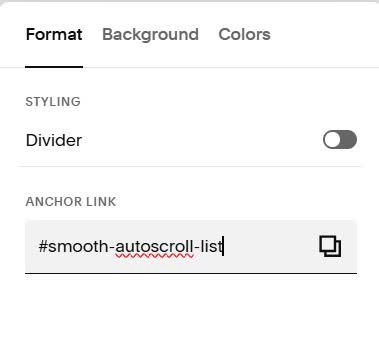
#1.5. Next, hover on top right of section > Click Edit Section

at Anchor Link, enter word: smooth-autoscroll-list
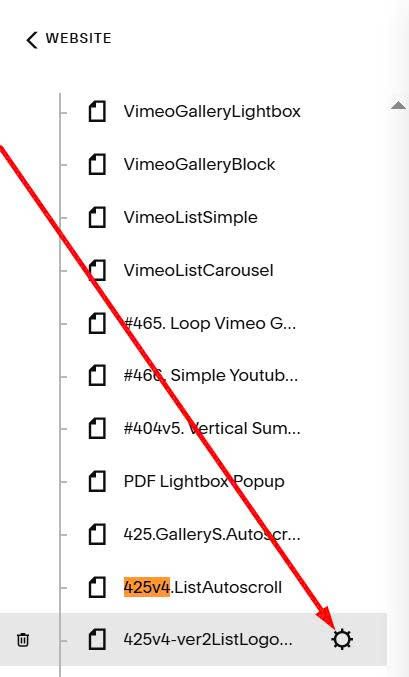
#1.6. Next, hover on page where you added Team Section > Click Gear icon
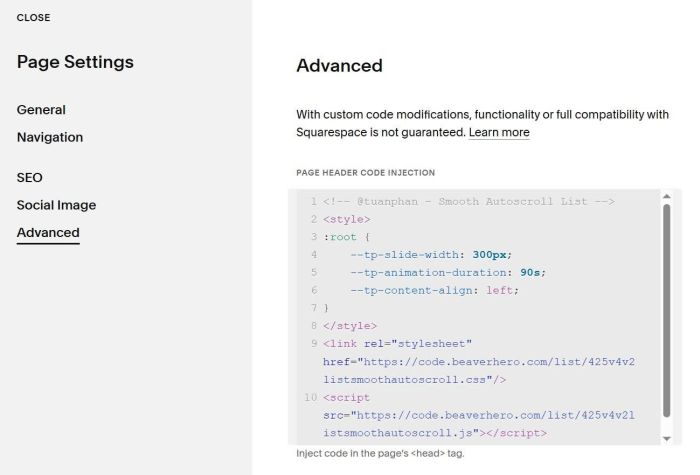
Next, click Advanced > Paste this code
- If you use Personal/Basic Plan and your plan doesn’t support Injection, see #3.1
<!-- @tuanphan - Smooth Autoscroll List -->
<style>
:root {
    --tp-slide-width: 300px;
    --tp-animation-duration: 90s;
    --tp-content-align: left;
}
</style>
<link rel="stylesheet" href="https://code.beaverhero.com/list/425v4v2listsmoothautoscroll.css"/>
<script src="https://code.beaverhero.com/list/425v4v2listsmoothautoscroll.js"></script>
#2. Customize
#2.1. To change Image width, change this line
--tp-slide-width: 300px;
#2.2. To change space between Images, you can click this Size & Space

and adjust Space between Columns

If you don’t see it, you can click 3 dots in Space between items

#2.3. To set background color behind each item (similar option Card), use this code to Custom CSS
div.tp-slide {
    background-color: var(--list-section-simple-card-color) !important;
}
#3. Other
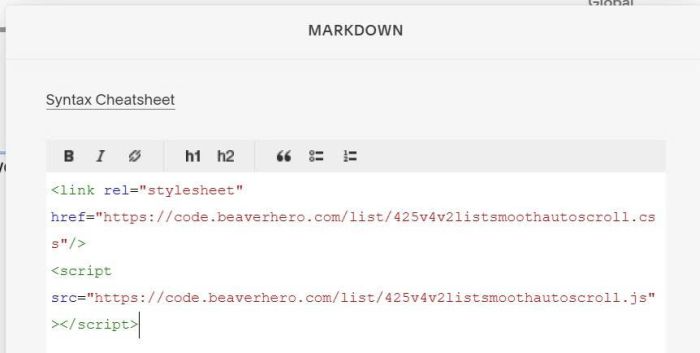
#3.1. If you use Personal/Basic Plan and your plan doesn’t support Injection, you can edit Current Page (Page where you use Team List Section) > Add a Block (add anywhere on page)

Choose Markdown (or Embed Block)

Add this code into Markdown
<link rel="stylesheet" href="https://code.beaverhero.com/list/425v4v2listsmoothautoscroll.css"/>
<script src="https://code.beaverhero.com/list/425v4v2listsmoothautoscroll.js"></script>
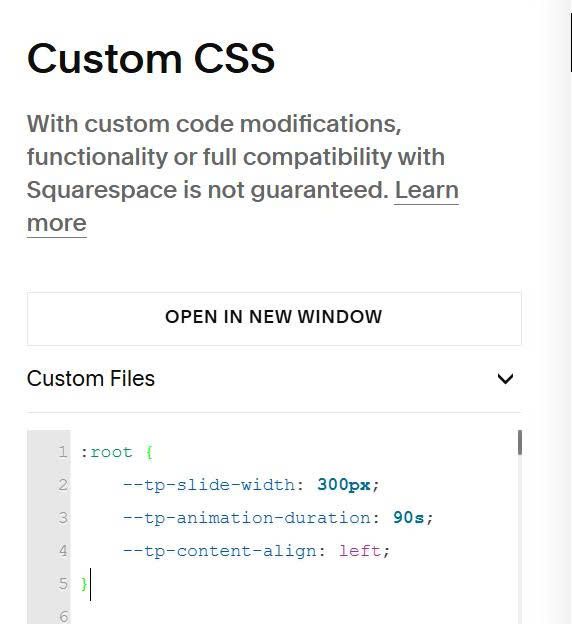
Next, use this code into Custom CSS
:root {
    --tp-slide-width: 300px;
    --tp-animation-duration: 90s;
    --tp-content-align: left;
}