Description
- summary block with content get from blog post content, filter category/tag on top of filter, some other effects
- view demo – password: abc
- buy me a coffee

#1. Install Code
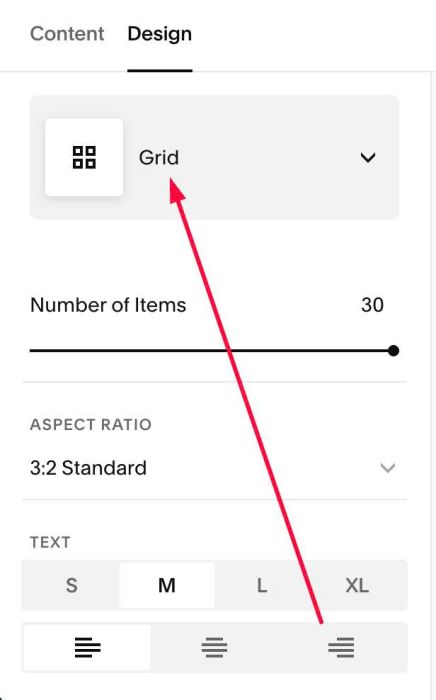
#1.1. Make sure you use Summary Block Grid
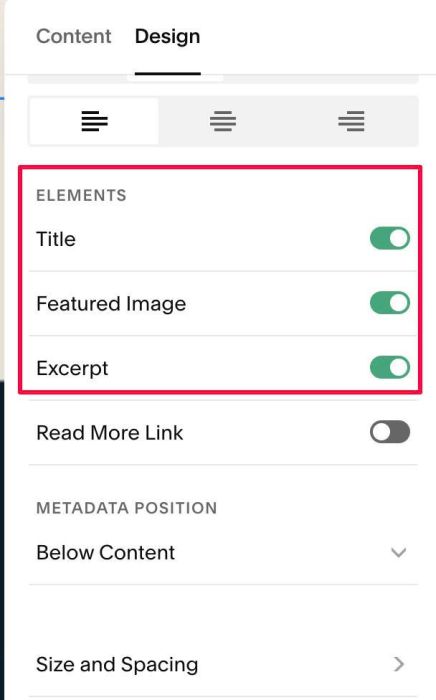
#1.2. Enable these (however code will hide all then)
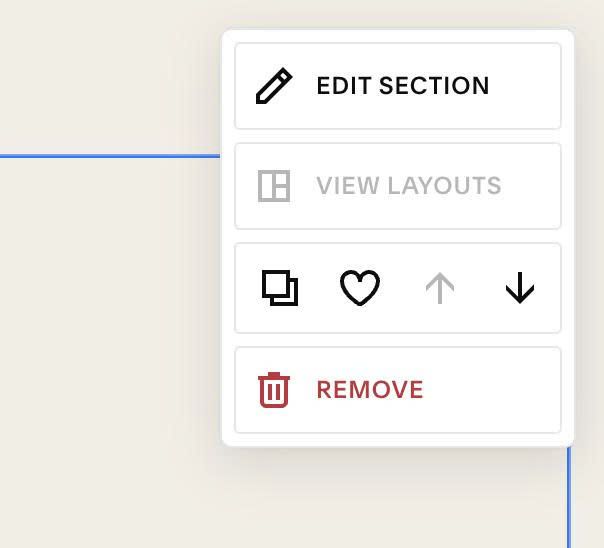
#1.3. Hover on top right of section > Click EDIT SECTION
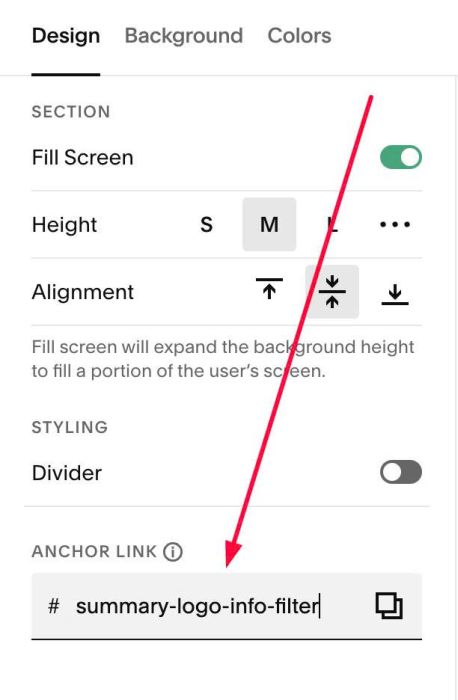
#1.4. at Design > Anchor Link > enter word: summary-logo-info-filter
#1.5. Hover on Page where you use Summary Block > Click Gear icon

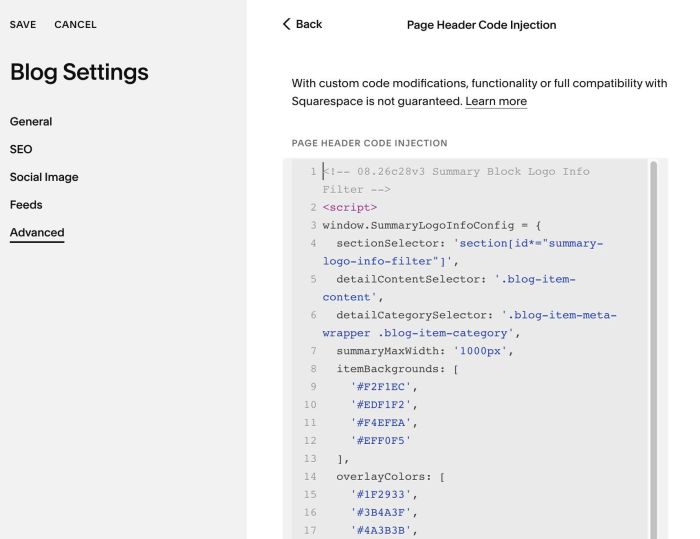
#1.6. Click Advanced > Paste this code
<!-- 08.26c28v3 Summary Block Logo Info Filter -->
<script>
window.SummaryLogoInfoConfig = {
  sectionSelector: 'section[id*="summary-logo-info-filter"]',
  detailContentSelector: '.blog-item-content',
  detailCategorySelector: '.blog-item-meta-wrapper .blog-item-category',
  summaryMaxWidth: '1000px',
  itemBackgrounds: [
    '#F2F1EC',
    '#EDF1F2',
    '#F4EFEA',
    '#EFF0F5'
  ],
  overlayColors: [
    '#1F2933',
    '#3B4A3F',
    '#4A3B3B',
    '#2E3A4A'
  ],
  logoMaxWidth: '260px',
  logoMaxHeight: '110px',
  coverMinHeight: '420px',
  itemGap: '20px',
  itemPadding: '30px',
  itemRadius: '30px',
  itemShadow: '0 2px 12px rgba(0, 0, 0, 0.06)',
  itemHoverShadow: '0 14px 34px rgba(0, 0, 0, 0.12)',
  itemHoverTranslateY: '-6px',
  itemHoverDuration: 350,
  detailImageSpacing: '10px',
  categoryClickable: false,
  categoryOrder: [],
  categoryGap: '7px',
  categoryColor: '#8A8A8A',
  categoryFontSize: '13px',
  categoryMarginTop: '20px',
  showFilter: true,
  showFilterCount: true,
  filterCountFormat: '({count})',
  filterAllLabel: 'All',
  filterDivider: '/',
  filterGap: '8px',
  filterMarginBottom: '24px',
  filterFontSize: '13px',
  filterActiveTextColor: '#000000',
  filterInactiveTextColor: '#000000',
  slideDuration: 900,
  slideEasing: 'cubic-bezier(0.65, 0, 0.35, 1)',
  contentFadeDuration: 700,
  triggerThreshold: 0,
  triggerRootMargin: '0px 0px -50% 0px',
  failsafeDelay: 5000
};
</script>
<script src="https://code.beaverhero.com/summaryblock/0826c28v3summarylogofilter.js"></script>
#1.7. Some notes
#1.7.1. Summary Item will hide all title, images, metadata and get content from Blog Post Detail Item

(Screenshot from Blog Post Detail)

So make sure you enabled Category

#1.7.2. Logo over Overlay will get from Summary Image
#1.7.3. To set Overlay Color – Item Background Color, change these lines (line 11 – line 22)
itemBackgrounds: [
  '#F2F1EC',
  '#EDF1F2',
  '#F4EFEA',
  '#EFF0F5'
],
overlayColors: [
  '#1F2933',
  '#3B4A3F',
  '#4A3B3B',
  '#2E3A4A'
],
#1.7.4. Other options, you can find in Line 26 to Line 55
#1.8. If you need to tweak more you can use this AI Assistant (designed for Squarespace sites)