Description
- testimonial slider with summary block: summary image as background image, title on left of image, excerpt in white box over background image, when users click arrow will fade text + fade image
- view demo – password: abc
- buy me a coffee

#1. Install Code
#1.1. First, make sure you use Summary Block Carousel

#1.2. and connect a Blog Page

#1.3. Next, enable these options

#1.4. Hover on top right of section > Click EDIT SECTION

#1.5. at Design > Anchor Link > enter word: pixieset-slide

#1.6. Hover on Page where you use Summary Block > Click Gear icon

#1.7. Click Advanced > Paste this code
<!-- 08.26c30v17 Pixieset Style Testimonial Slider -->
<script>
window.PxTestimonialConfig = {
  targetSelector: "section[id*='pixieset-slide']",

  fixedText: "TESTIMONIALS",
  fixedTag: "h2",
  fixedSize: "",
  fixedColor: "#fff",

  titleTag: "h3",
  titleColor: "#fff",

  descTag: "p",
  descClass: "",
  descSize: "",
  descColor: "",

  effect: "fade",

  overlayColor: "rgba(0,0,0,0.35)",

  bgHeightDesktop: "420px",
  bgHeightMobile: "520px",

  boxColor: "#ffffff",
  boxRightOffset: "6%",
  boxOverflowBottom: 50,
  boxPadding: "48px",

  arrowColor: "#333333",
  arrowSize: "26px",
  arrowBottom: "28px",

  spinnerColor: "#888888",

  autoScroll: false,
  autoScrollDelay: 5000,

  dragToSlide: true
};
</script>
<script src="https://code.beaverhero.com/summaryblock/0826c30v17pixiesetslider.js"></script>
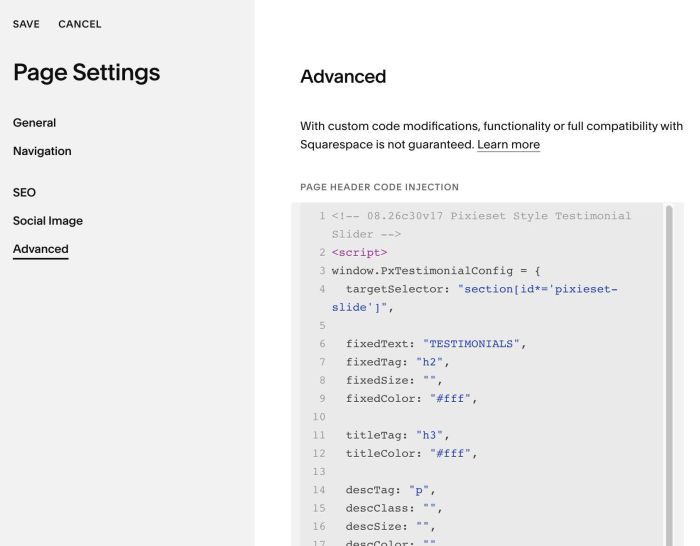
#2. Customize
#2.1. To change text “TESTIMONIALS”, change line 06
fixedText: "TESTIMONIALS",
to change its size, change line 07 – 09
fixedTag: "h2",
fixedSize: "",
fixedColor: "#fff",
#2.2. To change summary title style, change line 11 – 12
titleTag: "h3",
  titleColor: "#fff",
#2.3. To change summary excerpt style, change line 14 – 17
descTag: "p",
descClass: "",
descSize: "",
descColor: "",
#2.4. To change overlay color over image, change line 21
overlayColor: "rgba(0,0,0,0.35)",
#2.5. To change height of Slider on Desktop, Mobile, change line 23, 24
bgHeightDesktop: "420px",
  bgHeightMobile: "520px",
#2.6. To change white box style, change line 26 – 29
boxColor: "#ffffff",
  boxRightOffset: "6%",
  boxOverflowBottom: 50,
  boxPadding: "48px",
#2.7. To change arrow style, change line 31 – 33
arrowColor: "#333333",
arrowSize: "26px",
arrowBottom: "28px",
#2.8. If you need to tweak more you can use this AI Assistant (designed for Squarespace sites)