Description
- adding Youtube Carousel, you can add text under video
- view demo – password: abc
- buy me a coffee

1. Install Code
#1.1. First add Section > Choose Team > Choose Section with auto layout icon

#1.2. Hover on top right of section > Click EDIT SECTION

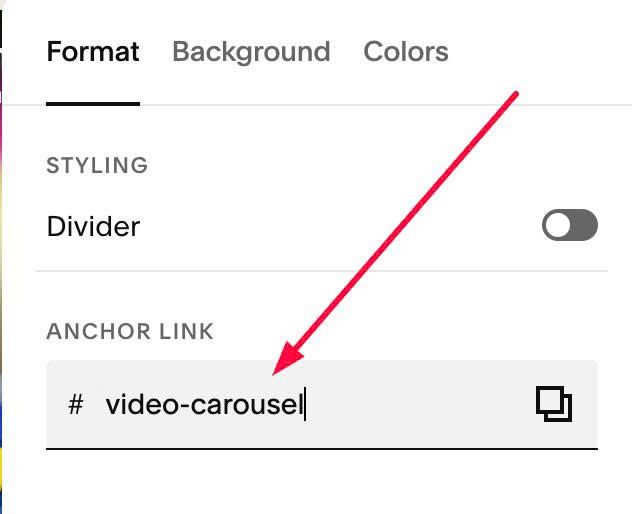
#1.2-2. at Format > Anchor Link > enter word: video-carousel
#1.3. Hover on top right of section > Click EDIT CONTENT
#1.3-2. at Design > Choose Carousel
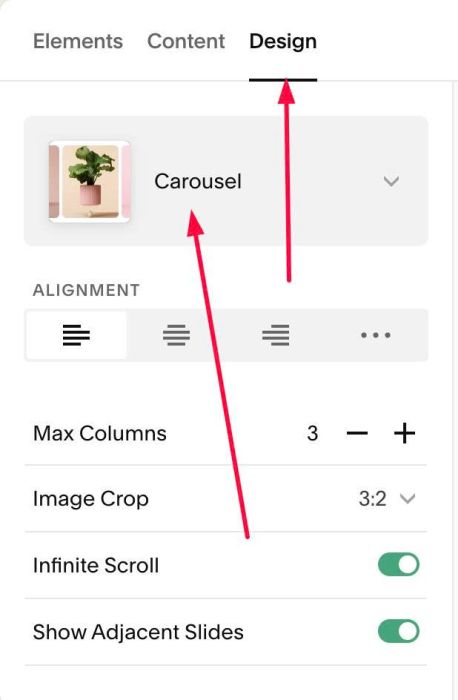
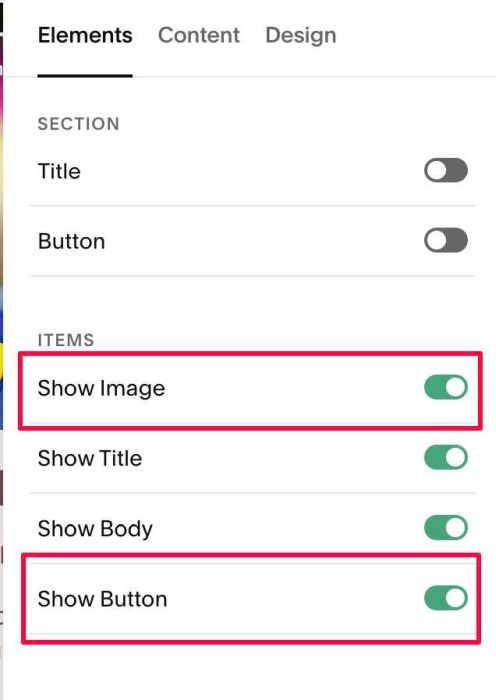
#1.3-2. Next, make sure you enabled Image + Button. With other elements (title, body..) you can enable if you want
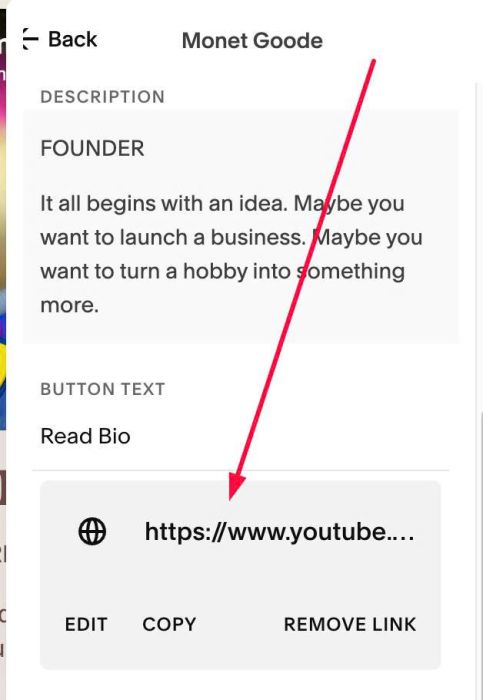
#1.4. Next, click Content to enter text, video url

#1.4-2. Enter Youtube Video URL in Button
#1.5. Hover on Page where you use Carousel > Click Gear icon
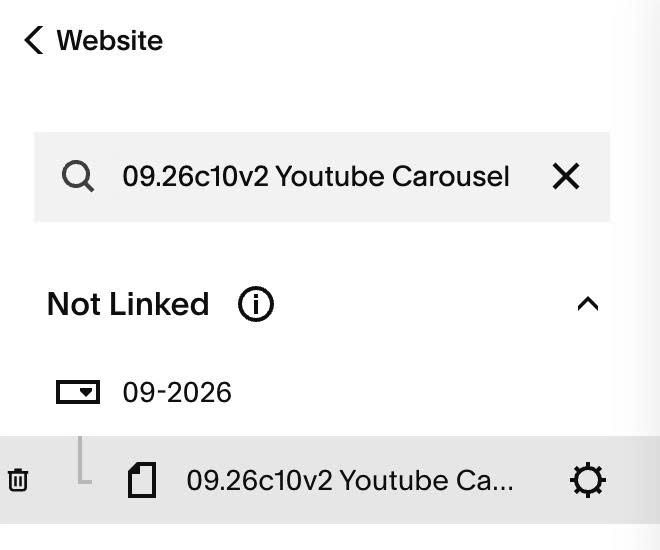
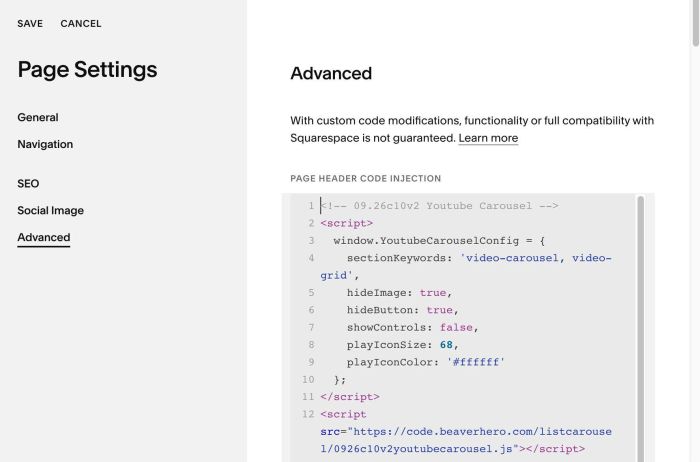
#1.6. Click Advanced > Paste this code
<!-- 09.26c10v2 Youtube Carousel -->
<script>
  window.YoutubeCarouselConfig = {
    sectionKeywords: 'video-carousel, video-grid',
    hideImage: true,
    hideButton: true,
    showControls: false,
    playIconSize: 68,
    playIconColor: '#ffffff'
  };
</script>
<script src="https://code.beaverhero.com/listcarousel/0926c10v2youtubecarousel.js"></script>
#2. Customize
#2.1. Option in Line 05
hideImage: true,
If you set it false
hideImage: false,
it will show featured image + play icon over image

#2.2. To adjust play icon style, change line 08, 09
playIconSize: 68,
playIconColor: '#ffffff'