Description
- adding slideshow with 2 panels: left text (static text) – right image (will change on arrow click)
- view demo – password: abc
- buy me a coffee
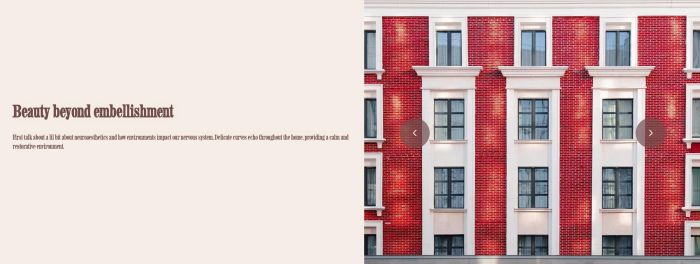
1. Install Code
#1.1. First add Section > Choose Team > Choose Section with auto layout icon

#1.2. Hover on top right of section > Click EDIT SECTION

#1.2-2. at Format > Anchor Link > enter word: slideshow-static
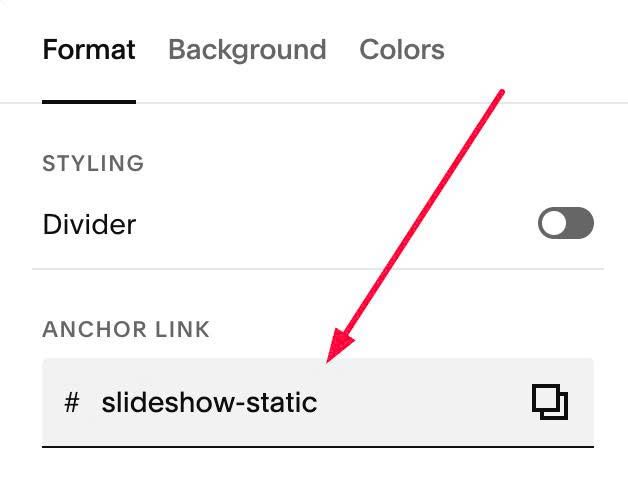
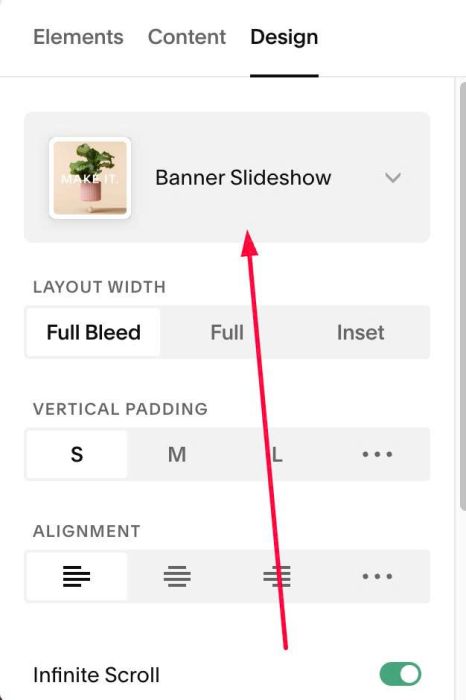
#1.3. Hover on top right of section > Click EDIT CONTENT
#1.3-2. at Design > Choose: Banner Slideshow
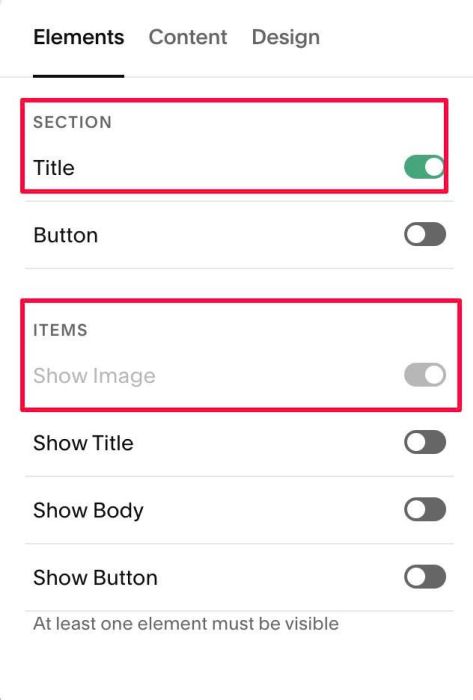
#1.3-2. Next, make sure you enabled Section Title + Item Image.
#1.4. Next, click Content to enter Section Title, Image
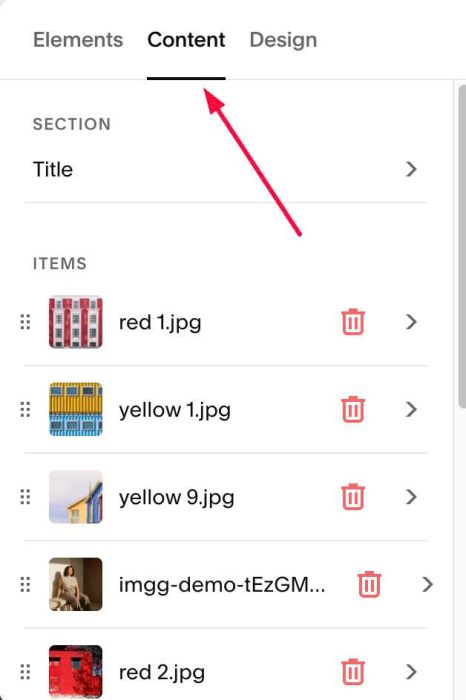
#1.4-2. Click Section Title
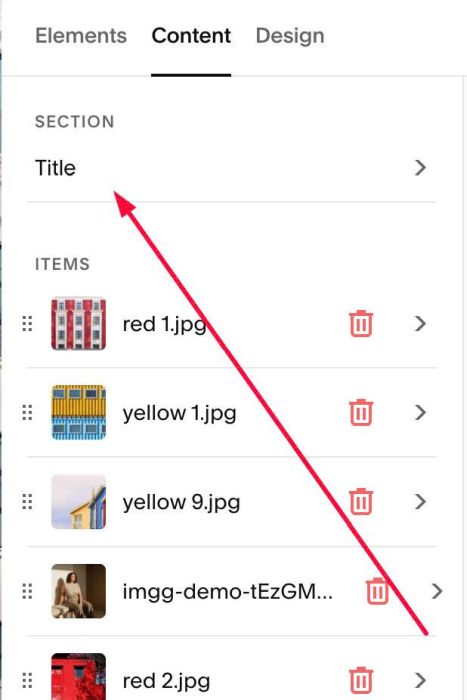
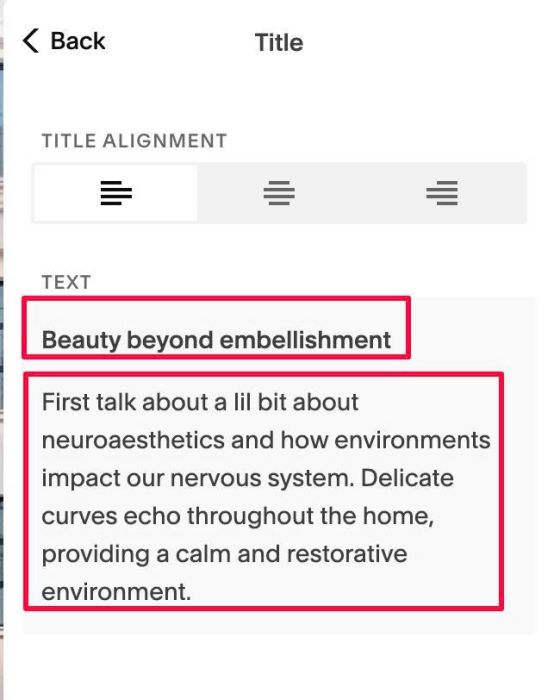
Enter 2 paragraphs
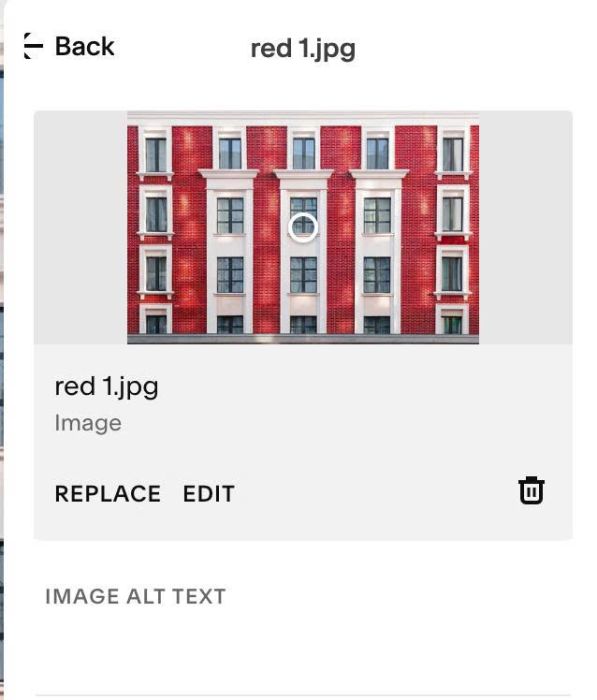
#1.4-3. Click each item > Upload desired image
#1.5. Final, use this code to Custom CSS box
@media screen and (min-width:768px) {
  section[id*="slideshow-static"] {
    .user-items-list {
        display: flex;
        align-items: center;
    }
    /* Text Panel width */
    .list-section-title {
        width: 50%;
      	margin: 0px !important;
    }
    /* Section Title - Second Paragraph Style */
    .list-section-title p:nth-child(2) {
    	font-size: 14px;
      margin-top: 20px;
      font-weight: 400;
    }
    /* Image Panel Width */
    .user-items-list-banner-slideshow {
    width: 50%;
}}}
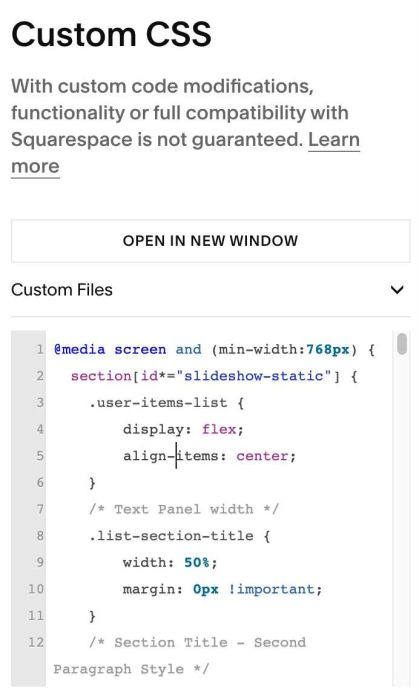
#1.5-2. Explain
- Line 09 – Text Width
- Line 14, 15, 16 – Change style of SECOND paragraph in Section Title
- Line 20 – Image Slideshow Width
#2. Customize
#2.1. To change Arrow style to this
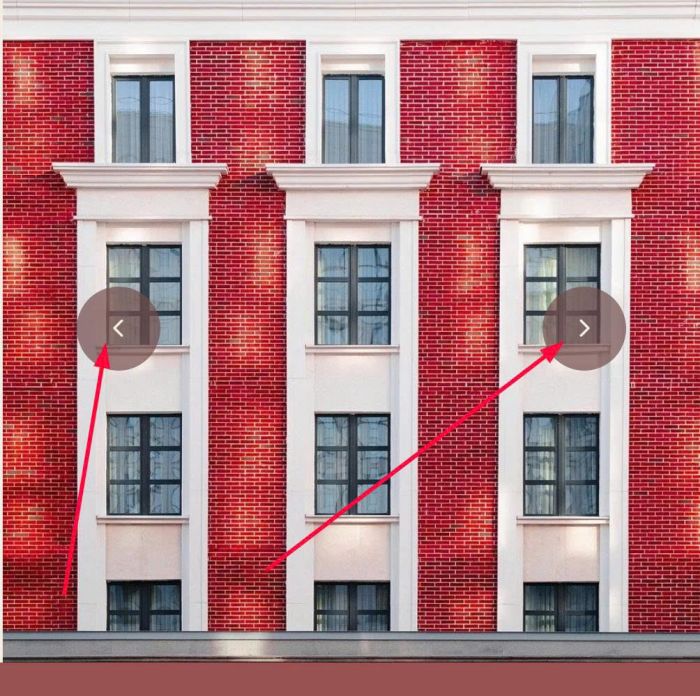
use this code under main code
section[id*="slideshow-static"] {
   .user-items-list-banner-slideshow__arrow-icon-path {
  display: none;
}

.user-items-list-banner-slideshow__arrow-icon {
  background-image: url("data:image/svg+xml,%3Csvg xmlns='http://www.w3.org/2000/svg' viewBox='0 0 24 24' fill='none' stroke='%23F3EDE5' stroke-width='2' stroke-linecap='round' stroke-linejoin='round'%3E%3Cpolyline points='15 18 9 12 15 6'/%3E%3C/svg%3E");
  background-repeat: no-repeat;
  background-position: center;
  background-size: 60% 60%;
}

.user-items-list-banner-slideshow__arrow-button--right .user-items-list-banner-slideshow__arrow-icon {
  transform: scaleX(-1);
}}
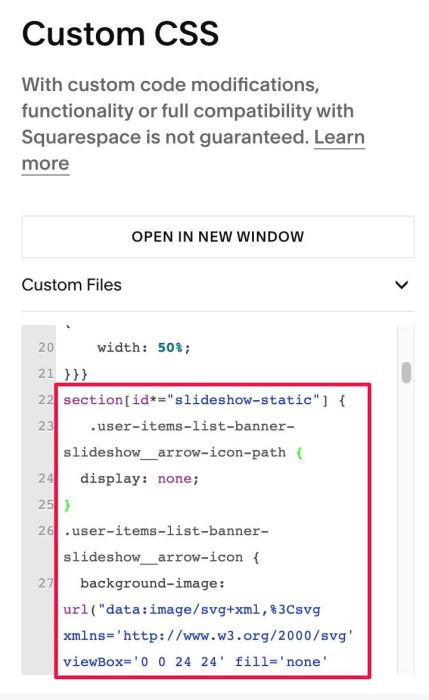
#2.2. To remove circle background behind arrows, use this under main code
section[id*="slideshow-static"] div.user-items-list-banner-slideshow__arrow-icon-background {
    background: transparent !important;
}
#2.3. To change Background Color of this text panel
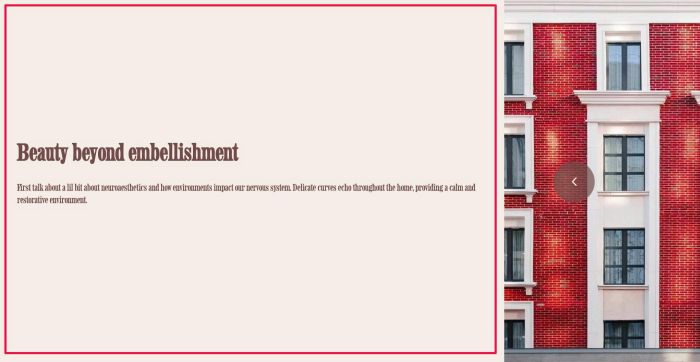
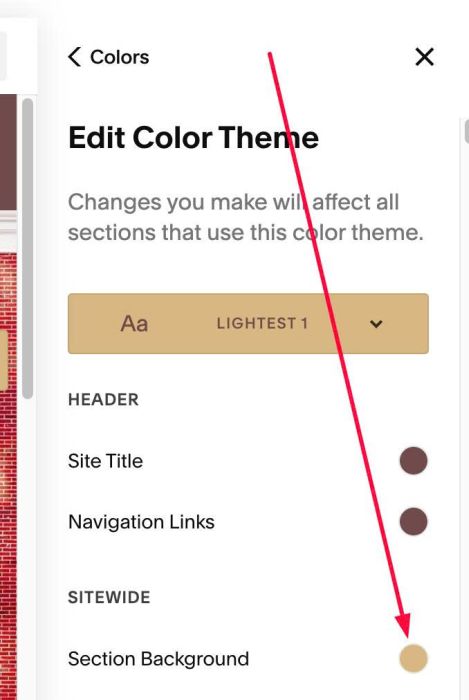
You can change it in Colors
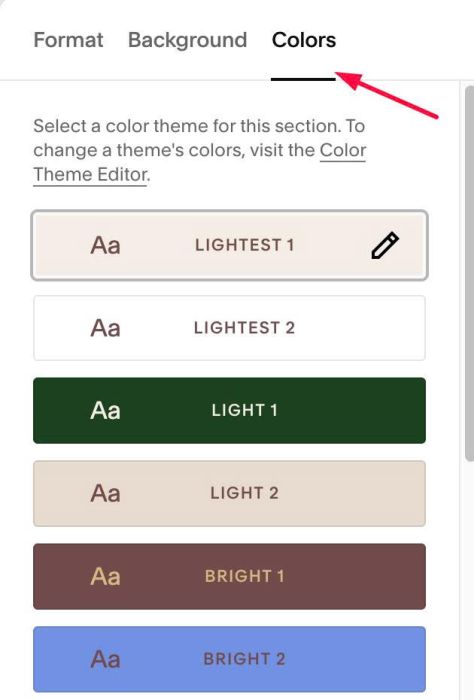
Option: Section Background
#2.4. To change Font of Second Paragraph
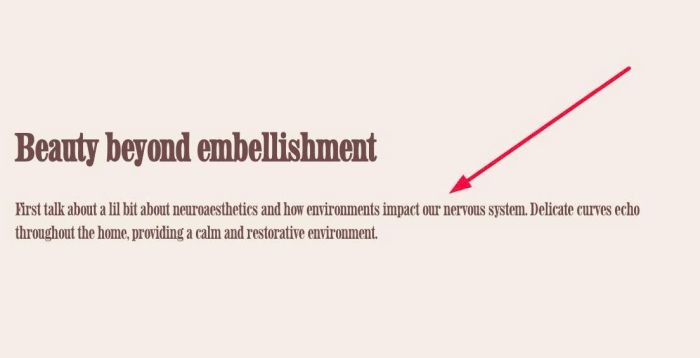
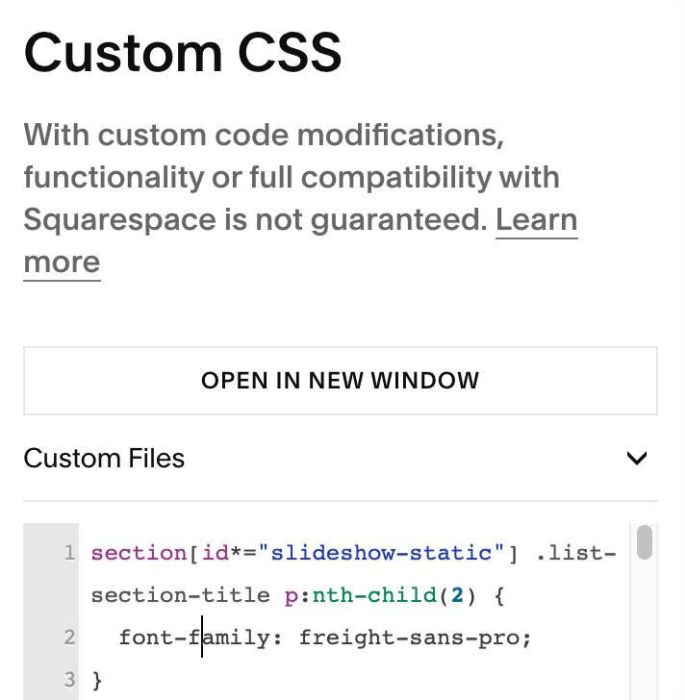
Use this code to Custom CSS
section[id*="slideshow-static"] .list-section-title p:nth-child(2) {
  font-family: freight-sans-pro;
}
#2.5. To change size of Title
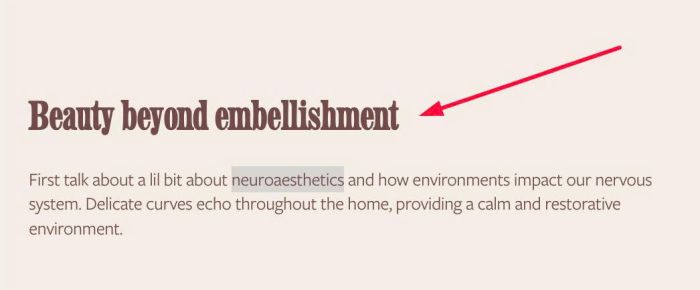
You can use this CSS code
section[id*="slideshow-static"] .list-section-title p:nth-child(1) {
  font-size: 30px !important;
}
or change this option in Site Styles: Site Styles > Fonts > Assign Styles > List Section > Title > Custom Size
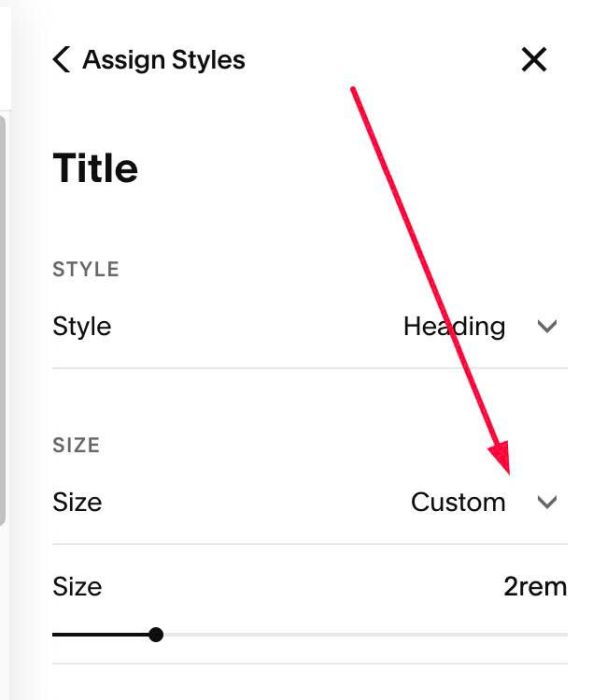
#2.6. To move Arrows closer edge
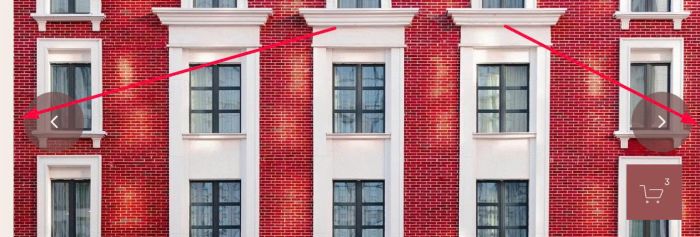
use this code to Custom CSS
section[id*="slideshow-static"] {
    .arrow-container--left {
        left: 10px !important;
    }
      .arrow-container--right {
        right: 10px !important;
    }
}
or you can also use this option when you edit List Slideshow
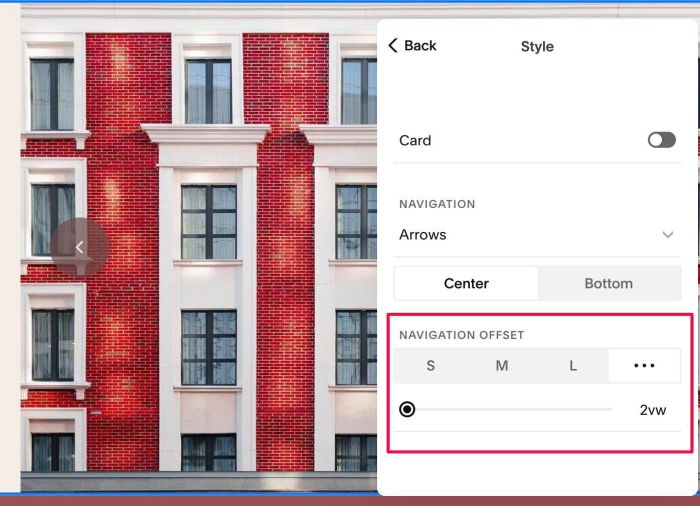
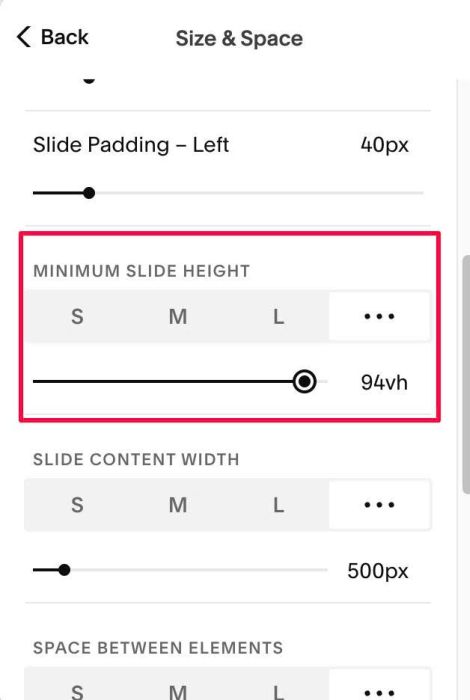
#2.7. To increase height of Slideshow Image, you can change this option in Size & Space
#2.8. To make Second Paragraph smaller on all devices, use this CSS code
section[id*="slideshow-static"] .list-section-title p:nth-child(2) {
        font-size: 14px;
    }