Description
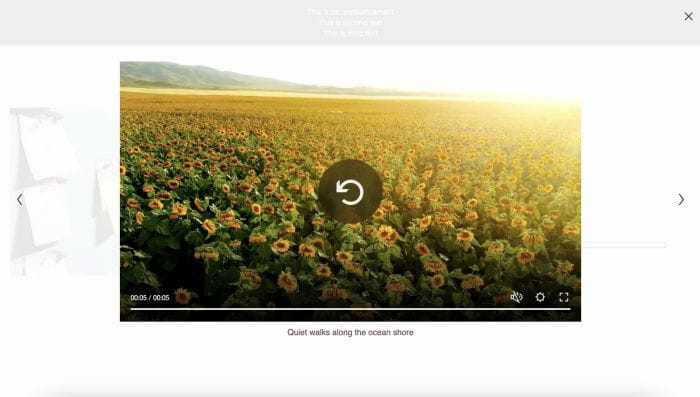
- connect Image Blocks, Video Blocks into lightbox
- view demo – password: abc
- buy me a coffee
#1. Install Code
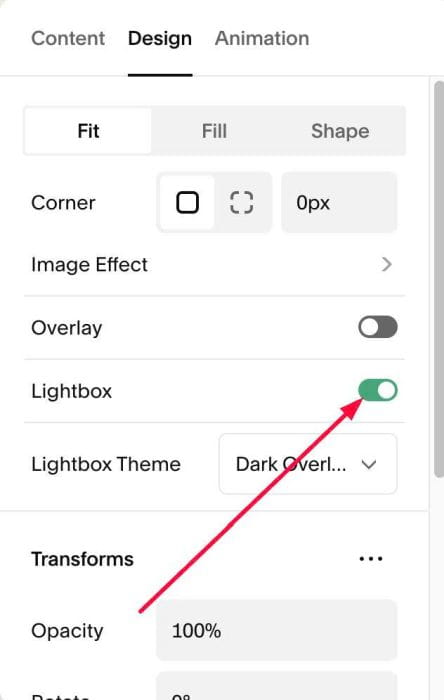
#1.1. Make sure you enabled Lightbox in Image Blocks
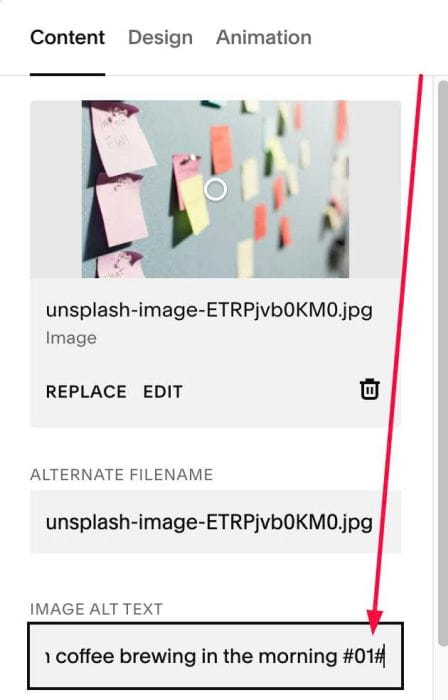
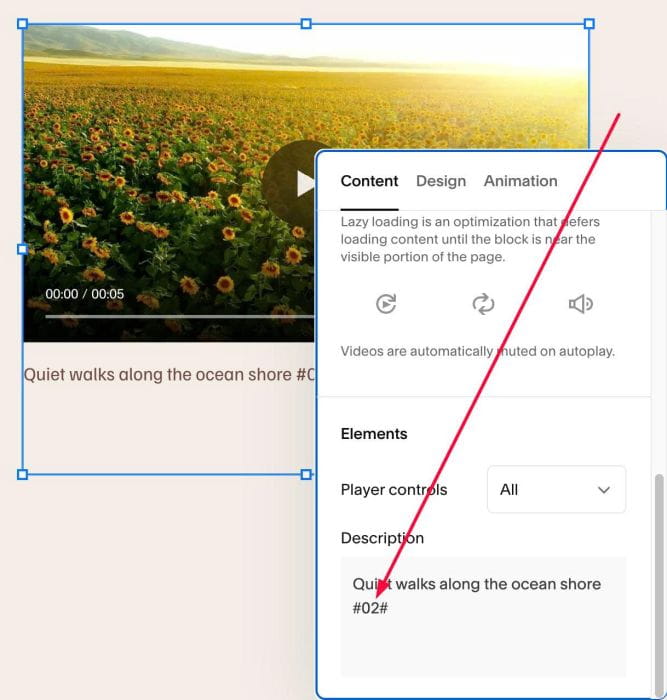
#1.2. Make sure you added order number to Image ALT & Video Captions
Order of Images, Videos inside Lightbox will follow these numbers
Something like this
Fresh coffee brewing in the morning #01#
and this
Quiet walks along the ocean shore #02#
and this
Golden sunlight streaming through open windows #03#
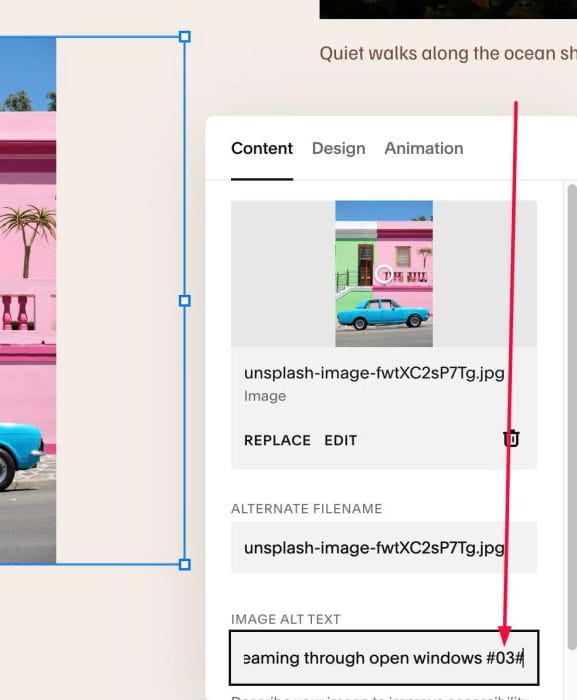
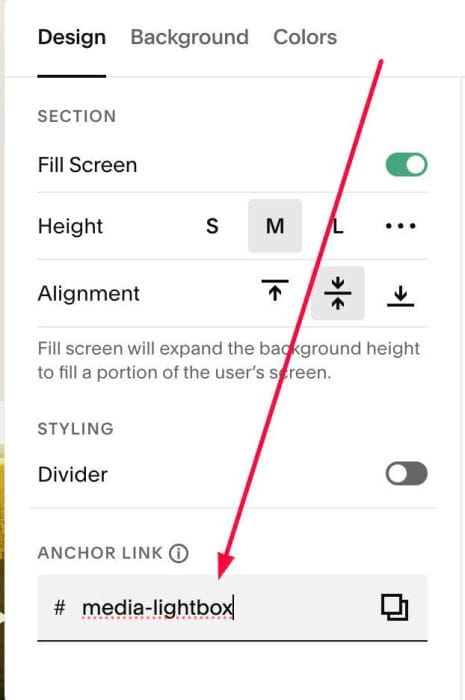
#1.3. Hover on top right of section > Click EDIT SECTION > at Design > Anchor Link > enter word: media-lightbox
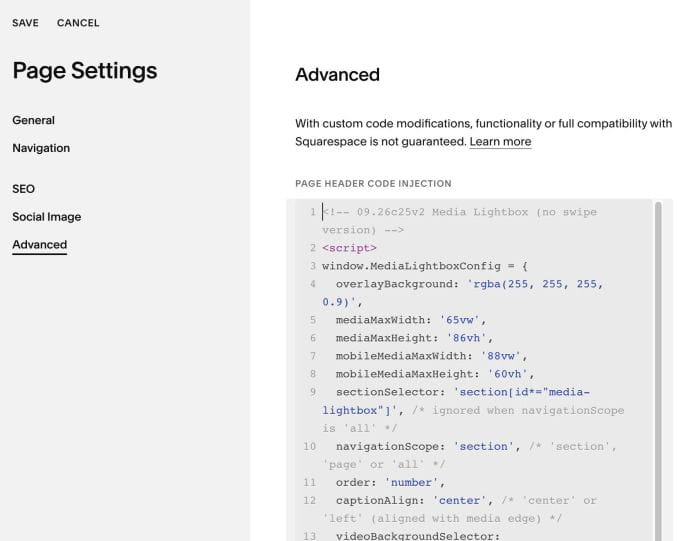
#1.4. Next, hover on Page where you use these Images/Videos > Click Gear icon > Click Advanced > Paste this code
<!-- 09.26c25v2 Media Lightbox (no swipe version) -->
<script>
window.MediaLightboxConfig = {
  overlayBackground: 'rgba(255, 255, 255, 0.9)',
  mediaMaxWidth: '65vw',
  mediaMaxHeight: '86vh',
  mobileMediaMaxWidth: '88vw',
  mobileMediaMaxHeight: '60vh',
  sectionSelector: 'section[id*="media-lightbox"]', /* ignored when navigationScope is 'all' */
  navigationScope: 'section', /* 'section', 'page' or 'all' */
  order: 'number',
  captionAlign: 'center', /* 'center' or 'left' (aligned with media edge) */
  videoBackgroundSelector: 'section[id*="video-bg-lightbox"]',
  videoUrl: '' /* optional override for video background lightbox, e.g. /s/09-car.mp4 */
};
</script>
<script src="https://code.beaverhero.com/other/0926c25v2medialightbox.js"></script>
#2. Customize
All style options in Line 04 to Line 12
overlayBackground: 'rgba(255, 255, 255, 0.9)',
mediaMaxWidth: '65vw',
mediaMaxHeight: '86vh',
mobileMediaMaxWidth: '88vw',
mobileMediaMaxHeight: '60vh',
sectionSelector: 'section[id*="media-lightbox"]', /* ignored when navigationScope is 'all' */
navigationScope: 'section', /* 'section', 'page' or 'all' */
order: 'number',
captionAlign: 'center', /* 'center' or 'left' (aligned with media edge) */
Note: If line 10 = all
navigationScope: 'all',
Code will connect lightbox of all Images, Video Blocks on current page.