Description
- make specific image in gallery masonry span 2 columns
- view demo (scroll down to gallery) – password: abc
- buy me a coffee

#1. Install Code
#1.1. First, make sure you have Gallery Masonry with 2 columns
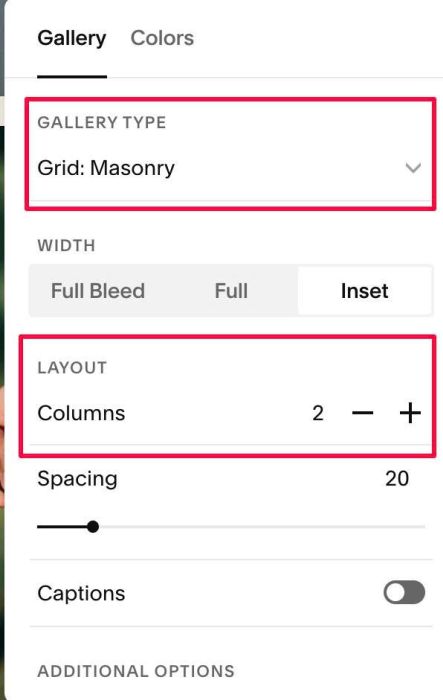
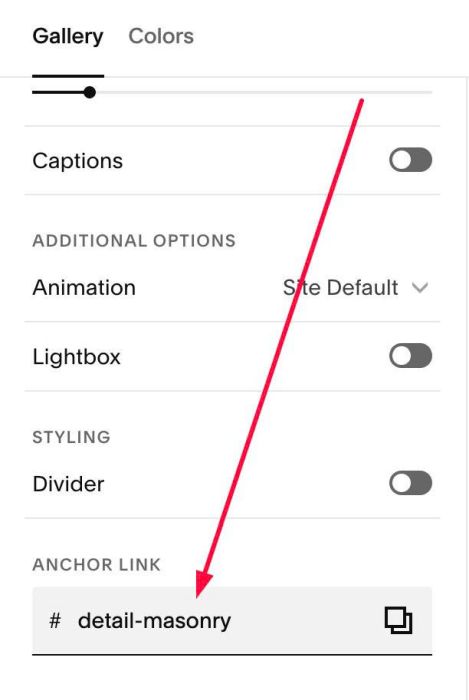
#1.2. Next, hover on top right of Gallery > Click EDIT SECTION > at Gallery > Anchor Link > enter word: detail-masonry
#1.3. Next, use this code to Page Header Injection
<!-- 09.26c30v1 Gallery Image Span 2 Columns -->
<script>
window.GallerySpanOptions = {
  selector: '#page #detail-masonry, .pp29 #detail-masonry',
  imageNumber: [1, 6],
  gap: 20,
  mobileBreakpoint: 767
};
</script>
<script src="https://code.beaverhero.com/gallerysmasonry/0926c30v1gallerymasonryspan2columns.js"></script>
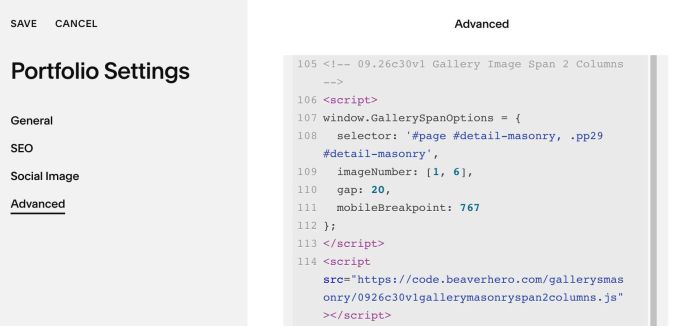
#1.4. You need to update this line
- It will span Image 01 + Image 06 to 2 columns
imageNumber: [1, 6],
#2. Customize
nothing now