- Support: [email protected]
- Free Install. Extra fee if you need more customizing
- View Demo – Password: abc

#1. Install Code
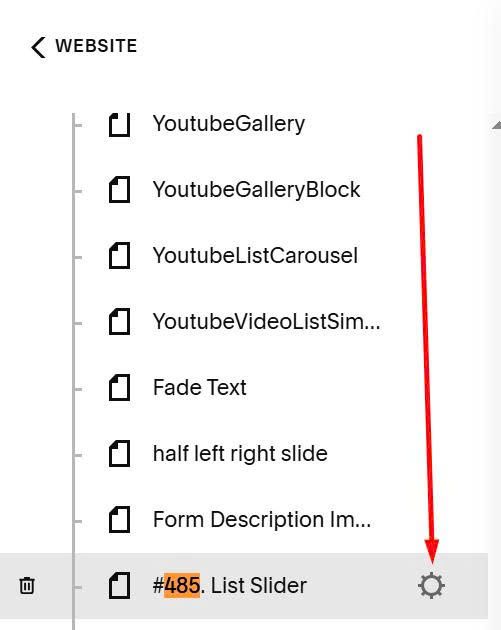
First, click Gear icon on page where you want to add this List style.
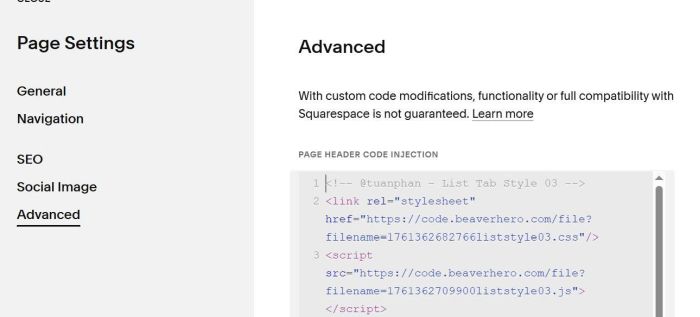
Next, click Advanced > Paste this code
<!-- @tuanphan - List Tab Style 03 -->
<link rel="stylesheet" href="https://code.beaverhero.com/file?filename=1761362682766liststyle03.css"/>
<script src="https://code.beaverhero.com/file?filename=1761362709900liststyle03.js">
#2. Usage
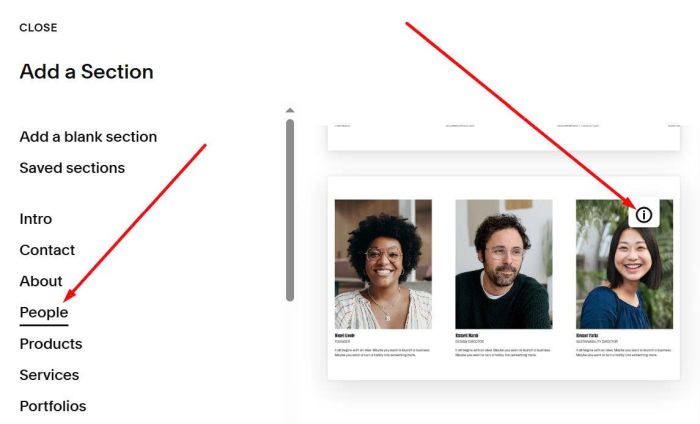
First, you need to add a People Section > Choose Section with (i) icon.
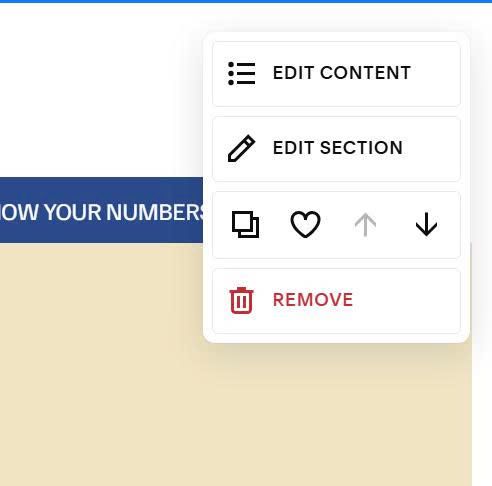
Next, hover on top right of section > Click Edit Section
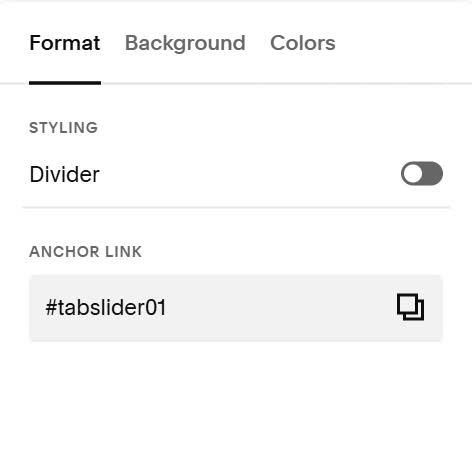
Enter text: tabslider01 in Anchor Link
tabslider01
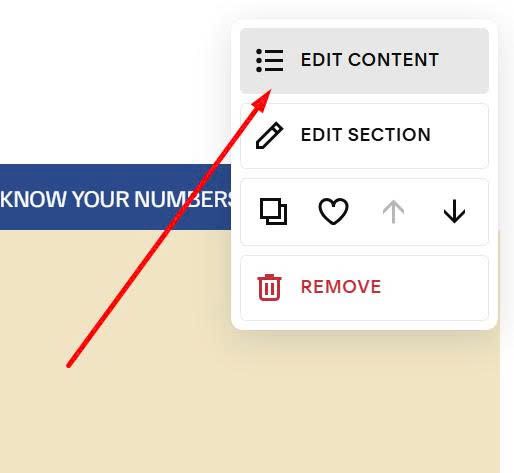
Next, hover on top right of section > Click Edit Content to add title/description/button
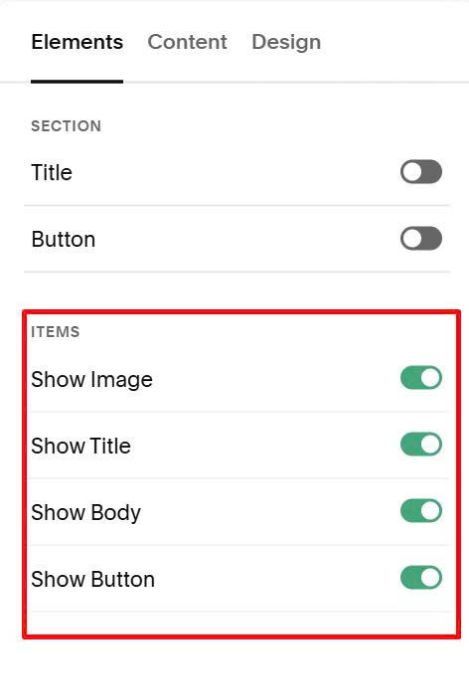
Enable these options
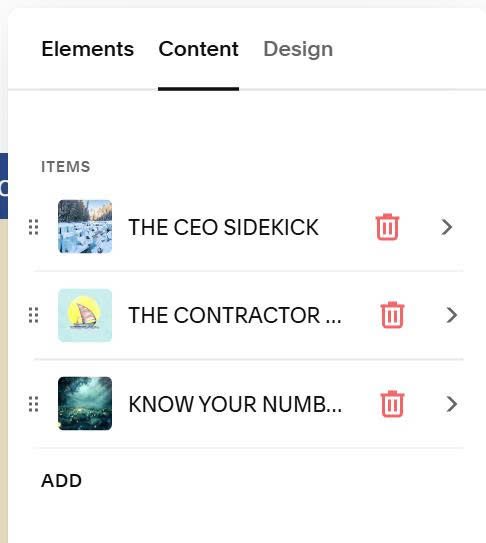
At Content, you can edit/add new item.
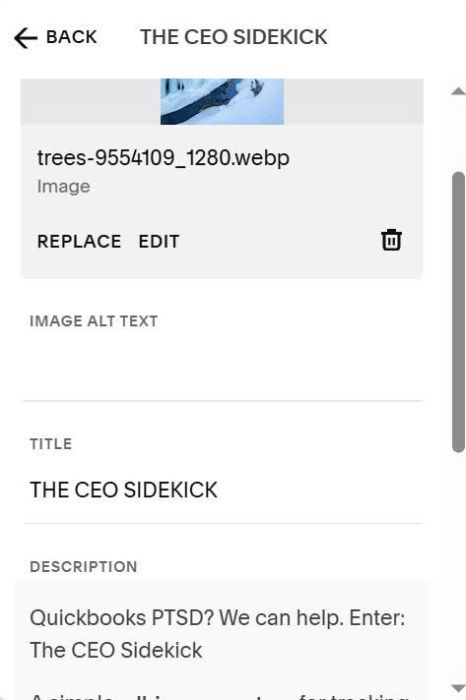
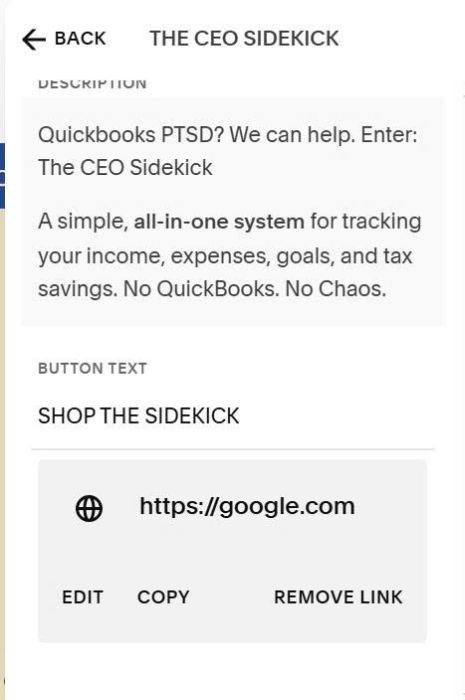
You can add Image, Title (Tab Label), Description (Tab Content Title/Description), Button (Tab Button)
#3. Customize
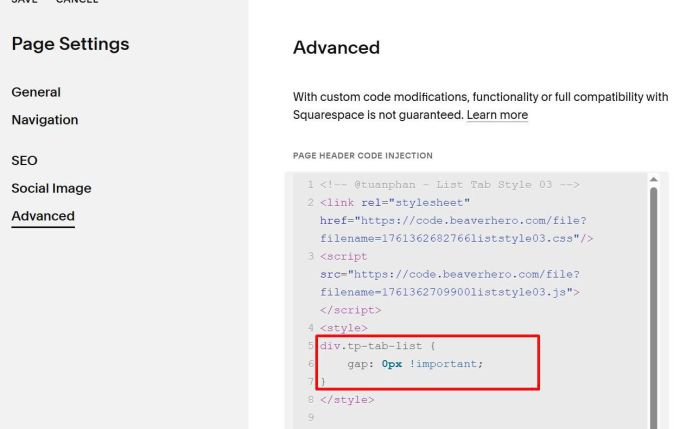
#3.1. To remove gap between Tab Labels

You can add this under plugin code
<style>
div.tp-tab-list {
    gap: 0px !important;
}
</style>
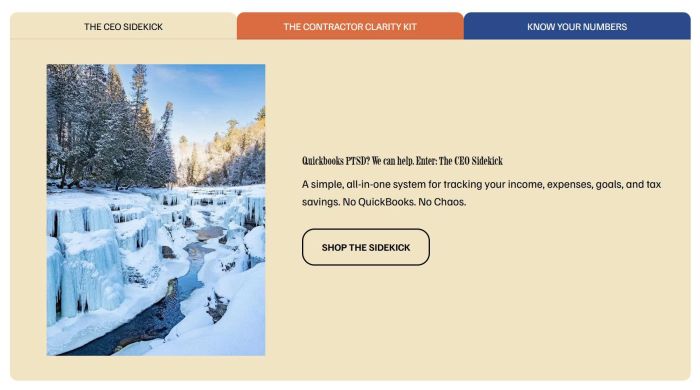
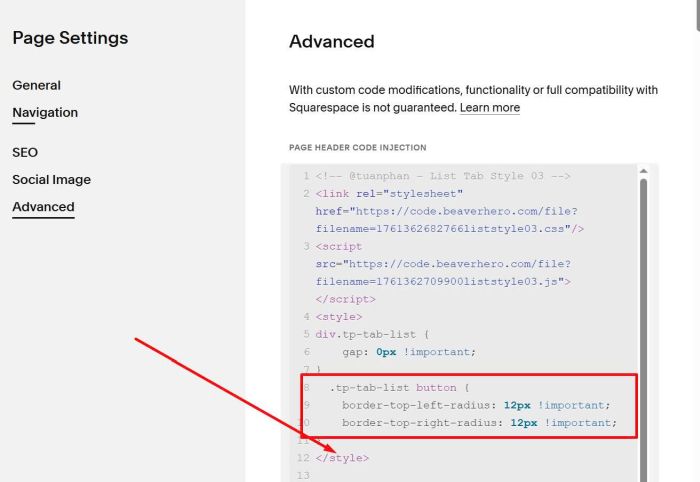
#3.2. To add rounded corners of Tab Labels, like this.

add this before </style>
.tp-tab-list button {
    border-top-left-radius: 12px !important;
    border-top-right-radius: 12px !important;
}
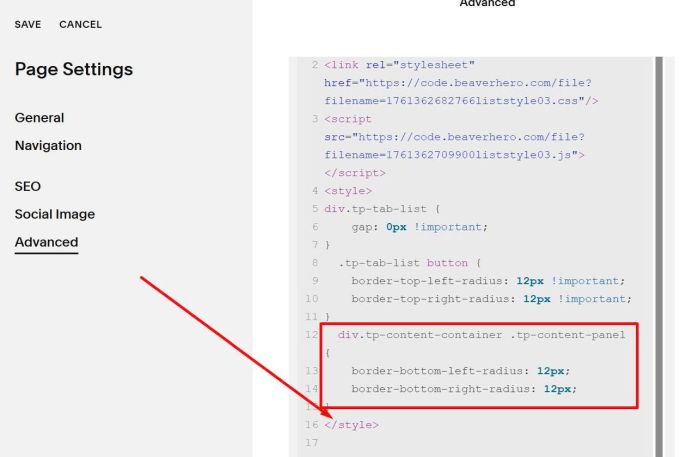
#3.3. To add rounded corners of Tab Content, like this

Add this before </style>
div.tp-content-container .tp-content-panel {
    border-bottom-left-radius: 12px;
    border-bottom-right-radius: 12px;
}
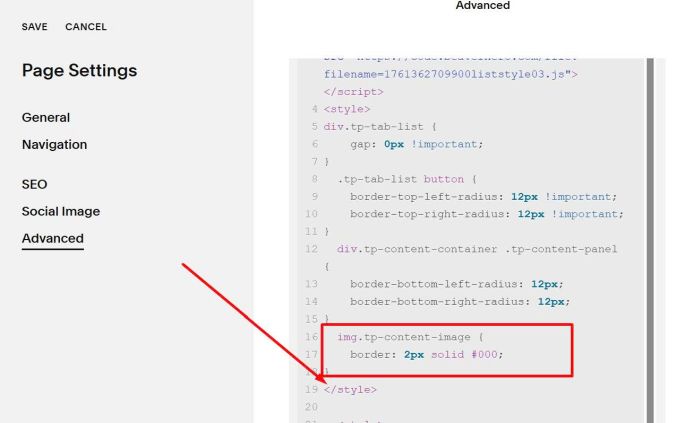
#3.4. To add border around images in Tab Panel, like this.

add this before </style>
img.tp-content-image {
    border: 2px solid #000;
}
#3.6. To change order of image – text in Tab Panel, from this
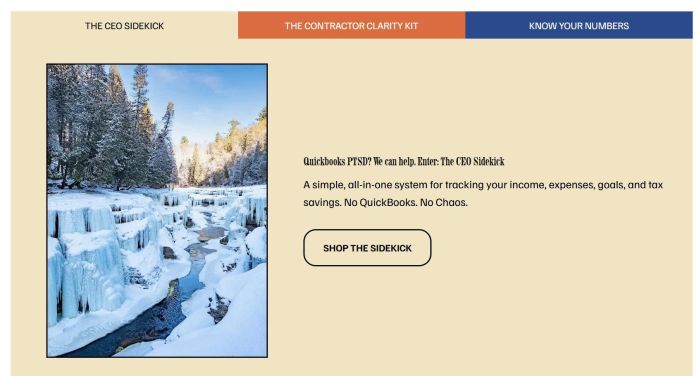
To this.
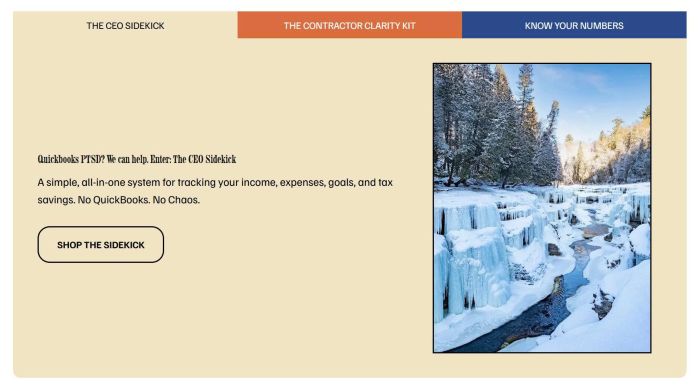
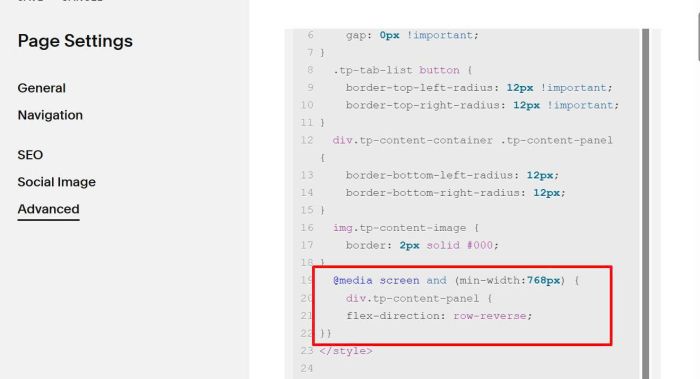
Add this before </style>
@media screen and (min-width:768px) {
    div.tp-content-panel {
    flex-direction: row-reverse;
}}
#3.7. To make tab labels stacked on mobile, from this.
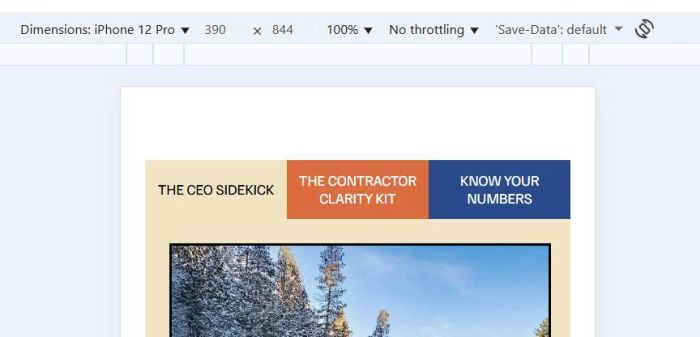
To this.
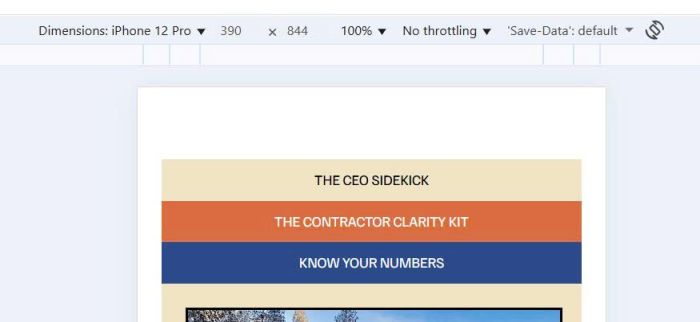
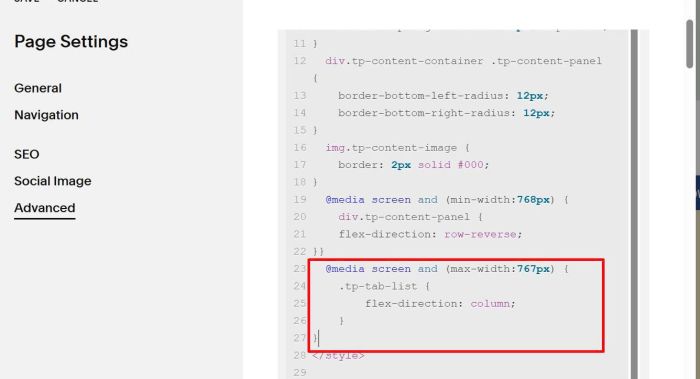
Use this code before </style>
@media screen and (max-width:767px) {
    .tp-tab-list {
        flex-direction: column;
    }
}