- Support: [email protected]
- View Demo – Password: abc
Description
- Keep Image Caption in Lightbox View
- Keep Caption format in Lightbox View
- Option to hide Captions from Gallery View
- Works with Gallery Section Strips only
- Works with Personal/Basic Plan
#1. Install Code
#1.1. Business Plan/higher
Hover on page where you use Gallery Grid > Click Gear icon

Click Advanced > Paste this code
<!-- @tuanphan Gallery Strips Lightbox -->
<link rel="stylesheet" href="https://code.beaverhero.com/gallerystrips/stripslb.css"/>
<script src="https://code.beaverhero.com/gallerystrips/stripslb.js"></script>

#1.2. Personal/Basic Plan
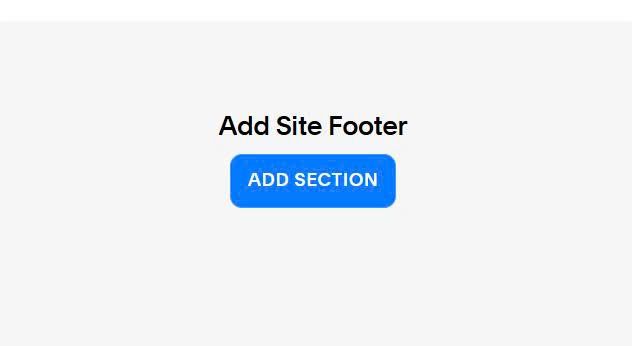
First, edit Site Footer > Add a Section (if you already have a section, skip this step)
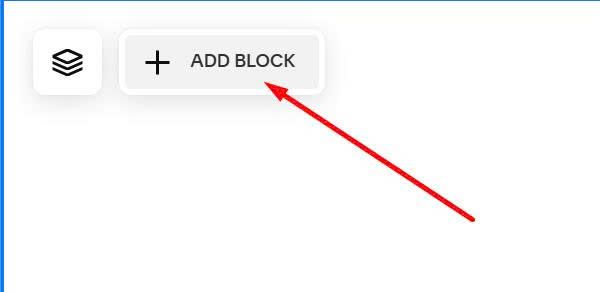
Hover on top left of Footer > Click Add Block
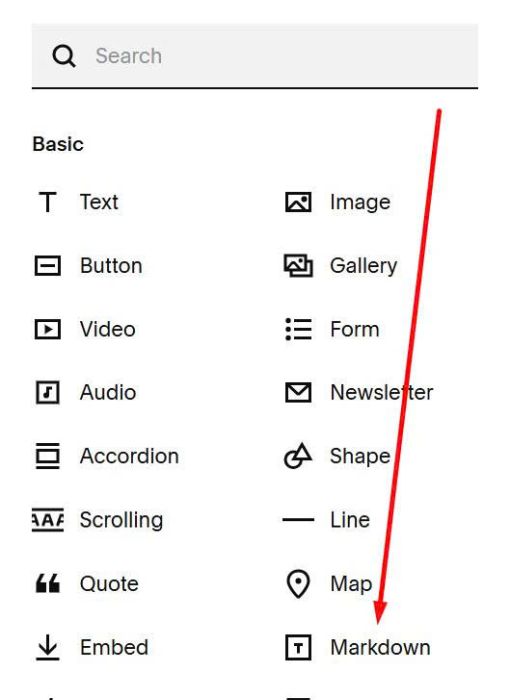
Choose Markdown
Paste this code into Markdown
<link rel="stylesheet" href="https://code.beaverhero.com/gallerystrips/stripslb.css"/>
<script src="https://code.beaverhero.com/gallerystrips/stripslb.js"></script>

#2. Usage
First, make sure you use Gallery Strips

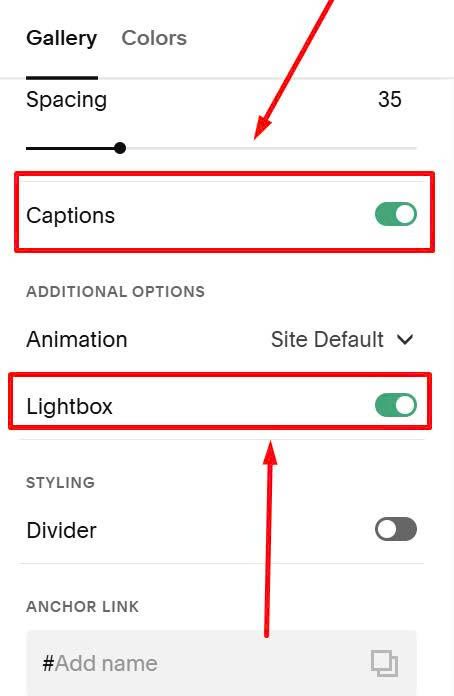
Next, make sure you enabled Captions + Lightbox
Next, make sure you added text to Image Description
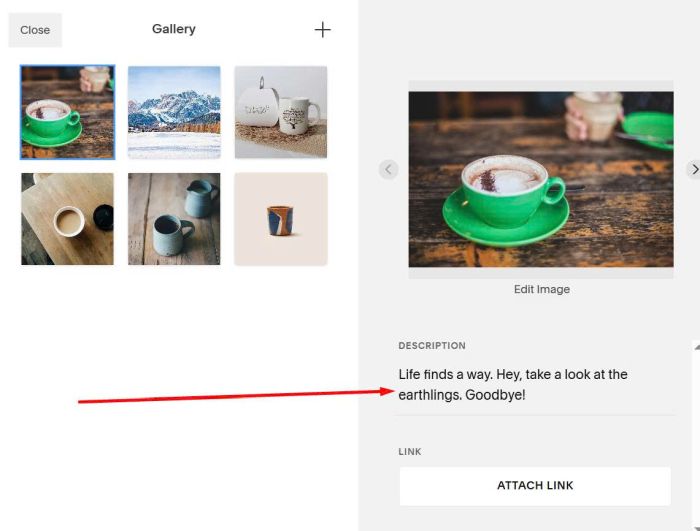
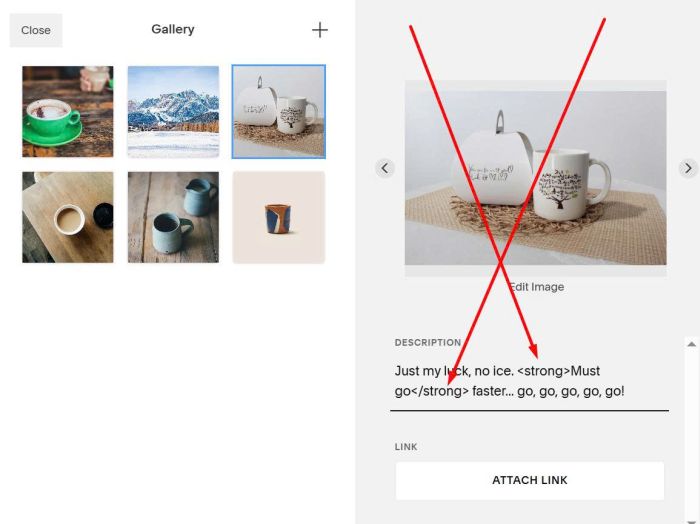
If you want to make text italic, wrap it in <em> tag

to make bold, use <strong> tag
#3. Customize
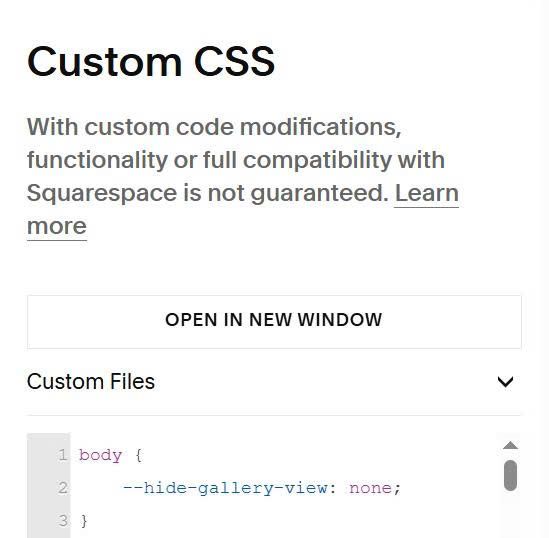
#3.1. To make text disappear from Gallery View, you can use this code to Custom CSS.
body {
    --hide-gallery-view: none;
}
#3.2. If you want to hide both arrows on mobile, use this to Custom CSS
@media screen and (max-width:767px) {
  .tp-strips-lb-arrow {
    display: none !important;
  }
}
