- View Demo – Password: abc
- Support: [email protected]
- Free Install
- Buy me a coffee

#1. Install Code
#1.1. Business Plan/higher
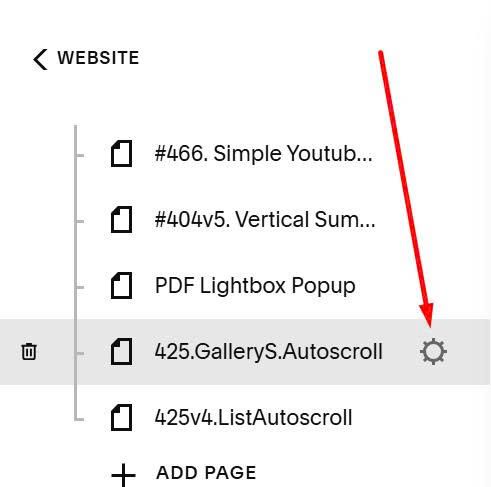
First, click Gear icon on page where you want to add Gallery Grid Smooth Autoscroll.
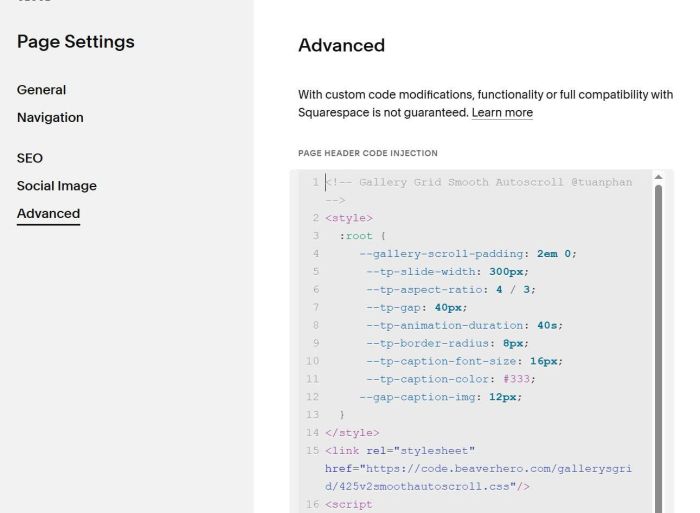
Next, click Advanced > Paste this code to right box.
<!-- Gallery Grid Smooth Autoscroll @tuanphan -->
<style>
  :root {
   	 --gallery-scroll-padding: 2em 0;
      --tp-slide-width: 300px;
      --tp-aspect-ratio: 4 / 3;
      --tp-gap: 40px;
      --tp-animation-duration: 40s;
      --tp-border-radius: 8px;
      --tp-caption-font-size: 16px;
      --tp-caption-color: #333;
   	 --gap-caption-img: 12px;
  }
</style>
<link rel="stylesheet" href="https://code.beaverhero.com/gallerysgrid/425v2smoothautoscroll.css"/>
<script src="https://code.beaverhero.com/gallerysgrid/425v2smoothautoscroll.js"></script>
#1.2. Personal Plan/Basic Plan
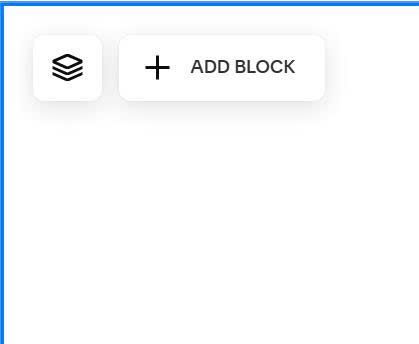
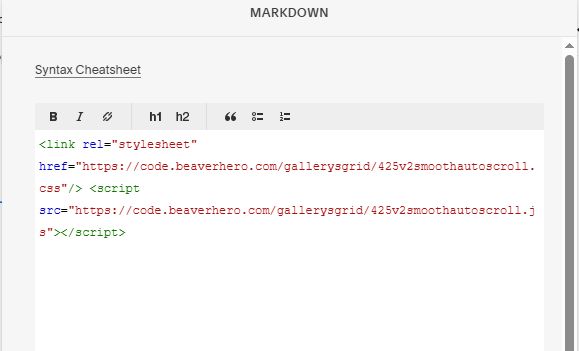
Add a block under Gallery
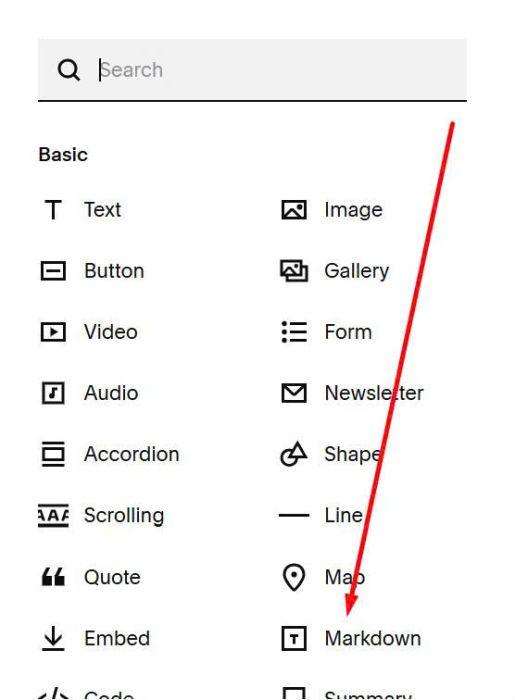
Choose Markdown
Paste this code into Markdown
<link rel="stylesheet" href="https://code.beaverhero.com/gallerysgrid/425v2smoothautoscroll.css"/>
<script src="https://code.beaverhero.com/gallerysgrid/425v2smoothautoscroll.js"></script>
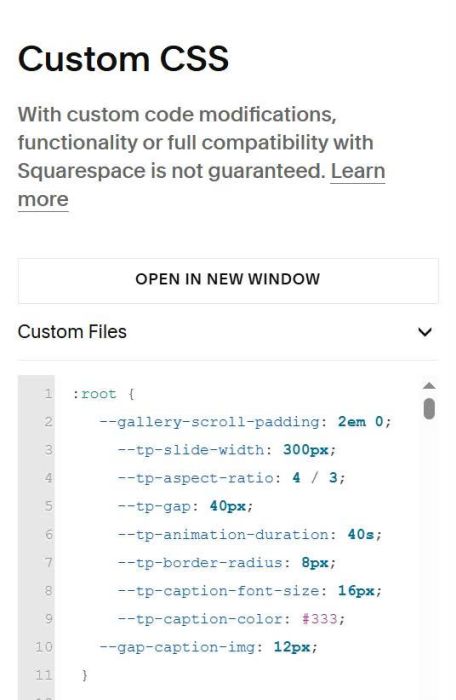
and this code into Custom CSS box
:root {
  	--gallery-scroll-padding: 2em 0;
     --tp-slide-width: 300px;
     --tp-aspect-ratio: 4 / 3;
     --tp-gap: 40px;
     --tp-animation-duration: 40s;
     --tp-border-radius: 8px;
     --tp-caption-font-size: 16px;
     --tp-caption-color: #333;
  	--gap-caption-img: 12px;
 }
#2. Usage
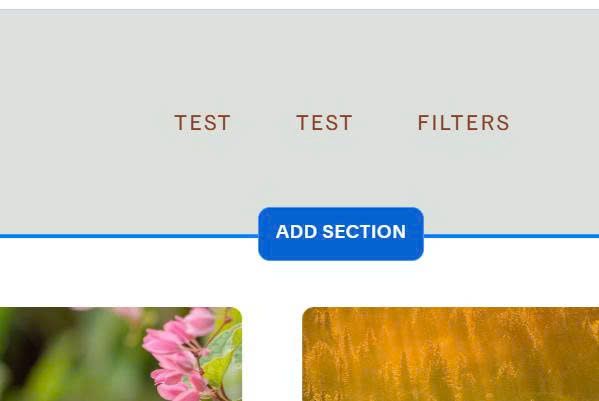
First, click Add Section
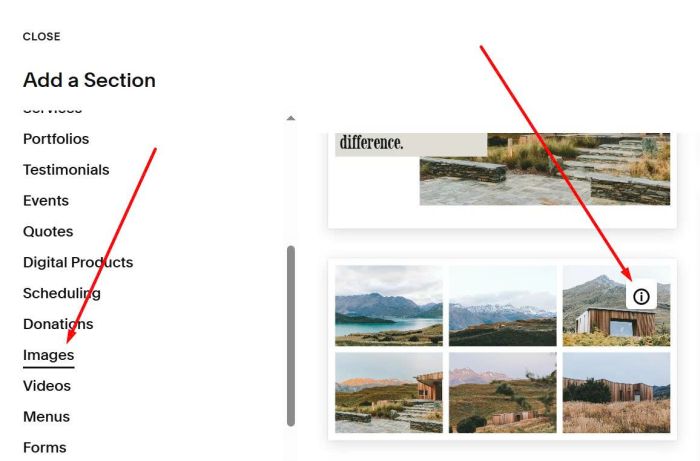
Next, choose Images > Choose Section with (i) icon.
Next, hover on top right of section > Click Edit Section
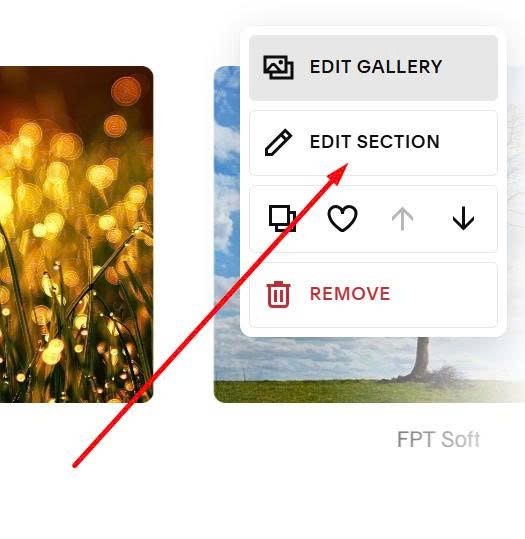
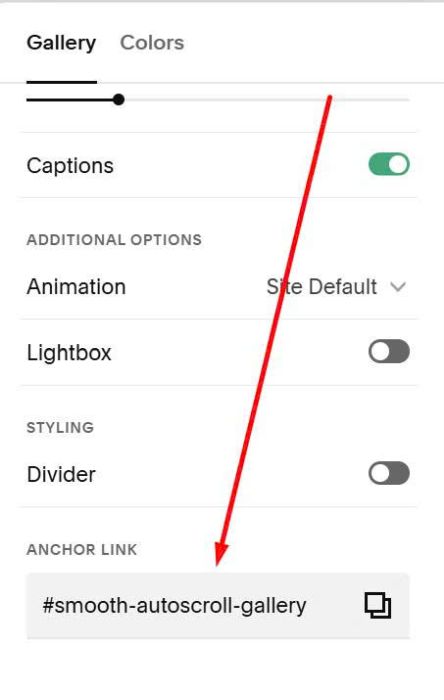
Enter this word: smooth-autoscroll-gallery
smooth-autoscroll-gallery
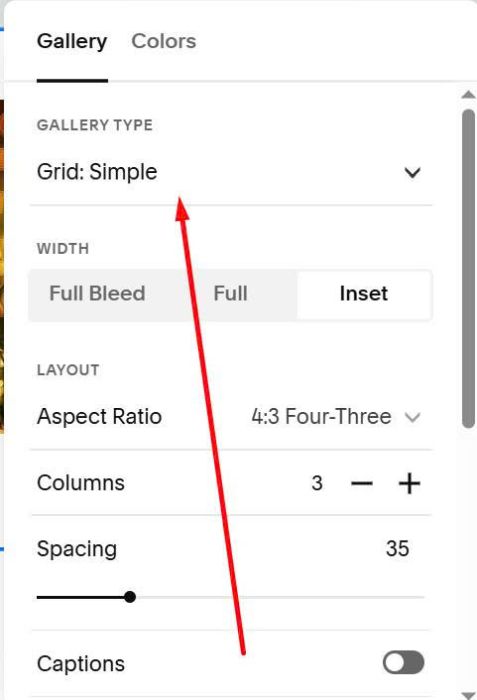
and make sure you choose Grid: Simple
#3. Customize
All style options here.
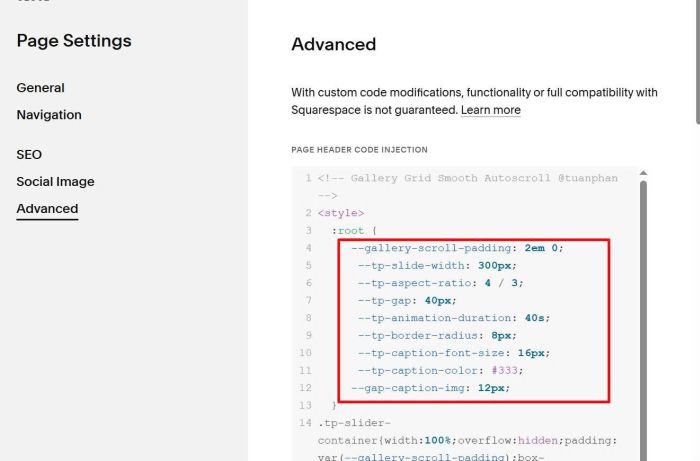
If you use Personal/Basic Plan, you can see these options in Custom CSS
#3.1. To change space above/below gallery scroll, change this.
--gallery-scroll-padding: 2em 0;
#3.2. To change image width, change this.
--tp-slide-width: 300px;
#3.3. to change image ratio, change this.
--tp-aspect-ratio: 4 / 3;
#3.4. To change gap between images, change this.
--tp-gap: 40px;
#3.5. To change gallery scroll speed, change this.
--tp-animation-duration: 40s;
#3.6. To rounded corners of image, change this.
--tp-border-radius: 8px;
#3.7. To change text style under image, change these.
--tp-caption-font-size: 16px;
      --tp-caption-color: #333;
#3.8. To change space between text – image, change this.
--gap-caption-img: 12px;
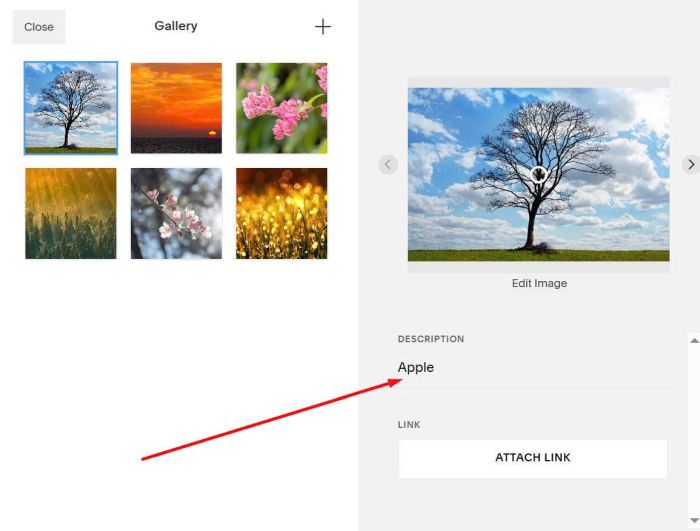
#3.9. To add text under Image, you can enable this option.
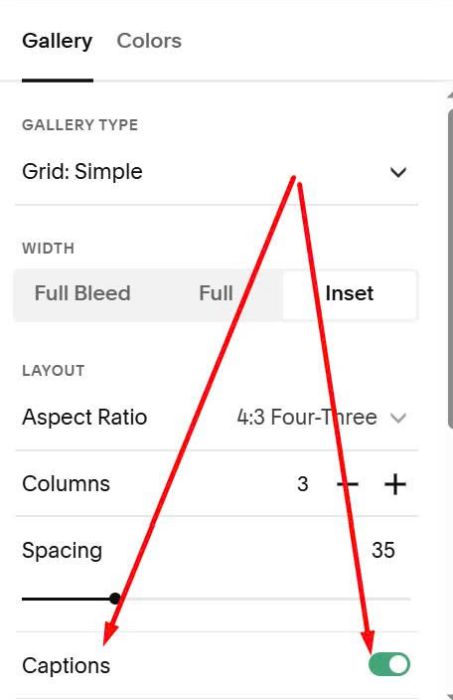
Then you can add Description text.
#3.10. To add second gallery with opposite direction, you can do these
First, add a second gallery with anchor link
smooth-autoscroll-gallery2
Next, use this code to Custom CSS
#smooth-autoscroll-gallery2 .tp-slider-track{
    animation: tp-scroll2 var(--tp-animation-duration) linear infinite !important;
}
@keyframes tp-scroll2 {
    from {
        transform: translateX(-50%)
    }

    to {
        transform: translateX(0%)
    }
}