Description
provides some extra option on Gallery Block Carousel
- number of columns on desktop/mobile
- space between images
- image ratio
- show/hide title
- …
- view demo – password: abc
#1. Install Code
If you use Personal/Basic Plan and your plan doesn’t support Injection, you can see #2.4
#1.1. First, you need to add a Gallery Block Carousel
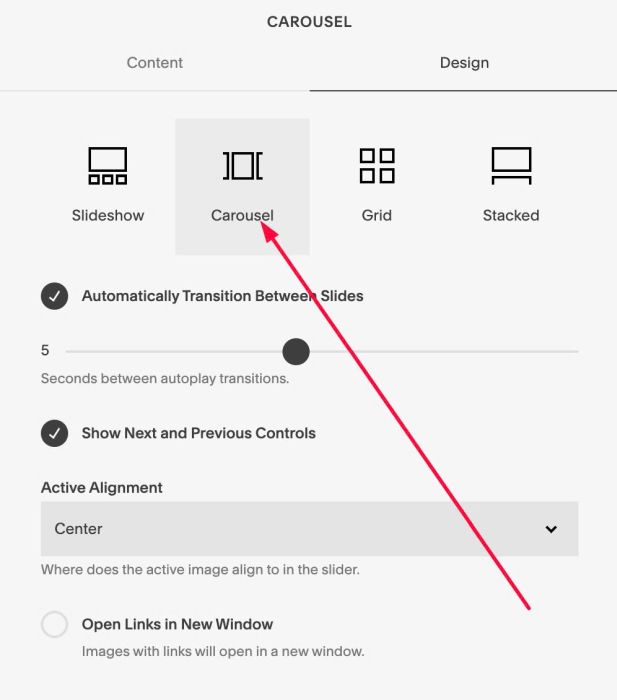
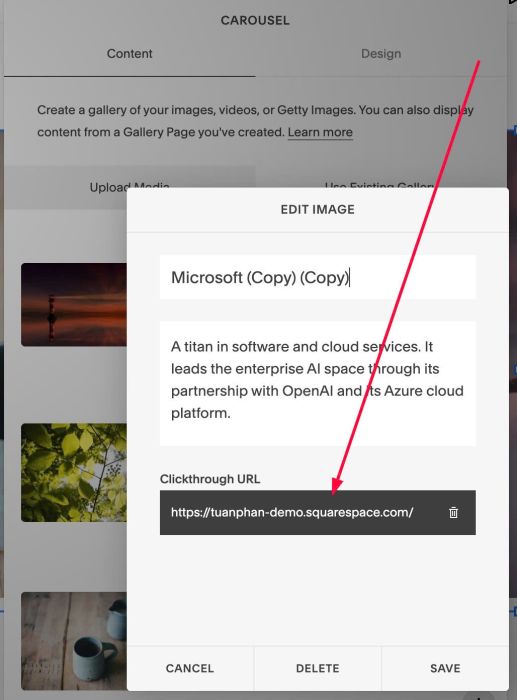
#1.2. Make sure you added Links to all images
Here I use an example link.
In case you don’t want to make image clickable. You can add, then see #2.2 to disable link.
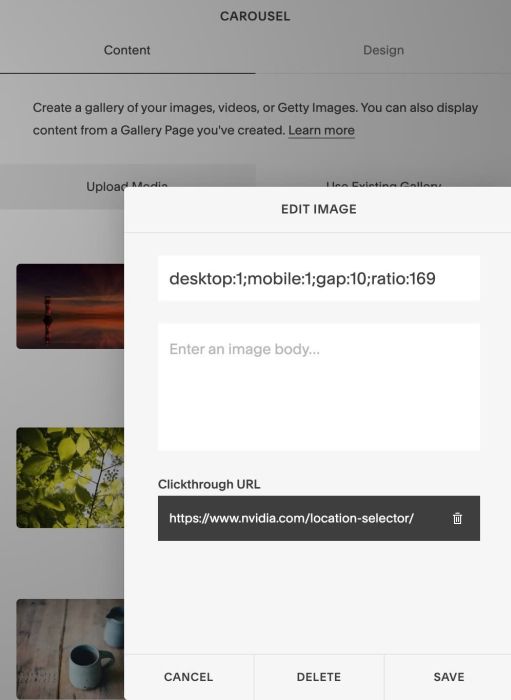
#1.3. edit FIRST IMAGE > enter format like this
desktop:1;mobile:1;gap:10;ratio:169
This means
- desktop: show 1 image/time
- mobile: show 1 image/time
- add gap between images: 10px
- set image ratio: 16:9
#1.4. Hover on Page where you use Gallery Block Carousel > Click Gear icon
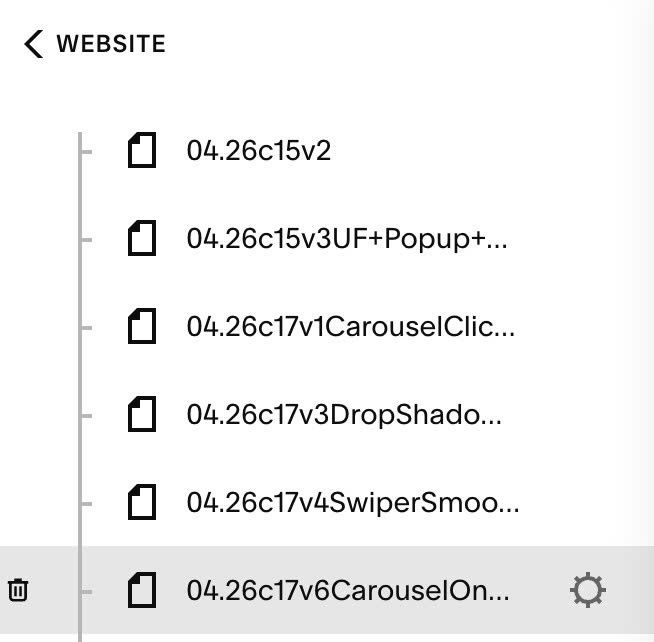
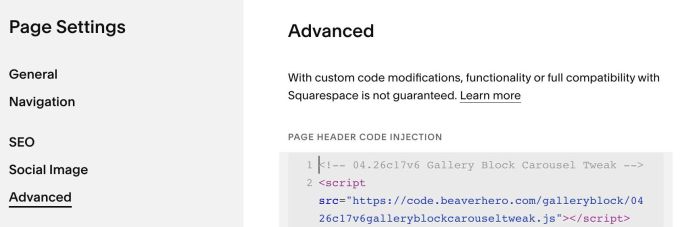
Click Advanced > Paste this code.
<!-- 04.26c17v6 Gallery Block Carousel Tweak -->
<script src="https://code.beaverhero.com/galleryblock/0426c17v6galleryblockcarouseltweak.js"></script>
#2. Customize
If you need to customize more you can message me or use this AI tool, it was designed for the Squarespace site.
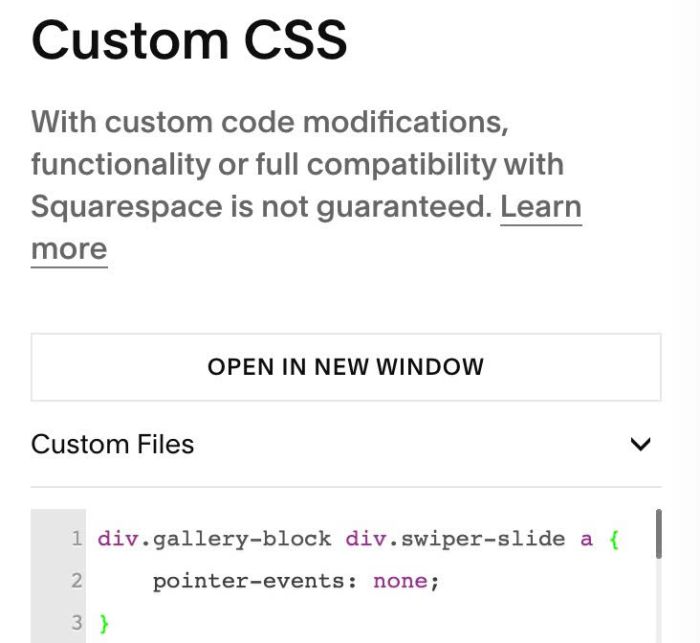
#2.1. If you want to disable Links, use this to CUSTOM CSS box
div.gallery-block div.swiper-slide a {
    pointer-events: none;
}
#2.2. If you want to disable Title, use this to Custom CSS
div.swiper-slide .image-slide-title {
    display: none !important;
}
#2.3. If you see second image appears on first image then disappear, use this to Custom CSS to fix problem.
div.gallery-block:has(.swiper-slide) .sqs-block-content {
    opacity: 0 !important;
}
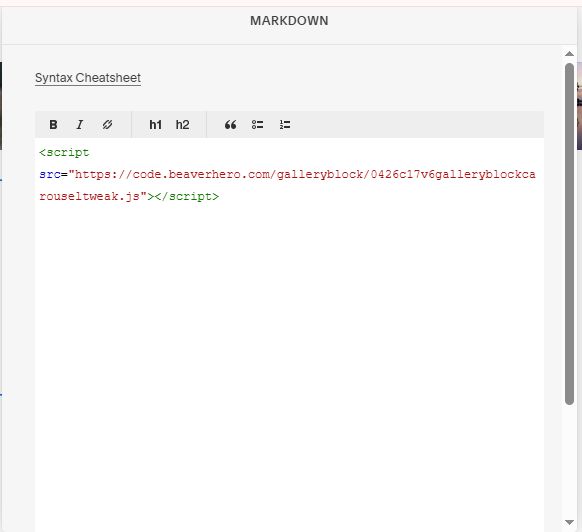
#2.4. If you use Personal/Basic Plan and it doesn’t support Injection, you can add a Markdown Block under Gallery Block Carousel.
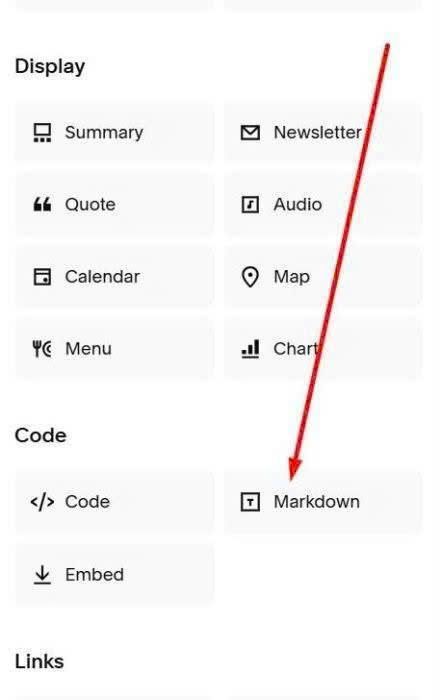
Then use this code into Markdown Block.
<script src="https://code.beaverhero.com/galleryblock/0426c17v6galleryblockcarouseltweak.js"></script>