Description
- show/hide images in specific time
- view demo – password: abc
- buy me a coffee
#1. Install code
#1.1. You can add some Image Blocks

#1.2. Add symbol like this: @@time01, @@time02 to Image ALT
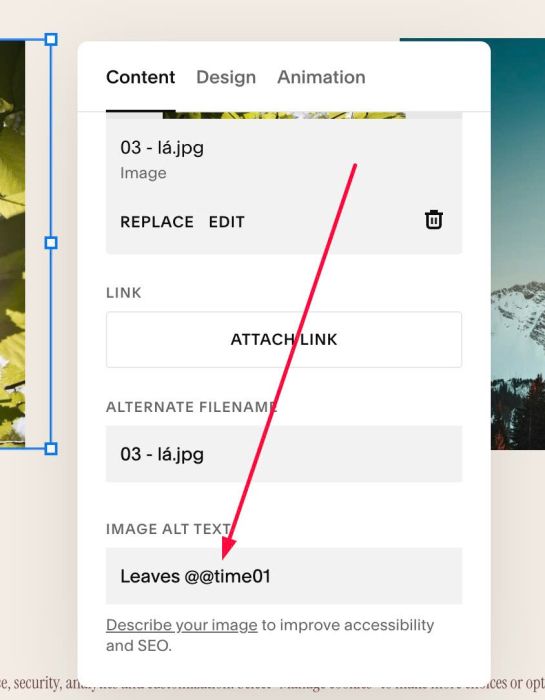
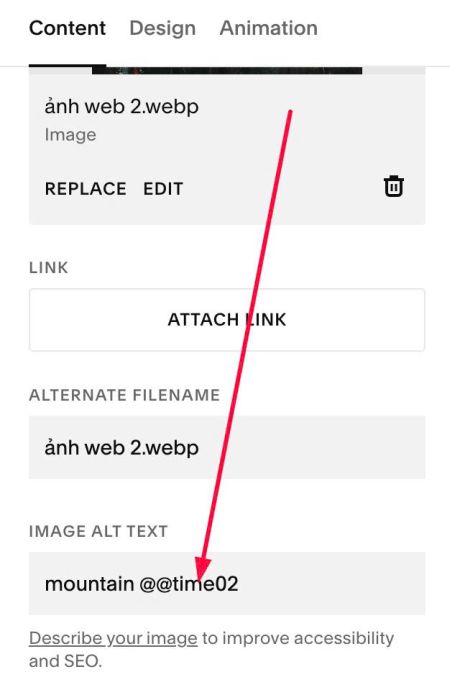
#1.3. Hover on Page where you use Images > Click Gear icon
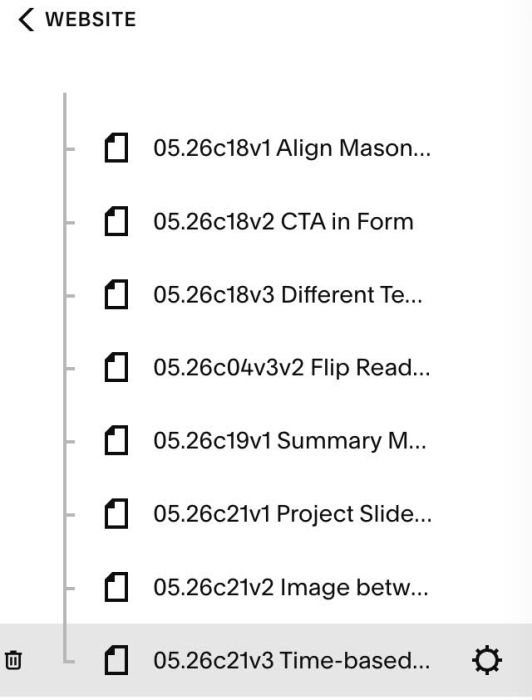
Click Advanced > Paste this code
- If you use Personal/Basic Plan and your plan doesn’t support Injection, you can see #3.1.
<!-- 05.26c21v3 Time-based Images -->
<script>
window.TimeImageConfig = {
  timezone: "Asia/Ho_Chi_Minh",
  images: {
    time01: { hideFrom: "15:00", hideTo: "17:30" },
    time02: { hideFrom: "16:00", hideTo: "19:20" }
  }
};
</script>
<script src="https://code.beaverhero.com/imageblock/0526c21v3timebasedimages.js"></script>
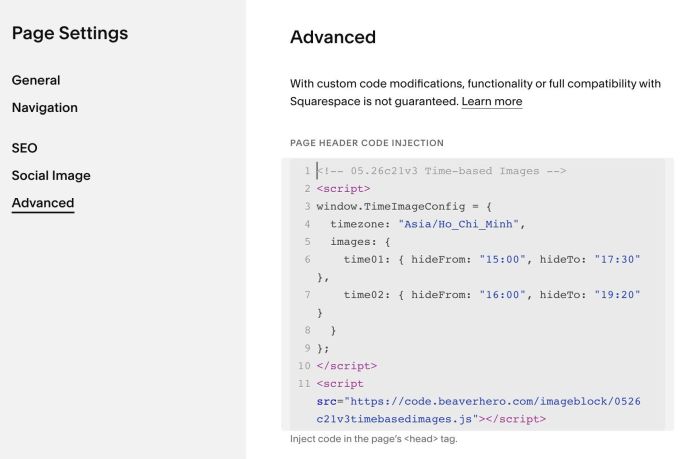
#1.4. You can update time zone/images time here (Line 03 to Line 09)
window.TimeImageConfig = {
  timezone: "Asia/Ho_Chi_Minh",
  images: {
    time01: { hideFrom: "15:00", hideTo: "17:30" },
    time02: { hideFrom: "16:00", hideTo: "19:20" }
  }
};
#2. Customize
#3. Other
#3.1. If you use Personal/Basic Plan and your plan doesn’t support Injection, you can add a block under Images.

Next, choose Markdown

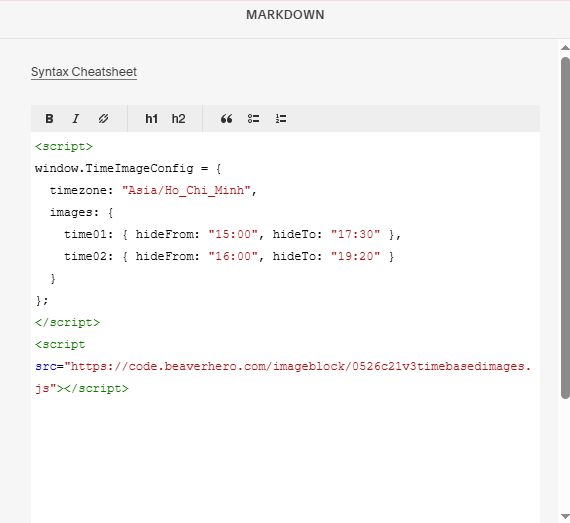
Next, add this code into Markdown
<script>
window.TimeImageConfig = {
  timezone: "Asia/Ho_Chi_Minh",
  images: {
    time01: { hideFrom: "15:00", hideTo: "17:30" },
    time02: { hideFrom: "16:00", hideTo: "19:20" }
  }
};
</script>
<script src="https://code.beaverhero.com/imageblock/0526c21v3timebasedimages.js"></script>