Description
- fade in logos on scroll (you can adjust code to fade in any other elements)
- view demo – password: abc
- buy me a coffee

#1. Install Code
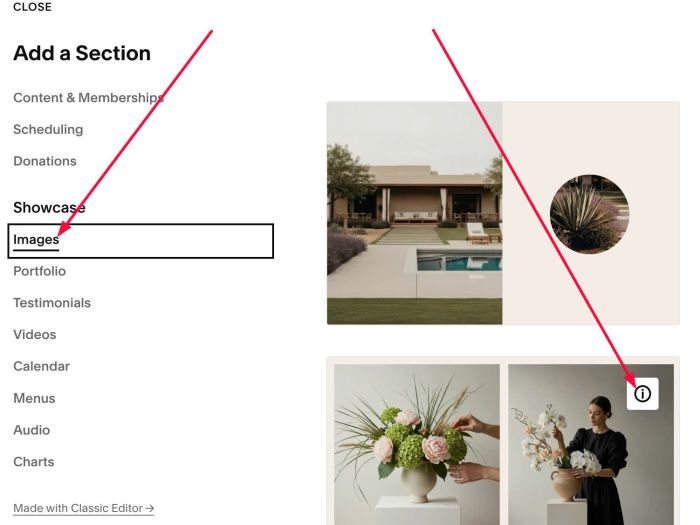
#1.1. You can add a Gallery Section (choose Image > Choose section with (i) icon)
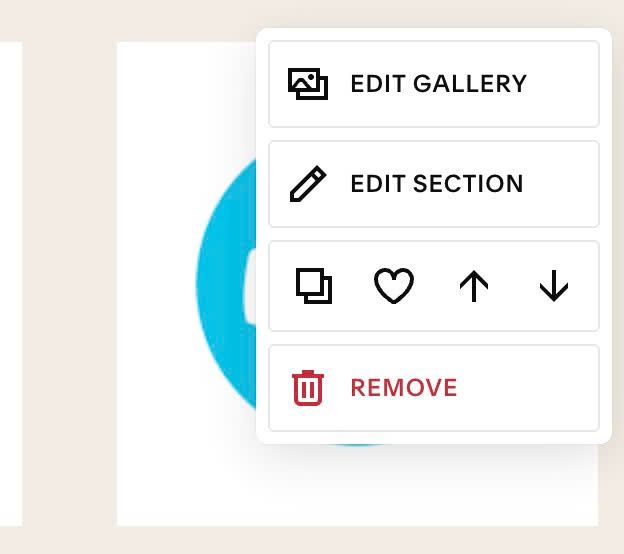
#1.2. Hover on top right of Gallery > Click EDIT SECTION
at Anchor Link, enter word: fade-logos-scroll
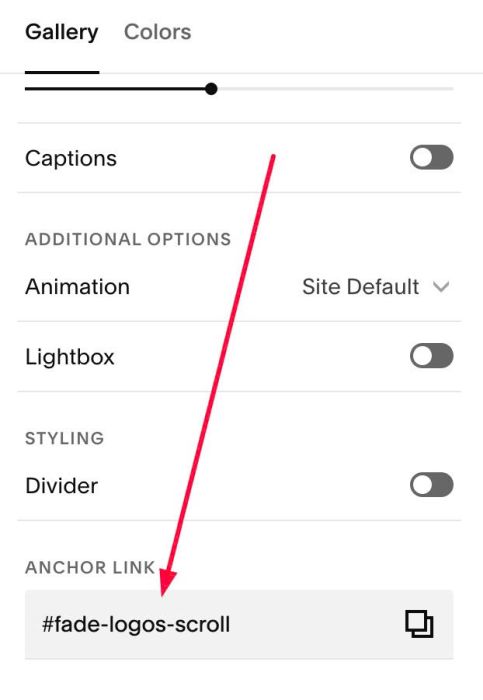
If you have multiple sections, you can use anchor link: fade-logos-scroll02, fade-logos-scroll03…
In case you want to apply effect for a Gallery Block (or specific block) instead, you can see step #2.1
#1.3. Hover on Page where you use Gallery Section > Click Gear icon
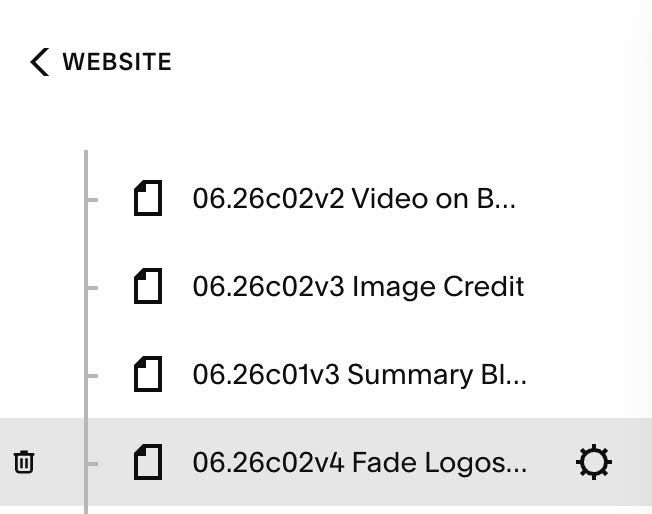
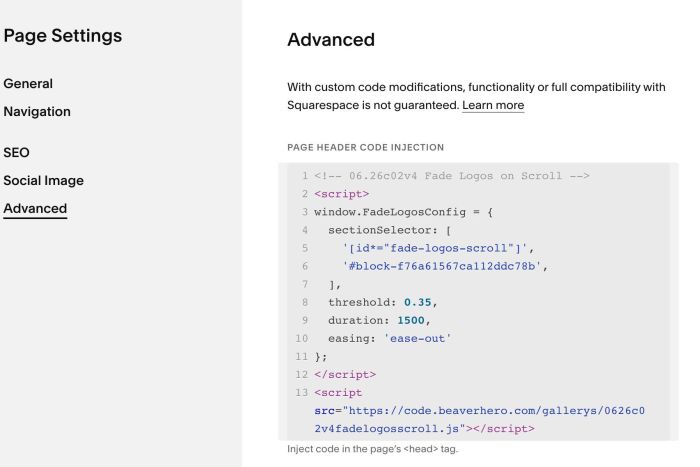
Click Advanced > Paste this code
- If you use Personal/Basic Plan and your plan doesn’t support Injection, see #3.1
<!-- 06.26c02v4 Fade Logos on Scroll -->
<script>
window.FadeLogosConfig = {
  sectionSelector: [
    '[id*="fade-logos-scroll"]',
    '#block-f76a61567ca112ddc78b',
  ],
  threshold: 0.35,
  duration: 1500,
  easing: 'ease-out'
};
</script>
<script src="https://code.beaverhero.com/gallerys/0626c02v4fadelogosscroll.js"></script>
#2. Customize
#2.1. If you want to apply code for Gallery Block (or other blocks) instead, you can find Block ID
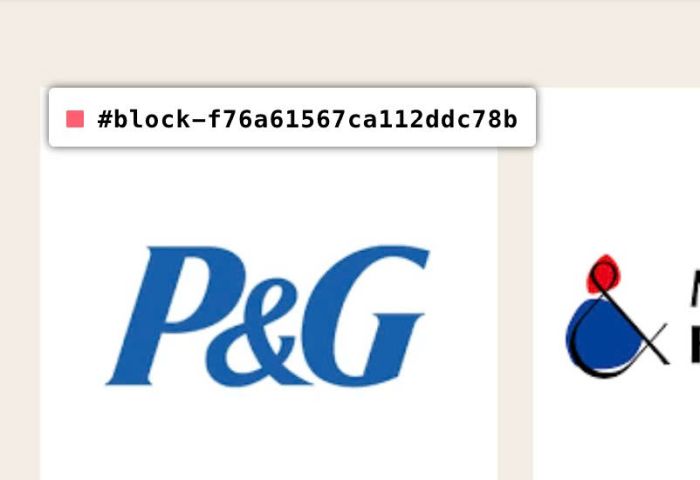
Then replace example ID in Line 06 with your block ID
sectionSelector: [
  '[id*="fade-logos-scroll"]',
  '#block-f76a61567ca112ddc78b',
],
If you have multiple blocks, you can use format like this
  sectionSelector: [
    '[id*="fade-logos-scroll"]',
    '#block-f76a61567ca112ddc78b',
'#block-yui_3_17_2_1_1763343167574_19903',
'#block-yui_3_17_2_1_1763343167574_20793'
  ],
#3. Other
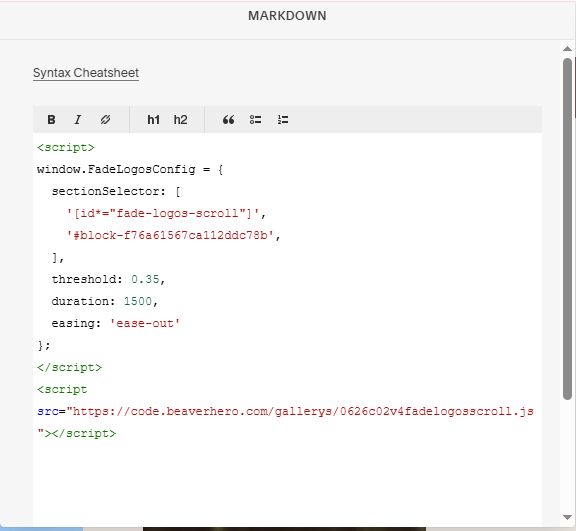
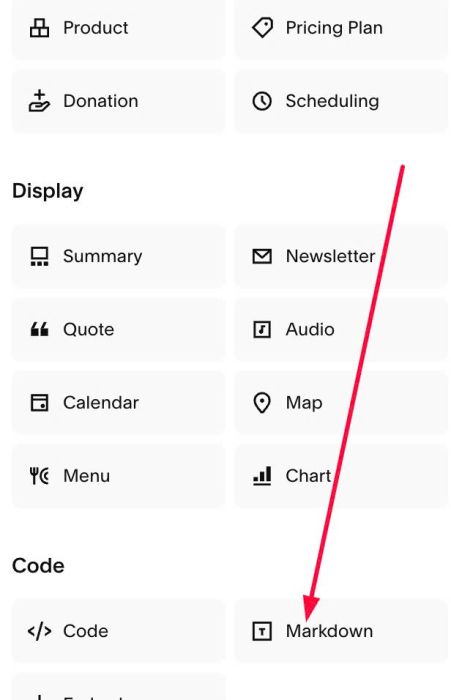
#3.1. If you use Personal/Basic Plan and your plan doesn’t support Injection, you can edit current page > Add a Block
Choose Markdown
Paste this code
<script>
window.FadeLogosConfig = {
  sectionSelector: [
    '[id*="fade-logos-scroll"]',
    '#block-f76a61567ca112ddc78b',
  ],
  threshold: 0.35,
  duration: 1500,
  easing: 'ease-out'
};
</script>
<script src="https://code.beaverhero.com/gallerys/0626c02v4fadelogosscroll.js"></script>