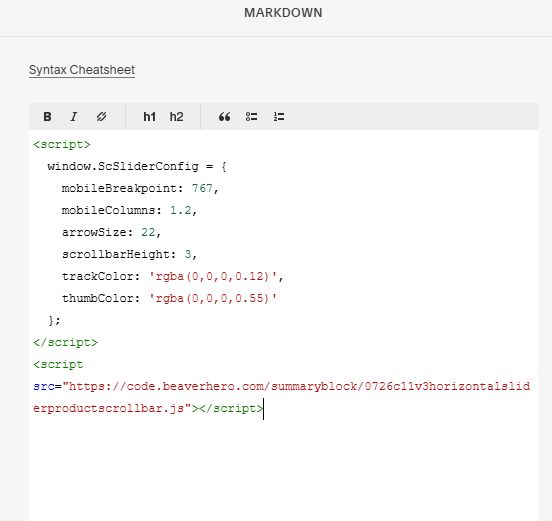
Description
- adding a Product Slider with horizontal scroll bar (bottom), left/right arrows (left/right side) with Summary Block Carousel
- view demo – password: abc
- buy me a coffee
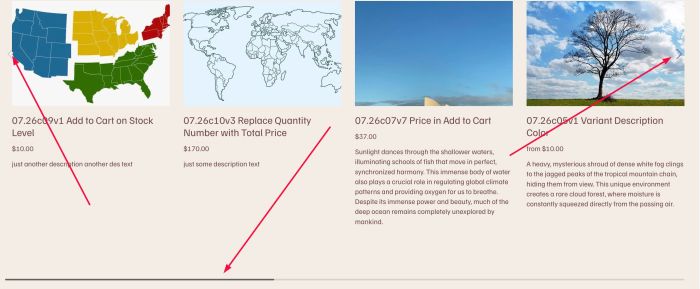
#1. Install Code
#1.1. Make sure you use Summary Block Carousel
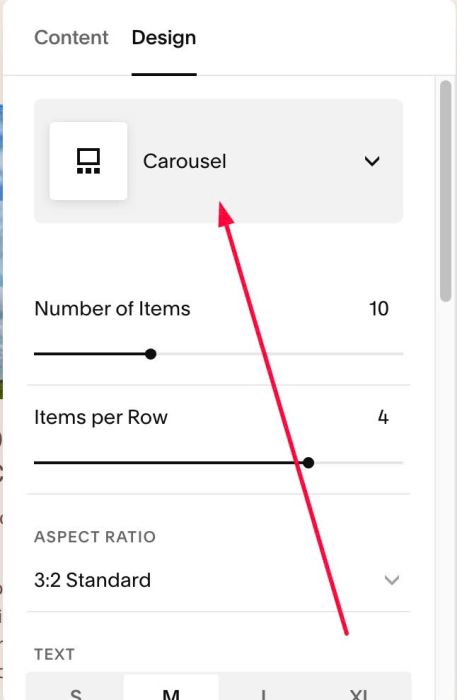
#1.2. Hover on top right of section > Click EDIT SECTION > at Design > Anchor Link > enter word: summary-product-slider
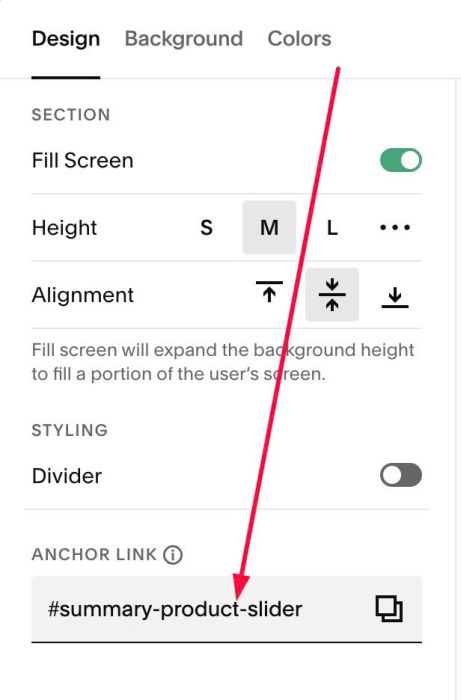
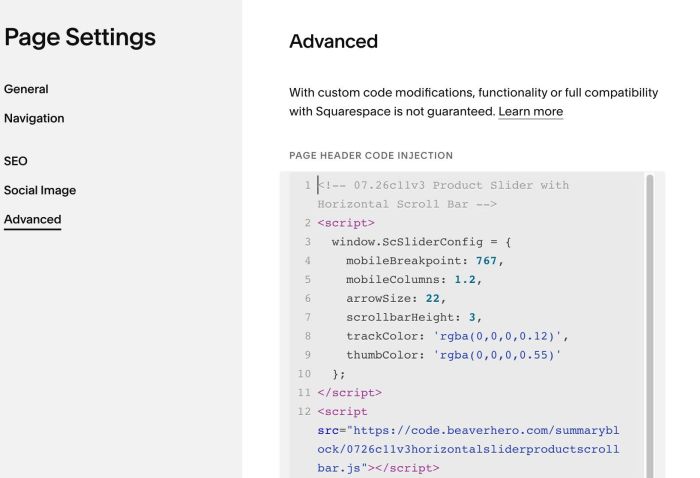
#1.3. Use this code to Page Header Injection (Page where you use Summary Block)
- If you use Personal/Basic Plan and your plan doesn’t support Injection, you can see #3.1
<!-- 07.26c11v3 Product Slider with Horizontal Scroll Bar -->
<script>
  window.ScSliderConfig = {
    mobileBreakpoint: 767,
    mobileColumns: 1.2,
    arrowSize: 22,
    scrollbarHeight: 3,
    trackColor: 'rgba(0,0,0,0.12)',
    thumbColor: 'rgba(0,0,0,0.55)'
  };
</script>
<script src="https://code.beaverhero.com/summaryblock/0726c11v3horizontalsliderproductscrollbar.js"></script>
#2. Customize
#2.1. To change horizontal scroll bar style, change Line 07, Line 08, Line 09
scrollbarHeight: 3,
    trackColor: 'rgba(0,0,0,0.12)',
    thumbColor: 'rgba(0,0,0,0.55)'
#3. Other
#3.1. If you use Personal/Basic Plan and your plan doesn’t support Injection, you can add a Markdown Block under Summary Block.

Add this code into Markdown Block
<script>
  window.ScSliderConfig = {
    mobileBreakpoint: 767,
    mobileColumns: 1.2,
    arrowSize: 22,
    scrollbarHeight: 3,
    trackColor: 'rgba(0,0,0,0.12)',
    thumbColor: 'rgba(0,0,0,0.55)'
  };
</script>
<script src="https://code.beaverhero.com/summaryblock/0726c11v3horizontalsliderproductscrollbar.js"></script>