Description
- adding reading progress bar to top or bottom of page
- view demo – password: abc
- buy me a coffee
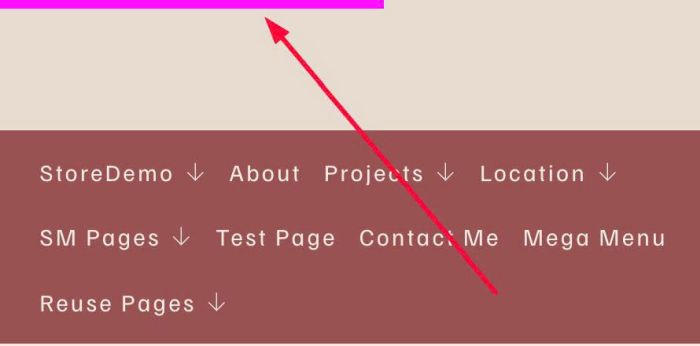
#1. Install Code
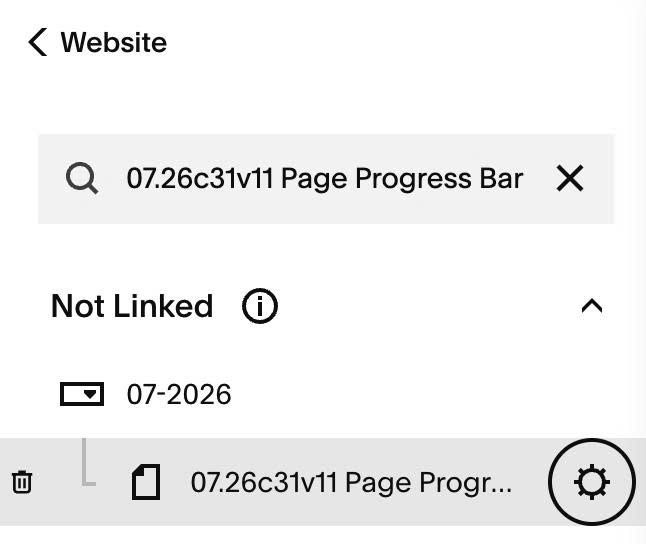
#1.1. Hover on Page where you want to add reading progress bar > Click Gear icon
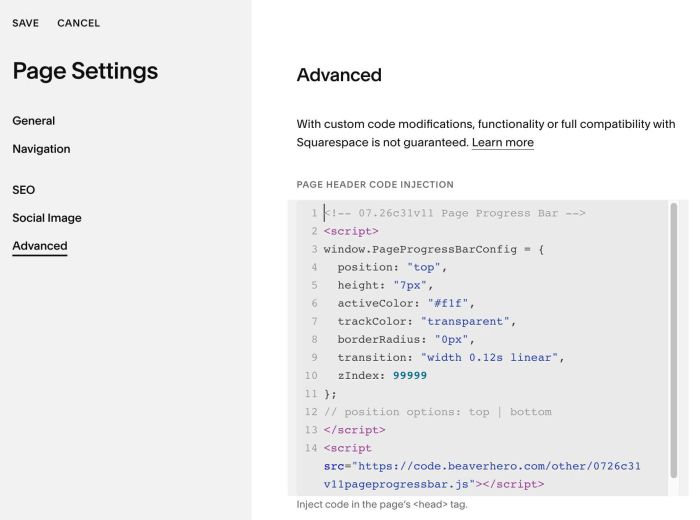
#1.2. Click Advanced > Paste this code
- If you use Personal/Basic Plan and your plan doesn’t support Injection, see #3.1
- If you want to make reading progress bar appears on All Pages, you can add code to Code Injection > Footer
<!-- 07.26c31v11 Page Progress Bar -->
<script>
window.PageProgressBarConfig = {
  position: "top",
  height: "7px",
  activeColor: "#f1f",
  trackColor: "transparent",
  borderRadius: "0px",
  transition: "width 0.12s linear",
  zIndex: 99999
};
// position options: top | bottom
</script>
<script src="https://code.beaverhero.com/other/0726c31v11pageprogressbar.js"></script>
#2. Customize
#2.1. To change position of reading progress bar to bottom of page, you can change line 04
position: "top",
to
position: "bottom",
#2.2. To change height of reading progress bar, change line 05
height: "7px",
#2.3. To change color of progress bar, change line 06, line 07
activeColor: "#f1f",
  trackColor: "transparent",
#3. Other
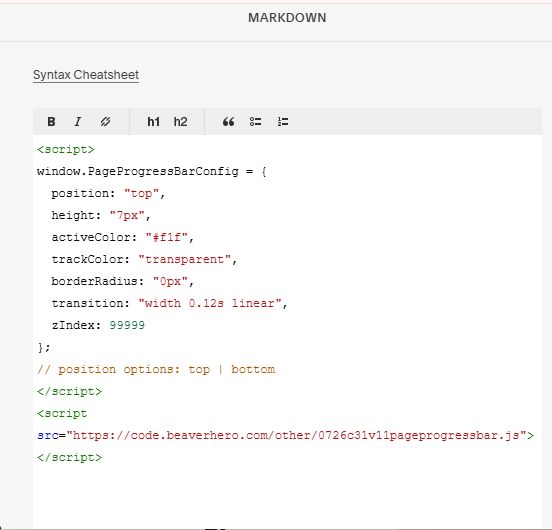
#3.1. If you use Personal/Basic Plan and your plan doesn’t support Injection, you can add a Markdown Block to current page (page where you want to add reading progress bar) or add Markdown Block to Site Footer (if you want to make progress bar appears on All pages).

Then add this code into Markdown Block
<script>
window.PageProgressBarConfig = {
  position: "top",
  height: "7px",
  activeColor: "#f1f",
  trackColor: "transparent",
  borderRadius: "0px",
  transition: "width 0.12s linear",
  zIndex: 99999
};
// position options: top | bottom
</script>
<script src="https://code.beaverhero.com/other/0726c31v11pageprogressbar.js"></script>