I released new version with more better option, you can follow new instruction here.
View Demo – Password: abc
#1. Install code
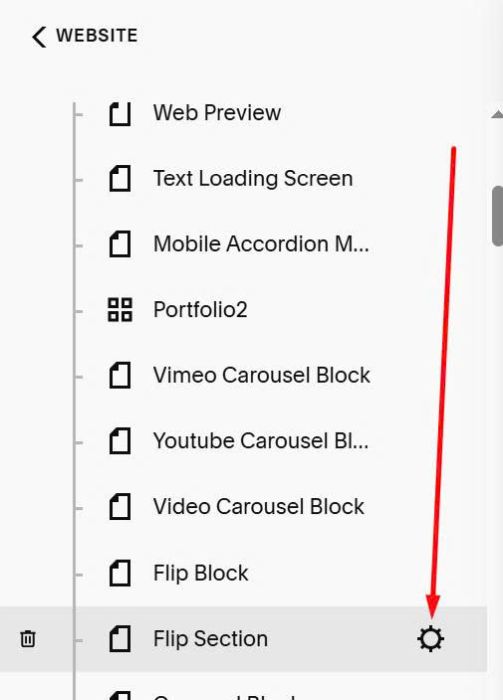
First, click Gear icon on Page where you want to place Flip Section
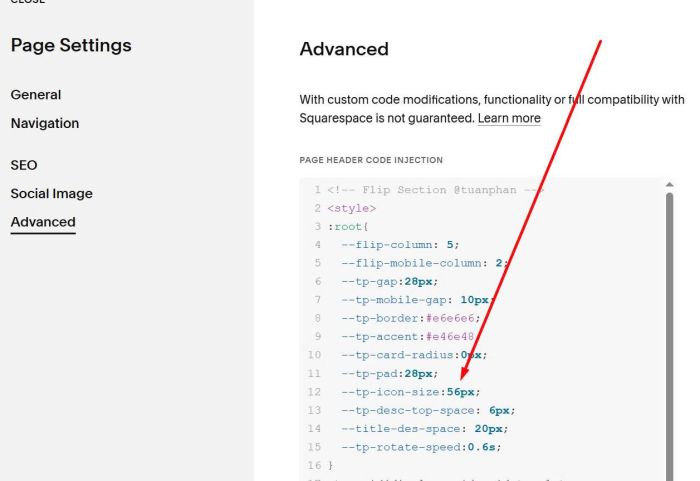
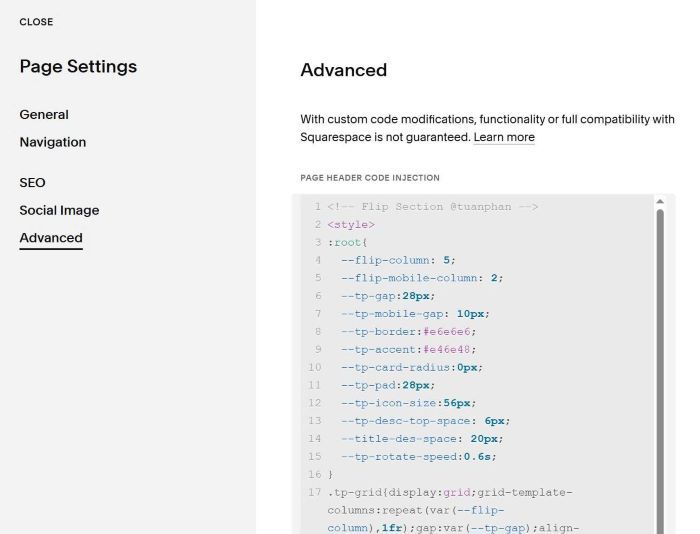
Next, click Advanced > Paste this code to right box
<!-- Flip Section @tuanphan -->
<style>
:root{
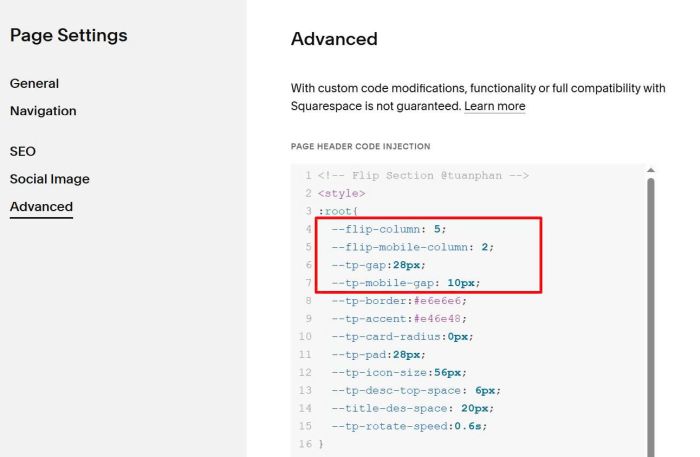
  --flip-column: 5;
  --flip-mobile-column: 2;
  --tp-gap:28px;
  --tp-mobile-gap: 10px;
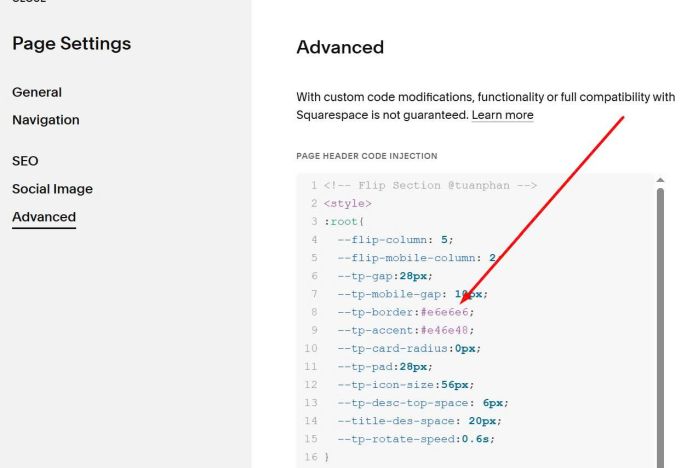
  --tp-border:#e6e6e6;
  --tp-accent:#e46e48;
  --tp-card-radius:0px;
  --tp-pad:28px;
  --tp-icon-size:56px;
  --tp-desc-top-space: 6px;
  --title-des-space: 20px;
  --tp-rotate-speed:0.6s;
}
.tp-grid{display:grid;grid-template-columns:repeat(var(--flip-column),1fr);gap:var(--tp-gap);align-items:stretch}@media screen and (max-width:767px){.tp-grid{grid-template-columns:repeat(var(--flip-mobile-column),1fr);gap:var(--tp-mobile-gap)}}.tp-card{display:block;perspective:1000px;text-decoration:none;color:inherit}.tp-inner{position:relative;width:100%;aspect-ratio:1/1;border:1px solid var(--tp-border);border-radius:var(--tp-card-radius);background:#fff;transform-style:preserve-3d;transition:transform var(--tp-rotate-speed) cubic-bezier(.2,.65,.2,1)}.tp-card:hover .tp-inner{transform:rotateY(180deg)}.tp-face{position:absolute;inset:0;display:flex;flex-direction:column;justify-content:center;align-items:center;gap:var(--title-des-space);padding:var(--tp-pad);text-align:center;backface-visibility:hidden}.tp-front .tp-ico{width:var(--tp-icon-size);height:var(--tp-icon-size);display:grid;place-items:center}.tp-ico-img{max-width:100%;max-height:100%;object-fit:contain}.tp-title{margin:0;font-size:calc((var(--title-font-size-value) - 1) * 1.2vw + 1rem);color:var(--list-section-simple-title-color);font-family:var(--heading-font-font-family);font-weight:var(--heading-font-font-weight);letter-spacing:var(--heading-font-letter-spacing);text-transform:var(--heading-font-text-transform)}.tp-desc{margin:var(--tp-desc-top-space) 0 0;font-size:calc((var(--body-font-size-value) - 1) * 1.2vw + 1rem);line-height:var(--body-font-line-height);color:var(--list-section-simple-description-color);font-family:var(--body-font-font-family);font-style:var(--body-font-font-style);font-weight:var(--body-font-font-weight);text-transform:var(--body-font-text-transform)}.tp-back{transform:rotateY(180deg)}
</style>
<script>document.addEventListener("DOMContentLoaded",function(){var e=document.querySelectorAll('section[id*="flipsection"]');e.forEach(function(e){var t=e.querySelector(".user-items-list-simple");if(!t)return;var i=[];t.querySelectorAll("li.list-item").forEach(function(e){var t=e.querySelector("img.list-image"),n=t?(t.getAttribute("src")||t.getAttribute("data-src")||""):"",r=(e.querySelector(".list-item-content__button")||{}).textContent||"",a=(e.querySelector(".list-item-content__title")||{}).textContent||"",c=e.querySelector(".list-item-content__description"),o=c?c.textContent.trim():"",l=e.querySelector(".list-item-content__button"),s=l?l.getAttribute("href"):"#";i.push({icon:n,frontTitle:r,backTitle:a,backDesc:o,href:s,sourceEl:e})});var n=document.createElement("section");n.className="tp-wrap";var r=document.createElement("div");r.className="tp-grid",i.forEach(function(e){var t=document.createElement("a");t.className="tp-card",t.href=e.href,t.innerHTML='<div class="tp-inner"><div class="tp-face tp-front"><div class="tp-ico">'+(e.icon?'<img class="tp-ico-img" alt="" src="'+e.icon+'">':"")+'</div><h4 class="tp-title">'+(e.frontTitle||"")+'</h4></div><div class="tp-face tp-back"><h4 class="tp-title">'+(e.backTitle||"")+'</h4><p class="tp-desc">'+(e.backDesc||"")+"</p></div></div>",r.appendChild(t)}),n.appendChild(r),t.insertAdjacentElement("afterend",n),t.style.display="none","function"==typeof window.tpFlipBoxHook&&(()=>{try{window.tpFlipBoxHook({list:t,wrap:n,grid:r,items:i})}catch(e){}})();try{document.dispatchEvent(new CustomEvent("tp-flipbox-built",{detail:{list:t,wrap:n,grid:r,items:i}}))}catch(e){}})});</script>
#2. Usage
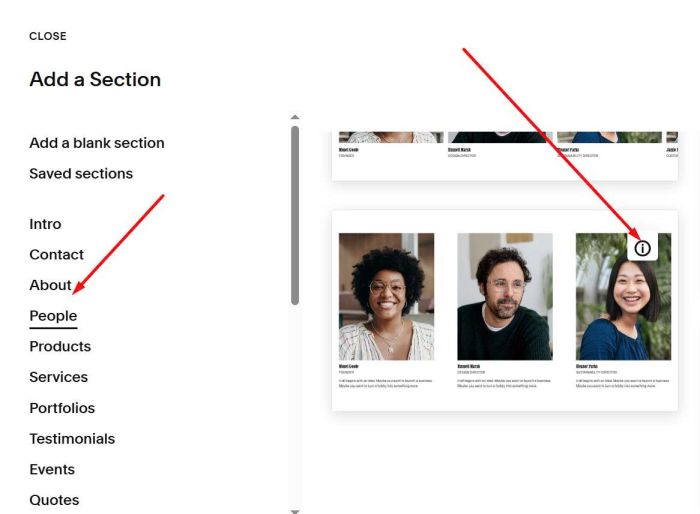
Next, you add a People List Section (choose People > Choose section with (i) icon)
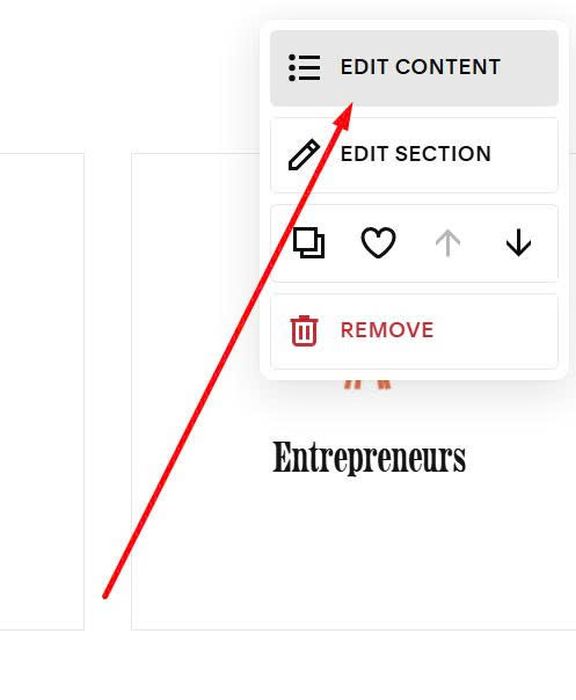
Next, hover on top right of People Section > Click Edit Content
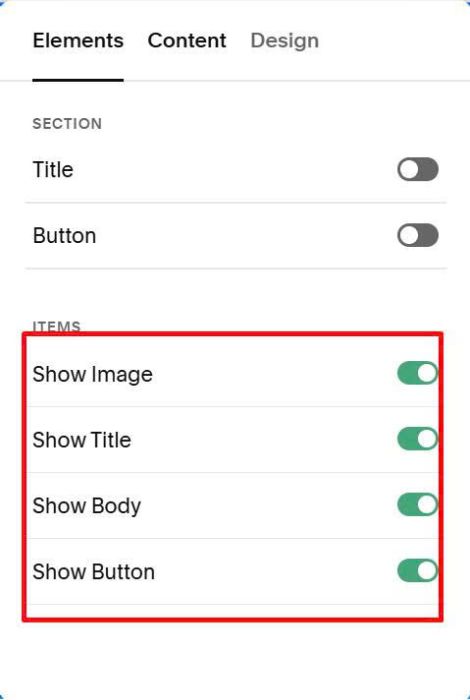
At tab Elements, enable these options
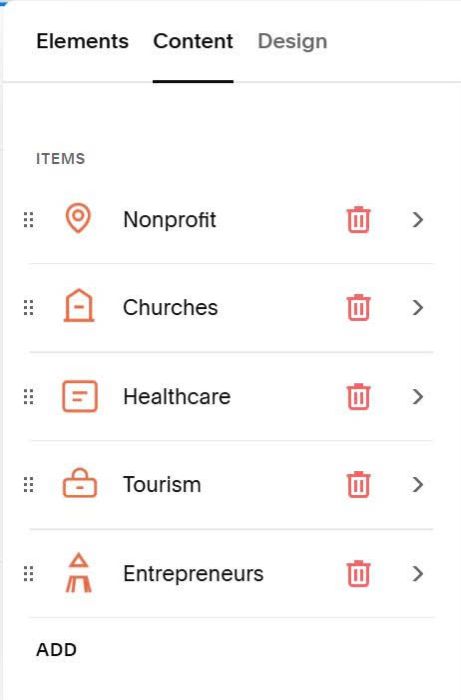
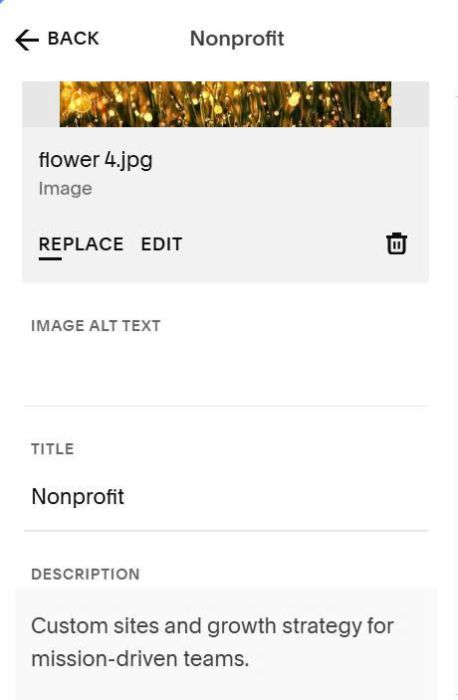
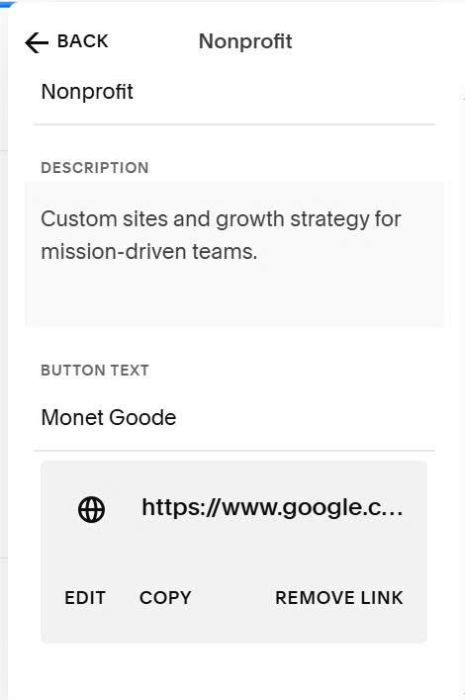
At tab Content, you can add your desired content (title, body text, image, url)
Something like this
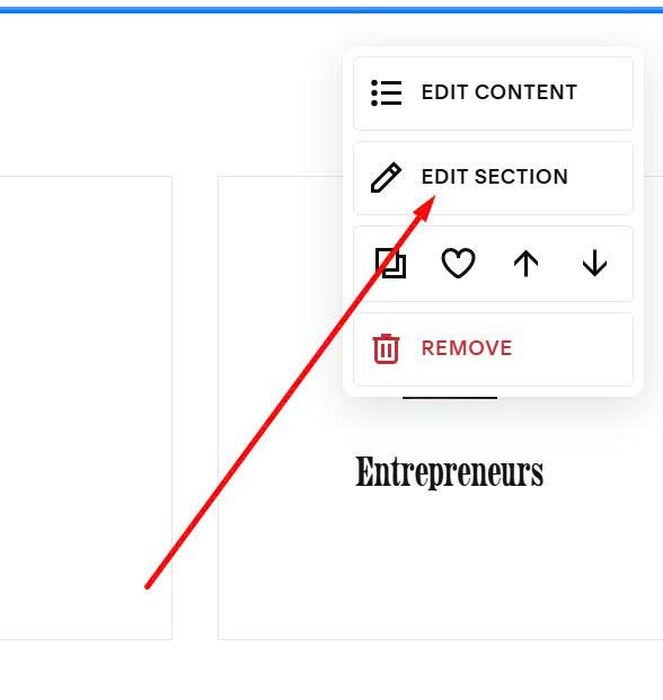
Next, hover on top right of People Section > Click Edit Section
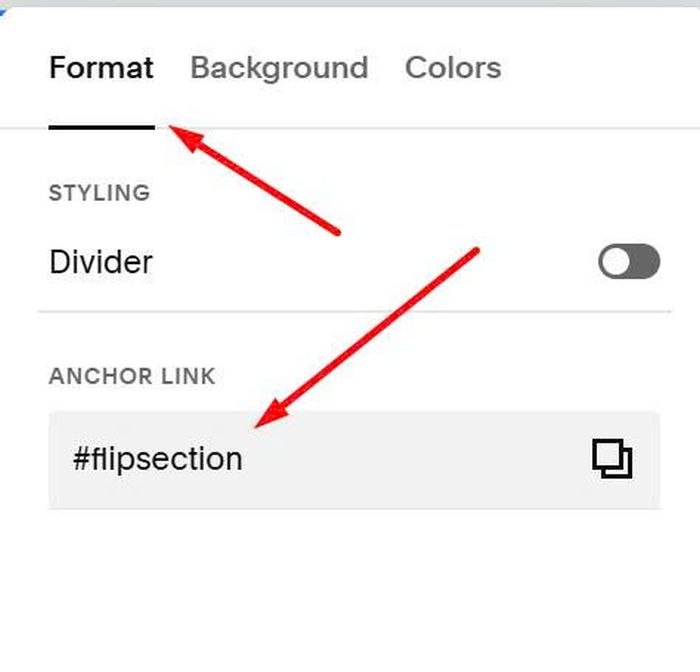
At tab Format > Enter #flipsection into Anchor Link option
#flipsection
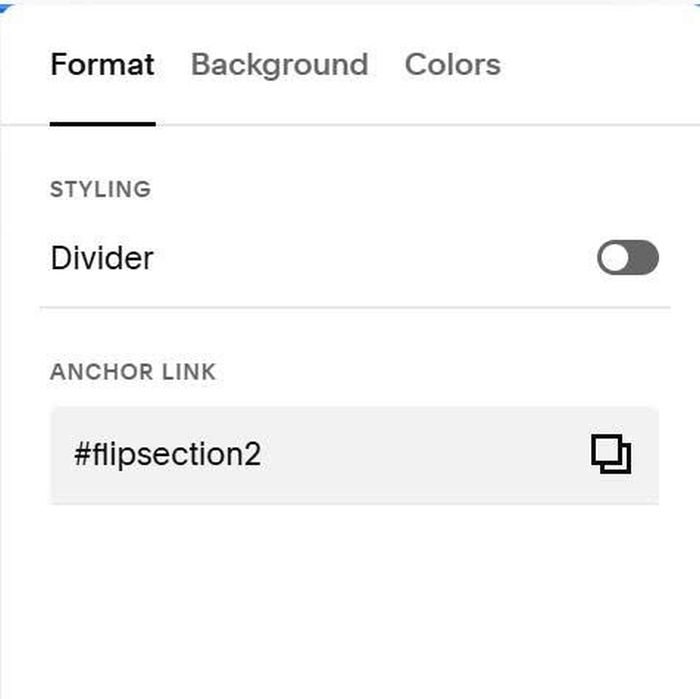
If you have 2 People Sections and you want to make both into Flip, you can enter #flipsection2, #flipsection3, #flipsection4…into these sections
#3. Customize
#3.1. Title/Description will inherit People List style, so you can change them easier in Site Styles
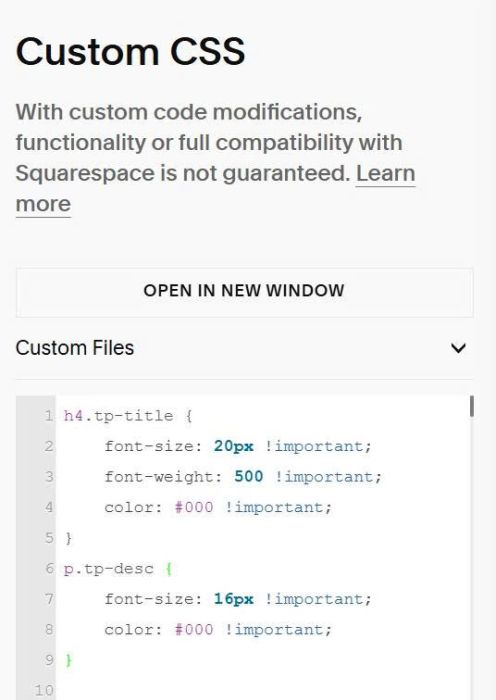
or you can also set your custom style by adding code like this to Custom CSS box.
h4.tp-title {
    font-size: 20px !important;
    font-weight: 500 !important;
    color: #000 !important;
}
p.tp-desc {
    font-size: 16px !important;
    color: #000 !important;
}
#3.2. To adjust number of columns on Desktop, Mobile, Gap between items, you can adjust these.
#3.3. To change line color around item, you can change this line
#3.4. To change icon/image size, you can change this.