- Support: [email protected]
- View Demo – Password: abc
Description: Carousel with different style in middle image

#1. Install Code
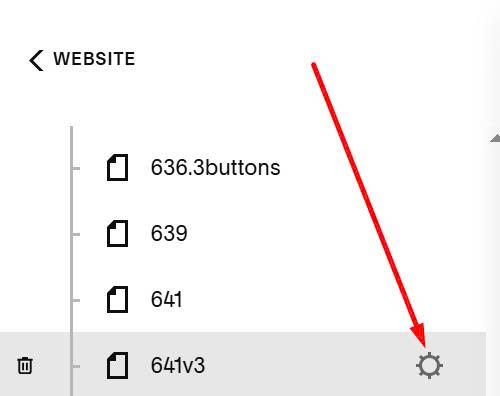
First, hover on page where you want to apply this effect > Click Gear icon
Click Advanced > Paste this code
<!-- Carousel 3 -->
<style>
:root{
  --tp-hero-width-center:360px;
  --tp-hero-width-side:220px;
  --tp-hero-distance:260px;
  --tp-hero-spacing:40px;
  --tp-hero-fade:0.35;
  --tp-hero-ratio-h:1.3333;       /* height/width (3:4 => 4/3) */
}
</style>
<link rel="stylesheet" href="https://code.beaverhero.com/list/carousel3.css"/>
<script>
const CAROUSEL_ID="carousel3";
window.CAROUSEL_ID=CAROUSEL_ID;
</script>
<script src="https://code.beaverhero.com/list/carousel3.js"></script>

#2. Usage
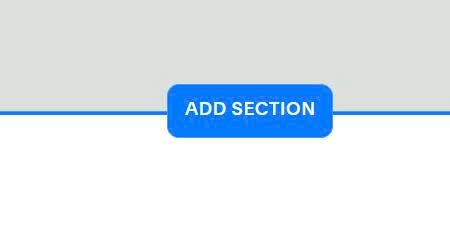
Edit page where you want to use this carousel effect > Add a Section
Click People (or Team) > Choose section with (i) icon

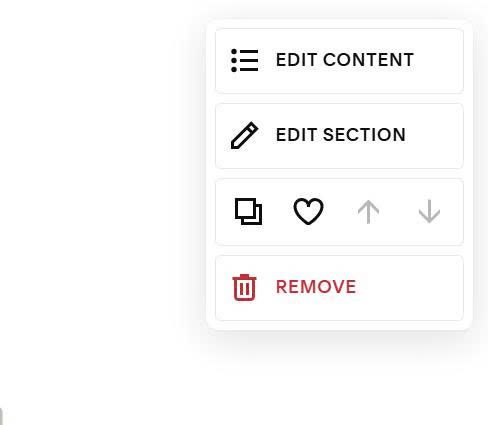
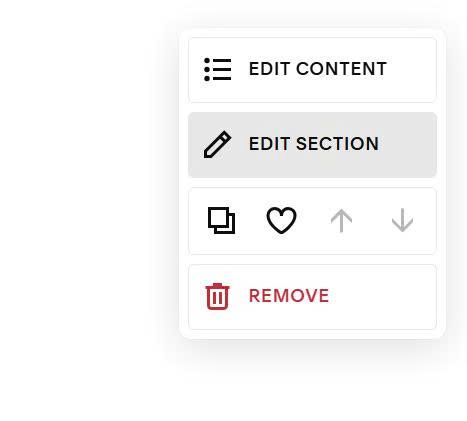
Next, hover on top right of section > Click Edit Content
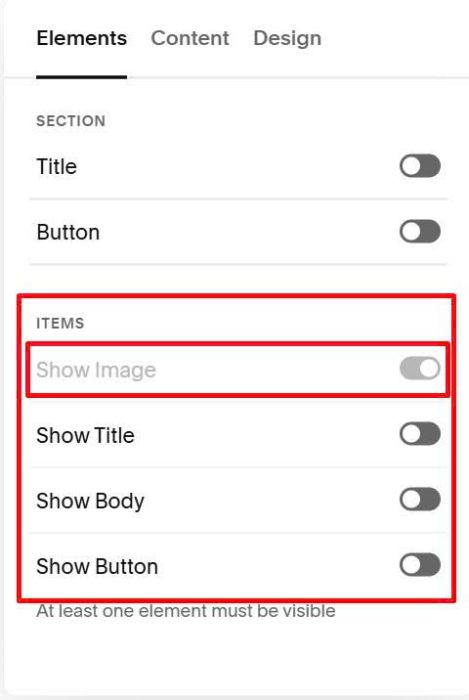
Disable all. Show image only
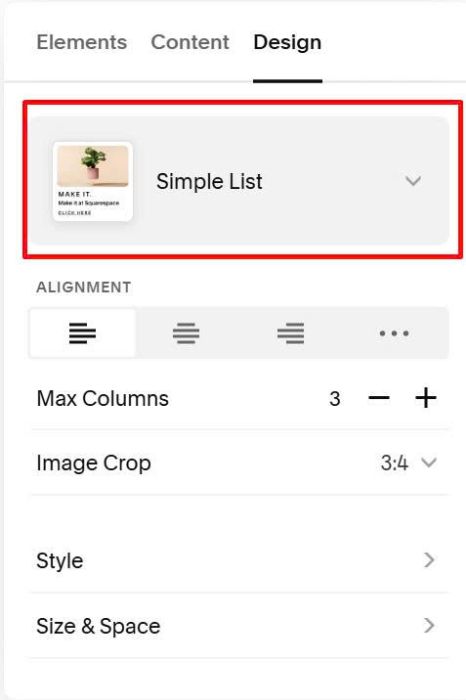
Choose Simple List
Next, hover on top right of section > Click Edit Section
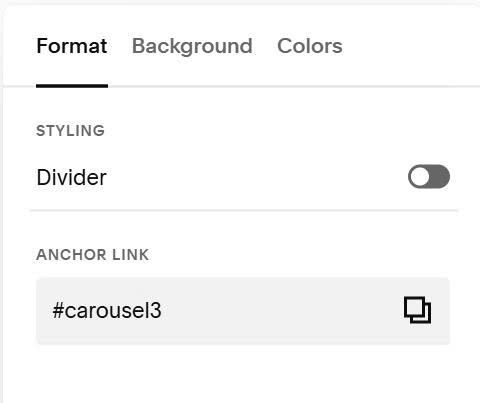
at Anchor Link > Enter: carousel3
carousel3
#3. Customize
All style options here (Line 04 to Line 09)
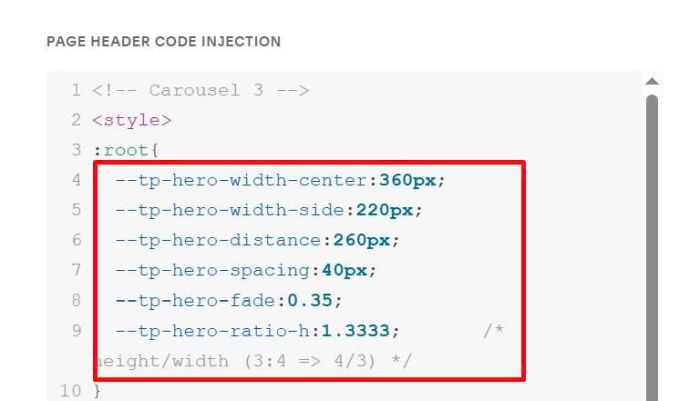
#3.1. To change image ratio, change line 09
--tp-hero-ratio-h:1.3333; /* height/width (3:4 => 4/3) */
#3.2. To change middle image size, change line 04
--tp-hero-width-center:360px;
#3.3. To change left/right images size, change line 05
--tp-hero-width-side:220px;
#3.4. To change space between left image – middle image, middle image – right image, change line 07
--tp-hero-spacing:40px;
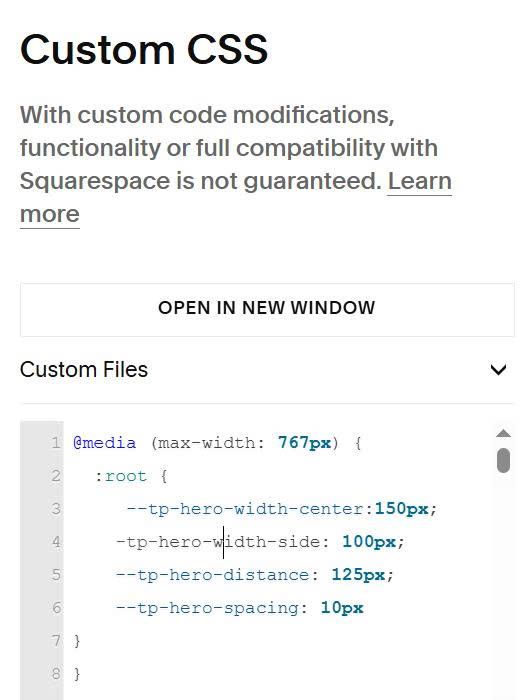
#3.5. To customize on mobile, use this extra code to Custom CSS
@media (max-width: 767px) {
  :root {
     --tp-hero-width-center:150px;
    -tp-hero-width-side: 100px;
    --tp-hero-distance: 125px;
    --tp-hero-spacing: 10px
}
}