- Support: [email protected]
- Free install (1 site)
- View Demo – Password: abc
Description
- adding category filter to top of Gallery Section Grid
- note: code will use Caption as Category

#1. Install Code
#1.1. Business Plan/higher
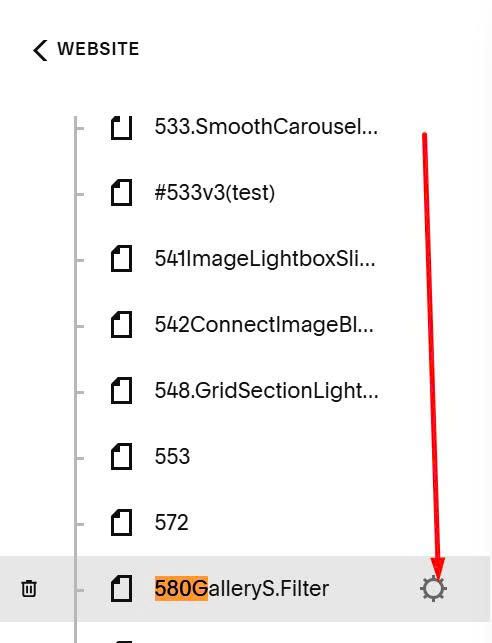
Hover page where you use Gallery > Click Gear icon
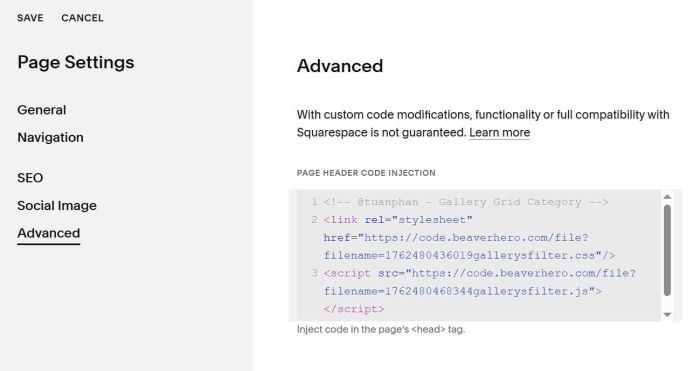
Click Advanced > Paste this code
<!-- @tuanphan - Gallery Grid Category -->
<link rel="stylesheet" href="https://code.beaverhero.com/file?filename=1762480436019gallerysfilter.css"/>
<script src="https://code.beaverhero.com/file?filename=1762480468344gallerysfilter.js"></script>
#1.2. Personal/Basic Plan
Note: You can also use this code for Business Plan/higher.
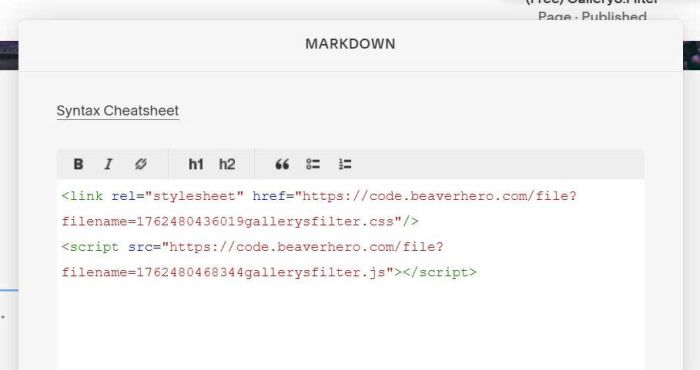
Edit Page where you use Gallery Section Grid > Add a Markdown Block
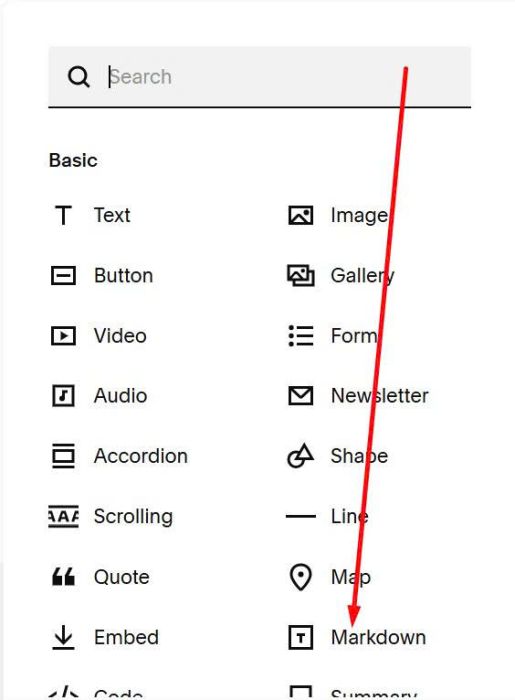
Paste this code
<link rel="stylesheet" href="https://code.beaverhero.com/file?filename=1762480436019gallerysfilter.css"/>
<script src="https://code.beaverhero.com/file?filename=1762480468344gallerysfilter.js"></script>
#2. Usage
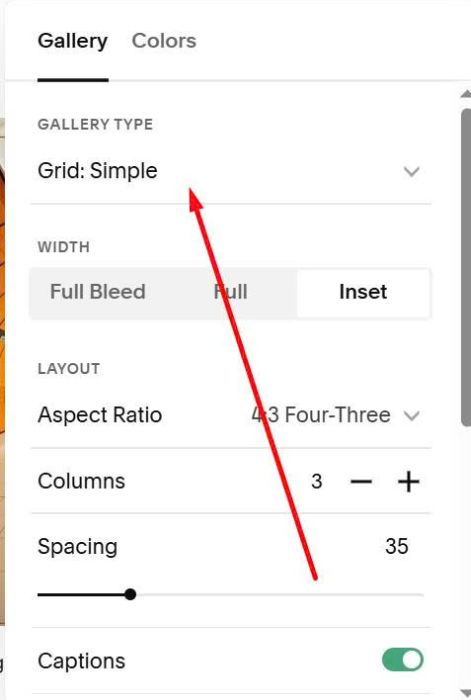
Make sure you use Gallery Grid Simple Section
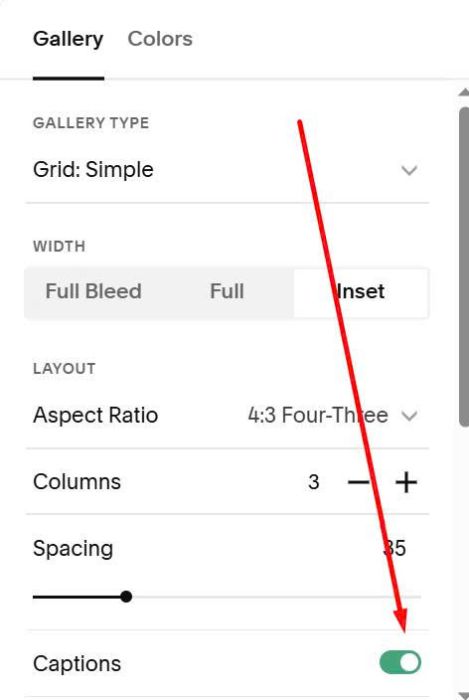
Make sure you enabled Captions
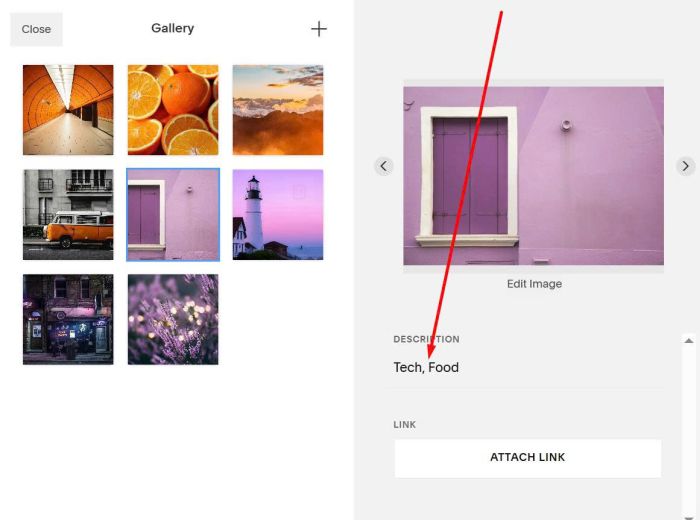
Make sure you added caption text to Images. Something like this
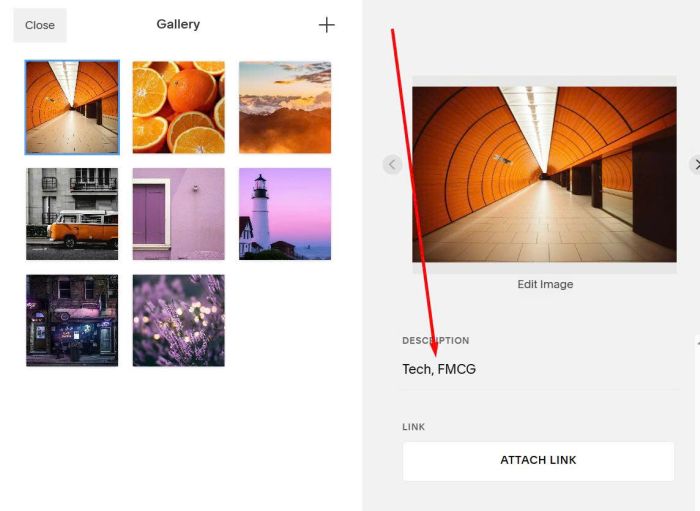
or like this.
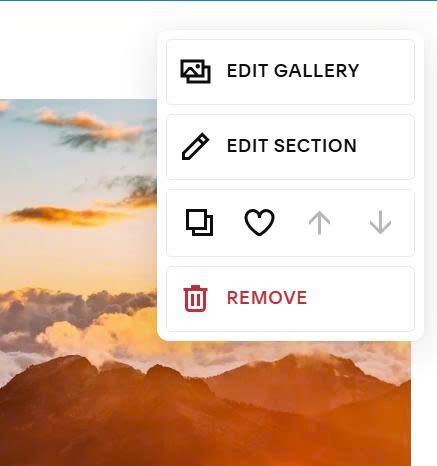
Next, hover on top right of section > Click Edit Section
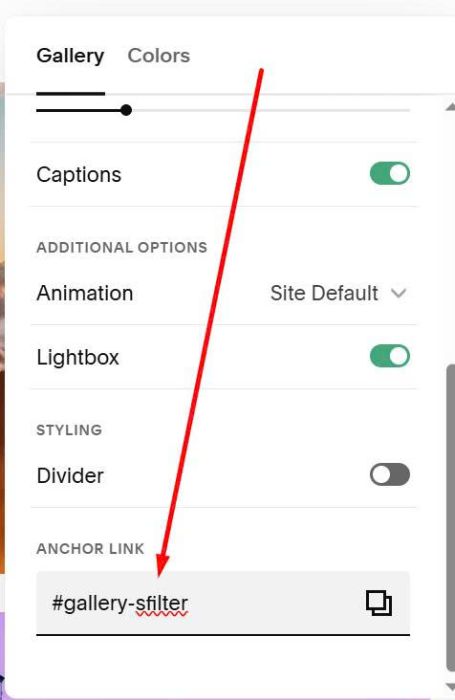
Enter word: gallery-sfilter
gallery-sfilter
#3. Customize
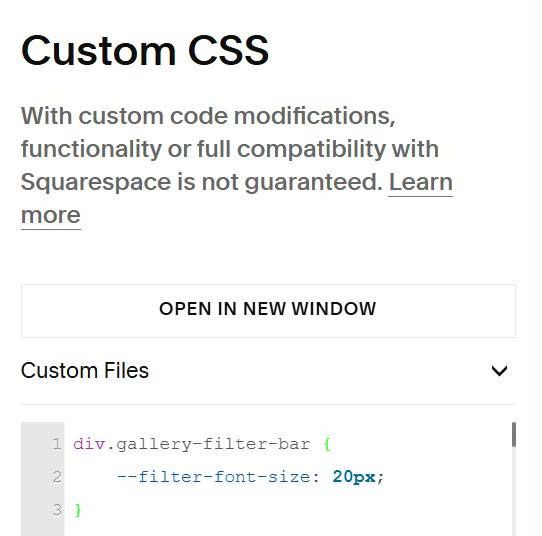
#3.1. To adjust category text size, you can use this code to Custom CSS
div.gallery-filter-bar {
    --filter-font-size: 20px;
}