- Support: [email protected]
- Free install (1 site)
- View Demo – Password: abc
Description:
- replace default Masonry Gallery lightbox with new lightbox
#1. Install Code
#1.1. Personal Plan/Basic Plan (Plan doesn’t support Injection)
Edit page where you use Gallery Masonry > Add a Markdown Block (anywhere on the page)
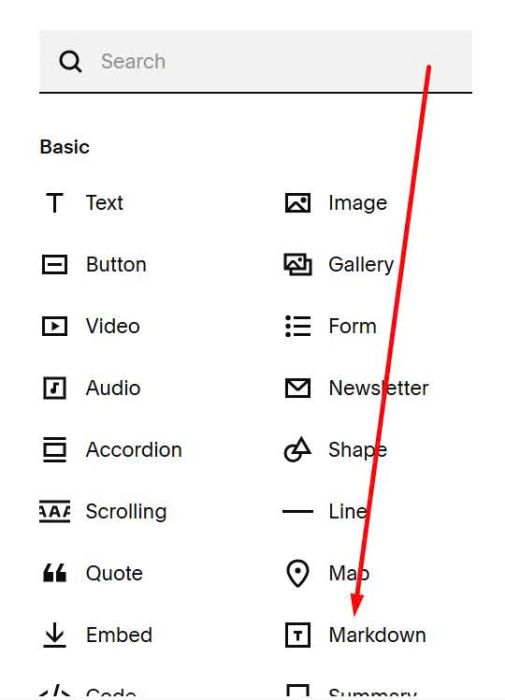
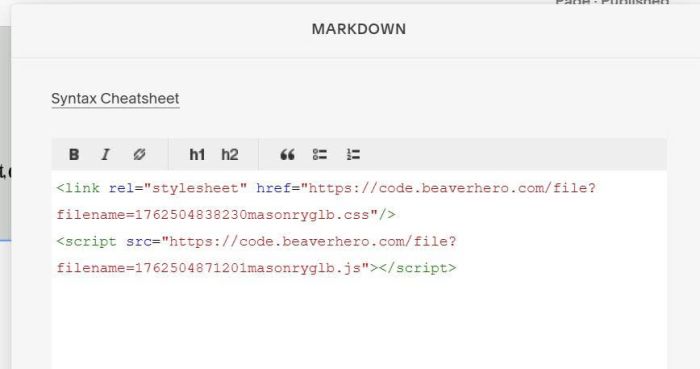
Add this code into Markdown Block
<link rel="stylesheet" href="https://code.beaverhero.com/file?filename=1762504838230masonryglb.css"/>
<script src="https://code.beaverhero.com/file?filename=1762504871201masonryglb.js"></script>
#1.2. Business Plan/higher
Hover on page where you use Masonry Gallery > Click Gear icon
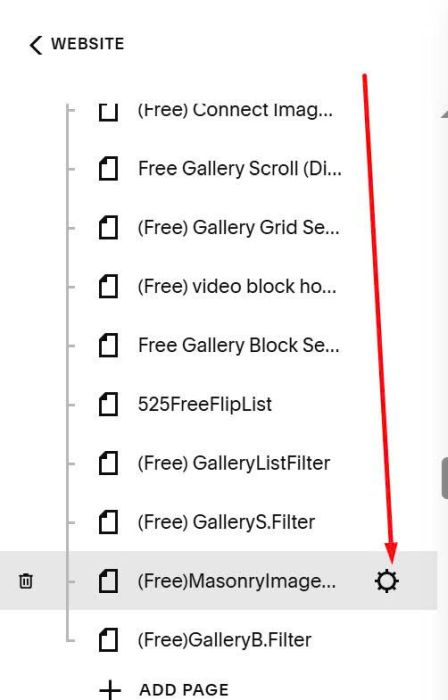
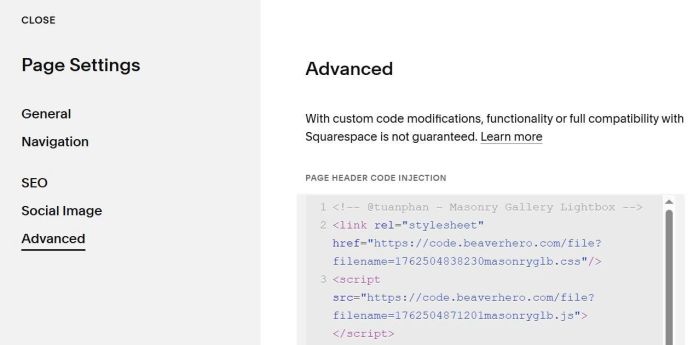
Click Advanced > Paste this code
<!-- @tuanphan - Masonry Gallery Lightbox -->
<link rel="stylesheet" href="https://code.beaverhero.com/file?filename=1762504838230masonryglb.css"/>
<script src="https://code.beaverhero.com/file?filename=1762504871201masonryglb.js"></script>
#2. Usage
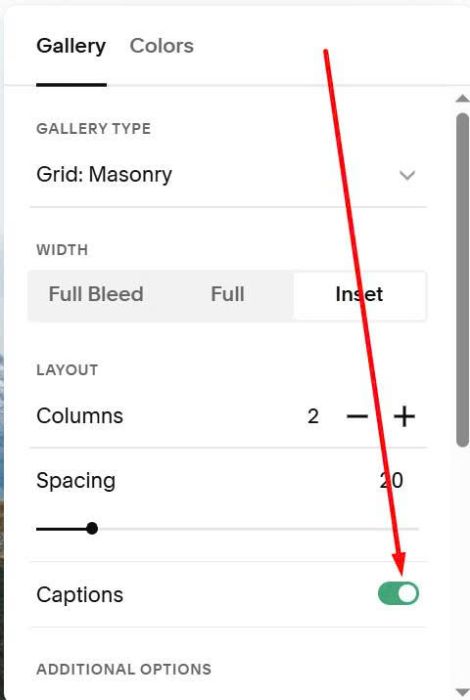
First, you need to enable Gallery Masonry Caption
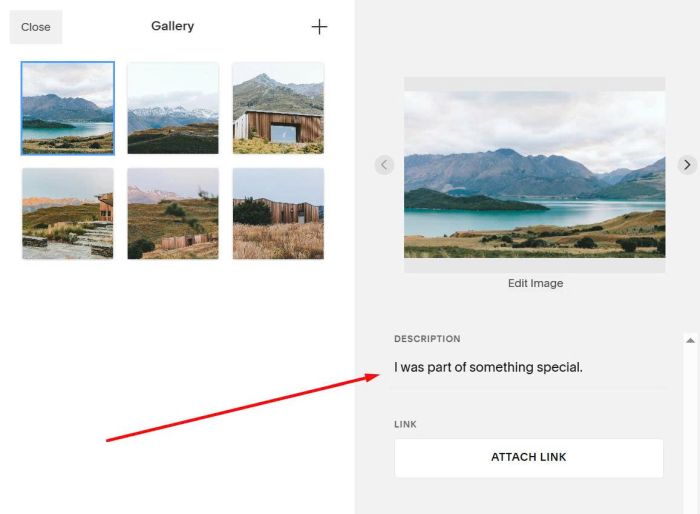
Next, add some texts to Gallery Caption Description
#3. Customize
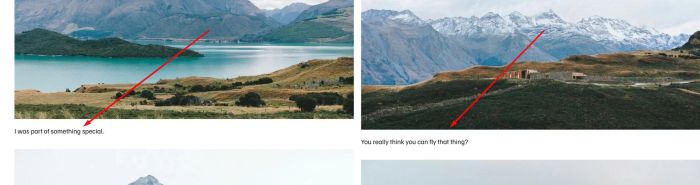
#3.1. To hide Caption in Gallery View
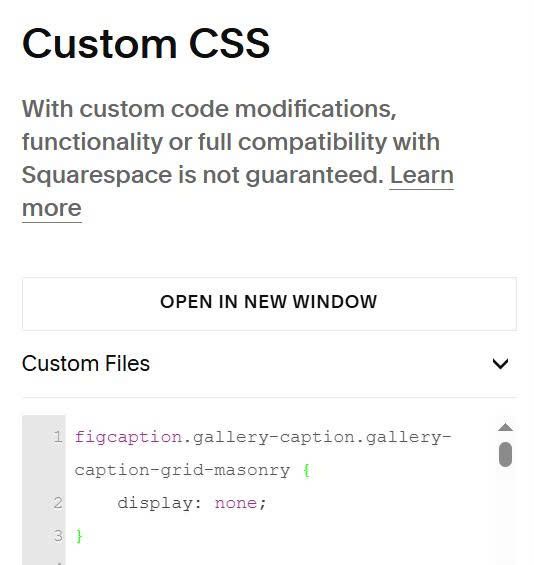
You can use this code to Custom CSS
figcaption.gallery-caption.gallery-caption-grid-masonry {
    display: none;
}
#3.2. To hide Left Arrow in First Image
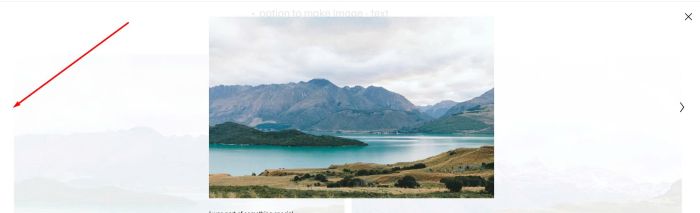
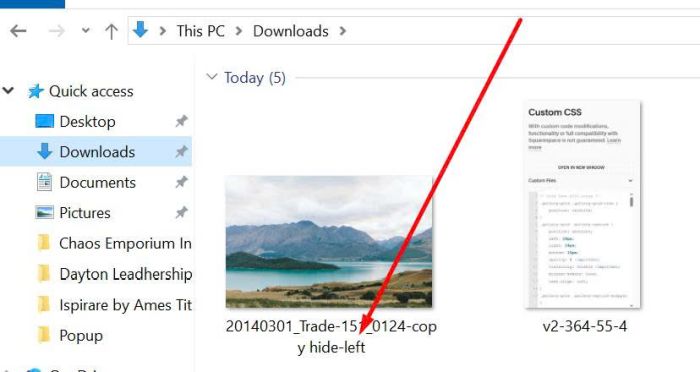
You can add text: hide-left to Image Name (first image) before uploading
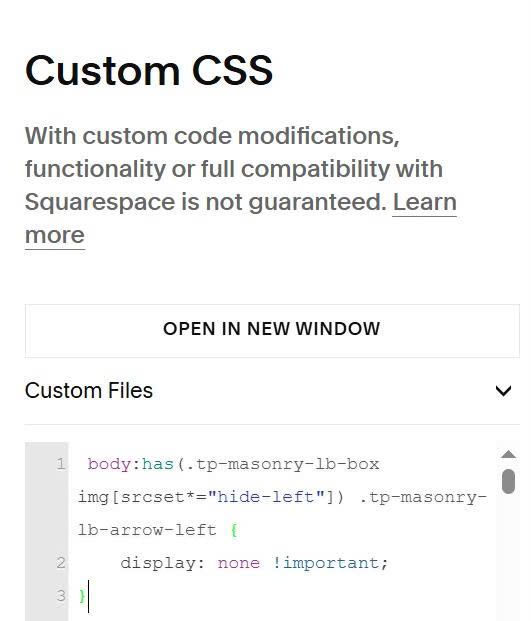
Then use this code to Custom CSS
 body:has(.tp-masonry-lb-box img[srcset*="hide-left"]) .tp-masonry-lb-arrow-left {
    display: none !important;
}
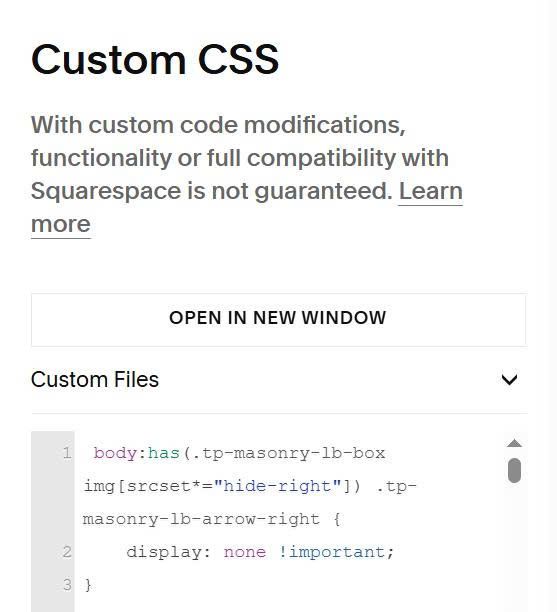
#3.3. To hide Right Arrow in Last Image, repeat similar.
- Add text: hide-right to Image Name (last image) before uploading
- Then use this code to Custom CSS
body:has(.tp-masonry-lb-box img[srcset*="hide-right"]) .tp-masonry-lb-arrow-right {
    display: none !important;
}
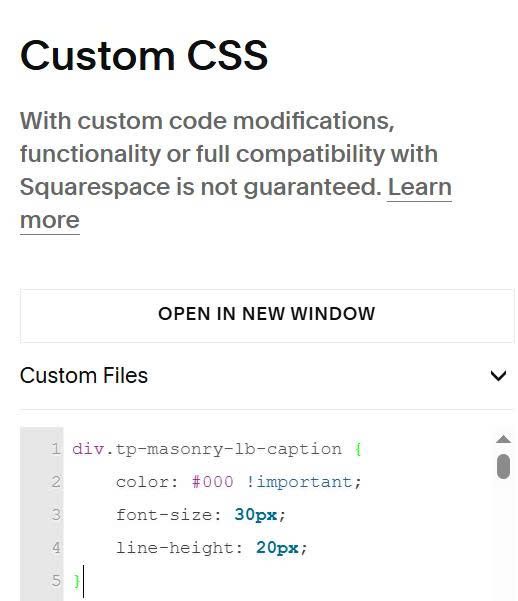
#3.4. To change style of Caption in Lightbox, use code like this to Custom CSS
div.tp-masonry-lb-caption {
    color: #000 !important;
    font-size: 30px;
    line-height: 20px;
}
#3.5. If you need to add Swipe on Mobile, use this code under plugin code
<script src="https://code.beaverhero.com/gallerysmasonry/gallerymasonryswipe.js"></script>
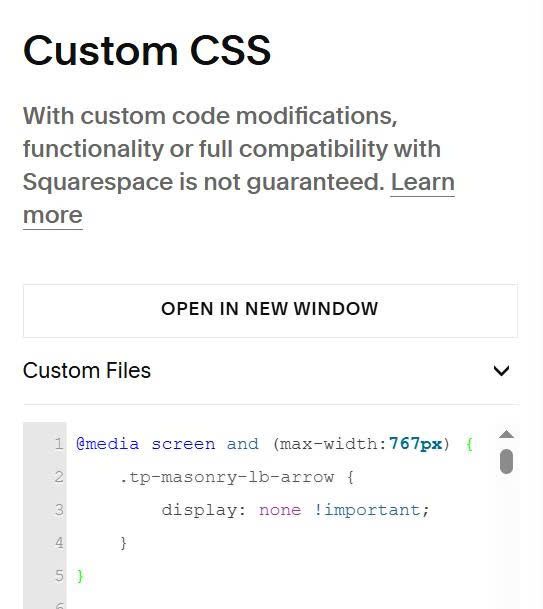
If you need to remove Arrows on Mobile, use this extra code to Custom CSS
@media screen and (max-width:767px) {
    .tp-masonry-lb-arrow {
        display: none !important;
    }
}
If you need support, you can email/message me.