Description
- show random section on page load
- view demo – password: abc
- buy me a coffee
#1. Install Code
#1.1. First you can add some sections on same page
In my example, I use 3 sections like this

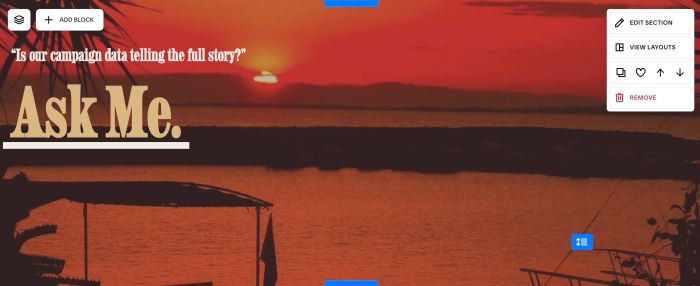

#1.2. Hover on top right of each section > Click Edit Section

at Design > Anchor Link > enter word: rotate-img01, rotate-img02, rotate-img03

Something like this
rotate-img01

rotate-img02

rotate-img03

#1.3. Hover on page where you added sections > Click Gear icon

Click Advanced > Paste this code
- If you use Personal/Basic Plan and your plan doesn’t support Injection, see #3.1.
<!-- 06.26c11v2 Rotate Section on Load -->
<script>
var ROTATE_CONFIG = {
  ids: ['rotate-img01', 'rotate-img02', 'rotate-img03']
};
</script>
<script src="https://code.beaverhero.com/other/0626c11v2rotatesectiononload.js"></script>

#2. Customize
#2.1. If you want to apply code to >3 sections, just use rotate-img01, rotate-img02, rotate-image03, rotate-img04, rotate-img05… (edit Line
#3. Other
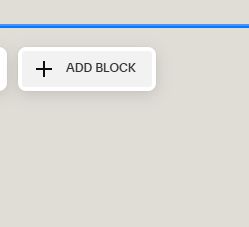
#3.1. If you use Personal/Basic Plan and your plan doesn’t support Injection, you can edit current Page > Add a Block
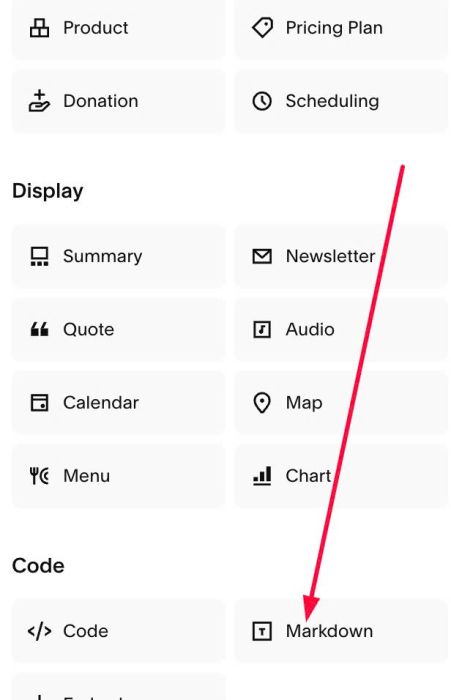
Choose Markdown
Paste this code into Markdown
<script>
var ROTATE_CONFIG = {
  ids: ['rotate-img01', 'rotate-img02', 'rotate-img03']
};
</script>
<script src="https://code.beaverhero.com/other/0626c11v2rotatesectiononload.js"></script>
