Description
- simple fade in slideshow with image blocks
- view demo – password: abc
- view demo 2 (slideshow banner) – password: abc
- buy me a coffee
#1. Install Code
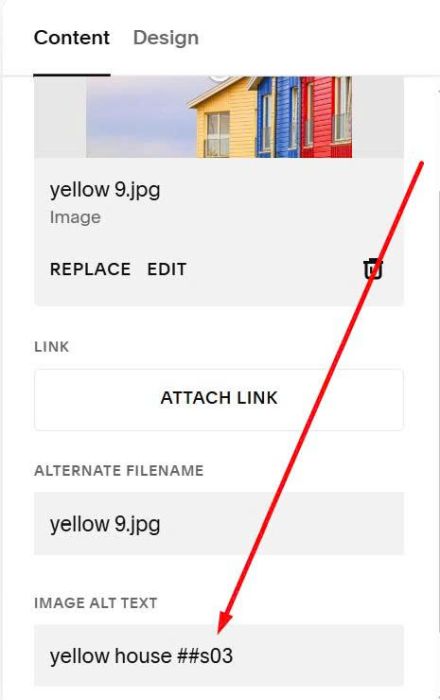
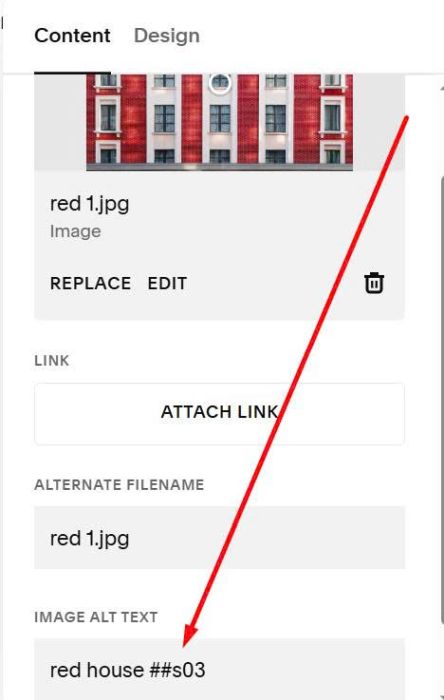
#1.1. First, you can add some Image Blocks with syntax like this to ALT
##s01
or
##s02
or
##s03
for example, I have first slideshow with 3 Image Blocks, I will enter ##s01 to all three Image Blocks



or second slideshow with 2 Image Blocks, I will enter ##s03
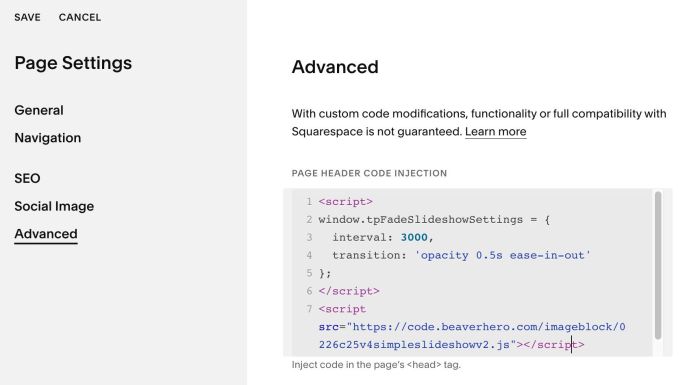
#1.2. Hover on Page where you use Image Blocks > Click Gear icon

#1.3. Click Advanced > Paste this code
- If you use Personal Plan/Basic Plan and your plan doesn’t support Injection, see #3.1
<script>
window.tpFadeSlideshowSettings = {
  interval: 3000,
  transition: 'opacity 0.5s ease-in-out'
};
</script>
<script src="https://code.beaverhero.com/imageblock/0226c25v4simpleslideshowv2.js"></script>
#2. Customize
#3. Other
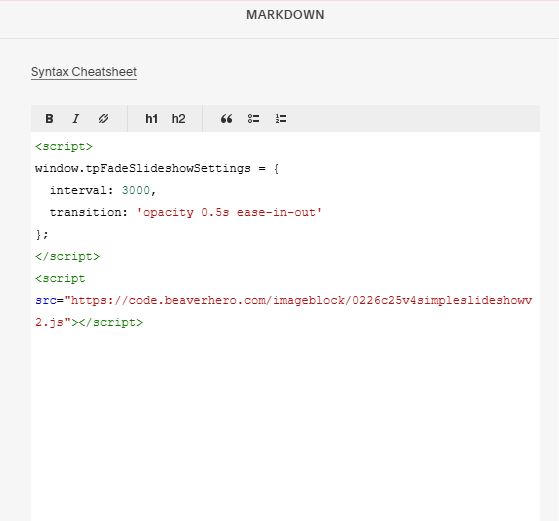
#3.1. If you use Personal/Basic Plan and your plan doesn’t support Injection, you can add aMarkdown Block on current page

Paste this code into Markdown Block
<script>
window.tpFadeSlideshowSettings = {
  interval: 3000,
  transition: 'opacity 0.5s ease-in-out'
};
</script>
<script src="https://code.beaverhero.com/imageblock/0226c25v4simpleslideshowv2.js"></script>