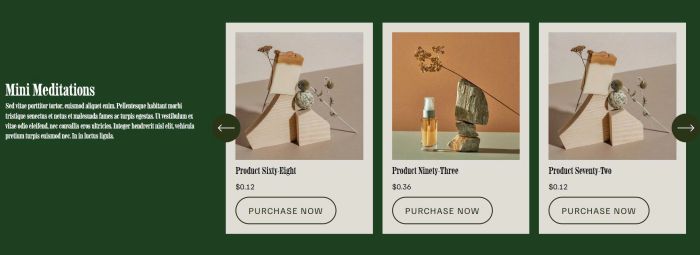
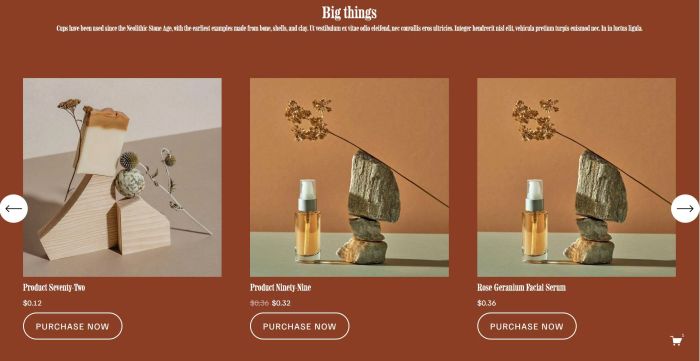
Description
- Product in List Carousel format
- view demo – password: abc
- my friend code this, you can send here a coffee
#1. Install Code
If you use Personal/Basic Plan and your plan doesn’t support Injection, see step #2.3
#1.1. First, you need to add a Team (List) section [section with (i) icon]
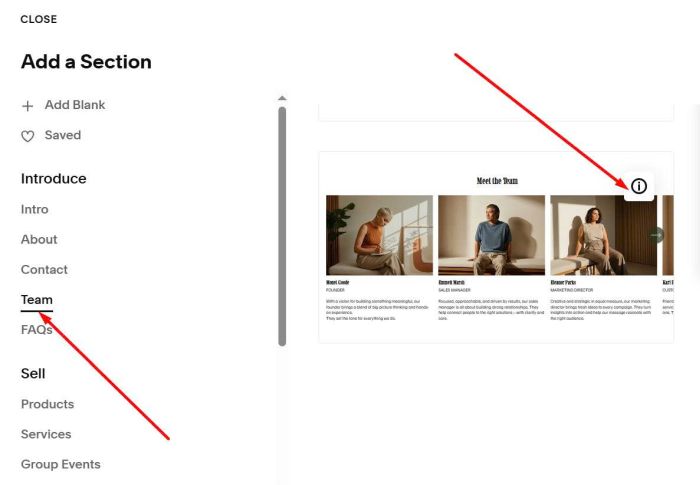
#1.2. Make sure you choose Carousel
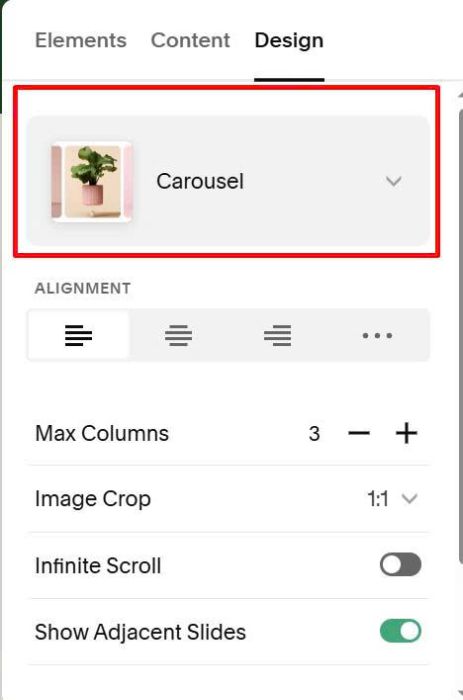
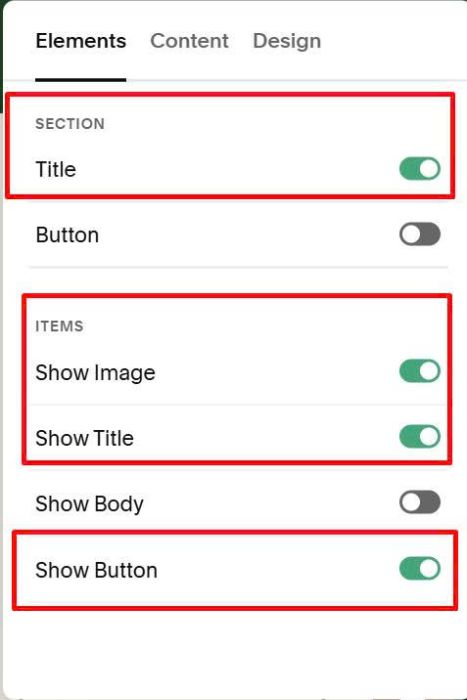
#1.3. Enable these options
- Section Title
- Items: Image, Title, Button
#1.4. Next, add some items (with random text, image)
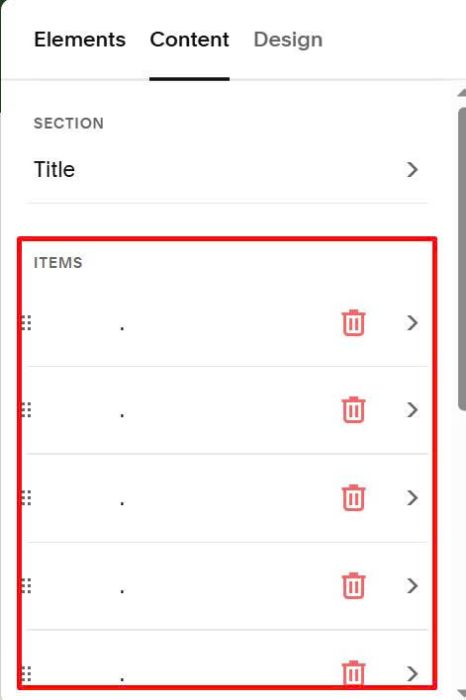
something like this
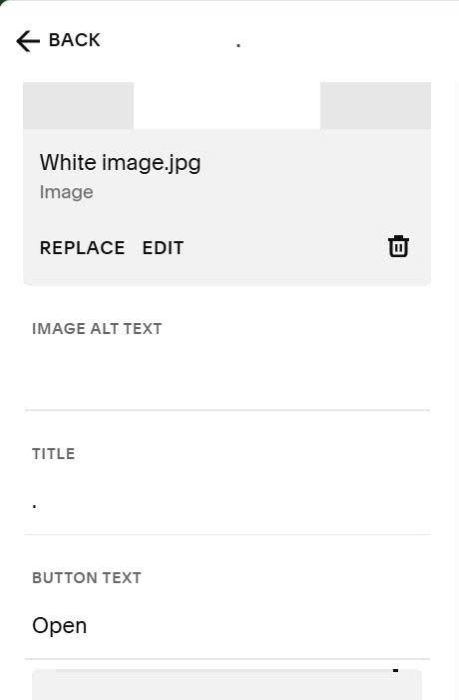
#1.5. Next, click Section Title
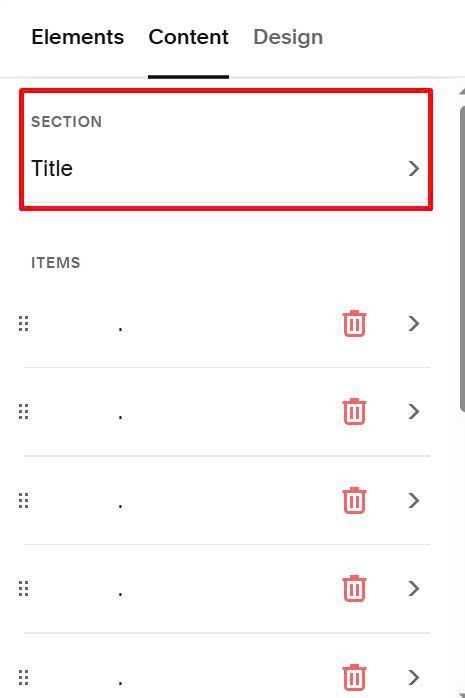
#1.6. Add this format under text
{/shop07 || /shop07/digital-marketing}
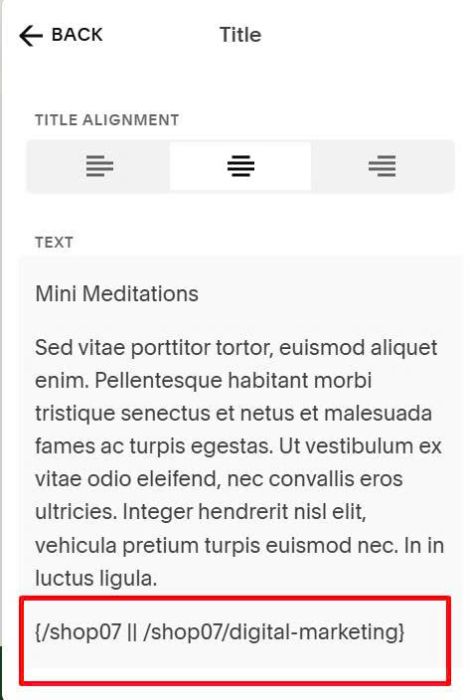
Explain
- /shop07 is Store Page URL
- /shop07/digital-marketing is a Product Category URL
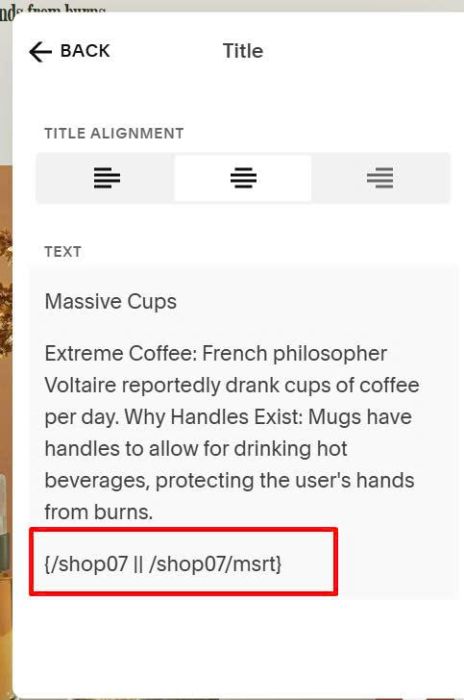
If you want to make Carousel uses Product in Store Page only, you can use syntax like this.
{/shop07}
If you enter both, it will get Category URL.
Some another example
#1.7. Hover on top right of Carousel > Click Edit Section
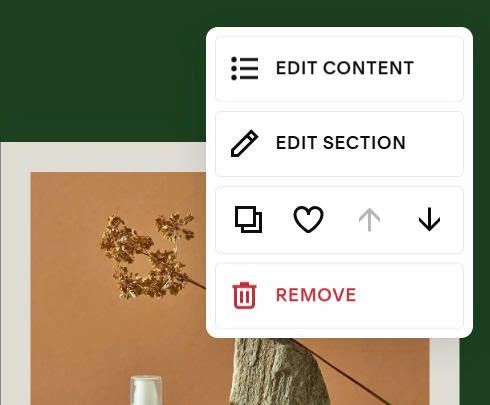
at Anchor Link, enter word: list-carousel-sync-product
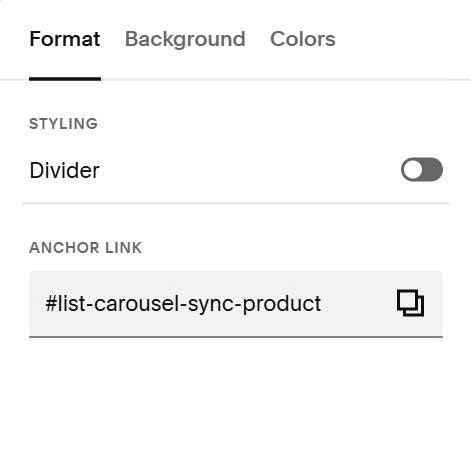
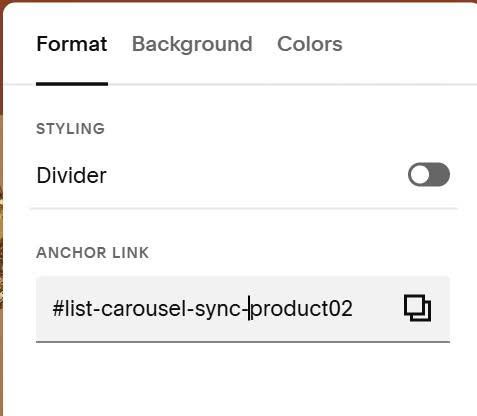
If you want to apply on multiple carousels, just add number after, something like this: list-carousel-sync-product02
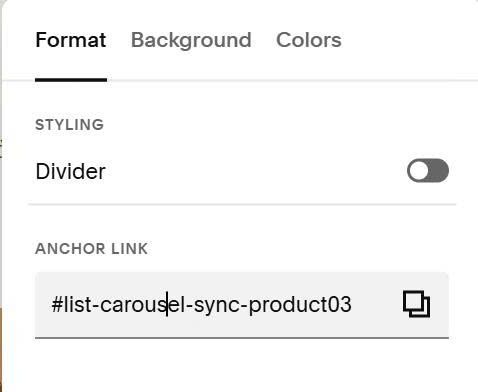
or like this: list-carousel-sync-product03
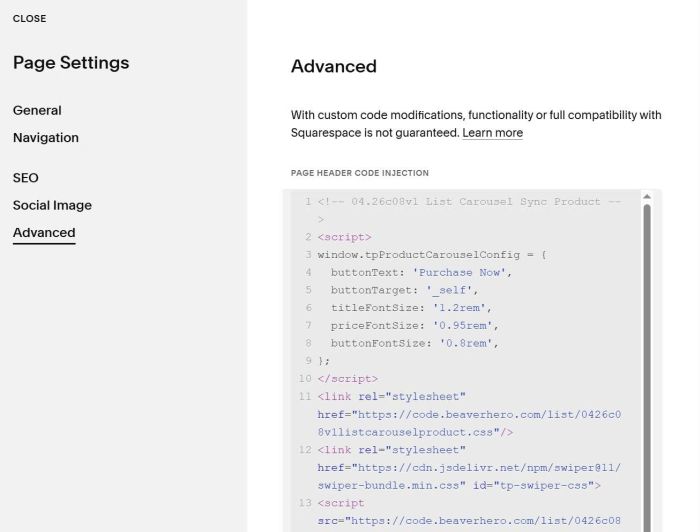
#1.8. Hover on Page where you use Carousel > Click Gear icon
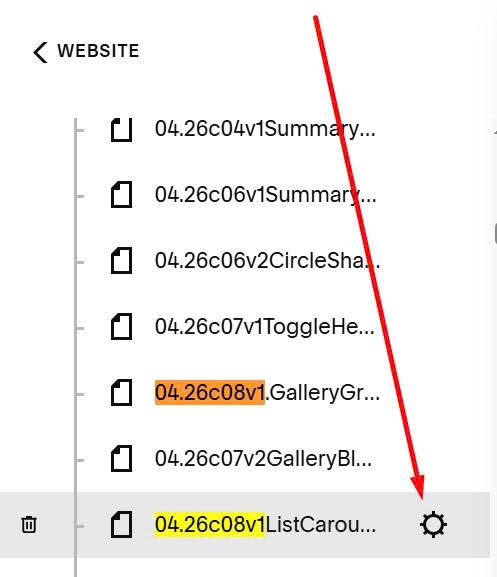
Click Advanced > Paste this code
<!-- 04.26c08v1 List Carousel Sync Product -->
<script>
window.tpProductCarouselConfig = {
  buttonText: 'Purchase Now',
  buttonTarget: '_self',
  titleFontSize: '1.2rem',
  priceFontSize: '0.95rem',
  buttonFontSize: '0.8rem',
};
</script>
<link rel="stylesheet" href="https://code.beaverhero.com/list/0426c08v1listcarouselproduct.css"/>
<link rel="stylesheet" href="https://cdn.jsdelivr.net/npm/swiper@11/swiper-bundle.min.css" id="tp-swiper-css">
<script src="https://code.beaverhero.com/list/0426c08v1listcarouselproduct.js"></script>
#2. Customize
#2.1. All options here (Line 02 – Line 10)
<script>
window.tpProductCarouselConfig = {
  buttonText: 'Purchase Now',
  buttonTarget: '_self',
  titleFontSize: '1.2rem',
  priceFontSize: '0.95rem',
  buttonFontSize: '0.8rem',
};
</script>
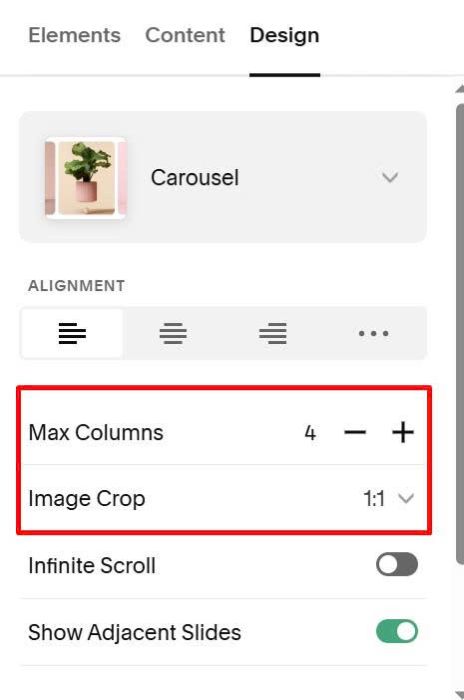
#2.2. To change number of items/image ratio, you can adjust these option.
#2.3. If you use Personal/Basic Plan and plan doesn’t support Injection, you can do these.
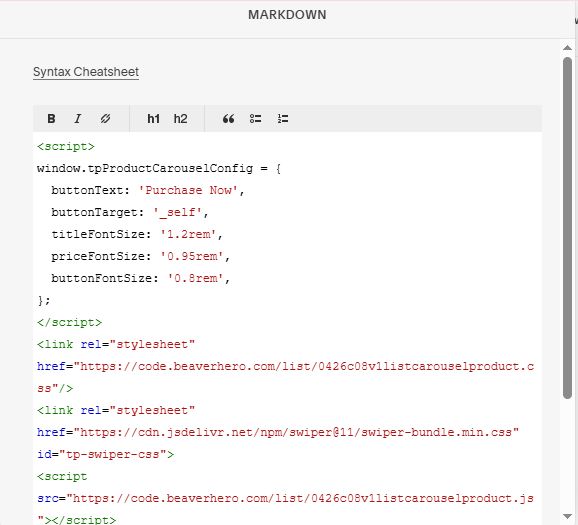
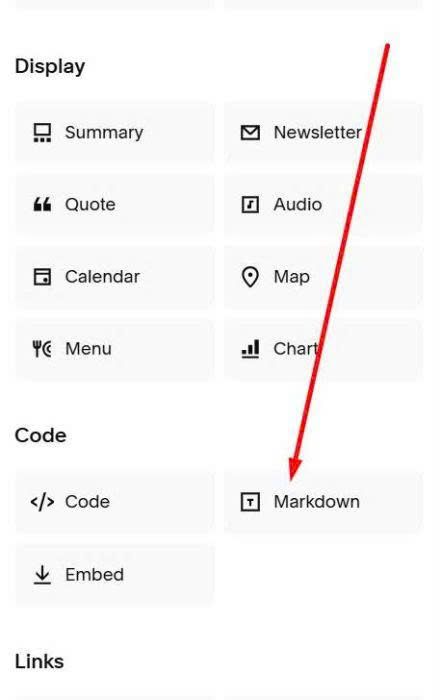
First, add a Markdown Block on Current Page.
Next, paste this code into Markdown Block
<script>
window.tpProductCarouselConfig = {
  buttonText: 'Purchase Now',
  buttonTarget: '_self',
  titleFontSize: '1.2rem',
  priceFontSize: '0.95rem',
  buttonFontSize: '0.8rem',
};
</script>
<link rel="stylesheet" href="https://code.beaverhero.com/list/0426c08v1listcarouselproduct.css"/>
<link rel="stylesheet" href="https://cdn.jsdelivr.net/npm/swiper@11/swiper-bundle.min.css" id="tp-swiper-css">
<script src="https://code.beaverhero.com/list/0426c08v1listcarouselproduct.js"></script>